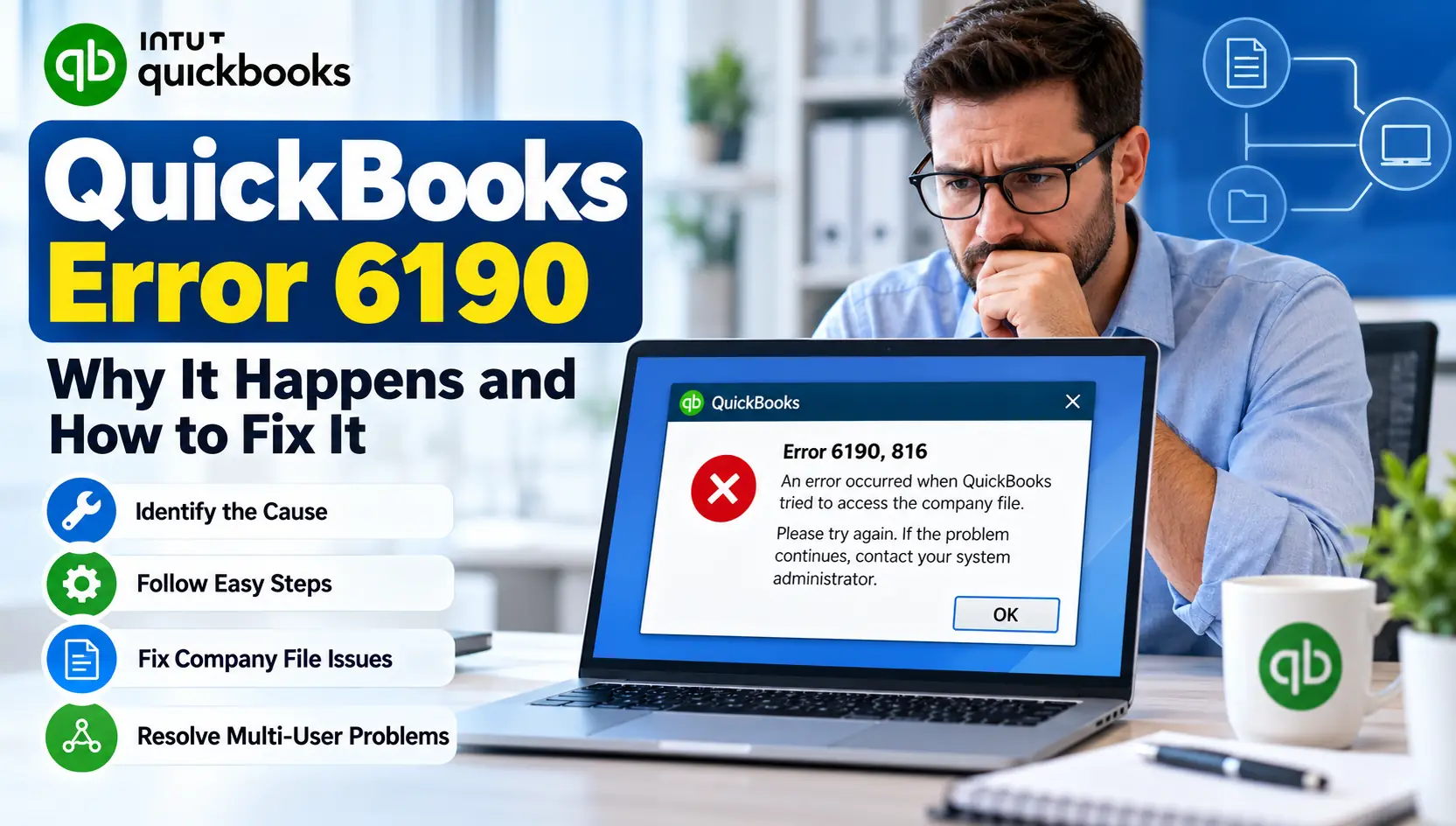
You open QuickBooks Desktop, select the company file you use every day, and instead of reaching your accounting data, QuickBooks stops with an error in the 6190 series.
QuickBooks Error 6190 is commonly associated with problems accessing a company file, particularly in a multi-user environment. One frequently reported version is Error 6190, 816. Intuit’s current guidance treats 6190, 816 as a multi-user network issue rather than automatically assuming that the accounting data itself is damaged.
That distinction matters. If you immediately start repairing or replacing the company file, you may be working on the wrong part of the problem.
In many cases, the better approach is to first check QuickBooks, the server, connected workstations, and the way the company file is being accessed.
Below, we’ll go through those checks in a sensible order so you can start with simple fixes before moving to more advanced ones.
What Is QuickBooks Error 6190?
QuickBooks Error 6190 is a company-file access error that can occur when QuickBooks Desktop cannot properly open a company file in its current network or multi-user environment.
For Error 6190, 816 specifically, Intuit says the problem can be related to the multi-user network. Its -6000 series documentation also notes that 6190, 816 may occur when a user is working in single-user mode instead of multi-user mode, or when the transaction log file and company file do not match correctly.
Quick Summary
| Issue | Details |
|---|---|
| Error | QuickBooks 6190 / 6190, 816 |
| Usually Appears When | Opening a QuickBooks Desktop company file |
| Common Environment | Network or multi-user setup |
| Possible Cause | Single-user conflict or network communication issue |
| File Types Involved | .QBW company file and potentially .TLG transaction log |
| Best First Step | Close QuickBooks and run Quick Fix my Program |
| Next Check | Restart the server and connected workstations |
| Advanced Check | QuickBooks Database Server Manager and file location |
What Does QuickBooks Error Code 6190 Actually Mean?
The error does not necessarily mean that your bookkeeping information has disappeared.
A QuickBooks company file normally has a .QBW extension. QuickBooks may also use supporting files, including a transaction log file with a .TLG extension.
In a multi-user office setup, several computers may connect to one company file stored on a server computer. QuickBooks must coordinate access among those systems.
Problems can appear when:
- one user has the company file open under the wrong access mode;
- the server and workstations are not communicating correctly;
- QuickBooks Database Server Manager is not handling the folder correctly;
- the company file is stored somewhere that is unsuitable for normal multi-user access;
- the
.TLGfile and.QBWfile are out of sync.
Intuit’s current -6000 error documentation specifically lists single-user/multi-user conflicts and .TLG/.QBW mismatch among possible causes of 6190, 816.
Common Signs You May Notice
The exact experience can vary, but users dealing with a QuickBooks company file error 6190 may notice:
- The company file refuses to open.
- Error 6190, 816 appears during file access.
- One workstation can access the file while another cannot.
- The problem appears after another employee has been working in the file.
- QuickBooks works on the server but not on a connected workstation.
- Multi-user access stops working unexpectedly.
- Restarting QuickBooks temporarily changes the behavior but the error later returns.
A useful clue is whether the issue affects every computer or only one workstation.
If only one computer has the problem, start by checking that workstation. If nobody can open the shared company file, the server or shared-file configuration deserves closer attention.
Why Does QuickBooks Error 6190 Occur?
There is no single cause that applies to every setup. These are the areas worth checking first.
A user is working in the wrong access mode
In a multi-user environment, another user may have opened the file in a way that prevents normal shared access.
This is one of the causes Intuit lists for Error 6190, 816.
The server and workstations need to reconnect
Sometimes QuickBooks itself is fine, but the computers involved in the network session are no longer communicating cleanly.
That is why Intuit recommends restarting the server first and then restarting each connected workstation when troubleshooting 6190, 816.
QuickBooks Database Server Manager needs attention
Database Server Manager helps QuickBooks workstations communicate with company files stored on the server.
If the folder is not being recognized correctly, scanning it again may restore the required network configuration.
The company file is stored in an unsuitable location
Cloud-sync folders, removable drives, USB devices, or certain NAS configurations can create problems for a QuickBooks Desktop multi-user setup.
Intuit recommends storing the company file on the server computer’s local hard drive instead of using services such as Dropbox, Google Drive, or Box for active multi-user company files.
The transaction log and company file may not match
QuickBooks uses supporting files alongside the main .QBW file.
Intuit lists a mismatch between the transaction log (.TLG) file and company (.QBW) file as a possible cause for some 6190 variants.
Which Fix Should You Try First?
Do not begin with complicated Windows or file changes.
Use this order:
- Close QuickBooks on the affected computers.
- Run Quick Fix my Program.
- Restart the server and workstations.
- Run Database Server Manager.
- Check where the company file is stored.
- Investigate file and network configuration only if the simpler methods fail.
This approach reduces unnecessary changes and makes it easier to identify what actually resolved the error.
Before You Start
A few minutes of preparation can save frustration later.
- Ask other users to close QuickBooks.
- Identify which computer actually stores the company file.
- Make sure you know the company file location.
- Keep a current backup available before making file-level changes.
- Avoid deleting
.QBW,.TLG, or.NDfiles just because their names look unfamiliar. - If your company uses a hosted QuickBooks environment, check with the hosting provider before changing server settings.
You can also confirm that you are working with the correct .QBW company file. Intuit notes that .QBW is the normal QuickBooks working company-file format.
Quick Summary Table
| What You See | What to Check |
|---|---|
| 6190, 816 on several computers | Server and multi-user network |
| Error on one workstation | That workstation’s connection |
| Error started suddenly | Restart the server and workstations |
| Shared file cannot be reached | Database Server Manager |
| File is in Dropbox/Drive/USB | Move active file to appropriate local server storage |
| Multi-user conflict | Check how other users have opened the file |
| Repeated file-access issue | Review .QBW, .TLG, network and server configuration |
Step-by-Step Troubleshooting
How to Fix QuickBooks Error 6190
Method 1: Run Quick Fix My Program
This is a good starting point because it addresses QuickBooks program processes without immediately changing your company data.
- Close QuickBooks Desktop.
- Open QuickBooks Tool Hub.
- Select Program Problems.
- Choose Quick Fix my Program.
- Allow the tool to finish.
- Open QuickBooks Desktop again.
- Try opening your company file.
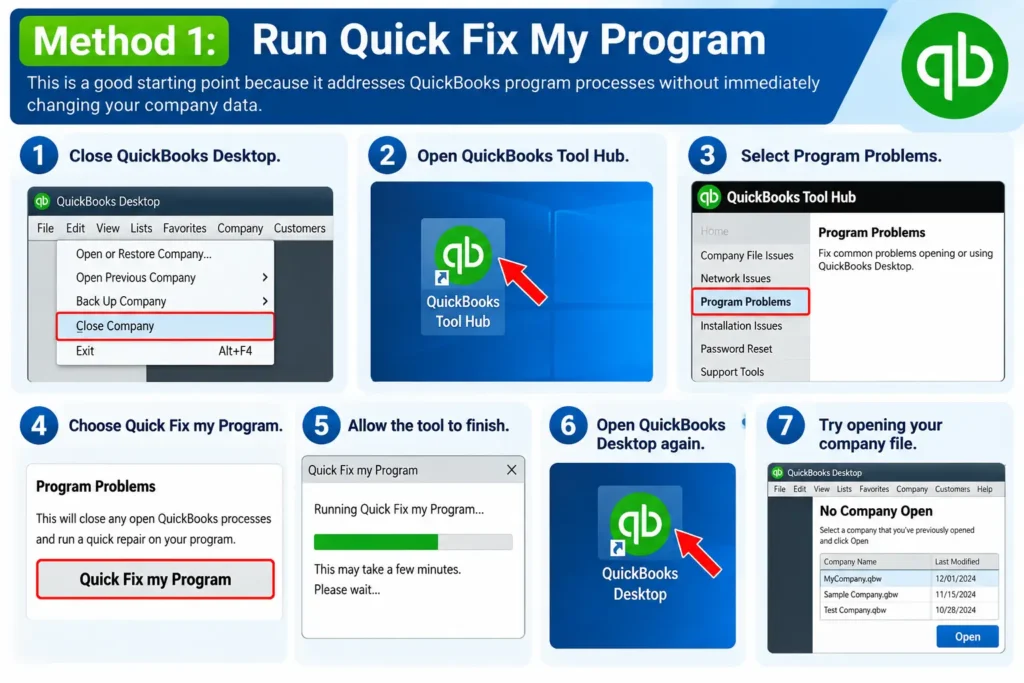
Intuit lists Quick Fix my Program as its first solution for 6190, 816.
Why this may help:
Quick Fix closes background QuickBooks processes and performs a quick repair of the program.
If the company file opens afterward, you may not need to change anything else.
Method 2: Restart the Server and Every Workstation
A simple restart can matter more than it sounds because several computers may be participating in the same QuickBooks session.
Use this order:
- Close QuickBooks on all computers.
- Restart the server computer that stores the company file.
- Restart each connected workstation.
- Open QuickBooks on the server.
- Then open QuickBooks on the workstations.
- Try the company file again.
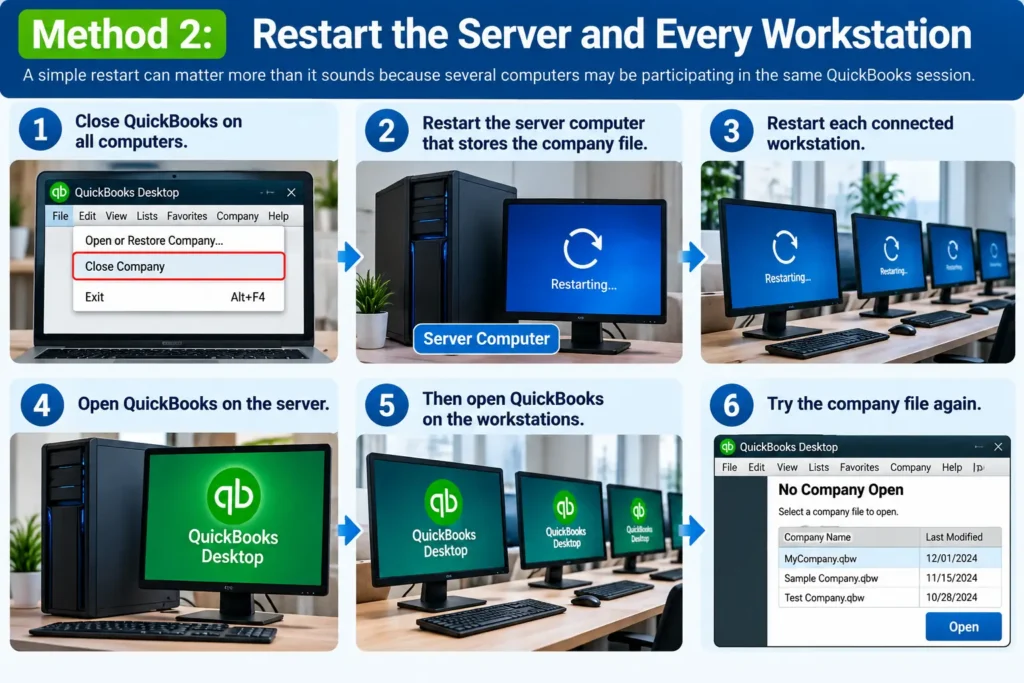
Intuit recommends restarting the server first and then each workstation when 6190, 816 continues after Quick Fix.
Why this may help:
A full restart clears interrupted program and network sessions and allows the computers to establish fresh connections.
Method 3: Run QuickBooks Database Server Manager
If you still see the QuickBooks multi user error 6190, check the server configuration.
On the server computer:
- Open QuickBooks Tool Hub.
- Select Network Issues.
- Choose QuickBooks Database Server Manager.
- Look for the folder containing the company file.
- If you see the folder, select Start Scan.
- If you do not see it, browse to the company-file location.
- Select Start Scan.
- Wait for the scan to finish.
- Select Close.
- Reopen QuickBooks on the server and then the workstations.
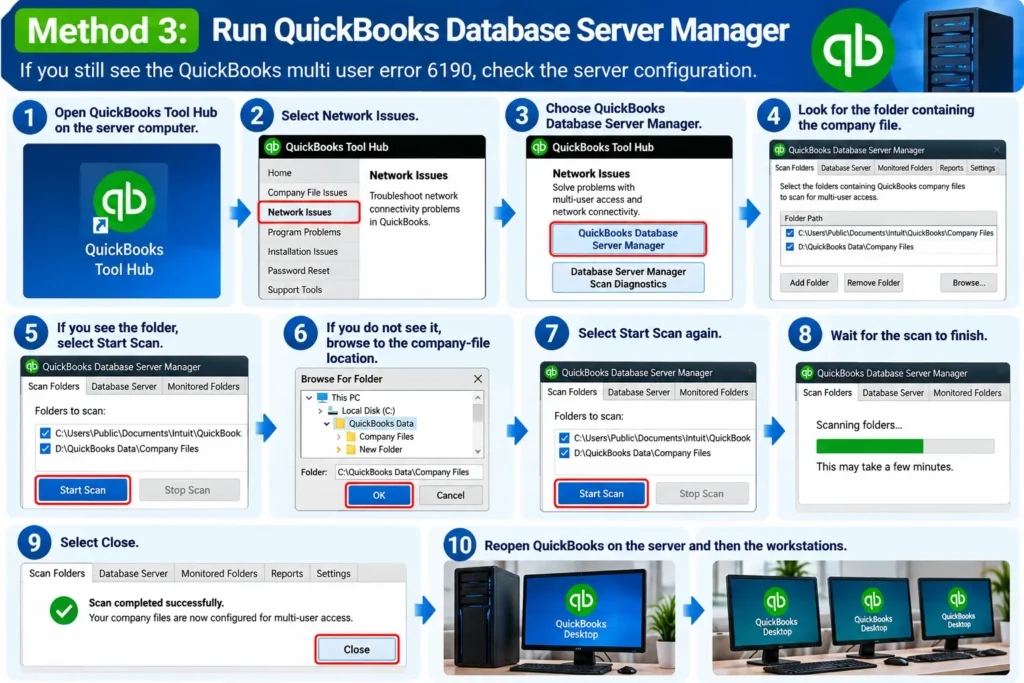
According to Intuit, Database Server Manager scans the company-file folder and can automatically repair relevant firewall permissions.
Method 4: Check Where the Company File Is Stored
The location of the active company file can make a major difference.
For a normal business multi-user setup, Intuit recommends keeping the company files on the server computer’s local hard drive. Active files should not be run from removable or external drives, and Intuit cautions against using common cloud-sync services as the storage location for an active multi-user company file.
Check whether your .QBW file is currently stored on:
- a USB flash drive;
- an external hard drive;
- Dropbox;
- Google Drive;
- Box;
- another synchronized online folder;
- an unsupported network storage device.
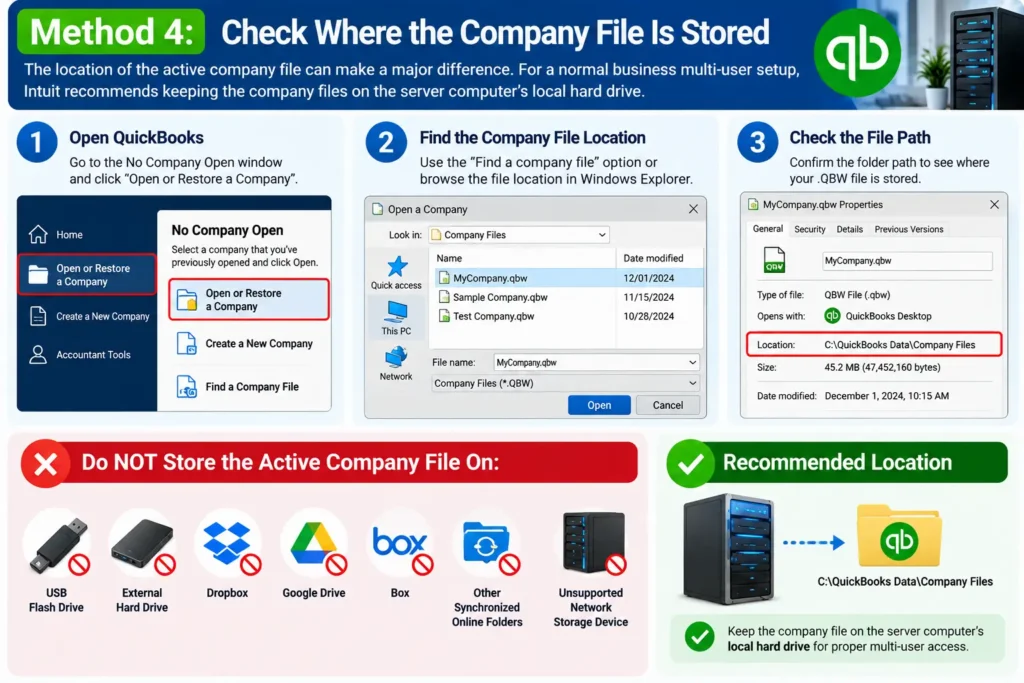
If it is, moving the active company file to the server’s appropriate local drive may help.
Always work from a backup and verify the correct file before relocating company data.
Method 5: Check for a Single-User and Multi-User Conflict
If someone else already has the file open, check whether they are using it in the appropriate mode.
Intuit identifies a user working in single-user mode instead of multi-user mode as a possible cause of Error 6190, 816.
Ask all QuickBooks users to:
- Save their work.
- Close the company file.
- Exit QuickBooks Desktop.
- Reopen QuickBooks in the intended multi-user environment.
- Test access again.
This is especially worth checking when the problem started after another employee opened or worked in the file.
Method 6: Verify That You Are Opening the Correct Company File
Sometimes multiple copies of the same company file exist.
For example:
MyCompany.QBWMyCompany-Old.QBWMyCompany-Copy.QBW
Opening an old copy or a file from an outdated network path can create confusion.
To locate your QuickBooks files, Intuit says you can use Find a company file from the No Company Open screen or search Windows File Explorer for *.qbw.
Compare:
- file name;
- file location;
- modification date;
- file size.
Make sure all users are connecting to the same intended company file.
Method 7: Review the .TLG and Network Configuration Carefully
If the previous methods fail, the issue may require closer investigation.
Intuit’s error documentation notes that Error 6190, 816 can involve a mismatch between the .TLG transaction log and the .QBW company file.
At this stage, avoid randomly deleting supporting QuickBooks files.
Instead, verify:
- that you are working with the correct
.QBW; - that the server is hosting the correct company-file folder;
- that users are connecting to the same file;
- that no outdated copy is being used;
- that the network setup has not recently changed.
For a managed office network, this is a reasonable point to involve your IT administrator or someone familiar with QuickBooks Desktop server configuration.
What If Error 6190 Still Appears?
If the error remains after Quick Fix, restarts, Database Server Manager, and file-location checks, divide the investigation into two categories.
Things you can safely check yourself
You can usually check:
- whether everyone has closed QuickBooks;
- whether the correct company file is being opened;
- whether the server is online;
- whether QuickBooks Tool Hub runs correctly;
- whether the company file is stored on the intended server drive;
- whether every user is attempting to use the same file.
When more advanced investigation may be needed
Consider deeper technical review when:
- multiple workstations fail at the same time;
- Database Server Manager cannot locate the file folder;
- Windows permissions have recently changed;
- your firewall or security software was recently updated;
- the company file repeatedly loses network connectivity;
- the problem returns shortly after being fixed.
Avoid changing multiple settings simultaneously. Make one change, test QuickBooks, and then move to the next step.
Prevention Tips
You may be able to reduce future 6190-related interruptions by keeping the QuickBooks environment organized.
- Keep the active company file in the correct server location.
- Avoid running the live company file from USB or cloud-sync folders.
- Maintain regular QuickBooks backups.
- Keep the server and workstations on a stable network.
- Make sure users understand when multi-user access is required.
- Keep QuickBooks Tool Hub available for basic diagnostics.
- Periodically confirm Database Server Manager is monitoring the right folder.
- Avoid creating unnecessary duplicate
.QBWfiles on shared drives. - Document your company’s server name and normal company-file path.
For additional accounting-software resources, you can explore our QuickBooks Desktop help resources.
FAQs
1. What is QuickBooks Error 6190?
QuickBooks Error 6190 is generally associated with QuickBooks Desktop being unable to access a company file correctly. The 6190, 816 version is commonly connected with multi-user network conditions, including access-mode conflicts or a possible mismatch involving the company file and transaction log.
2. What causes QuickBooks Error 6190 816?
Possible causes include a user working in single-user mode when multi-user access is needed, a network communication problem, problems with Database Server Manager, or a mismatch between the .TLG transaction log and .QBW company file.
3. How do I fix QuickBooks error code 6190?
Start with Quick Fix my Program from QuickBooks Tool Hub. If that does not work, restart the server and all workstations, run Database Server Manager, and check the company-file location. These steps address the most common program and network conditions associated with the error.
4. Can restarting QuickBooks fix Error 6190?
Sometimes, but restarting only QuickBooks may not be enough. Intuit recommends restarting the server computer first and then every workstation connected to the QuickBooks network when troubleshooting 6190, 816.
5. Does Error 6190 mean my company file is damaged?
Not necessarily. Intuit’s current guidance for 6190, 816 describes it as a multi-user network issue rather than automatically treating it as company-file data damage. That is why network and program checks should generally come before aggressive file repair.
6. What are .QBW and .TLG files?
A .QBW file is the main QuickBooks Desktop working company file. A .TLG file is a transaction log associated with that company file. Certain 6190 variants may occur when information between these files is not properly synchronized.
7. Can I keep my QuickBooks company file in Google Drive or Dropbox?
For an active QuickBooks Desktop multi-user company file, Intuit recommends storing the file on the server computer’s local hard drive rather than running it directly from common online file-hosting services such as Google Drive, Dropbox, or Box.
8. Can Database Server Manager fix Error 6190?
It may help when the problem is related to the multi-user network. Database Server Manager scans the company-file folder and helps configure network access. Intuit specifically includes it in the current troubleshooting process for 6190, 816.
9. Why can one computer open QuickBooks but another cannot?
If the company file opens from one computer but fails on another, the issue may be limited to the affected workstation’s connection, permissions, QuickBooks processes, or network path rather than the company file itself.
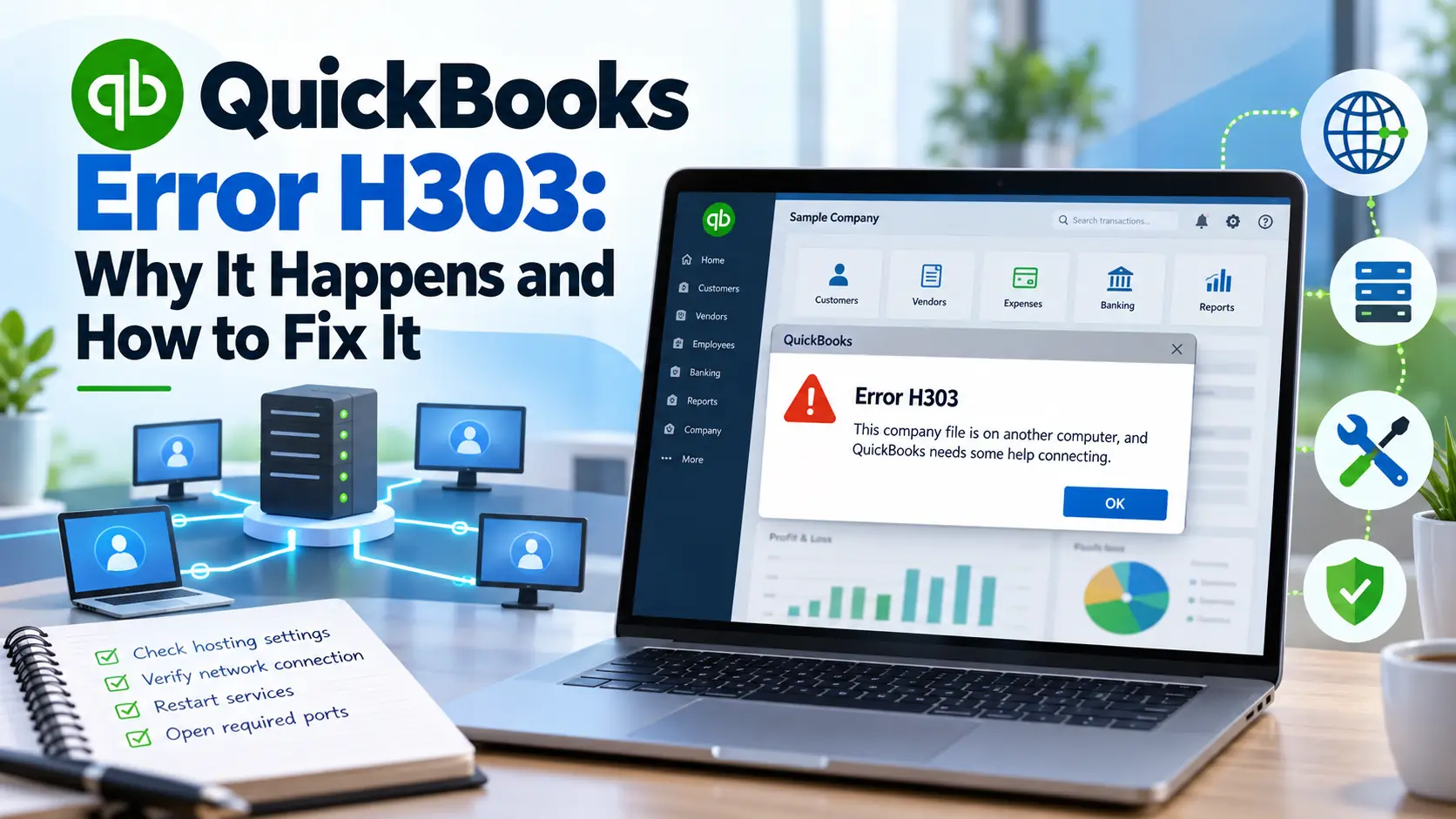
10. What if I see H303 instead of Error 6190?
H303 belongs to a different QuickBooks multi-user error group and its troubleshooting focuses heavily on hosting configuration. If that is the error on your screen, use our guide to QuickBooks Error H303 rather than assuming the same steps apply.