
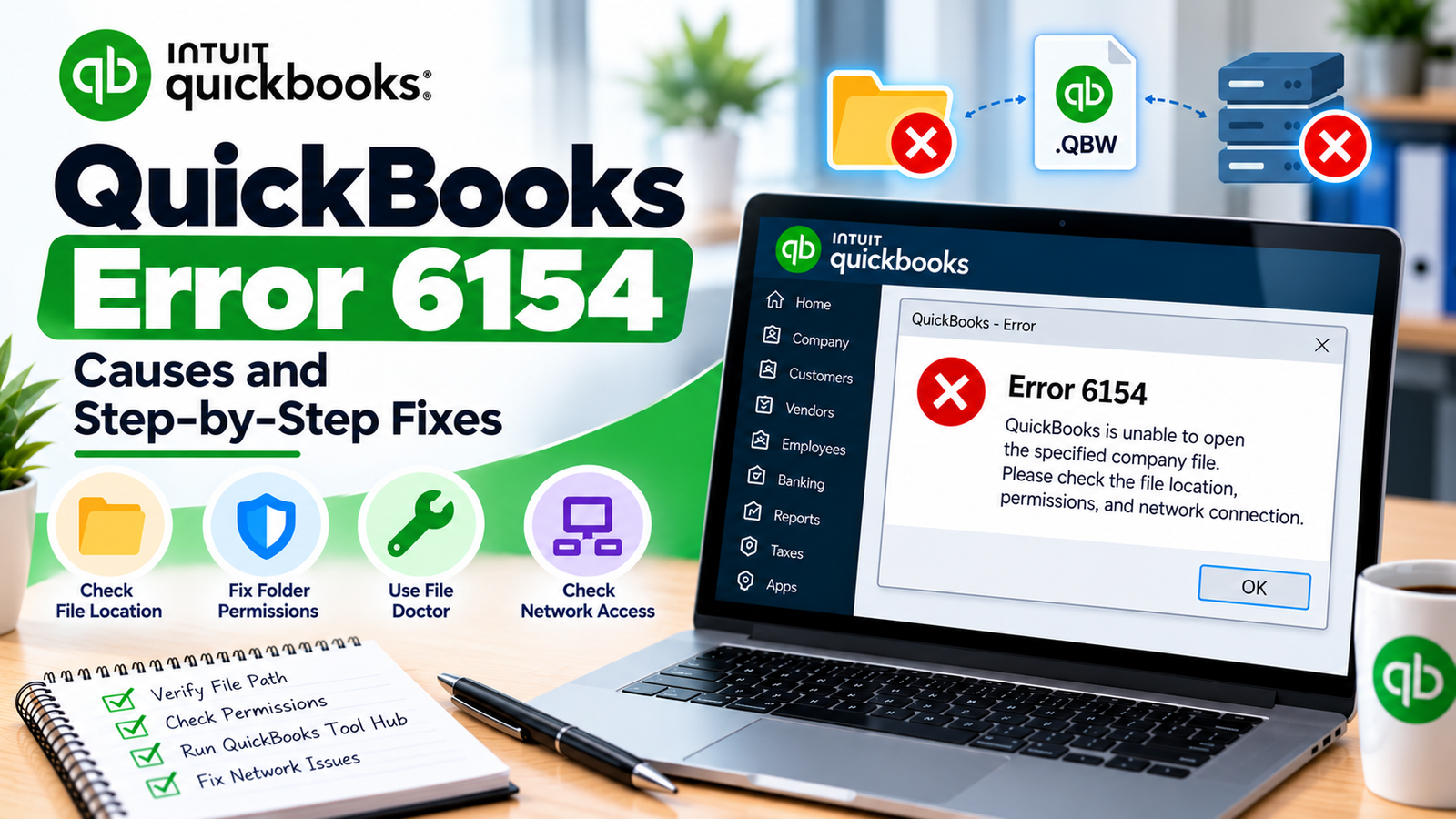
You open QuickBooks Desktop and try to access your company file, but the file does not open as expected. Instead, QuickBooks Error 6154 appears and interrupts access to your accounting data.
This error is commonly associated with the company-file location, Windows access permissions, or QuickBooks being unable to reach the folder where the .QBW file is stored. A current dedicated Intuit support page specifically defining Error 6154 was not available in the documentation reviewed, so it is better not to assume one guaranteed cause.
Current Intuit company-file guidance does confirm that protected locations, restricted folders, incorrect permissions, network access problems, and damaged company-file environments can prevent QuickBooks Desktop from opening a file normally.
The safest troubleshooting approach is therefore simple: confirm the file location, test Windows access, check permissions, use QuickBooks Tool Hub and File Doctor, then move into network troubleshooting only if the file is shared.
What Is QuickBooks Error 6154?
QuickBooks Error 6154 is generally reported when QuickBooks Desktop cannot properly access or open the selected company file or its folder.
The issue may involve the path where the .QBW file is stored, Windows permissions, a protected folder, or a network location that QuickBooks cannot reach correctly.
Intuit’s current company-file guidance states that restricted locations and incorrectly configured folder permissions can prevent users from opening QuickBooks company files.
What Does Error 6154 Mean in Simple Words?
Think of the company-file process like this:
QuickBooks Desktop → company-file folder → Windows permission → .QBW file
QuickBooks needs all four parts to work correctly.
The program may be installed and running normally, but if Windows does not allow QuickBooks to use the folder or the file has been moved to an inaccessible location, the company file may fail to open.
That is why Error 6154 should be approached first as a file access and location problem, not automatically as permanent accounting-data corruption.
Common Symptoms of QuickBooks Company File Error 6154
Users may notice:
- The QuickBooks company file will not open.
- QuickBooks cannot find the expected company-file path.
- The error appears after moving the .QBW file.
- The problem starts after changing folder permissions.
- A company file works locally but fails from a shared location.
- Windows denies access to the company-file folder.
- One user can open the file while another cannot.
- QuickBooks File Doctor reports a file or network issue.
- A file stored in a protected or restricted location will not open normally.
The exact symptom matters because it helps separate a folder-permission issue from a company-file or network issue.
Why Does QuickBooks Error 6154 Occur?
There is no current Intuit page assigning one guaranteed cause to Error 6154, but these areas are directly relevant to QuickBooks company-file access.
The company file is stored in a restricted location
QuickBooks files stored in protected Windows locations may be harder to access with normal user permissions.
Intuit specifically identifies protected or restricted folders as possible causes of insufficient company-file access.
Windows folder permissions are incorrect
QuickBooks needs suitable permission to read and modify the company-file folder.
For network environments, Intuit says the QBDataServiceUserXX account needs appropriate Windows permissions to access shared company files.
The company-file path has changed
If the .QBW file was moved, renamed, copied to another server, or restored into a different folder, QuickBooks may still be trying to use an older location.
The network location is unavailable
If the file is stored on another computer, the host system, shared folder, Database Server Manager, or firewall may be preventing access.
QuickBooks needs company-file repair
QuickBooks Tool Hub provides Quick Fix my File and File Doctor for common company-file and network problems.
Firewall or security software is interfering
In network environments, firewall rules can prevent QuickBooks from communicating with the system that stores the company file.
Before You Start Troubleshooting
Before making changes:
- Close QuickBooks on other computers if practical.
- Note the exact .QBW company-file name.
- Find the current company-file location.
- Create a backup if the file still opens on another computer.
- Avoid deleting the original company file.
- Do not give the entire C: drive Full Control.
- Note whether the file is local or on a server/network.
- Make one change at a time and test QuickBooks again.
Quick Summary Table
| Issue | Details |
| Error | QuickBooks Error 6154 |
| Main Area | Company-file access |
| Common Trigger | Opening a .QBW company file |
| First Check | File location/path |
| Permission Check | Windows company-file folder |
| Simple Test | Save a Notepad file in the same folder |
| QuickBooks Tool | Quick Fix my File |
| Deeper Repair | QuickBooks File Doctor |
| Location Fix | Move file to standard company-file folder |
| Network Check | Database Server Manager/firewall |
| Company File Damage | Not automatically indicated |
Step-by-Step Troubleshooting
How to Fix QuickBooks Error 6154
Follow these solutions from the easiest checks to more advanced company-file troubleshooting.
Step 1: Restart QuickBooks and Windows
Start with a clean session.
- Save your work.
- Close QuickBooks Desktop.
- Close unnecessary programs.
- Restart Windows.
- Open QuickBooks Desktop.
- Try opening the company file again.
A temporary Windows or QuickBooks process may occasionally interfere with file access.
If the error returns, continue.
Step 2: Confirm the Company File Location
Find out exactly where your .QBW file is stored.
- Open File Explorer.
- Browse to the company-file folder.
- Look for the file ending in .QBW.
- Confirm the filename.
- Confirm the folder is accessible.
- Make sure the file was not recently moved or renamed.
If you cannot find the company file where expected, search Windows for:
*.QBW
Do not open random copies until you identify which one contains your current business data.
Step 3: Open the File From Inside QuickBooks
Instead of double-clicking the .QBW file in File Explorer:
- Open QuickBooks Desktop.
- Choose Open or restore an existing company.
- Select Open a company file.
- Select Next.
- Browse to the correct folder.
- Select the company file.
- Select Open.
This helps ensure QuickBooks is opening the selected file through its normal workflow.
Step 4: Test Whether Windows Can Write to the Folder
This is one of the easiest ways to identify a QuickBooks folder permission error.
Intuit recommends a simple folder-permission test using Notepad.
- Open Notepad.
- Type Test.
- Select File > Save As.
- Browse to the same folder as your .QBW file.
- Try to save the text file.
If the file saves normally:
The folder probably allows basic Windows write access.
If Windows blocks the save:
The folder permissions need attention.
Delete the test file afterward.
Step 5: Run QuickBooks as Administrator
Intuit recommends administrator mode when users receive insufficient-folder-permission messages.
- Close QuickBooks.
- Right-click the QuickBooks Desktop icon.
- Select Properties.
- Open the Compatibility tab.
- Select Run this program as administrator.
- Select Apply.
- Select OK.
- Open QuickBooks.
- Test the company file.
If the file works only with administrator privileges, Windows permissions are likely relevant.
Step 6: Move the Company File to a Standard Location
If the file is stored in a restricted folder, test it in the standard QuickBooks company-file location.
Intuit currently recommends:
C:\Users\Public\Public Documents\Intuit\QuickBooks\Company Files
for company files that cannot be accessed from a restricted location.
- Close QuickBooks.
- Copy the .QBW file.
- Browse to the standard company-file folder.
- Paste the copy.
- Open QuickBooks.
- Browse to the copied file.
- Test it.
Keep the original file untouched until you confirm the copy works.
Step 7: Create a New Folder for the Company File
If the current folder itself appears damaged or restricted:
- Create a new folder in an appropriate local location.
- Copy the company file into it.
- Give the required Windows user appropriate access.
- Open QuickBooks.
- Select Open or restore a company.
- Browse to the new folder.
- Open the .QBW file.
Intuit includes creating a new company-file folder as one solution for folder-access problems.
Step 8: Run Quick Fix My File
If location and basic permissions look correct, use Tool Hub.
- Close QuickBooks.
- Open the latest QuickBooks Tool Hub.
- Select Company File Issues.
- Select Quick Fix my File.
- Wait for it to complete.
- Select OK.
- Open QuickBooks.
- Test the company file.
Intuit currently recommends Quick Fix my File before the deeper File Doctor scan for common company-file problems.
Step 9: Run QuickBooks File Doctor
If QuickBooks error code 6154 continues:
- Open QuickBooks Tool Hub.
- Select Company File Issues.
- Select Run QuickBooks File Doctor.
- Wait for File Doctor to open.
- Choose your company file.
- Select Browse if it is not listed.
- Select Check your file.
- Select Continue.
- Enter the QuickBooks administrator password.
- Allow the scan to finish.
- Open QuickBooks and test the company file.
Intuit says File Doctor is intended for company-file and certain network issues, and scans may take around 10–15 minutes depending on file size.
Step 10: Review Company-Folder Permissions
If the file is shared over a network, review the folder’s Windows access.
- Open File Explorer on the host computer.
- Right-click the folder containing the company file.
- Select Properties.
- Open Security.
- Select Advanced.
- Find the relevant QBDataServiceUserXX.
- Review its access.
Intuit’s current multi-user guidance says the QuickBooks database-service account needs appropriate permissions to read, write, create, and modify files in the shared company-file folder.
On a company-managed server, have your IT administrator make permission changes.
Step 11: Test a Local Copy of the Company File
This step helps determine whether the problem is the file or the network.
- Close QuickBooks.
- Copy the .QBW file from the network to a local folder.
- Open QuickBooks Desktop.
- Open the local copy.
- Test normal access.
If the local copy opens:
Focus on network sharing, folder permissions, Database Server Manager, or firewall settings.
If the local copy also fails:
Focus more closely on the company file or QuickBooks itself.
Do not keep working in both copies after testing.
Step 12: Check QuickBooks Database Server Manager
Use this step when multiple users access the company file over a network.
- Open QuickBooks Tool Hub on the server.
- Select Network Issues.
- Open QuickBooks Database Server Manager.
- Select the folder containing the .QBW file.
- Run a scan.
- Wait until the scan completes.
- Return to the workstation.
- Test the company file again.
Database Server Manager helps QuickBooks identify company-file folders used in multi-user environments.
Step 13: Check Firewall Settings
If the company file works locally but not across the network, firewall rules may be involved.
Intuit states that firewall restrictions can prevent QuickBooks from communicating with a company file on another computer.
Check:
- QuickBooks Desktop is allowed through the firewall.
- Database Server Manager is not blocked.
- Required QuickBooks programs have appropriate exceptions.
- Third-party antivirus is not blocking the network path.
Do not permanently switch off Windows Firewall.
Step 14: Investigate Company-File Damage Only if Necessary
Do not assume Error 6154 means data corruption.
If File Doctor reports company-file damage or the same file fails from multiple valid local locations, then move into QuickBooks’ data-damage troubleshooting.
Intuit recommends further data repair only when company-file diagnostics indicate a problem.
What If QuickBooks Error 6154 Still Appears?
Write down:
- The exact Error 6154 message
- QuickBooks Desktop year/version
- Company-file path
- Whether the file opens locally
- Whether another user can open it
- Notepad write-test result
- File Doctor result
- Whether the file is on a server
- Firewall/security software being used
If the file works locally but not over the network, advanced troubleshooting should focus on the host computer and network configuration.
If the file fails everywhere, investigate the company file and QuickBooks installation more closely.
11. Prevention Tips
You can reduce future company-file access problems by:
- Keeping the active .QBW file in a stable location.
- Avoiding unnecessary file moves and renames.
- Maintaining correct Windows folder permissions.
- Keeping regular company-file backups.
- Keeping QuickBooks Desktop updated.
- Maintaining QuickBooks Database Server Manager on the server.
- Reviewing network permissions after server changes.
- Keeping firewall exceptions configured correctly.
- Avoiding protected Windows folders for active company files.
- Testing backup files periodically.
- Using separate test copies instead of moving the live file during troubleshooting.
Frequently Asked Questions
What is QuickBooks Error 6154?
QuickBooks Error 6154 is commonly associated with QuickBooks being unable to access or open a company file or its folder. Relevant areas to check include the file path, Windows permissions, restricted locations, QuickBooks File Doctor, and network access.
How do I fix QuickBooks Error 6154?
Start by confirming the .QBW file location and opening it from inside QuickBooks. Then test folder permissions, run QuickBooks as administrator, move the file to a standard location, and use Quick Fix my File and File Doctor if the issue continues.
Can folder permissions cause QuickBooks Error 6154?
Yes, folder permissions are an important area to investigate. Intuit confirms that incorrectly configured Windows permissions can prevent QuickBooks users and database services from accessing company files.
Does Error 6154 mean my company file is corrupted?
Not automatically. Problems with file location, restricted folders, permissions, or network connectivity can also prevent QuickBooks from opening a company file. Run the access and File Doctor checks before assuming data corruption.
Can QuickBooks File Doctor help with Error 6154?
It may help when a company-file or network issue contributes to the problem. File Doctor is designed to diagnose common QuickBooks Desktop company-file and certain network problems.
Should I move my QuickBooks company file?
If your file is stored in a protected or restricted folder, testing a copy in the default QuickBooks company-file location may help. Keep the original copy untouched until you confirm the new location works correctly.
What if the file opens locally but not from the server?
That points more strongly toward network sharing, Windows permissions, Database Server Manager, or firewall settings. Check the host computer rather than repeatedly repairing the company file.
What if I have a server or synchronization error instead?
If the main problem involves online synchronization or server communication rather than opening the .QBW file, see How to Fix QuickBooks Error 5502 Step by Step for connection-focused troubleshooting.
What if my problem is related to payroll updates?
That uses a different troubleshooting path. If payroll updates or secure online connections are failing, see How to Fix QuickBooks Error 17337 Step by Step for payroll-update troubleshooting.
Is it safe to give Everyone Full Control to fix the error?
Avoid broadly changing permissions across your entire drive. Adjust only the relevant company-file folder and appropriate Windows/QuickBooks service accounts. On business networks, permission changes should be handled by an authorized administrator.
Conclusion
QuickBooks Error 6154 is best approached as a company-file access problem before assuming that your accounting data is damaged.