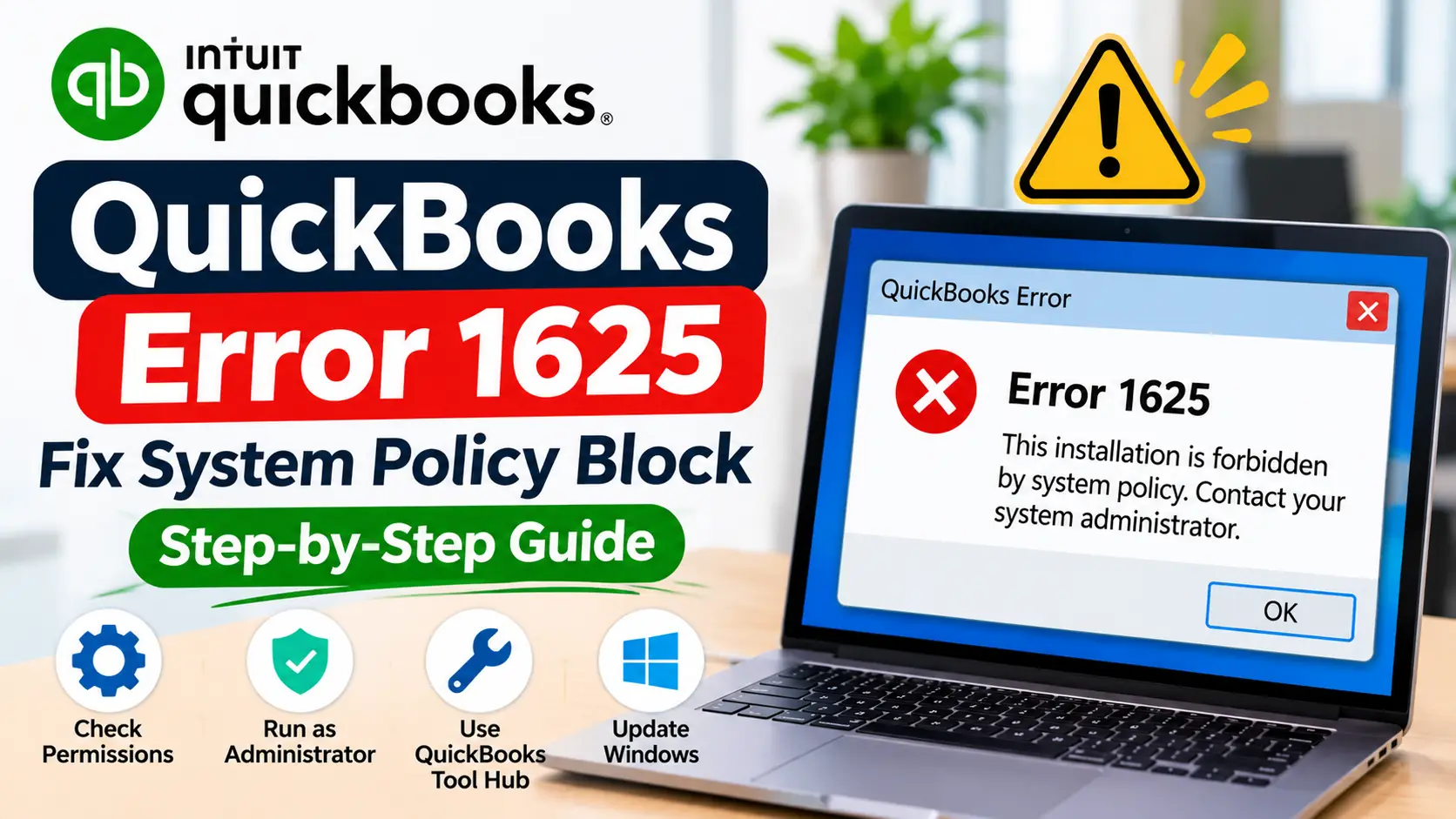
You try to install QuickBooks Desktop, apply an update, or repair the program, but Windows stops the process with QuickBooks Error 1625. In many cases, the message states that the installation is forbidden by system policy and asks you to contact your system administrator.
This wording is important because Error 1625 is fundamentally a Windows Installer restriction. Microsoft officially defines Windows Installer error 1625 as “This installation is forbidden by system policy. Contact your system administrator.”
That means the first place to look is not your .QBW company file or payroll transactions. Instead, focus on Windows permissions, administrator access, business security policies, installer restrictions, QuickBooks installation components, and the update package being used.
The steps below move from simple and safe checks to deeper installation troubleshooting.
What Is QuickBooks Error 1625?
QuickBooks Error 1625 is an installation or update error that appears when Windows Installer rejects a software package because a system policy does not allow it to proceed.
For QuickBooks users, the error may appear while:
- Installing QuickBooks Desktop
- Updating an existing QuickBooks version
- Repairing QuickBooks
- Reinstalling QuickBooks Desktop
- Applying an installer or maintenance package
Microsoft classifies code 1625 as ERROR_INSTALL_PACKAGE_REJECTED.
In simple words, Windows is stopping the installer before QuickBooks can finish the requested installation or update.
Quick Summary Table
| Issue | Details |
| Error | QuickBooks Error 1625 |
| Windows Meaning | Installation forbidden by system policy |
| Usually Appears | Install, update, repair, or reinstall |
| Main Area | Windows Installer / system policy |
| Company File Damage? | Not automatically |
| First Check | Administrator access |
| Business PC Check | Organization/IT restrictions |
| QuickBooks Tool | Install Diagnostic Tool |
| Windows Check | Pending Windows updates |
| Advanced Fix | Repair or reinstall QuickBooks |
| Escalation | IT/system administrator if policy blocks installs |
What Does QuickBooks Error 1625 Mean?
The error means Windows Installer received the QuickBooks installation or update request but refused to continue because a policy on the computer does not permit that installation.
That policy could be related to:
- Administrator restrictions
- Company-managed security controls
- Software installation policies
- Endpoint protection
- Device-management rules
- Windows Installer restrictions
The exact policy can vary from one computer to another.
If this is an office computer managed by your employer or IT provider, do not try to bypass the policy yourself. The restriction may exist intentionally to protect business systems.
Common Symptoms of QuickBooks Installation Error 1625
You may notice:
- QuickBooks setup stops before installation finishes.
- A QuickBooks update will download but not install.
- Windows displays a system-policy message.
- Running the same installer repeatedly gives the same result.
- The error appears while repairing QuickBooks.
- Installation works under an administrator account but fails under a standard account.
- Other software installations are also being blocked.
- A company-managed computer requires IT approval before software changes.
If QuickBooks opens normally but only the installer or update fails, that strongly points toward the installation environment rather than your accounting data.
Why Does QuickBooks Error 1625 Occur?
Windows system policy is blocking the installer
This is the most important point. Microsoft officially defines Error 1625 as a rejected installation caused by system policy.
Your Windows account has limited rights
A standard Windows user may not have permission to install or modify business software.
The computer is managed by an organization
Company-owned computers may use centralized software restrictions. These settings may intentionally prevent employees from installing applications or patches without approval.
Security software is rejecting the installation
Endpoint security or application-control software may block installers even when the user has local administrator rights.
QuickBooks installation components need repair
If QuickBooks has already been installed, damaged program or installer components may complicate an update or repair. Intuit recommends Quick Fix my Program and the Install Diagnostic Tool for common installation problems.
Windows components are not current
Pending Windows updates or installation-component problems can contribute to QuickBooks setup failures. Intuit includes Windows and installation diagnostics in its broader Desktop installation troubleshooting.
Before You Start Troubleshooting
Before changing anything:
- Save your QuickBooks work.
- Create a current company-file backup if QuickBooks opens.
- Close QuickBooks Desktop.
- Note exactly when Error 1625 appears.
- Confirm whether you are installing, updating, repairing, or reinstalling.
- Check whether the PC belongs to your company or employer.
- Confirm whether your Windows account is an administrator.
- Avoid disabling security tools or changing organizational policies without authorization.
Error 1625 normally does not require company-file repair.
How to Fix QuickBooks Error 1625 Step by Step
Step 1: Restart Windows
Start with a clean session.
- Close QuickBooks.
- Close the installer.
- Save other open work.
- Restart the computer.
- Sign back into Windows.
- Retry the QuickBooks installation or update.
Why this may help
A pending installer process or incomplete Windows operation may interfere with a new setup request.
If the same system-policy message returns, continue.
Step 2: Run the Installer as Administrator
QuickBooks installation requires sufficient Windows privileges.
- Locate the QuickBooks setup or update file.
- Right-click the file.
- Select Run as administrator.
- Select Yes when Windows asks for permission.
- Continue the installation.
- Check whether Error 1625 returns.
If administrator mode fixes the problem, Windows user permissions were likely involved.
If Windows still says the installation is forbidden by system policy, do not repeatedly run the same installer.
Step 3: Confirm Your Windows Account Type
Check whether your current account has administrator privileges.
- Open Settings.
- Select Accounts.
- Review your account information.
- Confirm whether it is an administrator account.
If you use a standard account, sign in with an authorized administrator account before retrying the installation.
On a work computer, ask your IT administrator rather than changing your own account type.
Step 4: Check Whether the Computer Is Organization-Managed
This step is especially important for business users.
Ask:
- Is this PC owned by your employer?
- Does your organization control Windows updates?
- Do you normally need approval to install software?
- Is endpoint-management or application-control software installed?
- Do other installers also display policy restrictions?
If yes, QuickBooks installation forbidden by system policy may be intentional.
Microsoft’s official definition of Error 1625 specifically directs users to contact their system administrator.
Do not try to bypass corporate policies.
Step 5: Use a Fresh Official QuickBooks Installer
If the computer is allowed to install QuickBooks, make sure you are using the correct installer.
- Close the old installer.
- Remove or move the previous setup file.
- Obtain the installer or update intended for your QuickBooks edition and year.
- Save it locally.
- Right-click it.
- Select Run as administrator.
- Retry installation.
Using the correct package avoids problems caused by outdated or mismatched installers.
Step 6: Run QuickBooks Install Diagnostic Tool
Intuit recommends the Install Diagnostic Tool for common Desktop installation problems.
- Close QuickBooks.
- Open QuickBooks Tool Hub.
- Select Installation Issues.
- Select QuickBooks Install Diagnostic Tool.
- Let the tool finish.
- Do not close it early.
- Restart Windows.
- Retry the installation or update.
Intuit notes that this diagnostic process can take up to about 20 minutes.
Why this may help
The tool checks common QuickBooks and Windows installation components.
However, if Windows policy itself intentionally blocks software installation, a diagnostic tool cannot legitimately override that policy.
Step 7: Run Quick Fix My Program if QuickBooks Is Already Installed
Use this when Error 1625 occurs during an update or repair rather than a brand-new installation.
- Close QuickBooks Desktop.
- Open QuickBooks Tool Hub.
- Select Program Problems.
- Select Quick Fix my Program.
- Wait for the process to finish.
- Start QuickBooks again.
- Retry the update.
Intuit says Quick Fix my Program closes open QuickBooks background processes and performs a quick program repair.
Step 8: Complete Windows Updates
An updated Windows environment is preferable before installing or repairing QuickBooks.
- Open Windows Settings.
- Select Windows Update.
- Check for available updates.
- Install approved updates.
- Restart Windows.
- Check for updates again.
- Retry QuickBooks.
If Windows Update itself is controlled by your organization, follow your IT department’s process.
Step 9: Retry the QuickBooks Update Manually
If QuickBooks update error 1625 appears during an in-product update, try the correct manual update package if installations are permitted.
Intuit provides a manual update method when an update inside QuickBooks does not work.
- Close QuickBooks Desktop.
- Use Intuit’s official Downloads & Updates process.
- Select the correct country.
- Select your QuickBooks product.
- Select the correct year/version.
- Download the latest maintenance release.
- Run the downloaded file as administrator.
- Restart the computer afterward.
If Windows rejects the manual package with the same Error 1625, system policy remains the main issue.
Step 10: Repair QuickBooks Desktop
If QuickBooks is already installed and Windows permits program changes, repair it.
Intuit recommends program repair when errors occur while using, installing, or updating QuickBooks.
Typical process:
- Close QuickBooks.
- Open Windows installed-app/program settings.
- Locate QuickBooks Desktop.
- Select the available change or repair option.
- Complete the repair.
- Restart Windows.
- Open QuickBooks.
- Retry the update.
This repairs program installation files rather than modifying your accounting transactions.
Step 11: Reinstall QuickBooks Only if Policy Allows It
Reinstallation is a later troubleshooting step.
Before uninstalling:
- Create a company-file backup.
- Record your QuickBooks edition and year.
- Keep licensing/account information available.
- Know where your .QBW file is stored.
Then:
- Uninstall QuickBooks through Windows.
- Restart the computer.
- Use the correct official installer.
- Run setup as administrator.
- Complete installation.
- Open your existing company file.
Intuit includes reinstalling QuickBooks after program and installation diagnostics when deeper installation problems continue.
If Windows blocks the reinstall with Error 1625, stop there and involve the administrator responsible for the system policy.
Step 12: Contact Your IT or System Administrator When Required
This is not a “last-resort workaround.” For Error 1625, it may be the correct solution.
Contact IT if:
- The PC is managed by your employer.
- You cannot install any software.
- Administrator mode does not help.
- Security software blocks the installer.
- The same Error 1625 occurs with every QuickBooks package.
- Windows explicitly states installation is forbidden by policy.
- You do not have permission to change installation policies.
Provide your administrator with:
- Exact Error 1625 message
- QuickBooks version/year
- Installer filename
- Whether the problem occurs during install or update
- Windows version
- Date/time of the failed attempt
This gives them enough information to review the relevant policy without weakening unrelated security settings.
Can QuickBooks Error 1625 Affect Payroll?
It can prevent a QuickBooks Desktop or Payroll-related software update from installing if that update uses Windows Installer and the policy blocks it.
However, Error 1625 itself is not a payroll transaction or paycheck-data error.
Do not rebuild payroll data, edit paychecks, or run company-file repair tools solely because Windows returned Error 1625.
Focus on the installation restriction.
Frequently Asked Questions
What is QuickBooks Error 1625?
QuickBooks Error 1625 is a Windows Installer error indicating that an installation has been rejected by system policy. Microsoft defines code 1625 as an installation forbidden by system policy and advises contacting the system administrator.
How do I fix QuickBooks Error 1625?
Start by restarting Windows, running the correct QuickBooks installer as administrator, and confirming your account has installation rights. Next, use QuickBooks Install Diagnostic Tool and complete Windows updates. If Windows still reports a system-policy restriction, contact the administrator responsible for the device.
Why does QuickBooks say installation is forbidden by system policy?
Windows has a policy or security control that is rejecting the installation package. This may be an organizational software policy, device-management rule, security restriction, or installer limitation. Error 1625 itself does not identify which specific policy created the restriction.
Can QuickBooks Tool Hub fix Error 1625?
Tool Hub may help if QuickBooks installation components are damaged. Its Installation Issues section includes the Install Diagnostic Tool. However, Tool Hub should not be expected to bypass an intentional Windows or organizational system policy.
Is Error 1625 caused by my company file?
Usually no. Microsoft defines Error 1625 as a Windows Installer policy rejection. If your .QBW company file otherwise opens normally, do not run company-file repairs solely because the installer returned this code.
Can I fix Error 1625 by changing Group Policy myself?
On a personally owned computer, an experienced administrator may investigate Windows policies. On a business-managed computer, do not change Group Policy, Registry settings, or application-control rules without authorization. The policy may be intentionally protecting the device.
What if Error 1625 appears during a QuickBooks update?
Run QuickBooks as administrator, update Windows, use Tool Hub, and try the correct manual QuickBooks update package. If Windows rejects both the automatic and manual update with Error 1625, system policy needs to be reviewed by an administrator.
What if I am also getting a QuickBooks server or sync error?
That requires a different troubleshooting path. If your issue involves server communication or synchronization, see the related How to Fix QuickBooks Error 5502 Step by Step guide.
What if QuickBooks opens but my company file shows a parameter error?
That is separate from Windows Installer Error 1625. If QuickBooks displays “The parameter is incorrect,” use the QuickBooks Error Code 80070057 troubleshooting guide.
Should I reinstall QuickBooks immediately?
Not necessarily. First confirm Windows permissions and system-policy status, then run Tool Hub and installation diagnostics. Reinstalling will not help if Windows policy continues to reject the installer, so resolve the policy restriction before repeating installations.
Conclusion
QuickBooks Error 1625 is primarily a Windows Installer and system-policy problem, not a sign that your accounting data is damaged.
Begin with simple checks: restart Windows, use an authorized administrator account, and run the correct QuickBooks installer. Next, use QuickBooks Tool Hub, Install Diagnostic Tool, Windows Update, and program repair if QuickBooks is already installed.
If Windows continues to state that the installation is forbidden by system policy, do not weaken security settings or edit business policies without authorization. On a managed workstation, the safest and most appropriate next step is to have your IT or system administrator review the installation restriction and approve the QuickBooks package if permitted.