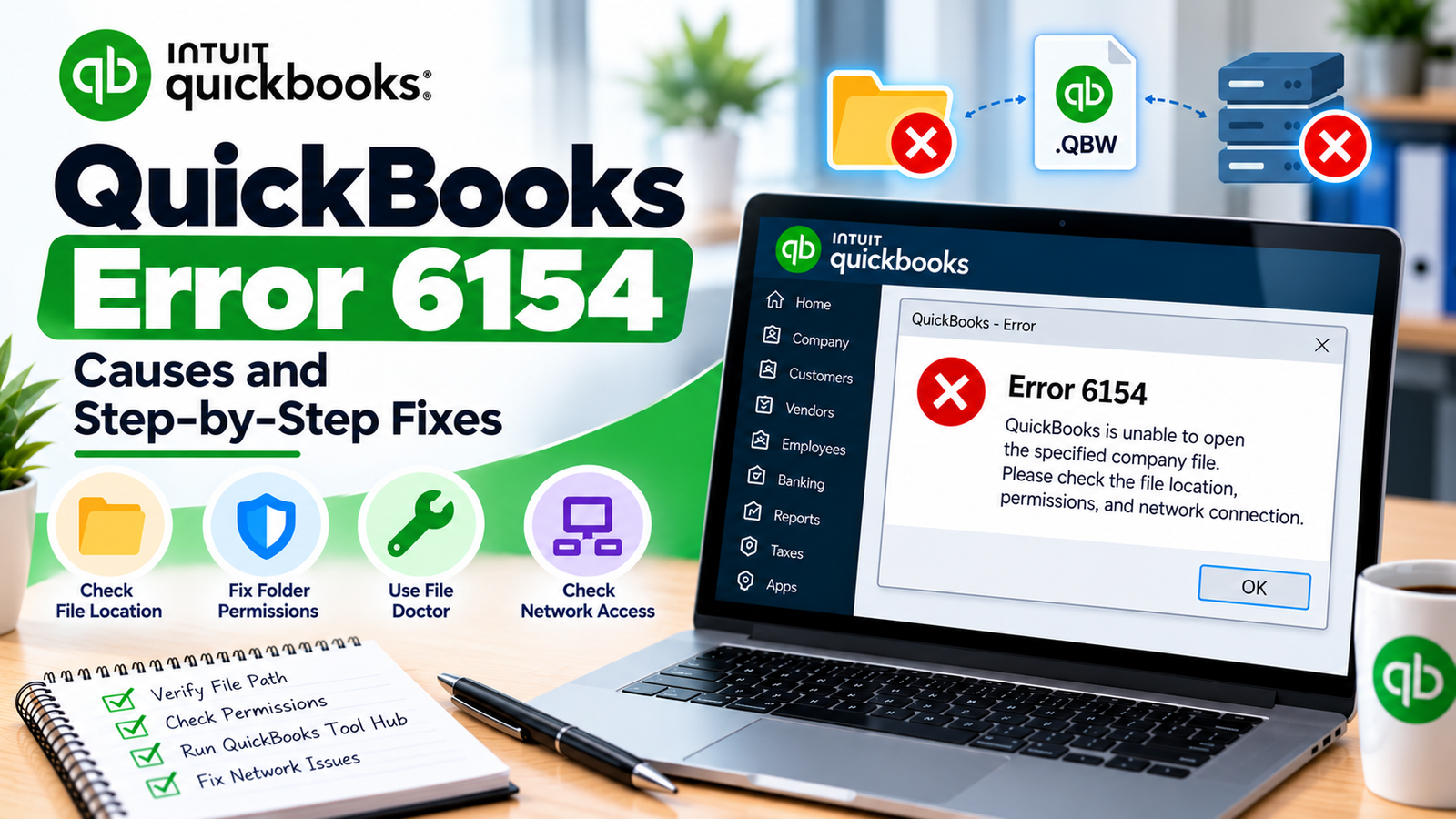

The QuickBooks H505 error appears when QuickBooks Desktop has trouble connecting to a shared company file in multi-user mode. You might see it when opening the file from your workstation or when switching a file that already opens into multi-user mode. Intuit’s first H505 check is whether a workstation is configured to host the file. In a typical office setup, hosting belongs on the designated server.
Start by identifying which computer stores the live company file and whether the error affects one workstation or several. If one employee gets H505 while coworkers can still open the same file, begin at the affected workstation. If nobody can connect, check the shared path and the server once you’ve confirmed the hosting settings. The steps below walk you through each check and show you how to verify that your team is back in the same file.
What Is the QuickBooks H505 Error?
QuickBooks error code H505 is a QuickBooks Desktop multi-user connection error. It can occur when a workstation is configured to host the shared company file. Check File → Utilities on affected workstations and turn off hosting wherever Stop Hosting Multi-User Access appears. Confirm the designated server is configured to host the file, then test multi-user access again.
Quick Summary
| Issue | Details |
| Error | QuickBooks Desktop error H505 |
| Common trigger | Opening a shared company file or switching to multi-user mode |
| Usually affects | Windows workstations using a shared QuickBooks Desktop file |
| Common symptom | QuickBooks opens, but a user cannot access the file in multi-user mode |
| First cause to check | Hosting is enabled on a workstation that should only connect to the file |
| Next check | Confirm the shared folder opens from an affected workstation |
What Does H505 Mean for Your Company File?
The company file is the .QBW file your team works in. The host stores that file and makes it available to other computers. A workstation runs QuickBooks Desktop and connects to the hosted file. Keeping track of those roles matters in a small office, where someone’s everyday desktop can also be the designated host.
If the file opens on the host, note that result. It tells you that the host can open its copy and that you still need to test how workstations reach it. If the host also shows an error when opening the file, record that exact code. It may point to a separate issue.
Why Am I Getting H505 in QuickBooks Desktop?
A workstation has hosting enabled. If Stop Hosting Multi-User Access appears on a computer that should only connect to the company file, hosting is already on there. Correct this setting first.
The file moved to a new server or folder. After a migration, a workstation may still use a recent-file entry that points to the old location. Ask whoever manages the host for the current shared path.
Windows cannot open the shared folder. If File Explorer cannot reach the folder, check the path, network connection, and access permissions.
The server’s QuickBooks configuration needs attention. If Windows opens the folder and hosting is correct but several users still cannot connect, check whether QuickBooks Database Server Manager is set up for the version and folder your team uses. After a security software change, ask your administrator to review the firewall rules.
Before You Start Troubleshooting
Write down the affected workstation names, the QuickBooks Desktop year or version, and the location of the live .QBW file. Ask one coworker to open that same file so you know whether you’re dealing with a single workstation or a shared outage. If you need to change anything on the host, coordinate with whoever administers it and confirm there’s a recent company file backup.
If your business uses a hosted desktop provider, collect the same details and ask the provider to check the server configuration. Your local computer may be displaying a remote QuickBooks session, so the provider can confirm which machine actually hosts the file.
How to Fix QuickBooks Error H505 Step by Step
1. Turn Off Hosting on Affected Workstations
1. Open QuickBooks Desktop on a workstation that displays H505. You can do this before opening the company file.
2. Go to File → Utilities.
3. If you see Stop Hosting Multi-User Access, select it to turn off hosting on that workstation.
4. If you see Host Multi-User Access, leave the setting alone. Hosting is already off.
5. Repeat the check on each affected workstation.
The menu shows the action QuickBooks can take. On a workstation, seeing Host Multi-User Access is the expected result because the option is available to turn hosting on.
2. Confirm Hosting on the Designated Server
If the server runs the full QuickBooks Desktop application, open File → Utilities there. Select Host Multi-User Access if it appears. If the menu already shows Stop Hosting Multi-User Access, leave hosting enabled. If your server has the server-only installation, use QuickBooks Database Server Manager to check its setup.
Return to one affected workstation and open the live company file. If it opens in single-user mode, select File → Switch to Multi-user Mode and test again. If the error clears, confirm a second authorized user can open the same file at the same time.
H3 | 3. Check the Shared Folder From Windows
1. On the affected workstation, open File Explorer.
2. Enter the shared folder path your administrator provides. It might look like \\AccountingServer\QuickBooks, with your server and share names in place of the example.
3. Check that the folder opens and shows the expected .QBW file.
4. If Windows asks for credentials or reports access denied, tell your administrator exactly what appears. If Windows cannot find the folder, confirm the share name and whether the workstation is connected to the office network or required VPN.
5. If the folder opens, use the confirmed path to open the company file in QuickBooks. This is especially useful after a file move or server replacement.
Being able to browse the folder confirms basic Windows access. Test the company file in QuickBooks afterward to verify that multi-user access works.
4. Scan the Company File Folder on the Server
Once hosting and the shared path are correct, an administrator can use QuickBooks Database Server Manager to check the folder that holds the live file.
1. On the server, open QuickBooks Database Server Manager. If you use QuickBooks Tool Hub on the server, open Network Issues to find it.
2. Locate the folder containing the live .QBW file. Browse to it if it’s missing from the list.
3. Start the scan and wait for it to finish.
4. On an affected workstation, test the company file again in multi-user mode.
5. Have Your Administrator Review Security Settings
If QuickBooks Desktop multi-user mode is not working after the earlier checks, ask your administrator to compare the server’s firewall rules with Intuit’s instructions for the installed QuickBooks year. QuickBooks Desktop 2019 and later use a dynamic port assigned during installation. The administrator can find the assigned value under Port Monitor in QuickBooks Database Server Manager and use it when reviewing the rules. Keep the firewall enabled while correcting the relevant exceptions.
What If H505 Still Appears?
Compare the file path on one working workstation and one failing workstation, if possible. Record the exact error, when it appears, and whether the host can open the live file. If all users lost access around the same time, note any recent server move, network outage, or security software change. These details give your IT administrator or hosting provider a specific starting point.
If a different error appears when opening the file directly on the host, record it separately. That result can help determine whether the team still has a network access problem or also needs to investigate the file itself.
How to Prevent H505 From Returning
Keep a record of the designated host and the current shared company file path.
Check the hosting setting when setting up or replacing a QuickBooks workstation.
After moving the company file, confirm the new folder is configured on the host and update users’ file paths.
After changing server or security settings, test the live company file from two workstations before the next payroll run or month-end close.
Frequently Asked Questions
1. Why Does the QuickBooks H505 Error Affect Only One Computer?
Start with that workstation’s hosting setting and its path to the live company file. A coworker who can still open the same file gives you a useful comparison. Check whether both computers use the same shared location and whether the affected computer can open that folder in File Explorer.
2. Can H505 Prevent Me From Running QuickBooks Payroll?
It can interrupt payroll work if you can’t open the company file from your usual workstation. H505 concerns shared file access. If you can open the file but payroll still shows a separate error, capture that payroll code and investigate it on its own.
3. Why Does the File Open on the Server but Fail on My Workstation?
The server can open the file from its own storage. The workstation needs to reach it over the network and connect through the multi-user setup. Check that hosting is off on the workstation, then verify that File Explorer can reach the shared folder from that same computer.
4. Should I Turn On Hosting on Every Computer That Uses QuickBooks?
Leave hosting enabled only on the designated host. Everyone else can use multi-user mode from their workstations with workstation hosting turned off. If your office uses one employee’s computer as the host, confirm that role before changing its settings.
5. Can I Fix a QuickBooks H505 Error in Multi-User Mode Without Reinstalling QuickBooks?
Start by correcting the hosting settings and confirming the live file path. Both checks can be done with the existing installation. If the problem continues, a server-side folder scan can help you investigate the connection before considering changes to the QuickBooks installation.
6. Can I Work From a Local Copy While the Server Is Down?
Coordinate with the person responsible for the books before making entries in any copy. If coworkers are entering transactions in the shared file while you work in a local copy, the two files can end up with different records. Confirm which file the team will use before resuming entry.
7. What If QuickBooks Shows a 6000-Series Error After I Fix H505?
Write down the full code, including the numbers that follow 6000, and note where it appears. Whether it occurs on the host, on a workstation, or in both places helps guide the next check. See the E-solution guide to QuickBooks Error 6000.
8. What If I See Error 1406 While Installing QuickBooks on a Replacement Workstation?
Treat the installation message as a separate issue and record the exact wording. Once QuickBooks installs and opens, verify the company file path and workstation hosting setting before testing shared access. For the installation issue, see the E-solution guide to QuickBooks Error 1406.