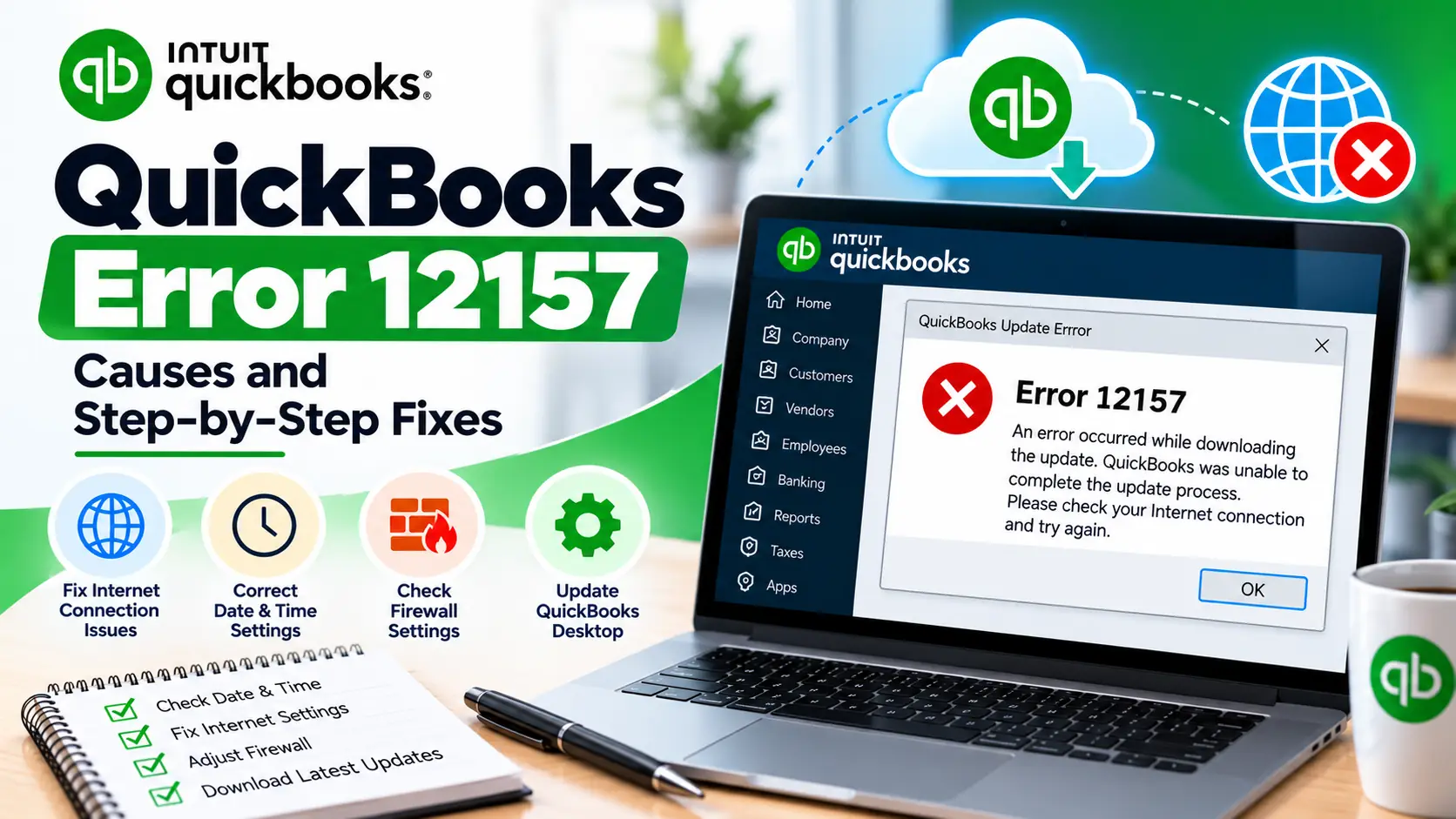
You open QuickBooks Desktop and try to download the latest maintenance release, but the update does not finish. Instead, QuickBooks Error 12157 appears and prevents the program from completing the update.
This is an update-related error, and Intuit currently groups Error 12157 with other QuickBooks Desktop update errors such as 12045, 12038, and 12037. Its official troubleshooting starts with the computer’s date and time, internet connection settings, firewall or internet security, and the QuickBooks installation environment.
The error does not automatically mean that your company file is damaged. In most cases, it makes more sense to troubleshoot the connection between QuickBooks, Windows, and the update service before touching company-file data.
Below, you’ll find the fixes in a simple order—from quick checks to more advanced update troubleshooting.
What Is QuickBooks Error 12157?
QuickBooks Error 12157 is a QuickBooks Desktop update error that can appear when the software cannot successfully connect to or complete the update process.
Intuit specifically lists 12157 among its Desktop update errors. The recommended checks include correcting Windows date and time, reviewing QuickBooks internet connection settings, checking firewall or internet security restrictions, and manually installing an update when necessary.
What Does Error 12157 Mean?
In simple terms, QuickBooks is trying to download or install an update but something between the program and the update service is not working correctly.
Think of the update path like this:
QuickBooks Desktop → Windows settings → Internet connection → Security/firewall → QuickBooks update service
If one part of that path fails, the update may stop.
That is why an update error can happen even when your company file opens normally.
Quick Summary Table
| Issue | Details |
| Error | QuickBooks Error 12157 |
| Error Type | Desktop update/connectivity error |
| Common Trigger | Downloading a QuickBooks Desktop update |
| Usually Affects | QuickBooks update process |
| Common Symptom | Update fails or does not complete |
| First Check | Windows date and time |
| Next Check | Internet Connection Setup |
| Security Area | Firewall and internet security |
| Secure Connection | TLS 1.2 |
| Alternative Fix | Manual QuickBooks update |
| Payroll Relevance | Check separately if tax-table download also fails |
Common Symptoms of QuickBooks Update Error 12157
You may notice:
- QuickBooks Desktop will not download an update.
- The update begins but stops before completion.
- QuickBooks repeatedly asks you to install the same update.
- The release number does not change after updating.
- An internet or connection-related update message appears.
- QuickBooks works for normal bookkeeping but updates fail.
- Payroll updates may also fail if the underlying Desktop connection is having problems.
- The update works on another computer or network but not your current system.
These symptoms do not prove one specific cause. They simply show that the update process needs troubleshooting.
Why Does QuickBooks Error 12157 Occur?
Incorrect Windows date or time
Intuit lists system date and time as its first troubleshooting step for Error 12157 because incorrect system information can interfere with the update process.
Internet connection settings are incorrect
QuickBooks Desktop uses Windows internet settings when accessing online services. If those settings are misconfigured, the update may fail.
Firewall or internet security restrictions
A firewall can allow normal web browsing but still block specific QuickBooks executable files or update traffic.
Secure connection requirements are not met
Current QuickBooks Desktop connected services rely on TLS 1.2-compatible security. Intuit states that connected services such as Payroll, Payments, online banking, and Intuit account services need compatible TLS 1.2 support.
QuickBooks itself is not updating normally
If the in-product update repeatedly fails, Intuit provides a manual update method through its Downloads & Updates process.
Multiple installations of the same QuickBooks year exist
Intuit notes that update errors can occur when more than one QuickBooks Desktop product from the same year is installed on one computer.
Before You Start Troubleshooting
Do these quick checks first:
- Save your QuickBooks work.
- Close unnecessary programs.
- Make a recent company-file backup.
- Confirm Windows has internet access.
- Note your QuickBooks year and release.
- Check whether only QuickBooks updates fail or the entire internet connection is affected.
- Do not disable security software permanently.
- Avoid deleting QuickBooks folders or Windows files randomly.
Your accounting data is not the first thing that needs repair for this error.
How to Fix QuickBooks Error 12157 Step by Step
Step 1: Check Your Windows Date and Time
Start here because this is Intuit’s first official solution for Error 12157.
- Right-click the clock on the Windows taskbar.
- Select Adjust date/time.
- Confirm the correct date.
- Confirm the current time.
- Check your time zone.
- Turn automatic synchronization on if appropriate.
- Close QuickBooks.
- Reopen QuickBooks Desktop.
- Try the update again.
Why this may help
Secure online connections and update validation rely on accurate system time.
Step 2: Test Your Internet Connection
Before changing QuickBooks settings, confirm the internet itself works.
- Open your regular web browser.
- Visit a few secure https websites.
- Confirm pages open normally.
- Check whether downloads work.
- If the connection is unstable, restart your network equipment if appropriate.
- Reopen QuickBooks and retry the update.
If secure websites also fail, fix the broader internet issue first.
Step 3: Review QuickBooks Internet Connection Settings
Intuit specifically recommends checking QuickBooks’ Internet Connection Setup for Error 12157.
- Open QuickBooks Desktop.
- Select Help.
- Choose Internet Connection Setup.
- Select the option to use your computer’s internet connection settings when QuickBooks accesses the internet.
- Select Next.
- Open Advanced Connection Settings.
- Go to the Advanced tab.
- Select Restore Advanced Settings.
- Select OK.
- Select Done.
- Retry the QuickBooks update.
Why this may help
QuickBooks depends on Windows internet settings. Restoring the advanced settings can correct configuration problems that interfere with the update connection.
Step 4: Run QuickBooks as Administrator
Windows permissions can sometimes interfere with program updates.
- Close QuickBooks Desktop.
- Right-click the QuickBooks Desktop icon.
- Select Run as administrator.
- Select Yes.
- Open your company file.
- Go to the update section.
- Retry the update.
Running as administrator is a useful test when Windows permissions may be limiting QuickBooks.
Step 5: Check Firewall and Internet Security Settings
If normal web browsing works but QuickBooks still cannot update, review your firewall.
Intuit says firewall or internet security settings can interfere with QuickBooks Desktop updates and identifies ports 80 and 443 among the access requirements in its Error 12157 update guidance.
Check whether security software is blocking QuickBooks executables or outbound connections.
Do not permanently disable your firewall.
On a business-managed computer, have your IT administrator review the QuickBooks rules instead.
Step 6: Check TLS 1.2
TLS 1.2 is a security protocol used for encrypted internet communication.
Current Intuit guidance states that QuickBooks Desktop connected services require compatible TLS 1.2 support.
You can use Tool Hub:
- Close QuickBooks.
- Open QuickBooks Tool Hub.
- Select Installation Issues.
- Select QuickBooks TLS 1.2 Tool.
- Accept the required agreement.
- Select Run.
- Let the tool complete.
- Exit the tool.
- Restart Windows.
- Retry the QuickBooks update.
Avoid outdated troubleshooting that enables old SSL protocols.
Step 7: Download the QuickBooks Update Again
Now attempt a fresh in-product update.
- Open QuickBooks Desktop.
- Select Help.
- Select Update QuickBooks Desktop.
- Open Update Now.
- Select Get Updates.
- Wait for the download to finish.
- Close QuickBooks.
- Reopen it.
- Select Install Now when prompted.
Intuit’s current QuickBooks Desktop update guidance uses this workflow for immediate updates.
Step 8: Install the Update Manually
If the in-product update keeps failing, use the manual method.
Intuit currently recommends downloading the update directly when updating inside QuickBooks does not work.
- Close QuickBooks Desktop.
- Use Intuit’s official Downloads & Updates page.
- Select your country.
- Select your QuickBooks product.
- Select the correct version/year.
- Get the latest available update.
- Open the downloaded update file.
- Follow the installation prompts.
- Restart the computer.
- Open QuickBooks and verify the release.
Step 9: Check for Multiple QuickBooks Installations
This check is easy to overlook.
Intuit says update errors can happen if multiple installations from the same QuickBooks version year exist on one computer.
For example, the computer may have both Enterprise and Premier from the same year.
If you use multiple installations intentionally, update each applicable installation using the correct update package.
Do not uninstall accounting software unless you are sure which installation your business uses.
Step 10: Run Quick Fix My Program
If the connection settings look correct but QuickBooks still behaves unexpectedly, repair its program processes.
- Close QuickBooks.
- Open QuickBooks Tool Hub.
- Select Program Problems.
- Select Quick Fix my Program.
- Allow the repair to complete.
- Reopen QuickBooks.
- Retry the update.
Intuit describes Quick Fix my Program as a tool for common QuickBooks program problems.
Step 11: Update Windows
If secure connections or certificates are not working normally, complete pending Windows updates.
- Open Windows Settings.
- Select Windows Update.
- Check for updates.
- Install available updates.
- Restart the computer.
- Check for updates again.
- Retry QuickBooks.
Current Intuit troubleshooting for related update errors also points to Windows security certificates and Windows Update when certificate verification fails.
Step 12: If Payroll Updates Are Also Failing
Error 12157 is primarily documented as a QuickBooks Desktop update error, not a dedicated payroll error.
However, if your payroll tax-table update also fails, first make sure QuickBooks Desktop is current.
Then:
- Open your company file.
- Select Employees.
- Select Get Payroll Updates.
- Check the current tax-table version.
- Select Download Entire Update.
- Select Update.
- Wait for the completion message.
Intuit states that an active QuickBooks Desktop Payroll subscription is required for current tax-table updates.
What If Error 12157 Still Appears?
At this stage, write down:
- QuickBooks version and release
- Windows version
- Whether normal secure websites work
- Whether manual updates work
- Firewall or antivirus product
- Whether TLS 1.2 Tool completed
- Whether multiple QuickBooks installations exist
- Whether the issue affects Desktop updates only or Payroll too
If QuickBooks itself is damaged or update components remain unusable, program repair or reinstall may be appropriate after preserving your company-file backup.
Frequently Asked Questions
What is QuickBooks Error 12157?
QuickBooks Error 12157 is a QuickBooks Desktop update error. Intuit currently groups it with update errors 12045, 12038, and 12037 and recommends checking system date/time, internet connection settings, firewall or security configuration, and the update environment.
How do I fix QuickBooks Error 12157?
Start by correcting Windows date and time, checking your internet connection, and reviewing QuickBooks Internet Connection Setup. Then check firewall restrictions, TLS 1.2, and download the QuickBooks update again. If the in-product update fails, try Intuit’s manual update method.
Is Error 12157 caused by the internet connection?
It can be. Intuit specifically includes internet connection settings in its Error 12157 troubleshooting. However, date/time settings, firewall restrictions, multiple QuickBooks installations, or other update-environment problems can also contribute.
Can the Windows firewall cause QuickBooks update error 12157?
Yes, firewall and internet-security settings can interfere with QuickBooks update traffic. Instead of disabling the firewall completely, configure appropriate QuickBooks access or have your IT administrator review the security rules.
Does QuickBooks Desktop need TLS 1.2?
Yes. Intuit states that connected QuickBooks Desktop services require compatible TLS 1.2 support. This includes services such as Payroll, Payments, online banking, activation, and services that use Intuit account credentials.
Can I manually install a QuickBooks update?
Yes. If the update inside QuickBooks does not work, Intuit provides a manual update method through its Downloads & Updates process. Download the update that matches your country, product, and QuickBooks year.
Can Error 12157 affect QuickBooks Payroll?
Error 12157 is officially documented as a Desktop update error. However, a broader internet or security problem may also interfere with payroll updates. Keep QuickBooks Desktop current first, then use Employees > Get Payroll Updates if the tax-table download also fails.
Is QuickBooks Error 12157 similar to Error 12038?
Both are included in Intuit’s current QuickBooks Desktop update-error guidance. If your screen specifically shows 12038, the related QuickBooks Error 12038 guide covers that error’s troubleshooting path.
What if QuickBooks opens but my company file does not?
That is a different problem from Error 12157. If your company file fails with “The parameter is incorrect,” see the QuickBooks Error Code 80070057 guide for company-file access troubleshooting.
Will reinstalling QuickBooks delete my company data?
Reinstalling the QuickBooks program is different from deleting a .QBW company file, but you should still create a current backup before major repairs. Try date/time, connection, firewall, TLS, and update troubleshooting before using reinstall as an advanced option.
Conclusion
QuickBooks Error 12157 is mainly a QuickBooks Desktop update and connectivity problem. Start with the simplest official checks: make sure Windows date and time are correct, confirm your internet connection works, and review QuickBooks Internet Connection Setup.
Next, check firewall restrictions and TLS 1.2, then retry the update. If updating inside QuickBooks continues to fail, use the manual update method and check for multiple installations of the same QuickBooks year.
If payroll updates are also affected, update QuickBooks Desktop first and then download the full payroll tax-table update. Avoid random company-file repairs unless you are experiencing a separate company-file problem.