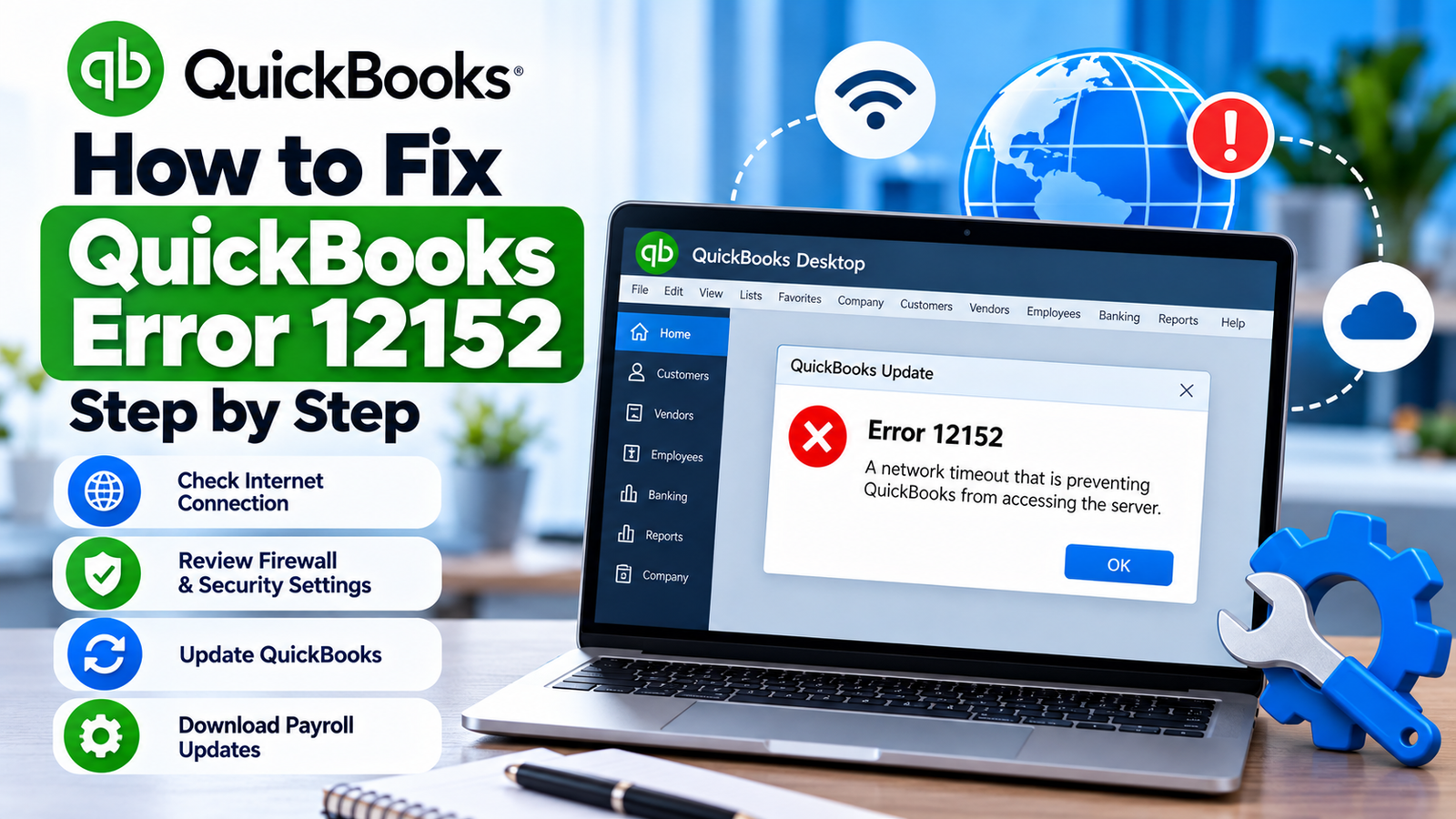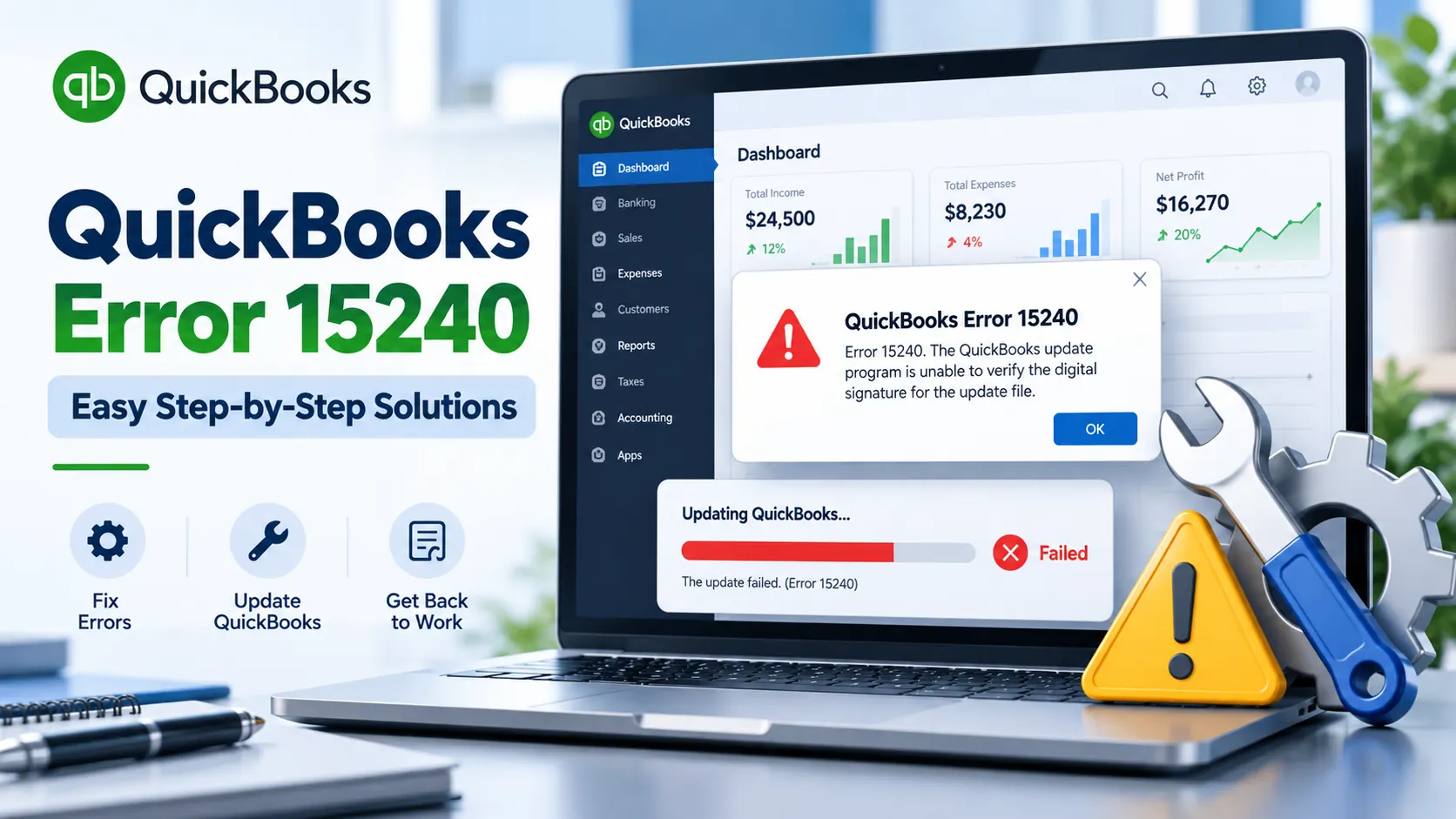
You may be ready to run payroll, install a QuickBooks Desktop update, or download the latest payroll tax table when the update suddenly stops.
If QuickBooks Error 15103 appears at this point, the problem is usually connected to the update process rather than your everyday bookkeeping transactions.
Intuit currently includes Error 15103 in the 15XXX group of errors that can appear while updating QuickBooks Desktop or downloading payroll tax-table updates. Possible causes include missing update components, Windows file problems, firewall restrictions, QuickBooks File Copy Service issues, an incorrectly mapped Shared Download drive, or difficulty verifying a digital signature.
That means the right question is not simply “Is my company file damaged?”
A better question is:
What stopped QuickBooks from completing or validating the update?
This guide helps you identify that point first and then choose the appropriate fix.
In 60 Seconds: What Does QuickBooks Error 15103 Mean?
QuickBooks Error 15103 is an update-related error in QuickBooks Desktop. It can appear when QuickBooks cannot successfully download, process, or verify a Desktop or payroll update.
The issue can be related to Windows permissions, QuickBooks update components, firewall configuration, File Copy Service, or digital-signature verification. Intuit recommends beginning by running QuickBooks as an administrator and retrying the update.
Your accounting data is not automatically damaged just because this error appears.
First, Identify Exactly When the Error Appears
Before changing Windows or QuickBooks settings, think about what you were doing immediately before the error.
Situation A: QuickBooks Desktop itself was updating
You selected a QuickBooks product update and the download or installation failed.
Start with:
- administrator permissions;
- Quick Fix my Program;
- resetting the update components;
- digital-signature checks.
Situation B: You were downloading a payroll tax-table update
You went to the payroll update area and received the error during the download.
Start with:
- confirming QuickBooks Desktop is updated;
- checking payroll access;
- downloading the entire tax-table update again;
- checking security and update components.
QuickBooks Desktop Payroll requires an active subscription to download current tax tables. Intuit’s current instructions use Employees > Get Payroll Updates, followed by Download Entire Update and Update.
Situation C: Updates fail repeatedly on the same computer
If every update attempt fails even after restarting QuickBooks, the issue may be deeper than a temporary connection problem.
In that situation, Tool Hub, the update Components folder, the Intuit digital certificate, or the QuickBooks installation itself deserves closer attention.
Why Can QuickBooks Error 15103 Appear
The QuickBooks Desktop error 15103 does not point to only one component.
Think of a QuickBooks update as a short chain:
QuickBooks requests update → Windows allows access → files download → security verifies files → QuickBooks installs update
If something breaks anywhere in that chain, the update may stop.
Intuit currently lists several possible causes for 15103 and other 15XXX errors.
QuickBooks does not have enough Windows permission
Some update files need access to protected areas of Windows.
Opening QuickBooks normally may not provide sufficient permission in every environment.
Update components are missing or damaged
QuickBooks relies on local components to process downloaded updates. A damaged or incomplete component can interrupt the process.
Windows or security software blocks the download
Firewall settings may prevent QuickBooks from reaching or processing update services.
QuickBooks File Copy Service is unavailable
QuickBooks FCS is one of the components Intuit identifies as a possible factor when 15XXX errors occur.
QuickBooks cannot verify the downloaded file
QuickBooks checks digital signatures as part of protecting the computer from unverified update files. If that verification fails, the update may not proceed normally.
The Shared Download drive is not mapped correctly
Businesses using shared QuickBooks environments may also encounter problems if the shared download location is incorrectly configured.
Before You Make Any Changes
A few basic checks will make troubleshooting safer and easier.
- Save your current work.
- Close open QuickBooks company files.
- Ask other QuickBooks users to finish their work if the computer is shared.
- Confirm your Windows account can run applications with administrator permission.
- Keep a recent QuickBooks company-file backup.
- Note whether the failure affects a Desktop update, payroll update, or both.
You usually do not need to start by rebuilding your accounting data for this particular error because Error 15103 is primarily associated with updates.
How to Fix QuickBooks Error 15103
Instead of trying every possible fix randomly, follow the paths below in order.
Solution 1 : Give QuickBooks Administrator Permission
This is the best first test because it is simple and directly recommended by Intuit for 15XXX errors.
Try this:
- Close your company file.
- Exit QuickBooks Desktop completely.
- Find the QuickBooks Desktop icon.
- Right-click it.
- Select Run as Administrator.
- Select Yes when Windows asks whether the app can make changes.
- Try downloading the QuickBooks Desktop update again.
- If you use payroll, retry the payroll tax-table update.
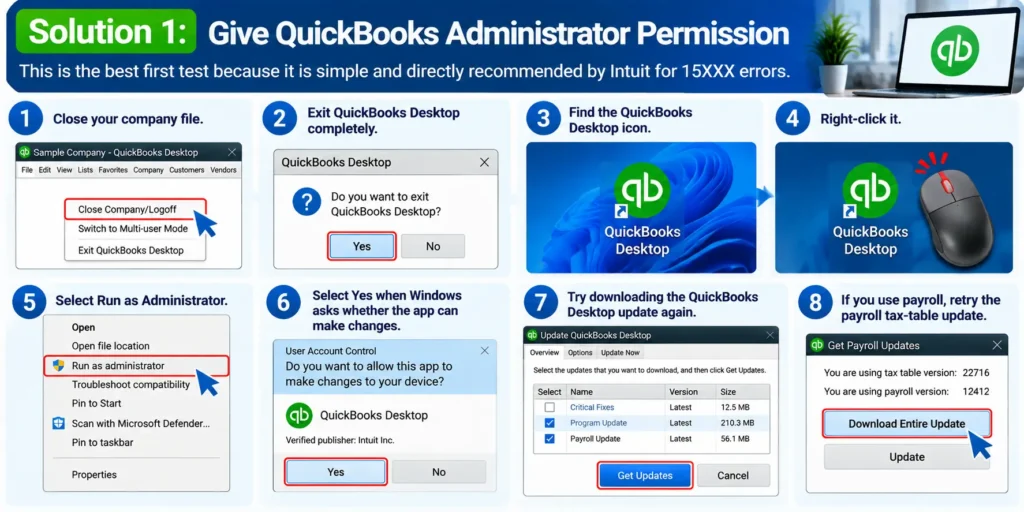
Intuit places this as its first solution for Error 15103 and other 15XXX update errors.
Why this is worth trying first
Running as administrator gives QuickBooks elevated Windows permissions during the update.
If the update succeeds now, you have avoided unnecessary repairs.
Solution 2: Clear QuickBooks Processes With Quick Fix My Program
If administrator mode does not solve the issue, QuickBooks Tool Hub is the next logical stop.
Quick Fix my Program closes lingering QuickBooks background processes and performs a quick program repair.
Steps
- Close QuickBooks Desktop.
- Open QuickBooks Tool Hub.
- Select Program Problems.
- Choose Quick Fix my Program.
- Let the tool finish.
- Open QuickBooks again.
- Open your company file.
- Retry the failed Desktop or payroll update.
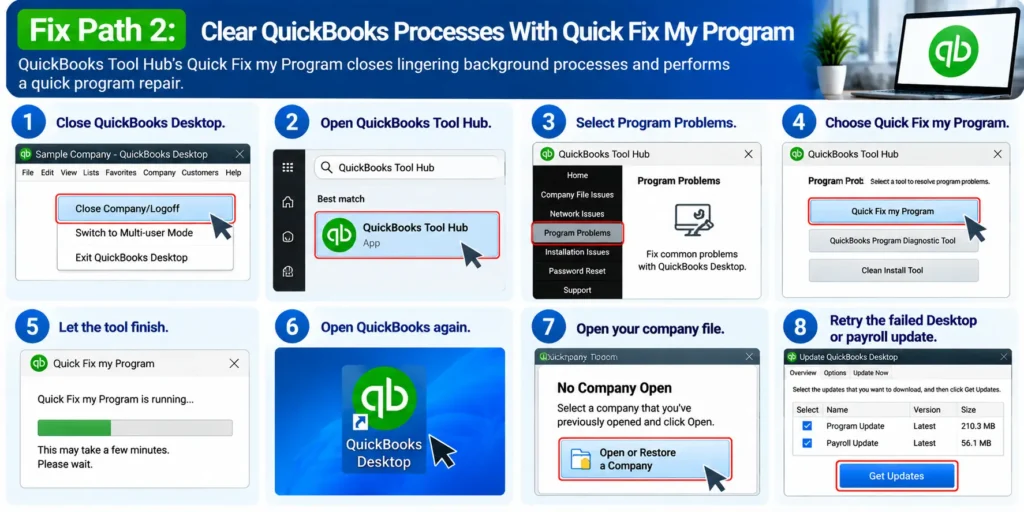
This is particularly useful when the error appeared after QuickBooks froze, an update was interrupted, or Windows recently restarted unexpectedly.
Solution 3: Refresh the QuickBooks Update Components
If Tool Hub completes successfully but QuickBooks update error 15103 still appears, the update cache itself may need attention.
Intuit’s current 15XXX instructions provide a process for refreshing the Components folder and resetting the update.
Follow carefully
Close QuickBooks Desktop first.
Navigate to the QuickBooks Components directory for your installed version.
Intuit’s current documentation identifies the general location as:
C:\ProgramData\Intuit\QuickBooks XX\Components
The exact version-related folder can vary.
After following Intuit’s component-refresh procedure:
- Open QuickBooks Desktop.
- Go to Help.
- Select Update QuickBooks Desktop.
- Choose Update Now.
- Select Reset Update.
- Select Get Updates.
- Let the download finish.
- Close QuickBooks.
- Reopen QuickBooks.
- Try the update again.
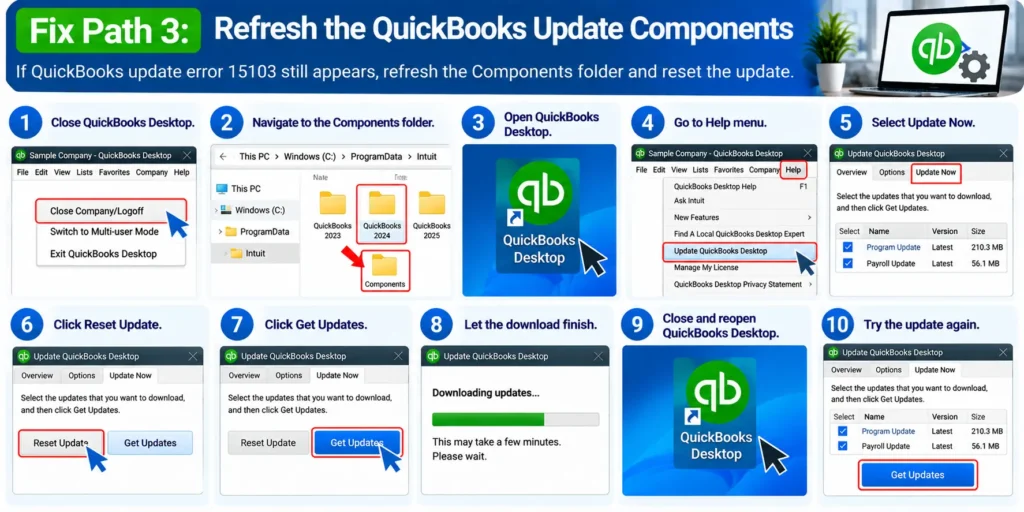
Do not start deleting random QuickBooks folders. Only work with the specific update-components location identified for your installed version.
Solution 4: If Payroll Is the Only Thing That Will Not Update
If normal QuickBooks features work but you receive QuickBooks payroll update error 15103, test the payroll update separately.
First, make sure the QuickBooks Desktop program itself is current.
Then:
- Open QuickBooks Desktop.
- Select Employees.
- Choose Get Payroll Updates.
- Look at the displayed tax-table version.
- Select Download Entire Update.
- Choose Update.
- Wait for the completion message.
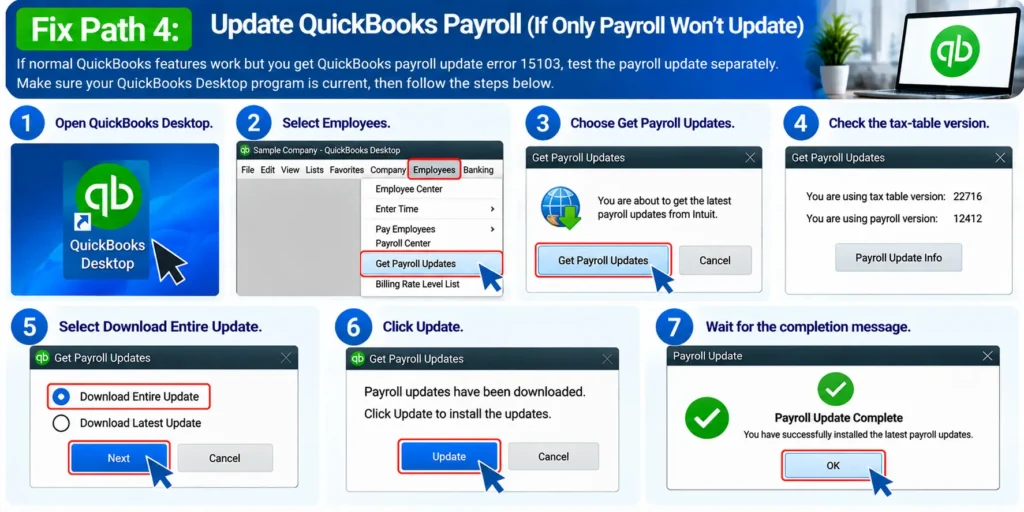
Intuit notes that QuickBooks Desktop Payroll users need an active payroll subscription to receive current tax tables.
If payroll updates continue to fail after QuickBooks itself updates normally, focus further troubleshooting on the payroll download path, permissions, and security configuration rather than repeatedly repairing the company file.
Solution 5: Check the Intuit Digital Signature Certificate
This step becomes more relevant when QuickBooks can download something but cannot validate it correctly.
Intuit currently recommends checking the digital signature associated with QBW32.exe and installing the Intuit certificate when troubleshooting these update errors.
Steps
- Close QuickBooks.
- Browse to the QuickBooks program installation folder.
- Locate QBW32.exe.
- Right-click the file.
- Choose Properties.
- Open the Digital Signatures tab.
- Verify that Intuit appears in the signature list.
- Select the Intuit signature.
- Choose Details.
- Select View Certificate.
- Choose Install Certificate.
- Continue through the certificate wizard.
- Finish the installation.
- Restart Windows.
- Reopen QuickBooks and retry the update.
Why this may help
QuickBooks attempts to verify downloaded update files. If certificate verification is not working correctly, Windows or QuickBooks may reject the update even when the download itself succeeded.
Solution 6: Review Firewall and Internet Security
A firewall problem can produce a frustrating pattern:
QuickBooks opens normally, your company file works, and the internet works in your browser—but QuickBooks updates still fail.
That is possible because the firewall can treat QuickBooks traffic separately from your web browser.
Intuit specifically lists firewall settings as a potential cause of 15XXX update errors and recommends reviewing firewall and internet-security configuration.
For a business-managed computer, avoid simply disabling security software.
Instead:
- confirm QuickBooks is allowed through the firewall;
- review whether antivirus software is blocking QuickBooks update processes;
- ask your IT administrator whether recent firewall policies changed;
- retry the update after the configuration has been reviewed.
Repeatedly turning off business security software is not a good long-term fix.
Solution 7: Repair the QuickBooks Installation
If permissions, Tool Hub, update components, certificates, and security settings all look correct, the installation itself may need repair.
Intuit currently recommends the QuickBooks Install Diagnostic Tool for common installation problems after the earlier 15XXX troubleshooting steps fail.
Open QuickBooks Tool Hub and use the installation-related diagnostic option appropriate to your installed version.
Restart Windows after the tool finishes, then test the update again.
Final Repair Path: Reinstall QuickBooks Desktop
Reinstallation should generally come later, not first.
If QuickBooks continues producing 15103 after the previous checks, Intuit lists reinstalling QuickBooks Desktop as a later solution for 15XXX errors.
Before reinstalling:
- know your QuickBooks product/version;
- keep your license information available;
- maintain a company-file backup;
- verify where your .QBW file is stored.
The purpose here is to repair program components—not to replace your accounting data.
What You Should Avoid While Troubleshooting
Several actions can make a simple update problem harder to diagnose.
Don’t delete your company file
A 15103 update error does not, by itself, mean your .QBW file should be removed or replaced.
Don’t make five changes at once
If you change the firewall, certificate, Tool Hub, update folder, and Windows services simultaneously, you will not know what actually solved the problem.
Don’t download unofficial “repair tools”
Use QuickBooks Tool Hub and documented Windows/QuickBooks procedures rather than unknown third-party executables.
Don’t repeatedly disable your firewall
If QuickBooks is being blocked, the better solution is to identify the correct firewall configuration.
How Do You Know the Problem Is Fixed?
Do not stop testing just because QuickBooks opens.
For a Desktop update, confirm that the update completes and QuickBooks restarts normally.
For payroll users:
- Go to Employees > Get Payroll Updates.
- Check the tax-table information.
- Download the entire update if needed.
- Verify that the download completes without Error 15103.
A successful test should reproduce the exact activity that originally triggered the error.
Quick Summary Table
| Situation | Best Place to Start |
| 15103 appears during Desktop update | Run QuickBooks as Administrator |
| Error remains after retry | Quick Fix my Program |
| Update continually redownloads or fails | Reset update components |
| Payroll tax-table download fails | Update Desktop, then retry payroll update |
| Signature verification issue | Install Intuit digital certificate |
| Updates seem blocked by security | Review firewall/security settings |
| Program repair is needed | Install Diagnostic Tool |
| Nothing else resolves it | Repair/reinstall QuickBooks |
Prevention Tips
You cannot prevent every QuickBooks update error, but you can make future updates smoother.
- Keep QuickBooks Desktop on a current supported release.
- Install Windows updates regularly.
- Avoid interrupting QuickBooks while an update is downloading.
- Keep QuickBooks firewall permissions documented.
- Maintain an active payroll subscription if you use QuickBooks Desktop Payroll.
- Keep company-file backups separate from program files.
- Use administrator access when required for maintenance.
- Avoid using unofficial update patches.
- Keep QuickBooks Tool Hub available for basic program repairs.
You can also use the QuickBooks resources on e-solution.us when researching related Desktop errors and update issues.
Frequently Asked Questions
1. What is QuickBooks Error 15103?
QuickBooks Error 15103 is part of the QuickBooks 15XXX update-error family. It can appear when QuickBooks Desktop or a payroll tax-table update cannot download, process, or verify correctly. The underlying issue may involve permissions, update components, firewall settings, FCS, Windows files, or digital-signature verification.
2. Why does QuickBooks show Error 15103 during an update?
QuickBooks may show 15103 when the update process cannot complete normally. Intuit lists possible causes including missing update components, damaged Windows files, incorrectly mapped shared downloads, firewall restrictions, disabled File Copy Service, and digital-signature problems.
3. What is the easiest way to fix QuickBooks Error 15103?
Start by closing QuickBooks and running QuickBooks Desktop as an administrator. Retry the update before making deeper changes. If that does not work, run Quick Fix my Program from QuickBooks Tool Hub.
4. Can Error 15103 affect QuickBooks Payroll?
Yes. Error 15103 is among the 15XXX errors that can occur when downloading QuickBooks Desktop or payroll tax-table updates. If only payroll is affected, update QuickBooks Desktop first and then retry the complete payroll tax-table download.
5. Does Error 15103 mean my company data is corrupted?
Not necessarily. The error is primarily associated with the QuickBooks update process. You should not assume the accounting data itself is corrupted simply because an update fails.
6. Can QuickBooks Tool Hub resolve Error 15103?
It may help. Intuit recommends Quick Fix my Program as one of the troubleshooting steps for 15XXX update errors. Quick Fix closes lingering QuickBooks processes and runs a quick repair on the program.
7. Why does QuickBooks need a digital signature for an update?
Digital signatures help verify that software files come from the expected publisher and have not been improperly altered. Intuit includes installing the QuickBooks digital-signature certificate as a troubleshooting step when 15XXX updates continue to fail.
8. Should I disable my firewall to update QuickBooks?
Not as a permanent fix. Firewall configuration can interfere with QuickBooks updates, but the better approach is to configure security settings correctly. On a managed business computer, ask the IT administrator to review QuickBooks permissions.
9. What should I do if Error 15103 keeps returning?
If administrator mode, Quick Fix, component reset, certificate installation, and firewall review do not resolve the problem, run the QuickBooks installation diagnostic tools. Reinstallation can be considered after the safer troubleshooting steps have been exhausted.
10. What if I am having a company-file access error instead of an update error?
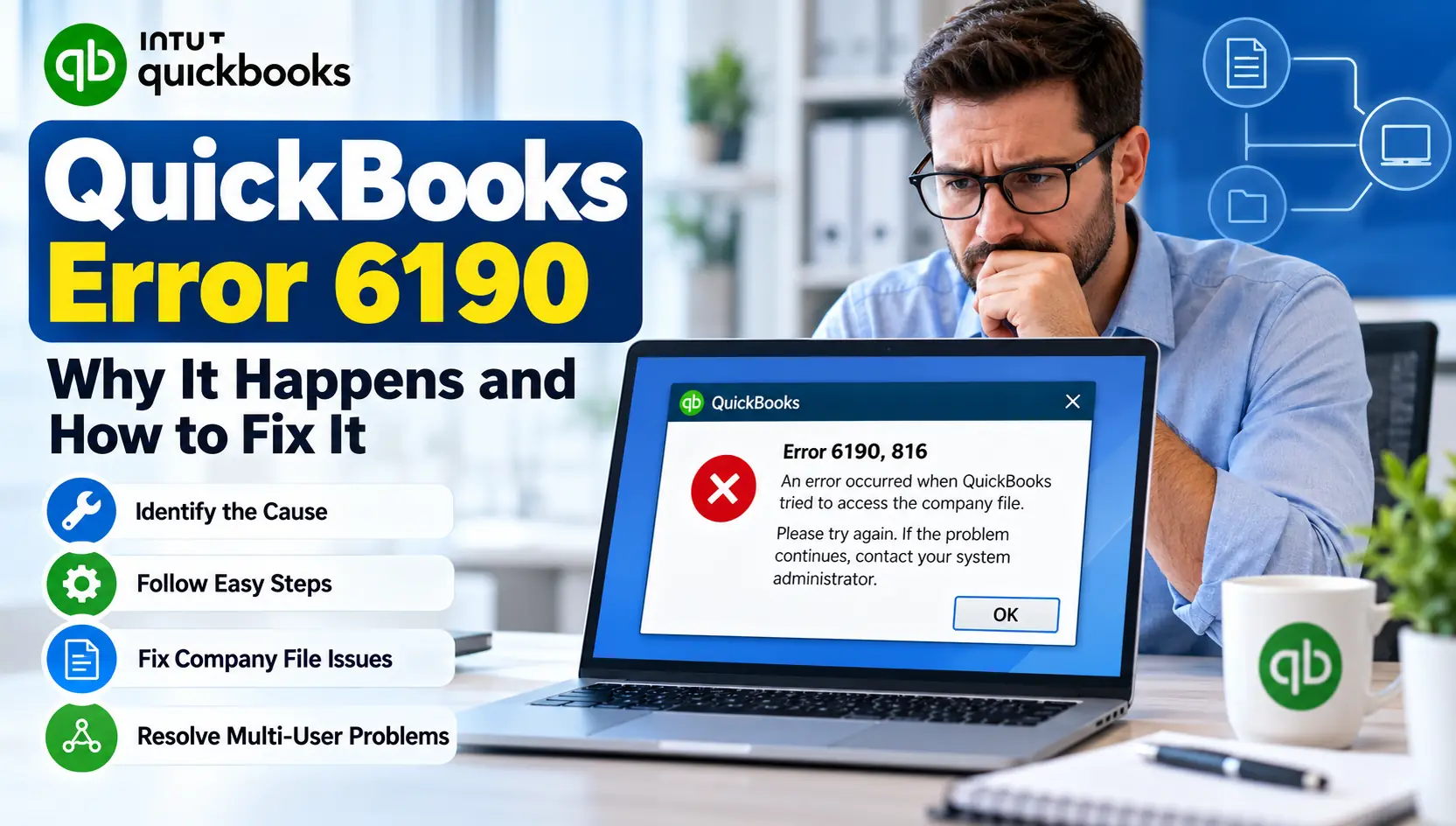
The troubleshooting process will be different. For example, if the issue occurs while opening a shared company file rather than downloading an update, our guide to QuickBooks Error 6190 explains common company-file and multi-user access causes.