
You open QuickBooks Desktop to work on invoices, reports, payroll, or bookkeeping, but the program suddenly closes or displays QuickBooks Error 7149. In some cases, QuickBooks may crash during startup; in others, it may open and then stop working while you are using it.
Error 7149 is commonly described by third-party runtime-error references as a QuickBooks crash that occurs while the application is running. One commonly reported message is that QuickBooks encountered a problem and needs to close.
However, Intuit does not currently provide a dedicated Error 7149 troubleshooting page. Because of that, it is safer to troubleshoot the actual symptoms—QuickBooks crashing, failing to open, or becoming unstable—using current Intuit procedures instead of relying on old or unverified fixes.
The most practical order is: restart QuickBooks, update the program, use Quick Fix my Program, run the installation diagnostic tool, test whether the company file is involved, repair Windows-related components, and reinstall QuickBooks only if simpler fixes do not work.
What Is QuickBooks Error 7149?
QuickBooks Error 7149 is generally reported as a runtime or program-crash error in QuickBooks Desktop.
A runtime error occurs while a program is already starting or running rather than during a normal accounting transaction. Third-party documentation identifies 7149 with QuickBooks unexpectedly failing or closing during runtime.
Because Intuit does not currently document 7149 separately, the best troubleshooting approach is to treat it as a QuickBooks Desktop stability issue and determine whether the problem comes from:
- QuickBooks program files
- A damaged installation
- Background QuickBooks processes
- Windows components
- A specific company file
- An outdated QuickBooks release
Quick Summary Table
| Issue | Details |
| Error | QuickBooks Error 7149 |
| Common Type | Runtime / program crash |
| Usually Affects | QuickBooks Desktop |
| Common Symptom | QuickBooks closes, freezes, or fails to open |
| First Step | Restart Windows and QuickBooks |
| Main Repair Tool | QuickBooks Tool Hub |
| First Tool Hub Fix | Quick Fix my Program |
| Deeper Check | Install Diagnostic Tool |
| Company File Check | Test QuickBooks without opening the company file |
| Advanced Fix | Repair or reinstall QuickBooks |
What Does QuickBooks Error 7149 Mean?
In simple terms, QuickBooks is trying to run but something in the program environment prevents it from continuing normally.
Think of the process like this:
Windows → QuickBooks program files → QuickBooks processes → company file → normal operation
If the program files, installation components, or Windows environment are damaged or unstable, QuickBooks may stop before it completes the task.
Intuit’s current “QuickBooks stopped working” guidance identifies several possible causes of QuickBooks crashes, including damaged program files, damaged QuickBooks installation files, Windows problems, and a damaged or missing QBWUSER.INI file.
This is why the safest Error 7149 troubleshooting process should start with the QuickBooks program before assuming that your accounting data is damaged.
Common Symptoms of QuickBooks Runtime Error 7149
Users may notice different behavior depending on where the failure occurs:
- QuickBooks closes immediately after opening.
- The program freezes on the startup screen.
- Error 7149 appears while QuickBooks is running.
- QuickBooks opens but crashes after selecting a company file.
- QuickBooks repeatedly stops responding.
- The program works after a restart but crashes again later.
- QuickBooks cannot complete normal program operations.
- Windows displays a message that QuickBooks has stopped working.
- The same company file works differently on another computer.
A useful clue is when the problem occurs.
If QuickBooks crashes before you choose a company file, focus on the program installation first.
If QuickBooks opens normally but fails only with one specific company file, test the company file separately.
Why Does QuickBooks Error 7149 Occur?
Because there is no current dedicated Intuit article for Error 7149, no single official cause should be presented as certain.
However, current Intuit crash and repair guidance supports checking the following areas.
Damaged QuickBooks program files
Intuit lists damaged program files or a damaged QuickBooks installation as possible causes when QuickBooks stops working.
Stuck QuickBooks background processes
QuickBooks uses several background processes. Intuit says Quick Fix my Program closes open QuickBooks processes and performs a quick program repair.
Damaged QuickBooks installation
A problem during the original installation may later cause QuickBooks to fail while running. Intuit recommends the QuickBooks Install Diagnostic Tool for common installation issues.
Outdated QuickBooks release
Intuit recommends keeping QuickBooks Desktop on the latest available maintenance release to receive current fixes, product improvements, and security updates.
Damaged QBWUSER.INI file
For QuickBooks “stopped working” issues, Intuit specifically includes renaming QBWUSER.INI as a troubleshooting step when that file is damaged or missing.
Windows-related problems
Intuit’s current crash guidance also lists a damaged Windows operating system as a possible reason QuickBooks may stop working.
Before You Start Troubleshooting
Before making program changes:
- Save any open work.
- Close QuickBooks Desktop.
- Restart Windows.
- Create a current company-file backup if QuickBooks can still open.
- Note your QuickBooks year and release.
- Record exactly when Error 7149 appears.
- Check whether the error affects one company file or all QuickBooks activity.
- Avoid deleting QuickBooks folders manually.
- Keep your QuickBooks license and product information available before any reinstall.
- Use official Intuit downloads for QuickBooks and Tool Hub.
9. Quick Summary Table
| Diagnostic Question | What It Suggests |
| QuickBooks crashes before selecting a file | Program or installation issue |
| QuickBooks opens but one file crashes | Company-file issue may be involved |
| All company files fail | Program/Windows issue more likely |
| Error started after an update | Update or installation components should be checked |
| Quick Fix solves it | Background/process issue likely contributed |
| Diagnostic Tool solves it | Installation components likely contributed |
Step-by-Step Troubleshooting
How to Fix QuickBooks Error 7149
Follow these methods in order. Test QuickBooks after each major fix so you know which change helped.
Method 1: Restart QuickBooks and Windows
Start with the simplest reset.
- Close QuickBooks Desktop.
- Open Task Manager if QuickBooks will not close normally.
- End only clearly identified frozen QuickBooks applications if necessary.
- Restart Windows.
- Wait for the desktop to load completely.
- Open QuickBooks once.
- Give it time to load before clicking the icon again.
Intuit notes that clicking the QuickBooks icon repeatedly can sometimes make it appear that QuickBooks will not open.
Why this may help: Restarting clears temporary processes and gives QuickBooks a clean startup environment.
Method 2: Update QuickBooks Desktop
If the program remains stable long enough to open:
- Open QuickBooks Desktop.
- Press F2 or Ctrl + 1.
- Note your current release.
- Close the Product Information window.
- Go to Help.
- Select Update QuickBooks Desktop.
- Open Update Now.
- Select Get Updates.
- Restart QuickBooks when the download finishes.
- Install the update when prompted.
Intuit says current maintenance releases contain product improvements, fixes, and security updates.
If QuickBooks will not stay open long enough to update, use Intuit’s manual Downloads & Updates process instead.
Method 3: Run Quick Fix My Program
This should be one of the main fixes for QuickBooks error code 7149 because the symptom involves program instability.
- Close QuickBooks.
- Open the latest QuickBooks Tool Hub.
- Select Program Problems.
- Select Quick Fix my Program.
- Wait for the tool to finish.
- Open QuickBooks again.
- Test the same action that previously triggered the error.
Intuit states that Quick Fix closes QuickBooks background processes and performs a quick program repair.
Method 4: Run the QuickBooks Install Diagnostic Tool
If Quick Fix does not resolve the crash:
- Open QuickBooks Tool Hub.
- Select Installation Issues.
- Select QuickBooks Install Diagnostic Tool.
- Let the tool complete.
- Restart Windows.
- Open QuickBooks.
- Test the program again.
Intuit recommends this tool when QuickBooks installation components may be involved. It can diagnose common problems with Microsoft components used by QuickBooks.
Method 5: Test QuickBooks Without Immediately Opening the Company File
This step helps determine whether the problem is the program or a particular company file.
- Close QuickBooks.
- Hold the Ctrl key.
- Double-click the QuickBooks Desktop icon.
- Continue holding Ctrl until the No Company Open window appears.
- Do not immediately open your normal company file.
- See whether QuickBooks remains open.
If QuickBooks crashes before the No Company Open window appears, focus on program and installation repair.
If QuickBooks stays open until you choose one particular company file, investigate that file separately.
Method 6: Try a Sample Company File
A sample file provides another useful comparison.
- Open the No Company Open window.
- Select Open a Sample File.
- Choose an available sample company.
- Work in it briefly.
- Check whether QuickBooks remains stable.
If a sample company works but your normal company file triggers the crash, the company file deserves separate diagnosis.
If sample files also crash, continue focusing on QuickBooks Desktop and Windows.
Method 7: Rename the QBWUSER.INI File
Intuit recommends this method for QuickBooks stopped-working problems when QBWUSER.INI may be damaged.
Be aware that renaming this file removes the list of recently opened company files from QuickBooks, so you may need to browse to your .QBW file afterward.
- Close QuickBooks.
- Open File Explorer.
- Make hidden files and folders visible if needed.
- Locate the folder containing QBWUSER.INI.
- Right-click the file.
- Select Rename.
- Add .OLD to the end.
For example:
QBWUSER.INI.OLD
- Reopen QuickBooks.
- Browse to your company file manually if needed.
If QuickBooks now opens normally, the previous user configuration file may have contributed to the crash.
Method 8: Install Windows Updates
If QuickBooks Desktop error 7149 continues, check the Windows environment.
- Open Windows Settings.
- Go to Windows Update.
- Select Check for updates.
- Install available important updates.
- Restart Windows.
- Check for updates again.
- Open QuickBooks.
This step is relevant because Intuit identifies Windows operating-system problems as one possible reason QuickBooks may stop working.
Method 9: Check Whether Another Program Is Causing the Crash
If Error 7149 began after installing a new security, backup, or utility application, note the timing.
Do not randomly end every Windows process.
Instead:
- Close unnecessary applications.
- Restart Windows.
- Open only QuickBooks.
- Test the program.
- Reopen other applications one at a time if needed.
A third-party runtime reference lists conflicting programs as one possible general runtime-error factor, but this is not an Intuit-confirmed Error 7149-specific cause.
Treat it as a diagnostic possibility rather than a guaranteed explanation.
Method 10: Repair QuickBooks Desktop
If the program still crashes after Tool Hub and Windows checks, repair the QuickBooks installation.
Intuit’s current repair guidance recommends Quick Fix and the Install Diagnostic Tool before moving to deeper installation repair.
Before proceeding:
- Back up your company files.
- Note your QuickBooks version.
- Keep your license information available.
Then use the appropriate Windows QuickBooks repair or reinstall workflow for your installed version.
Method 11: Reinstall QuickBooks Desktop
Reinstallation should be a later step, not the first one.
Intuit’s current reinstall instructions say that reinstalling QuickBooks does not affect company data, but you should have your installer and license information ready.
Basic process:
- Back up your company file.
- Confirm your product and license information.
- Open Windows Control Panel.
- Go to Programs and Features.
- Select QuickBooks Desktop.
- Choose Uninstall/Change.
- Remove QuickBooks.
- Restart Windows.
- Download the correct QuickBooks installer from Intuit.
- Reinstall the program.
- Install the latest maintenance release.
- Open your existing company file.
Intuit’s current reinstall procedure can also rename old QuickBooks installation folders when a standard reinstall does not resolve the issue.
How Can You Tell Whether Error 7149 Is a Program or Company-File Problem?
Use this quick diagnosis:
QuickBooks crashes before No Company Open:
Program, installation, or Windows issue is more likely.
QuickBooks stays open with no company loaded:
The program itself may be functioning.
Sample company opens normally:
Your regular company file may require separate inspection.
Every sample and real company file crashes:
Focus on Tool Hub, program repair, Windows, and reinstall steps.
This approach is more useful than immediately assuming Error 7149 means the company file is corrupted.
What If QuickBooks Error 7149 Still Appears?
If the problem continues, record exactly what is happening:
- Does QuickBooks crash before login?
- Does it happen after selecting a company file?
- Does a sample company work?
- Did Quick Fix make any difference?
- Did the Install Diagnostic Tool complete?
- Is QuickBooks fully updated?
- Did Windows recently update?
- Did a new security or utility program recently get installed?
If the error appears across all QuickBooks files and remains after a fresh installation, the issue may require deeper Windows-level diagnosis.
If only one .QBW file causes the crash, focus on the company file rather than repeatedly reinstalling QuickBooks.
Frequently Asked Questions
What is QuickBooks Error 7149?
QuickBooks Error 7149 is commonly described by third-party runtime references as an error in which QuickBooks crashes or stops while running. Intuit does not currently publish a dedicated 7149 article, so current QuickBooks stopped-working and program-repair guidance provides the safer troubleshooting path.
How do I fix QuickBooks Error 7149?
Restart Windows, update QuickBooks Desktop, run Quick Fix my Program, and then run the Install Diagnostic Tool. If QuickBooks still crashes, test a sample company file, consider renaming QBWUSER.INI, install Windows updates, and repair or reinstall QuickBooks only if needed.
Is QuickBooks Error 7149 a runtime error?
It is commonly categorized as a QuickBooks runtime error by third-party error references. The reported symptom is QuickBooks failing or closing while the application is running. Intuit does not currently provide a dedicated help page confirming a formal 7149 classification.
Can QuickBooks Tool Hub help with Error 7149?
It may help with the underlying crash or program problem. Intuit says Tool Hub can address QuickBooks stopped-responding problems, program issues, installation errors, company-file problems, and other common Desktop errors.
Should I run Quick Fix my Program?
Yes, it is a sensible early step when QuickBooks is crashing or failing to open. Intuit says Quick Fix closes QuickBooks background processes and performs a quick repair of the program.
Does Error 7149 mean my company file is damaged?
Not necessarily. A crash can come from the QuickBooks installation, program files, Windows, or a particular company file. Test QuickBooks at the No Company Open screen and with a sample company before assuming your .QBW file is damaged.
What if my problem is actually a company-file access error?
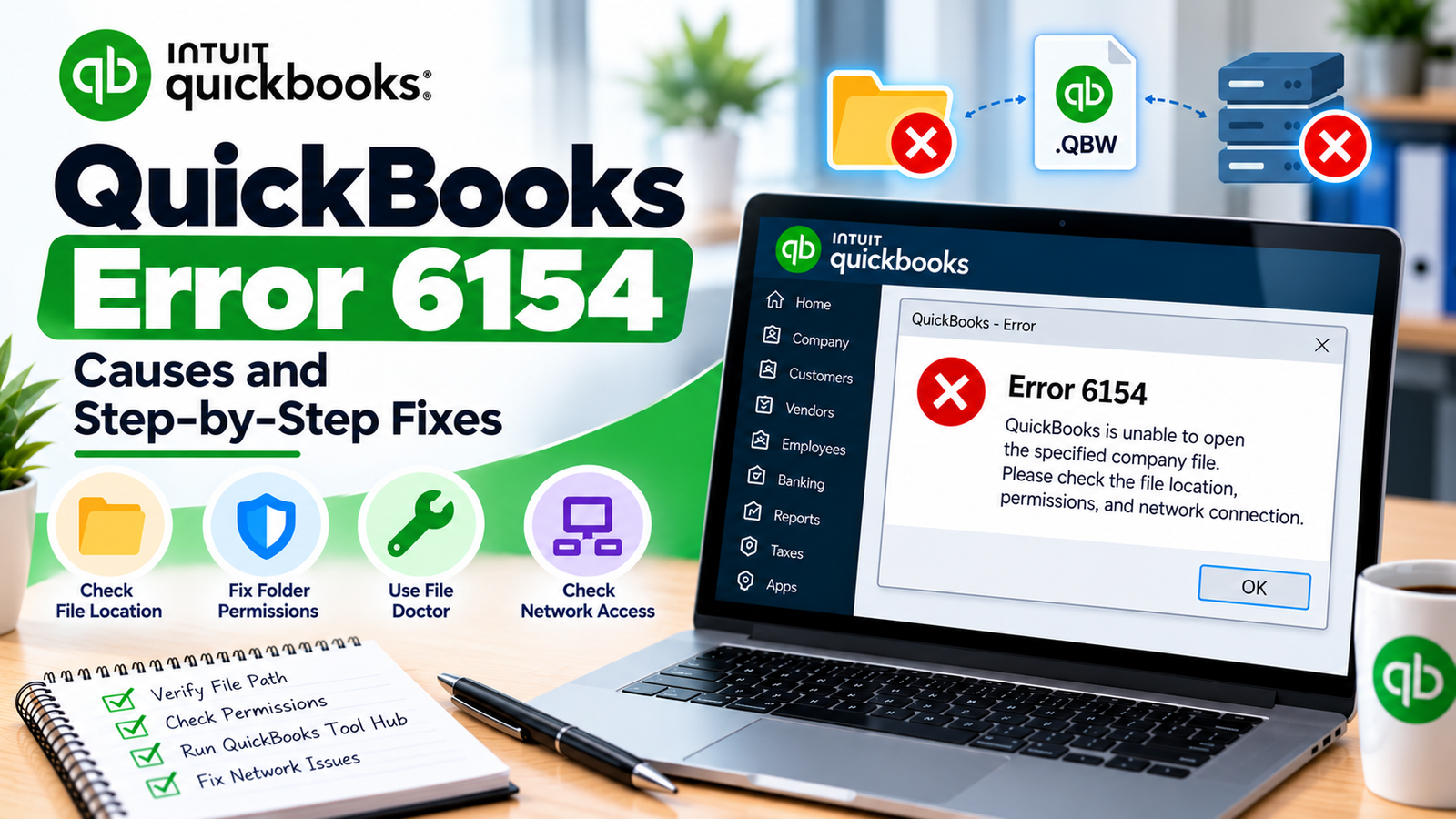
If QuickBooks opens normally but cannot access the company file because of a folder, path, or permission problem, see QuickBooks Error 6154 for the relevant company-file troubleshooting steps.
What if Windows is blocking QuickBooks installation?
That is different from a normal runtime crash. If Windows displays an installation policy restriction while installing QuickBooks, see QuickBooks Error 1625 for system-policy troubleshooting.
Will reinstalling QuickBooks delete my company file?
Intuit says reinstalling QuickBooks Desktop does not affect your company data. Even so, keeping a current backup before making major program changes is a good precaution.
What should I do if QuickBooks still crashes after reinstalling?
If every company file and sample file still crashes after a current QuickBooks reinstall, investigate Windows and other system-level factors. If only one company file causes the crash, focus on diagnosing that specific .QBW file instead of reinstalling the program repeatedly.
Conclusion
QuickBooks Error 7149 is best treated as a QuickBooks Desktop runtime or stability problem rather than assuming one specific cause.
Start with simple checks: restart Windows, update QuickBooks, and run Quick Fix my Program. If the crash continues, use the Install Diagnostic Tool and test QuickBooks without your normal company file. A sample-file test can help separate a program issue from a company-file problem.