
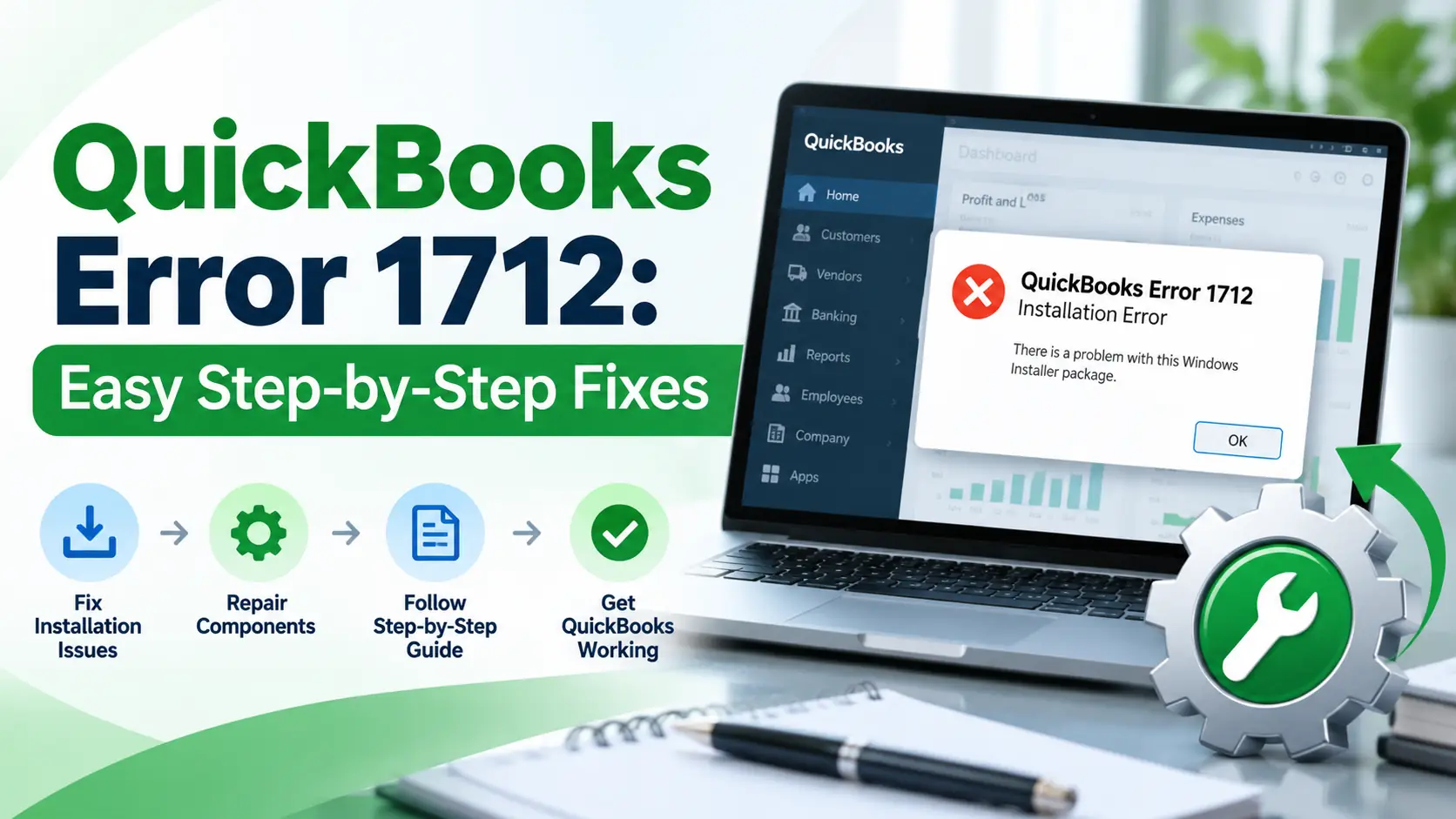
You start installing QuickBooks Desktop on Windows, but the setup suddenly stops and displays QuickBooks Error 1712. The installation may fail before QuickBooks is completely installed, leaving you unable to open or use the program.
According to Intuit’s current Error 1712 guidance, this problem can occur when one or more Windows components needed by QuickBooks are missing. Intuit’s recommended starting point is QuickBooks Tool Hub and Quick Fix my Program. If that does not resolve the problem, Intuit recommends trying the installation from a Windows account with administrator rights and checking Windows Update or Windows Installer.
The good news is that you usually do not need to make changes to your QuickBooks company data to begin troubleshooting. Error 1712 is mainly an installation-environment problem.
This guide starts with the easiest fixes and moves gradually toward Windows and installation repair.
What Is QuickBooks Error 1712?
QuickBooks Error 1712 is an installation error that appears while installing QuickBooks Desktop for Windows.
The error generally means Windows cannot find or use one or more components needed to complete the installation or restore the computer if the setup fails. Intuit specifically identifies missing Windows components as a possible cause.
In simple terms, QuickBooks setup starts correctly, but Windows cannot complete one part of the installation process.
What Does QuickBooks Error 1712 Mean?
Think of the installation process like this:
QuickBooks installer → Windows components → Windows Installer → program files → completed installation
If one part of this chain is missing, damaged, blocked, or not working correctly, the QuickBooks installer may stop.
This does not automatically mean:
- Your QuickBooks company file is damaged.
- Your accounting data is lost.
- You need to recreate your company.
- You need to reinstall Windows immediately.
The first goal is to repair the program and Windows installation environment.
Quick Summary Table
| Issue | Details |
| Error | QuickBooks Error 1712 |
| Main Area | QuickBooks Desktop installation |
| Common Trigger | Installing or reinstalling QuickBooks |
| Main Cause | Missing or problematic Windows components |
| First Recommended Tool | QuickBooks Tool Hub |
| First Fix | Quick Fix my Program |
| Permission Check | Windows Administrator account |
| Windows Check | Windows Update |
| Advanced Check | Windows Installer |
| Company File Problem? | Usually not the first area to investigate |
Common Symptoms of QuickBooks Error Code 1712
The exact behavior can vary, but users may notice:
- QuickBooks installation stops before completion.
- Error 1712 appears during setup.
- QuickBooks cannot be installed after a previous uninstall.
- The installer closes unexpectedly.
- Reinstalling QuickBooks produces the same error.
- Windows reports problems restoring the installation state.
- QuickBooks Desktop does not appear correctly after installation.
- Installation works under one Windows account but fails under another.
- Other installation errors appear along with Error 1712.
If the main problem occurs only while opening an existing .QBW company file, Error 1712 may not be the primary issue.
Why Does QuickBooks Error 1712 Occur?
1. Missing Windows components
This is the main cause identified by Intuit. QuickBooks depends on Windows components to install correctly, and missing or damaged components can interrupt setup.
2. QuickBooks program processes are stuck
Background QuickBooks processes may remain active after a failed installation or previous QuickBooks session.
Quick Fix my Program is designed to close QuickBooks background processes and perform a quick program repair.
3. Windows account does not have enough permissions
If the current Windows account lacks administrator rights, the QuickBooks installer may not be able to create or change required files.
Intuit recommends trying the installation from a Windows administrator account if Quick Fix does not resolve Error 1712.
4. Windows Update needs attention
Missing Windows updates can affect components used by QuickBooks.
Intuit’s Error 1712 guidance specifically recommends troubleshooting Windows Update when the earlier steps do not work.
5. Windows Installer is not working correctly
QuickBooks relies on Windows Installer during setup.
If Windows Installer is damaged, disabled, or malfunctioning, QuickBooks installation may fail.
6. QuickBooks installation files are damaged
An interrupted or incomplete previous installation can leave damaged program components behind.
7. Microsoft components used by QuickBooks have problems
QuickBooks uses several Microsoft components. Intuit’s Install Diagnostic Tool is designed to diagnose common installation problems involving these components.
Before You Start Troubleshooting
Before working through the fixes:
- Restart your computer once.
- Sign in to Windows with an administrator account if available.
- Close QuickBooks and other unnecessary applications.
- Keep your QuickBooks license and product information available.
- Back up your company file if QuickBooks was previously installed.
- Use an official QuickBooks installer.
- Make sure Windows has enough free disk space.
- Avoid deleting Windows system files manually.
- Do not disable security software permanently.
- Test the installation after each major fix.
How to Fix QuickBooks Error 1712 Step by Step
Method 1: Restart Windows and Try the Installation Again
Start with the simplest option.
- Close the QuickBooks installer.
- Close other open applications.
- Restart Windows.
- Sign back in.
- Right-click the QuickBooks installer.
- Choose Run as administrator.
- Retry the installation.
Why this may help
A restart clears temporary processes and pending installation tasks that may interfere with QuickBooks setup.
If Error 1712 returns, move to QuickBooks Tool Hub.
Method 2: Download QuickBooks Tool Hub
Intuit’s official Error 1712 article recommends QuickBooks Tool Hub as the first main troubleshooting tool.
To use it:
- Close QuickBooks.
- Download the latest QuickBooks Tool Hub from Intuit.
- Save the installer somewhere easy to find.
- Open QuickBooksToolHub.exe.
- Follow the installation instructions.
- Accept the terms when prompted.
- Finish the installation.
- Open QuickBooks Tool Hub.
If Tool Hub is already installed, open it and check that you are using a current version.
Method 3: Run Quick Fix My Program
This is Intuit’s primary Error 1712 repair step.
- Open QuickBooks Tool Hub.
- Select Program Problems.
- Select Quick Fix my Program.
- Let the tool finish.
- Close Tool Hub.
- Retry the QuickBooks installation.
Quick Fix closes QuickBooks background processes and performs a basic repair of the program environment.
Why this may help
A previous installation or QuickBooks process may still be running in the background even when no QuickBooks window is visible.
Quick Fix helps reset that program state.
Method 4: Use a Windows Administrator Account
If QuickBooks installation error 1712 remains, check Windows permissions.
Intuit specifically recommends adding or creating a Windows user with administrator rights and then trying the installation again.
You can:
- Open Windows Settings.
- Go to Accounts.
- Review your current account type.
- Sign in with an administrator account.
- Restart the computer if needed.
- Right-click the QuickBooks installer.
- Select Run as administrator.
- Retry installation.
If you use a company-managed PC, do not change user permissions without your IT administrator’s approval.
Method 5: Run QuickBooks Install Diagnostic Tool
Although Intuit’s Error 1712 page leads with Quick Fix, the Install Diagnostic Tool is also useful when QuickBooks installation components are failing.
Intuit says this tool can diagnose and repair common installation issues involving Microsoft components used by QuickBooks.
Follow these steps:
- Open QuickBooks Tool Hub.
- Select Installation Issues.
- Select QuickBooks Install Diagnostic Tool.
- Let the scan complete.
- Restart your computer when it finishes.
- Retry installing QuickBooks.
Why this may help
If Quick Fix focuses mainly on QuickBooks processes, the Install Diagnostic Tool goes deeper into installation-related components.
Method 6: Install Windows Updates
Windows Update is one of the areas Intuit specifically recommends troubleshooting for Error 1712.
To check:
- Open Windows Settings.
- Select Windows Update.
- Choose Check for updates.
- Install available important updates.
- Restart Windows.
- Return to Windows Update.
- Check again for remaining updates.
- Retry the QuickBooks installation.
Do not interrupt Windows while updates are being installed.
Why this may help
QuickBooks depends on Microsoft components. If Windows is missing current system files or fixes, the QuickBooks installer may fail.
Method 7: Check Windows Installer
If Tool Hub and Windows Update do not resolve QuickBooks Desktop installation error 1712, Windows Installer may need attention.
Intuit’s Error 1712 guidance identifies Windows Installer troubleshooting as a next step when simpler fixes fail.
You can first perform a basic check:
- Press Windows + R.
- Type services.msc.
- Press Enter.
- Find Windows Installer.
- Open its properties.
- Confirm the service is available.
- If appropriate, start or restart the service.
- Retry the QuickBooks installer.
Do not make advanced Windows Installer or registry changes unless you know exactly what the change does.
For a company PC or a system with repeated Windows Installer failures, an IT professional may be the safer next step.
Method 8: Try a Fresh QuickBooks Installer
The installer itself may be incomplete or outdated.
Try this:
- Delete only the installer file you previously downloaded—not your company data.
- Go to Intuit’s official QuickBooks download source.
- Choose your correct QuickBooks product and year.
- Download a fresh installer.
- Save it locally rather than running it from a network drive.
- Right-click the installer.
- Select Run as administrator.
- Try the installation again.
Avoid installers from unknown websites.
Method 9: Close Other Installation Programs
Another installer running at the same time can interfere with Windows Installer.
Before retrying:
- Close QuickBooks setup.
- Finish or cancel any other software installation.
- Let Windows Update finish completely.
- Restart the computer.
- Open only the QuickBooks installer.
- Try again.
This is particularly useful if Error 1712 appeared while Windows was already installing another program or update.
Method 10: Repair or Reinstall QuickBooks Carefully
If QuickBooks was previously installed and the current installation is damaged, a repair or clean reinstall may be required.
Intuit’s current repair guidance recommends Tool Hub, Quick Fix, Install Diagnostic Tool, and then repair or reinstall when program installation problems continue.
Before reinstalling:
- Back up your company files.
- Record your QuickBooks version and edition.
- Keep your license/product details available.
- Confirm where your .QBW files are stored.
Then uninstall and reinstall QuickBooks using the official installer.
Do not delete company files while removing the program.
How Do I Know Which Fix to Try First?
Use this simple order:
Restart → Tool Hub → Quick Fix → Administrator account → Install Diagnostic Tool → Windows Update → Windows Installer → Fresh installer → Reinstall
This order keeps the easiest and least disruptive fixes first.
What If Error 1712 Still Appears?
If the error continues after all normal QuickBooks steps, determine whether the problem is specific to QuickBooks or affects Windows installations generally.
Try installing or updating another trusted Windows application.
If other installers are also failing, the problem may be Windows-related rather than QuickBooks-specific.
At that stage, document:
- Windows version
- QuickBooks year and edition
- Exact Error 1712 message
- Tool Hub results
- Windows Update status
- Windows Installer status
- Whether the error appears under multiple administrator accounts
Intuit notes that users who are not comfortable troubleshooting Windows Update or Windows Installer should work with an IT professional.
- Keep your QuickBooks license information available.
- Address Windows Installer problems before attempting repeated QuickBooks installations.
Frequently Asked Questions
What is QuickBooks Error 1712?
QuickBooks Error 1712 is an installation error that can appear while installing QuickBooks Desktop for Windows. Intuit says one or more missing Windows components may cause it. The recommended first fixes are QuickBooks Tool Hub, Quick Fix my Program, and retrying the installation.
How do I fix QuickBooks Error 1712?
Start by restarting Windows and running the installer as administrator. Then use QuickBooks Tool Hub and run Quick Fix my Program. If the error remains, try an administrator Windows account, Install Diagnostic Tool, Windows Update, and Windows Installer checks.
Can QuickBooks Tool Hub fix Error 1712?
Yes, Tool Hub is Intuit’s first recommended troubleshooting route for Error 1712. Open Program Problems, run Quick Fix my Program, and then retry QuickBooks installation.
What causes QuickBooks installation error 1712?
The main cause identified by Intuit is one or more missing Windows components. Other relevant areas include installation processes, Windows account permissions, Windows Update, and Windows Installer.
Does Error 1712 mean my company file is damaged?
Usually, no. Error 1712 is primarily an installation error. It does not by itself mean your .QBW company file is corrupted. Keep a backup, but focus first on QuickBooks installation and Windows components.
Can Windows Update fix QuickBooks Error 1712?
It may help. Intuit specifically recommends troubleshooting Windows Update if Quick Fix and administrator-account installation do not resolve Error 1712.
What if my QuickBooks company file will not open?
That is a different issue from Error 1712. For problems related to company-file access, folders, or permissions, see QuickBooks Error 6154.
What if Windows says QuickBooks installation is blocked by policy?
That points to a different installation issue. See QuickBooks Error 1625 if Windows reports that an installation is blocked or forbidden by system policy.
Should I reinstall QuickBooks immediately?
No. Try Quick Fix my Program, administrator permissions, Install Diagnostic Tool, and Windows Update first. Reinstalling should normally come later because simpler repairs may solve the problem without removing the existing installation.
Should I repair Windows Installer myself?
Basic service checks are reasonable, but advanced Windows Installer or system-component repair can affect Windows. If standard troubleshooting does not work and you are unfamiliar with Windows administration, use an IT professional.
Conclusion
QuickBooks Error 1712 normally appears because QuickBooks Desktop cannot complete its Windows installation process correctly. Intuit identifies missing Windows components as a key cause and recommends starting with QuickBooks Tool Hub and Quick Fix my Program.
If the error remains, try installing from a Windows administrator account, run the Install Diagnostic Tool, install Windows updates, and check Windows Installer. A fresh QuickBooks installer or reinstall should be considered only after the easier fixes have been tested.