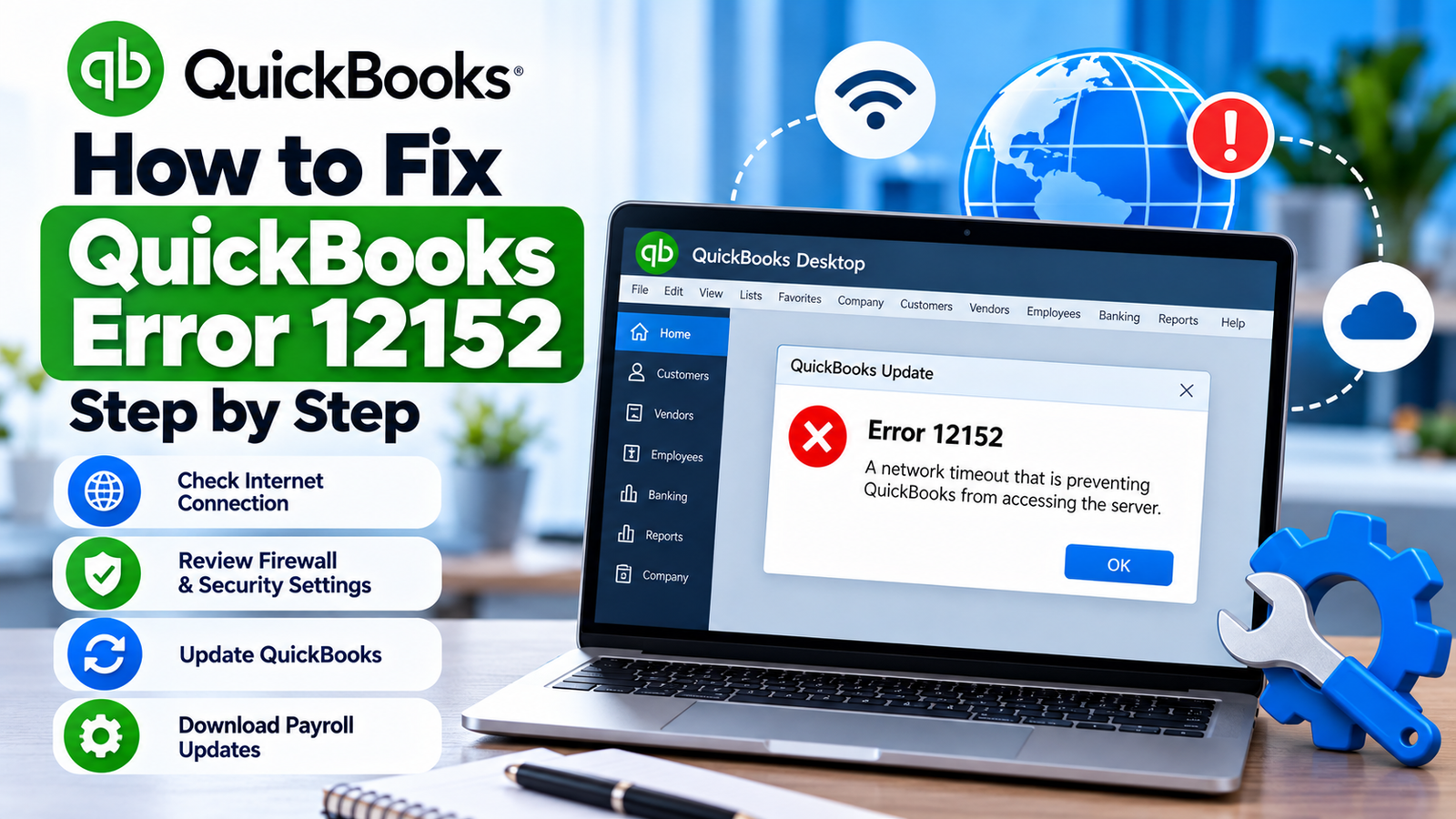
A QuickBooks update usually runs quietly in the background of your workday. The problem becomes noticeable when the download stops, payroll cannot get its latest tax-table information, or QuickBooks suddenly reports an error instead of completing the update.
If you’re seeing QuickBooks Error 12152, focus first on the connection between QuickBooks Desktop and the online services it needs during an update.
There is an important accuracy point here: Intuit’s current U.S. support documentation does not appear to have a dedicated article specifically defining Error 12152. However, Intuit does document several related 12XXX update errors—12002, 12007, 12009, 12029, and 12031—and explains that they can occur when QuickBooks cannot successfully connect to the internet because of browser, security, firewall, or other connection settings.
For that reason, this guide uses a connection-first troubleshooting approach instead of claiming that one single component always causes 12152.
What Is QuickBooks Error 12152?
QuickBooks Error 12152 is commonly encountered during QuickBooks Desktop or payroll-related online update activity. When it appears during an update, the practical troubleshooting approach is to check whether QuickBooks can communicate properly over the internet, whether security software is interfering, and whether the update itself needs to be retried or downloaded another way.
The error does not automatically mean your accounting data is damaged.
Start Here: What Were You Doing When 12152 Appeared?
Before changing Windows settings, identify the action that failed.
| What Happened | Where to Start |
|---|---|
| QuickBooks Desktop update stopped | Test connection, then retry update |
| Payroll update failed | Check Desktop update first, then payroll |
| Browser works but QuickBooks cannot update | Review firewall/security settings |
| Error started after antivirus/firewall changes | Check security configuration |
| Automatic update repeatedly fails | Try an immediate or manual update |
| All internet access is failing | Fix the computer/network connection first |
| Error remains after connection checks | Use advanced Windows/update troubleshooting |
This simple distinction matters because an internet problem affecting the entire computer is different from a security rule blocking only QuickBooks.
What May Be Happening Behind the Error?
QuickBooks Desktop needs to communicate with online services when downloading maintenance releases or payroll tax tables.
A simplified update process looks like this:
QuickBooks requests the update → Windows/network allows the connection → Intuit servers respond → files download → QuickBooks installs them
If communication breaks before the download completes, an update-related error may appear.
Intuit’s documentation for several 12XXX update errors says QuickBooks may fail to connect because of incorrect browser or security settings or interference from antivirus and firewall software.
That makes the network and security environment a sensible first place to investigate when QuickBooks error code 12152 appears during an online update.
Signs That Point Toward a Connection or Update Problem
You may notice that:
- QuickBooks itself opens normally.
- Your company file still opens.
- The error appears only while checking for updates.
- Payroll tax-table downloads fail or stop.
- Internet browsing works but QuickBooks cannot finish its online request.
- An update repeatedly starts but never completes.
- The issue began after Windows, antivirus, or firewall changes.
- Retrying produces the same error.
These symptoms do not prove the exact cause, but they help narrow the troubleshooting path.
9. Quick Summary Table
| Issue | Details |
|---|---|
| Error | QuickBooks Error 12152 |
| Most Useful Context | Appears during online/update activity |
| Product | QuickBooks Desktop |
| Possible Area to Check | Internet and security configuration |
| Payroll Impact | May interrupt tax-table downloads if encountered during payroll updating |
| First Test | Confirm secure websites work outside QuickBooks |
| Next Check | Firewall/security applications |
| Update Recovery | Retry QuickBooks update or use manual download |
| Advanced Option | Safe Mode with Networking / Selective Startup |
| Data Concern | Do not assume company-file damage from this error alone |
Step-by-Step Troubleshooting
How to Fix QuickBooks Error 12152
Rather than changing everything at once, move through these checks in order and retry the activity after each stage.
Step A: Find Out Whether the Internet Connection Itself Works
Start outside QuickBooks.
Open a modern web browser and visit a secure website that you trust, such as your bank’s sign-in page.
Intuit recommends this type of secure-site test when troubleshooting its documented 12XXX Desktop update errors. It also recommends its TLS 1.2 utility as part of connection testing.
If secure websites do not open correctly, the problem is larger than QuickBooks.
At that point, check:
- your Wi-Fi or Ethernet connection;
- modem/router status;
- Windows network access;
- company VPN status;
- proxy settings, if your business uses them.
For a company-managed computer, involve your IT administrator rather than making network-policy changes yourself.
If websites work normally
That’s useful information.
It means the computer has internet access, so the next question becomes whether something is blocking QuickBooks specifically.
Step B: Restart Before Changing Security Settings
Close QuickBooks completely.
Then restart Windows.
After the computer starts again:
- Confirm your internet connection.
- Open QuickBooks Desktop.
- Open the company file.
- Retry the update.
This sounds basic, but restarting clears temporary Windows and QuickBooks processes and gives the application a fresh network session.
If the error returns, move on rather than repeatedly restarting.
Step C: Make Sure QuickBooks Desktop Is Curren
An outdated QuickBooks installation can complicate troubleshooting.
Intuit’s current U.S. documentation recommends installing the latest maintenance release to receive current security improvements and product updates. To check your installed version, press F2 or Ctrl+1 in QuickBooks Desktop.
To run an immediate update:
- Open QuickBooks Desktop.
- Select Help.
- Choose Update QuickBooks Desktop.
- Open the Update Now tab.
- Select Get Updates.
- Allow the download to complete.
- Restart QuickBooks.
- Choose Install Now if prompted.
Intuit currently documents these steps for QuickBooks Desktop for Windows.
What if this is the exact process producing Error 12152?
Then don’t keep repeating it.
Continue to the connection and security checks below.
Step D: Check Firewall and Security Software
This is an important distinction:
“My browser works” does not always mean “QuickBooks is allowed through the firewall.”
Security applications can treat different programs differently.
Intuit states that antivirus, personal firewall, internet security, and similar applications can interfere with QuickBooks Desktop and payroll updates.
Check whether:
- your antivirus was recently updated;
- a new firewall policy was applied;
- Windows security settings recently changed;
- QuickBooks executables are being blocked;
- your office network recently received new security rules.
What not to do
Avoid permanently disabling antivirus or firewall protection.
If temporarily changing security settings is necessary for diagnosis, use documented security procedures or have an IT administrator review them.
The goal is to configure QuickBooks correctly—not to leave the computer unprotected.
Step E: Reset and Retry the Update
If the internet connection is working and no obvious security block appears, retry the QuickBooks update from a clean state.
Intuit’s guidance for related 12XXX update errors recommends restarting the computer, resetting the QuickBooks update, and attempting the download again. It also advises making sure the company file is in single-user mode for that troubleshooting path.
After restarting:
- Open QuickBooks.
- Confirm the appropriate single-user environment if needed.
- Open the QuickBooks update window.
- Retry the download.
- Let it finish without interrupting the process.
Avoid shutting down Windows or closing QuickBooks while the update is actively downloading.
Step F: Try the Manual QuickBooks Update
If updating from inside QuickBooks continues to fail, use Intuit’s manual update method.
Intuit specifically provides this option when in-product updates do not work.
The documented process is:
- Close QuickBooks Desktop.
- Go to Intuit’s Downloads & Updates page.
- Select the standard setup.
- Choose your country.
- Select your QuickBooks product.
- Select the correct version/year.
- Search for the available update.
- Download the latest update.
- Open the downloaded update file.
- Restart the computer after installation.
This is a useful diagnostic step because it separates an in-product connection failure from the update package itself.
Step G: If Only Payroll Will Not Update
If QuickBooks Desktop updates successfully but payroll does not, switch your attention to payroll.
The QuickBooks payroll update error 12152 search intent often comes from users whose ordinary QuickBooks features still work while the payroll download does not.
First confirm that your Desktop program is current.
Then:
- Open your QuickBooks Desktop company file.
- Select Employees.
- Choose Get Payroll Updates.
- Review your current tax-table version.
- Select Download Entire Update.
- Select Update.
- Wait for the informational message confirming that the download has completed.
Intuit notes that an active QuickBooks Desktop Payroll subscription is required to download current tax tables.
As of September 22, 2026, Intuit lists Payroll Update 22616 as the current U.S. payroll update. Because payroll releases change, always verify the current release directly instead of relying permanently on a number written in an older article.
Step H: Use Safe Mode With Networking as a Diagnostic Test
If the problem still looks like interference from another Windows application, Intuit recommends trying the update in Windows Safe Mode with Networking for its documented 12XXX update errors.
Why is this useful?
Safe Mode loads Windows with a more limited set of startup applications and services.
If the update works there but fails during normal Windows startup, another background application or security component may be interfering.
This is more of a diagnostic test than a permanent solution.
If you’re unfamiliar with Windows Safe Mode, consider having an IT professional handle this step on a business computer.
Step I: Selective Startup Is a Later Option
If connection tests, security checks, update retries, and Safe Mode do not resolve the problem, Intuit lists reinstalling QuickBooks in Selective Startup as a later troubleshooting option for related 12XXX update failures.
This is an advanced step.
Before proceeding:
- create a company-file backup;
- note your QuickBooks version;
- keep your license/account information available;
- close other applications;
- make sure you know where your company file is stored.
Do not jump straight to reinstalling QuickBooks when a connection or firewall adjustment may solve the problem more easily.
Why Is QuickBooks Connected to the Internet but Still Not Updating?
Because browser access and application access are not identical.
Chrome may be allowed to reach the internet while a firewall rule blocks QuickBooks.
Similarly, a VPN, security application, proxy, or Windows policy can affect specific programs differently.
That’s why a successful browser test should be treated as:
“My computer has internet access.”
Not:
“QuickBooks definitely has unrestricted internet access.”
What If the Error Keeps Coming Back?
At this stage, document exactly what happens.
Note:
- whether Desktop updates fail;
- whether payroll updates fail;
- whether both fail;
- whether the browser works;
- whether the update works in Safe Mode;
- whether the problem affects one computer or several;
- whether the issue started after a security or Windows change.
This information helps separate a QuickBooks-specific problem from a wider network configuration issue.
For businesses using managed networks, recurring connection errors should be reviewed with the network administrator rather than solved by repeatedly disabling protections.
You can also explore additional QuickBooks troubleshooting resources when researching related Desktop and payroll errors.
FAQs
1. What is QuickBooks Error 12152?
QuickBooks Error 12152 is commonly associated with QuickBooks Desktop online or update-related activity. Intuit does not currently provide a dedicated U.S. support article defining 12152, so troubleshooting should focus on what failed—especially internet connectivity, security software, and the update process.
2. Why am I seeing QuickBooks error code 12152?
If the error appears while downloading an update, one possibility is that QuickBooks cannot complete its online connection. Intuit documents similar 12XXX update errors as potentially involving browser settings, security applications, antivirus software, or firewall interference.
3. How do I fix QuickBooks Error 12152?
Start by testing secure websites outside QuickBooks. Then restart Windows, update QuickBooks Desktop, review firewall and security settings, and retry the update. If the in-product update keeps failing, try Intuit’s manual update method.
4. Is Error 12152 an internet connection problem?
It may be connection-related when it appears during an online update, but the error number alone should not be used to diagnose the exact cause. Confirm whether the computer can reach secure websites and whether security software is blocking QuickBooks.
5. Can Error 12152 affect payroll updates?
If the error occurs while QuickBooks Desktop Payroll is downloading a tax-table update, it can interrupt that download. Confirm QuickBooks Desktop is current, then use Employees > Get Payroll Updates > Download Entire Update > Update.
6. Does Error 12152 mean my company file is corrupted?
Not by itself. If your company file opens normally and the error appears only during an online update, the connection and update environment should usually be investigated before company-file repair.
7. What if QuickBooks Desktop updates but payroll does not?
That narrows the problem. Confirm that your QuickBooks Desktop Payroll subscription is active, then download the entire payroll update from Employees > Get Payroll Updates. If only payroll continues to fail, focus troubleshooting on that download path.
8. Can antivirus software cause QuickBooks update problems?
Yes. Intuit states that antivirus, firewall, and internet-security applications can interfere with QuickBooks Desktop updates. Instead of permanently disabling protection, review the application’s QuickBooks permissions or involve your IT administrator.
9. What if I get a 15XXX error instead of 12152?
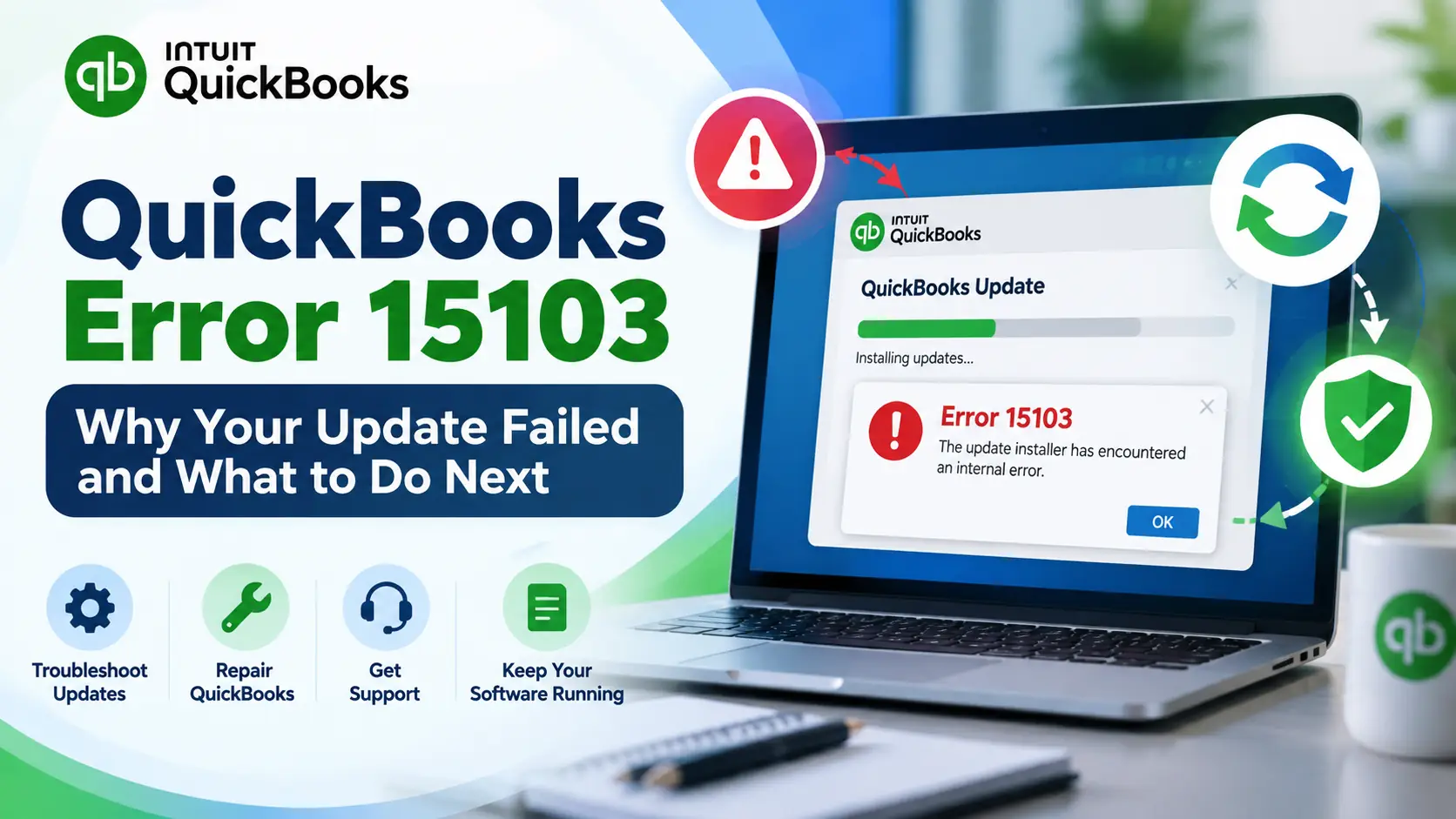
15XXX errors belong to a different update-error group and may require different checks. If your screen specifically shows 15103, see our guide to QuickBooks Error 15103 for update-specific troubleshooting.
10. What if my issue is opening a shared company file rather than updating?
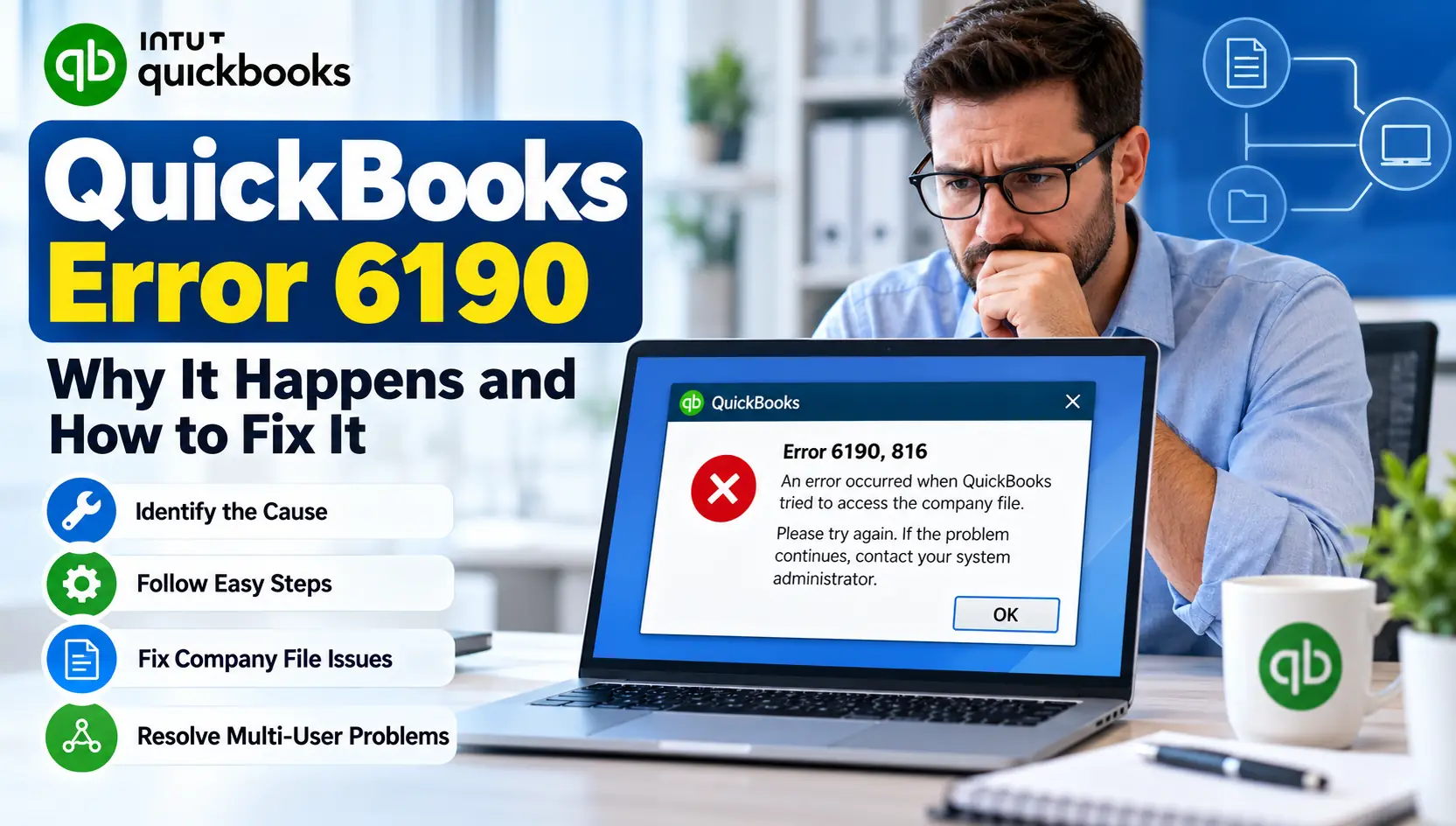
That points to a different troubleshooting path. If QuickBooks displays 6190 when accessing a company file, our guide to QuickBooks Error 6190 covers multi-user and company-file access checks.
Conclusion
QuickBooks Error 12152 is best approached as an update and connectivity problem when it appears while QuickBooks Desktop or payroll is communicating online. Start by confirming that secure websites work, then restart the computer, bring QuickBooks up to date, and review firewall or security restrictions.
If the normal update process still fails, retry the update, use Intuit’s manual download option, and test payroll separately when necessary. Safe Mode with Networking and Selective Startup should be reserved for later troubleshooting.
Most importantly, don’t assume the company file is damaged simply because an online update failed. Identify exactly where the process stops, make one change at a time, and test again.