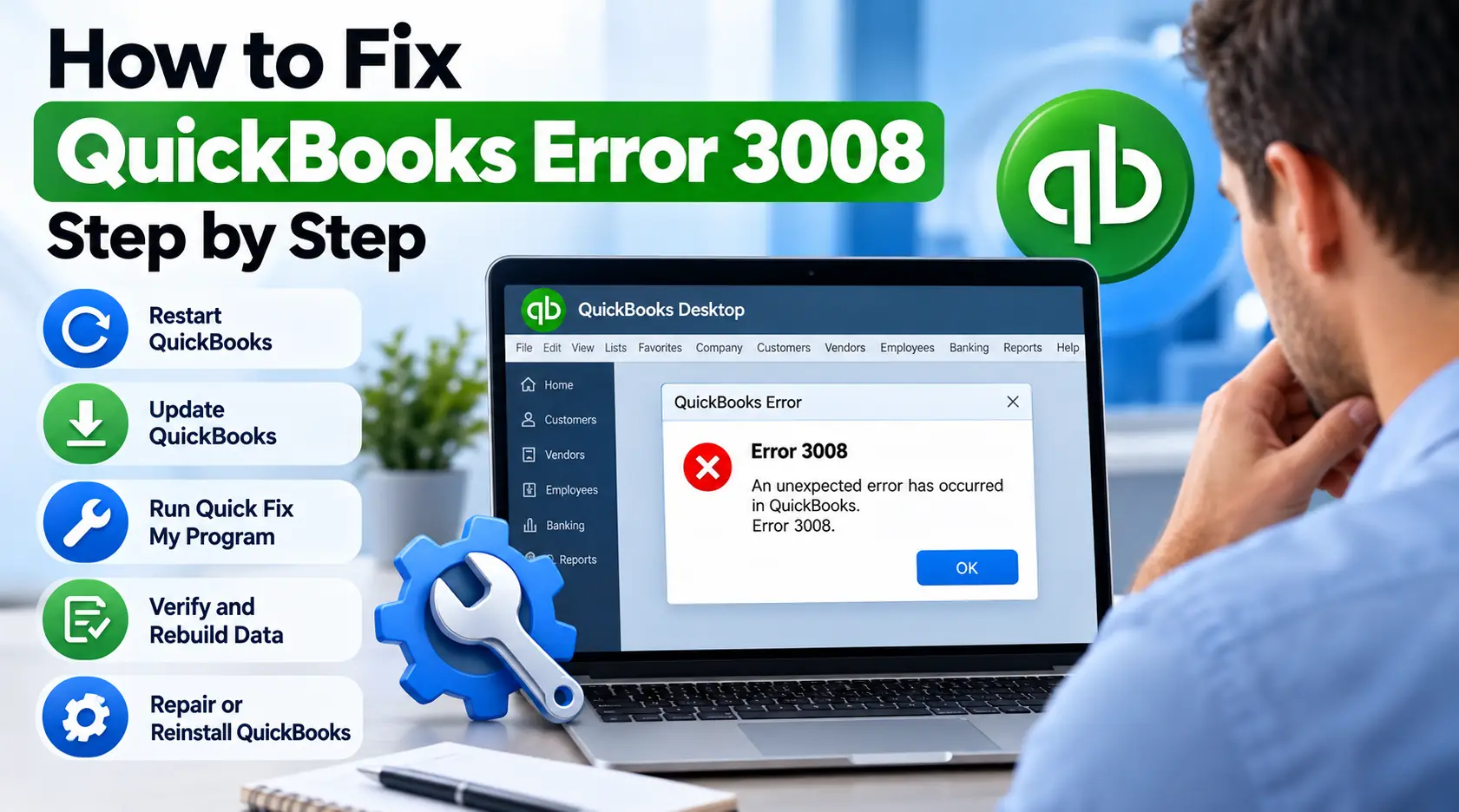
QuickBooks Error 3008: Causes, Symptoms, and Easy Fixes
Seeing QuickBooks Error 3008 can be frustrating, especially when QuickBooks Desktop was working normally before the message appeared. The bigger challenge is that Error 3008 does not currently have a dedicated article in Intuit’s U.S. QuickBooks support library, while online troubleshooting pages describe it in different ways.
Some third-party sources connect the error with QuickBooks startup or certificate-related problems, while others associate it with secure connections, payroll updates, or online services. Because those descriptions are not fully consistent, it is safer to troubleshoot based on what QuickBooks was doing when the error occurred rather than assuming one specific cause.
This guide follows that approach. You’ll learn how to identify whether the problem is with the QuickBooks program, its installation, your company file, or an online/update-related process—and which repair step makes sense next.
What Is QuickBooks Error 3008?
QuickBooks Error 3008 is an error reported by some QuickBooks Desktop users, but Intuit’s current support documentation does not provide a dedicated definition for the code.
Because online descriptions vary, the safest approach is to note when the error appears and then use Intuit’s documented troubleshooting tools for that type of problem—such as Quick Fix my Program, QuickBooks Install Diagnostic Tool, software updates, or company-file verification.
The key takeaway
Do not automatically assume Error 3008 means:
- your company file is corrupted;
- your payroll data is damaged;
- malware is definitely present;
- a digital certificate is definitely broken;
- QuickBooks must be reinstalled immediately.
Those are possible explanations found on third-party websites, but they should not be treated as confirmed causes without additional evidence.
Quick Diagnosis: Where Do You See Error 3008?
The easiest way to choose a troubleshooting path is to answer one question:
What were you doing immediately before the error appeared?
| When Error 3008 Appears | Best Starting Point |
|---|---|
| QuickBooks will not open | Quick Fix my Program |
| QuickBooks opens and then freezes | Quick Fix + program diagnostics |
| Error appears after a software update | Update/repair QuickBooks |
| Only one company file has problems | Verify the company file |
| Every company file has problems | Check the QuickBooks program |
| Error appears during an online task | Review connection/security environment |
| QuickBooks installation seems damaged | Install Diagnostic Tool |
| Problem continues after program repair | Repair or reinstall QuickBooks |
This distinction can save a lot of unnecessary troubleshooting.
What Does QuickBooks Error Code 3008 Mean for Your Data?
An error message does not automatically mean accounting data has been lost.
QuickBooks Desktop consists of several separate layers:
QuickBooks program → Windows components → company file → network/online services
A failure at one layer can stop QuickBooks even when the others are healthy.
For example, if the QuickBooks program itself is damaged, you might see an error before your .QBW company file has even been opened.
On the other hand, if QuickBooks opens normally but one particular company file fails, the company file deserves more attention.
This is why good QuickBooks 3008 troubleshooting should first identify the affected layer instead of jumping directly into advanced repair steps.
Symptoms Worth Paying Attention To
You may encounter Error 3008 alongside one or more of these behaviors:
- QuickBooks Desktop does not open normally.
- The program opens and then closes unexpectedly.
- QuickBooks freezes during startup.
- An error appears while performing an online or update-related action.
- One company file behaves differently from others.
- QuickBooks started acting differently after a Windows or software update.
- The program works after restarting Windows but the problem later returns.
Not every user will experience the same symptoms.
More importantly, a symptom can help determine where to troubleshoot first.
Before You Start: Protect Your Company Data
If QuickBooks still allows you to access the company file, create a current backup before performing deeper troubleshooting.
Intuit describes a backup as a save point for your accounting data. A local QuickBooks Desktop backup can include accounting data, templates, letters, logos, images, and several related files.
A basic manual backup can be created through:
File → Back Up Company → Create Local Backup
Then choose Local Backup, select a safe storage location, and complete the backup process.
This precaution is especially useful before running company-file repairs or reinstalling QuickBooks.
Quick Summary Table
| Item | Details |
|---|---|
| Error | QuickBooks Error 3008 |
| Product | QuickBooks Desktop |
| Official dedicated Intuit article | Not currently located in Intuit’s U.S. support library |
| Online descriptions | Vary between startup, certificate, connection, and update-related issues |
| Best first action | Identify exactly when the error occurs |
| Safest initial repair | Quick Fix my Program |
| If installation is affected | Run Install Diagnostic Tool |
| If one company file is affected | Verify Data |
| If data damage is detected | Back up and Rebuild Data |
| Important caution | Do not assume a specific root cause without evidence |
Step-by-Step Troubleshooting
How to Fix QuickBooks Error 3008
Start with the least disruptive option. After each repair, reopen QuickBooks and reproduce the activity that originally triggered the error.
If the problem is gone, stop troubleshooting.
Fix 1: Restart QuickBooks and Windows Properly
Before repairing anything, close QuickBooks completely.
Save other open work, restart Windows, and then launch QuickBooks again.
A restart can clear temporary processes or Windows resources that may be interfering with the program.
After restarting:
- Open QuickBooks Desktop.
- Wait for the program to load completely.
- Open the company file if necessary.
- Repeat the task that originally produced Error 3008.
If the error returns immediately, move to the next step.
Fix 2: Update QuickBooks Desktop
An outdated QuickBooks release may contain program issues that have already been addressed in a maintenance update.
Intuit recommends installing the latest maintenance release to receive current product improvements and security updates. Its September 2026 documentation explains that users can press F2 or Ctrl+1 to review their installed release.
To check for updates:
- Open QuickBooks Desktop.
- Press F2 or Ctrl+1.
- Note your version and release.
- Go to the QuickBooks update options.
- Download available updates.
- Close and reopen QuickBooks when required.
- Test the original task again.
Why try this early?
It is usually better to bring the software current before repairing or reinstalling it.
Fix 3: Run Quick Fix My Program
If you’re wondering how to fix QuickBooks Error 3008 when the program is freezing, failing to launch properly, or behaving unpredictably, Quick Fix my Program is a sensible next step.
Intuit says Quick Fix shuts down open QuickBooks background processes and performs a quick repair of the program.
Steps
- Close QuickBooks Desktop.
- Open the latest QuickBooks Tool Hub.
- Choose Program Problems.
- Select Quick Fix my Program.
- Allow the repair to finish.
- Start QuickBooks Desktop.
- Open your company file.
- Test the task that caused the error.
QuickBooks Tool Hub is Intuit’s current troubleshooting hub for common company-file, installation, networking, program, PDF, and printing issues.
Fix 4: Find Out Whether the Problem Is QuickBooks or the Company File
This is one of the most useful diagnostic checks.
Ask yourself:
Can QuickBooks Desktop itself open normally?
If the program opens but one specific company file does not, the file may need investigation.
If QuickBooks fails before any company file opens, focus more heavily on the program and installation.
Intuit uses a similar program-versus-file troubleshooting approach when QuickBooks Desktop will not open normally.
Avoid rebuilding a company file simply because QuickBooks itself will not launch.
Fix 5: Verify Your Company Data—Only If File Symptoms Point There
If the QuickBooks Desktop error 3008 appears only with one company file, you can use QuickBooks’ Verify Data utility to check the file.
Intuit states that Verify Data searches for common company-file issues and data damage.
To verify the file
- Open the affected company file.
- Select Window.
- Choose Close All.
- Open File.
- Select Utilities.
- Choose Verify Data.
If QuickBooks reports:
“QuickBooks detected no problems with your data”
the file passed that check.
If QuickBooks reports that your data has lost integrity, then Rebuild Data becomes appropriate.
Fix 6: Rebuild Data If Verify Finds a Problem
Do not run Rebuild Data merely because an error number appeared.
Use it when Verify Data actually finds an integrity problem.
Intuit requires a backup before the rebuild process begins.
Process
- Go to File → Utilities.
- Select Rebuild Data.
- Create the requested backup.
- Allow QuickBooks to rebuild the file.
- Wait for the completion message.
- Run Verify Data again afterward.
If Verify reports no remaining problems, retry the action that produced the original error.
Fix 7: Run QuickBooks Install Diagnostic Tool
If QuickBooks itself appears damaged, the installation components may need repair.
Intuit’s QuickBooks Install Diagnostic Tool is designed to diagnose and correct common problems involving Microsoft components used by QuickBooks.
To run it:
- Close QuickBooks.
- Open QuickBooks Tool Hub.
- Select Installation Issues.
- Choose QuickBooks Install Diagnostic Tool.
- Let the tool complete.
- Restart your computer.
- Launch QuickBooks again.
- Test the original problem.
This path makes more sense when the error affects the entire QuickBooks program rather than a single .QBW file.
Fix 8: Check the Windows Security Environment if the Error Happens During an Online Task
Some third-party articles associate QuickBooks error code 3008 with certificates or secure online communication, but current Intuit documentation does not provide a dedicated Error 3008 article confirming that interpretation.
If the error appears specifically while QuickBooks is connecting to an online service, it is reasonable to check:
- whether Windows date and time are correct;
- whether the computer has a working internet connection;
- whether security software changed recently;
- whether your company’s firewall has recently been reconfigured;
- whether Windows updates were recently installed.
For a company-managed PC, involve the IT administrator before changing certificates, firewall rules, or security policies.
Do not permanently disable antivirus protection simply as a troubleshooting shortcut.
Fix 9: Repair or Reinstall QuickBooks Only After Simpler Checks Fail
Reinstalling QuickBooks should not normally be your first move.
Intuit recommends Quick Fix and the Install Diagnostic Tool before moving to more disruptive program repairs in several current Desktop troubleshooting workflows.
Before reinstalling, make sure you have:
- a current company-file backup;
- your QuickBooks version information;
- the correct license/account information;
- the location of your company files.
Intuit notes that a normal QuickBooks working company file uses the .QBW extension.
After reinstalling, update QuickBooks to the latest applicable release before testing again.
What Should You Avoid While Troubleshooting?
Avoid making major changes based only on an unverified internet article.
In particular, don’t delete QuickBooks company files, remove certificates randomly, install unknown “repair” utilities, disable security permanently, or rebuild a company file unless the symptoms actually point to that component.
A useful rule is:
One change → one test → record the result.
That makes troubleshooting far more reliable than applying six unrelated fixes at the same time.
Prevention Tips
You may not be able to prevent every software error, but good maintenance can reduce avoidable QuickBooks problems.
Keep QuickBooks Desktop updated, maintain regular company-file backups, use QuickBooks Tool Hub for documented repair tasks, keep Windows maintained, and avoid forcing the computer to shut down while QuickBooks is working.
If your business relies heavily on QuickBooks, document the normal company-file location and backup routine so another administrator can quickly determine whether a future problem is program-related or file-related.
For related accounting software guides, you can also explore the QuickBooks troubleshooting resources.
FAQs
1. What is QuickBooks Error 3008?
QuickBooks Error 3008 is an error reported by some QuickBooks Desktop users, but there is currently no dedicated Intuit U.S. support article that clearly defines the code. Because online explanations vary, identify whether the error occurs during startup, company-file access, updating, or an online task before choosing a repair.
2. What causes QuickBooks error code 3008?
There is no single currently verified Intuit explanation for Error 3008. Third-party sources describe different potential causes, including program, certificate, security, and connection problems. For that reason, diagnose the behavior you can actually observe rather than assuming one cause.
3. How do I fix QuickBooks Error 3008?
Start by restarting Windows and updating QuickBooks Desktop. If the error remains, run Quick Fix my Program from QuickBooks Tool Hub. If QuickBooks itself is damaged, try the Install Diagnostic Tool. If only one company file has problems, run Verify Data before considering a rebuild.
4. Can Quick Fix my Program help with Error 3008?
It may help when the issue is related to QuickBooks program processes. Intuit says Quick Fix closes open QuickBooks background processes and runs a quick program repair, making it an appropriate early troubleshooting step for program-level problems.
5. Does Error 3008 mean my company file is corrupted?
No conclusion like that should be made from the error number alone. If only one company file has problems, use QuickBooks’ Verify Data tool to check it. If Verify reports no data problems, avoid performing an unnecessary rebuild.
6. Should I reinstall QuickBooks immediately?
Usually not. Start with updating QuickBooks, Quick Fix my Program, and the Install Diagnostic Tool. Reinstallation involves more work and is better reserved for situations where simpler program repairs fail.
7. Can I use Verify and Rebuild for Error 3008?
Yes, but only when the symptoms point toward a company-file issue. Run Verify Data first. If QuickBooks reports that data integrity has been lost, create a backup and then use Rebuild Data.
8. Is it safe to disable antivirus software to fix Error 3008?
Permanently disabling security software is not recommended. If the error occurs only during an online connection and you suspect security software, have the firewall or antivirus configuration reviewed properly, especially on a business-managed computer.
9. What if my problem is actually a QuickBooks update error?
If your error appears specifically while downloading QuickBooks Desktop or payroll updates, the troubleshooting path may be different. The guide on QuickBooks Error 15103 covers a documented 15XXX update-related issue in more detail.
10. What if QuickBooks cannot open my shared company file?
A shared company-file problem may involve a different error family and network troubleshooting. If you are seeing Error 6190 instead, review the guide to QuickBooks Error 6190 for company-file and multi-user troubleshooting.
Conclusion
QuickBooks Error 3008 should be approached carefully because current Intuit documentation does not provide a dedicated definition for the code and third-party explanations are inconsistent.
Instead of assuming the problem is malware, a certificate, payroll, or company-file corruption, identify exactly when the error appears. Then start with low-risk steps: restart Windows, update QuickBooks Desktop, and run Quick Fix my Program. If the whole application is affected, use the Install Diagnostic Tool. If only one company file shows problems, verify its data before considering a rebuild.
This symptom-first approach is safer, easier to follow, and helps avoid unnecessary changes to working QuickBooks components or accounting data.