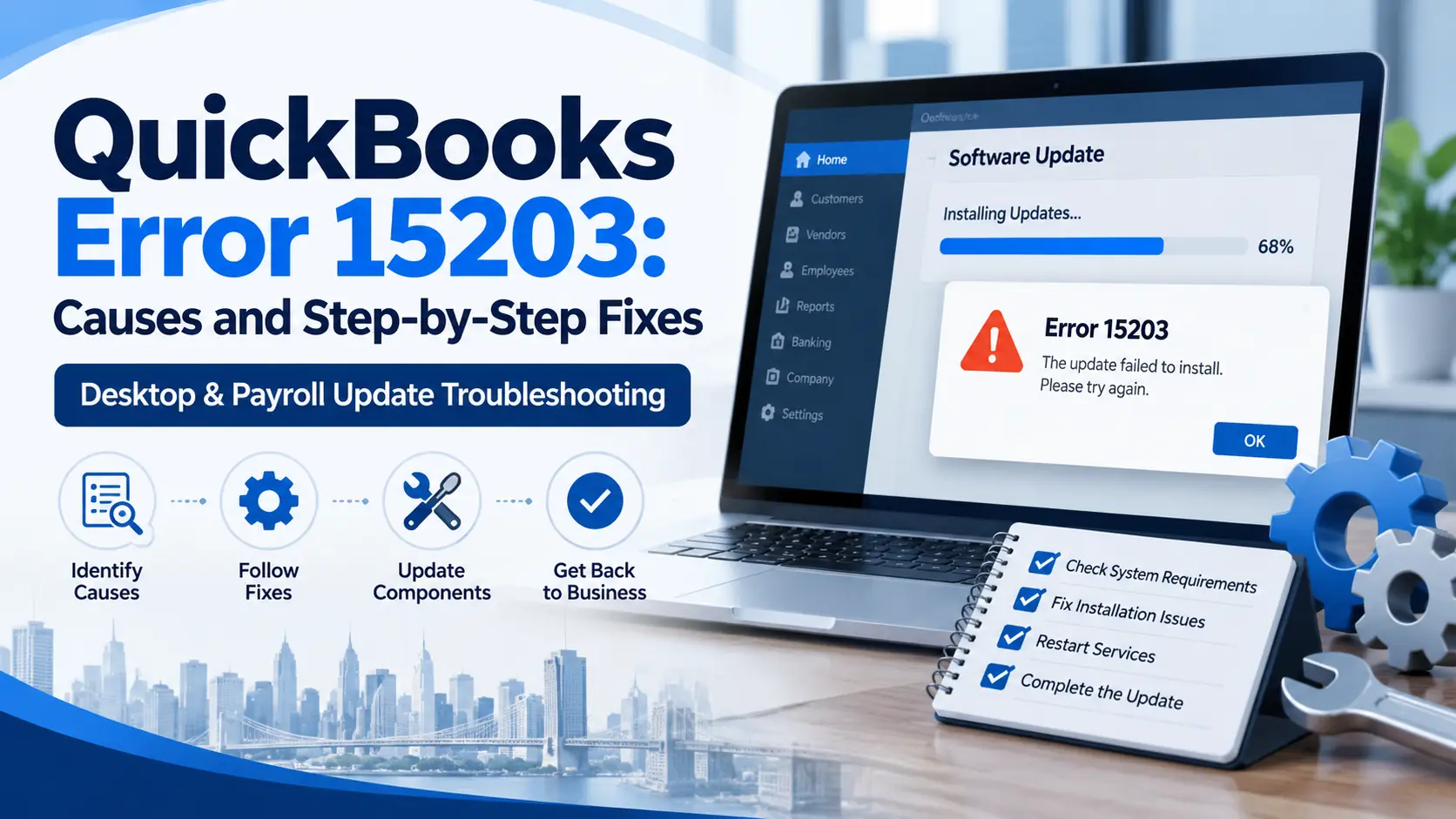
You may see QuickBooks Error 15203 while trying to download or install a QuickBooks Desktop or payroll update. Instead of completing normally, the update may stop, fail, or ask you to try again.
Update problems can happen for several reasons. Windows permissions may block the update, QuickBooks background processes may not be working correctly, downloaded update components may need to be refreshed, or Windows may have trouble validating required security certificates.
One important point: Intuit’s current 2026 help pages list several 15XXX update errors, but 15203 is not specifically named in those lists. For that reason, it is safer to troubleshoot the update problem itself rather than claim one guaranteed cause for Error 15203. Intuit’s current 15XXX workflow covers administrator access, Tool Hub, update components, digital certificates, program repair, and reinstalling QuickBooks.
This guide takes you through those checks in an easy order.
What Is QuickBooks Error 15203?
QuickBooks Error 15203 is generally reported when a QuickBooks Desktop or payroll update does not complete correctly.
It may appear while downloading:
- A QuickBooks Desktop maintenance update
- A payroll tax table update
- Program update files
- Components required by the update process
Because Intuit does not currently publish a dedicated Error 15203 support article, the safest approach is to use its official troubleshooting process for comparable QuickBooks 15XXX update errors.
What Does Error 15203 Mean?
In simple terms, QuickBooks is attempting to download, verify, or install an update, but something is preventing that process from finishing.
The problem may involve:
- Windows administrator permissions
- QuickBooks background processes
- Update files stored on the computer
- Firewall or internet security settings
- Windows system files
- Digital signature verification
- QuickBooks installation components
Intuit identifies these areas as common causes across its supported 15XXX update-error family.
Common Signs You May Notice
Users dealing with an update-related 15203 issue may notice that:
- QuickBooks Desktop updates stop before completion.
- Payroll tax-table downloads fail.
- The same update repeatedly downloads but does not install.
- QuickBooks asks for an update again after restarting.
- An update-related error appears during payroll maintenance.
- The release number does not change after updating.
- QuickBooks works normally until an update is attempted.
The exact symptom depends on whether you are updating QuickBooks Desktop itself or downloading a payroll tax table.
Why Can QuickBooks Error 15203 Appear?
There is no single Intuit-confirmed cause specifically for 15203, but official 15XXX troubleshooting points to several areas worth checking.
Limited Windows permissions: QuickBooks may need administrator privileges to download or install updates.
Update components need refreshing: Existing downloaded components may prevent a clean update.
Background QuickBooks processes are stuck: Quick Fix my Program can close lingering processes and repair the program.
Digital certificate problems: QuickBooks verifies digital signatures on downloaded files. Certificate problems can stop some 15XXX updates.
Firewall restrictions: Security software may block payroll or Desktop update connections.
Windows components are outdated or damaged: Windows updates can help restore components needed by QuickBooks.
QuickBooks installation needs repair: If program files are not properly installed or registered, update attempts may continue to fail.
Quick Summary Table
| Issue | Details |
| Error | QuickBooks Error 15203 |
| Error Type | Desktop / payroll update-related |
| Common Trigger | Downloading or installing updates |
| Usually Affects | QuickBooks Desktop and possibly Payroll updates |
| First Check | Run QuickBooks as Administrator |
| Main Repair Tool | QuickBooks Tool Hub |
| Useful Tool | Quick Fix my Program |
| Update Reset | Reset QuickBooks update components |
| Security Check | Digital signature / Windows certificates |
| Payroll Check | Download Entire Update |
| Advanced Fix | Install Diagnostic Tool / reinstall QuickBooks |
How to Fix QuickBooks Error 15203 Step by Step
Follow the steps in this order. After each major step, retry the update. If the update completes normally, you can stop troubleshooting.
Step 1: Identify Which Update Is Failing
Before changing settings, confirm what you were updating.
Ask yourself:
- Were you updating QuickBooks Desktop?
- Were you downloading a payroll tax table?
- Did the error appear during an automatic update?
- Did it appear after selecting Get Updates manually?
This matters because a QuickBooks Desktop update and a payroll tax-table update use slightly different menus.
If the issue occurs during payroll, also make sure you are using an active QuickBooks Desktop Payroll subscription. Intuit requires an active subscription for current payroll tax-table downloads.
Step 2: Restart QuickBooks and Windows
Start with a clean restart.
Follow these steps:
- Save your work.
- Close all company files.
- Exit QuickBooks Desktop.
- Close other unnecessary applications.
- Restart Windows.
- Sign back into your account.
- Open QuickBooks again.
- Retry the update.
Why this may help
Temporary background processes can interfere with downloads or installation. Restarting clears many temporary processes before you move to more advanced troubleshooting.
Step 3: Run QuickBooks as Administrator
Intuit’s first official solution for supported 15XXX Desktop and payroll update errors is to download the update with administrator access.
Follow these steps:
- Close QuickBooks Desktop.
- Find the QuickBooks icon.
- Right-click the icon.
- Select Run as administrator.
- Select Yes when Windows asks for permission.
- Open your company file.
- Retry the QuickBooks or payroll update.
If the update completes successfully, normal Windows permissions may have been restricting the previous attempt.
Step 4: Update QuickBooks Desktop to the Latest Release
Before troubleshooting payroll separately, make sure QuickBooks Desktop itself is current.
Follow these steps:
- Open QuickBooks Desktop.
- Select Help.
- Select Update QuickBooks Desktop.
- Open the Update Now tab.
- Select Get Updates.
- Wait for the download to finish.
- Close QuickBooks.
- Reopen QuickBooks.
- Select Install Now if prompted.
Intuit’s current guidance uses this process for an immediate Desktop update.
You can also press F2 or Ctrl + 1 to view the Product Information window and check your current release.
Step 5: Run Quick Fix My Program
If QuickBooks update error 15203 returns, use Tool Hub.
Install or open Tool Hub:
- Close QuickBooks.
- Download the latest QuickBooks Tool Hub from Intuit.
- Open QuickBooksToolHub.exe.
- Follow the installation instructions.
- Open Tool Hub.
Run Quick Fix:
- Select Program Problems.
- Select Quick Fix my Program.
- Wait for the repair to finish.
- Reopen QuickBooks.
- Retry the update.
Quick Fix closes lingering QuickBooks background processes and performs a quick program repair. Intuit currently recommends it in its 15XXX update troubleshooting.
Step 6: Reset the QuickBooks Update Components
If the error continues, reset the previously downloaded update files.
Intuit’s 15XXX instructions provide a process that includes removing the QuickBooks Components folder and using Reset Update.
Follow carefully:
- Close QuickBooks Desktop.
- Browse to the QuickBooks Components location for your installed version.
- Follow the appropriate Intuit procedure for refreshing the Components folder.
- Reopen QuickBooks.
- Go to Help > Update QuickBooks Desktop.
- Select Update Now.
- Check Reset Update.
- Select Get Updates.
- Wait for the download to finish.
- Close and reopen QuickBooks.
- Install the update.
Why this may help
This gives QuickBooks a fresh copy of its downloaded update components instead of repeatedly using update files that may not be working correctly.
Because folder names vary by QuickBooks version, avoid deleting unrelated Intuit folders.
Step 7: Install the QuickBooks Digital Signature Certificate
QuickBooks verifies digital signatures on downloaded files to help confirm that update files are trusted.
Intuit recommends reinstalling the QuickBooks digital certificate as part of its 15XXX update-error process.
Follow these steps:
- Close QuickBooks.
- Browse to the QuickBooks program folder.
- Locate QBW32.exe.
- Right-click it.
- Select Properties.
- Open Digital Signatures.
- Select the Intuit signature.
- Select Details.
- Select View Certificate.
- Choose Install Certificate.
- Continue through the certificate wizard.
- Select Finish.
- Restart Windows.
- Open QuickBooks.
- Retry the update.
Step 8: Install Pending Windows Updates
Windows security certificates and system components can affect software updates.
Intuit specifically recommends updating Windows when security certificates are outdated in some 15XXX update situations.
Follow these steps:
- Open Windows Settings.
- Select Windows Update.
- Select Check for updates.
- Install available updates.
- Restart your computer.
- Check again for any remaining updates.
- Open QuickBooks and retry.
Do not interrupt Windows while system updates are being installed.
Step 9: Check Firewall and Internet Security Settings
Intuit lists firewall settings as one possible reason some 15XXX payroll updates fail.
Check whether:
- Windows Firewall is blocking QuickBooks.
- Third-party antivirus is blocking update traffic.
- Business endpoint security is restricting QuickBooks.
- Your network is blocking the update connection.
Avoid permanently disabling security software.
If you use a managed office computer, ask your IT administrator to review QuickBooks network permissions.
Step 10: Download the Payroll Update Again
Use this step if the error appeared during a payroll tax-table update.
Follow these steps:
- Open your QuickBooks company file.
- Select Employees.
- Select Get Payroll Updates.
- Review the tax-table version shown.
- Select Download Entire Update.
- Select Update.
- Wait for the completion message.
Intuit uses this process for downloading the current QuickBooks Desktop Payroll tax table.
If the payroll update succeeds, reopen the payroll update window and verify that the new version is installed.
Step 11: Run Install Diagnostic Tool or Reinstall QuickBooks
If all update-specific fixes fail, the QuickBooks installation itself may need attention.
Run Install Diagnostic Tool:
- Close QuickBooks.
- Open QuickBooks Tool Hub.
- Select Installation Issues.
- Select QuickBooks Install Diagnostic Tool.
- Let the tool finish.
- Restart the computer.
- Retry the update.
Intuit recommends the Install Diagnostic Tool to repair common QuickBooks installation problems.
If the problem still continues
Reinstalling QuickBooks can restore program components that are missing or not registered correctly. Intuit also recommends reinstalling QuickBooks for some 15XXX update failures.
Before reinstalling:
- Know your QuickBooks version.
- Keep your account or license details available.
- Confirm the location of your company file.
- Create a recent backup.
What Should You Avoid?
While troubleshooting the error, avoid:
- Permanently turning off antivirus protection
- Deleting random QuickBooks folders
- Editing Windows Registry entries without technical knowledge
- Downloading unofficial QuickBooks repair tools
- Reinstalling before keeping a company-file backup
- Repeating the same failed update many times without changing anything
- Assuming your company file is corrupted just because an update failed
Work through the fixes one at a time so you know which change actually helped.
.
Frequently Asked Questions
What is QuickBooks Error 15203?
QuickBooks Error 15203 is commonly reported as an update-related QuickBooks Desktop issue. Intuit does not currently list 15203 specifically in its official 15XXX error tables, so it is best to troubleshoot the failed update using supported 15XXX procedures rather than assume one exact cause.
How do I fix QuickBooks Error 15203?
Start by restarting Windows, running QuickBooks as administrator, and downloading the update again. If it fails, run Quick Fix my Program, reset update components, reinstall the Intuit digital certificate, update Windows, and check firewall settings.
Can Error 15203 affect payroll updates?
It may appear in connection with payroll updating based on third-party reports, but Intuit does not currently publish a dedicated 15203 payroll article. If your error appears during payroll, update QuickBooks Desktop first and then use Employees > Get Payroll Updates > Download Entire Update.
Should I use QuickBooks Tool Hub?
Yes. Tool Hub includes Quick Fix my Program and the Install Diagnostic Tool, both of which Intuit uses in official troubleshooting workflows for Desktop update and installation problems.
Can a digital certificate problem stop QuickBooks updates?
Yes, for several officially documented 15XXX errors. QuickBooks verifies digital signatures on downloaded program files, and Intuit recommends installing the QuickBooks digital signature certificate when signature verification causes an update failure.
Should I reinstall QuickBooks immediately?
No. Try administrator access, Desktop updates, Quick Fix my Program, update reset, Windows updates, and security checks first. Reinstallation is better used when easier update repairs have not solved the problem.
What if the issue is a company-file error instead?
An update error is different from a company-file access or restore issue. If your screen shows Error 6123 while opening or restoring data, see our guide on QuickBooks Error 6123 for company-file troubleshooting.
What if QuickBooks installation itself fails?
If Windows prevents QuickBooks from creating or accessing a required installation folder, that is a different problem. Our guide on QuickBooks Error 1317 explains administrator and installation-permission fixes.
Do I need an active payroll subscription to download tax tables?
Yes. Intuit states that you need an active QuickBooks Desktop Payroll subscription to download current payroll tax-table updates.
Can I continue using QuickBooks if an update fails?
You may still be able to open QuickBooks, depending on the problem, but update failures should not be ignored—especially for payroll. Payroll tax tables contain current federal and supported state rates and calculations, so keeping them current is important.
Conclusion
QuickBooks Error 15203 is best handled as an update-related problem rather than assuming your company file is damaged.
Begin with the easiest fixes: restart Windows, run QuickBooks as administrator, and update QuickBooks Desktop. If the error remains, use QuickBooks Tool Hub, reset the update files, reinstall the digital certificate, complete Windows updates, and check security settings.
For payroll-related failures, retry the full payroll tax-table download after QuickBooks Desktop is current.
If none of these steps work, use the Install Diagnostic Tool and consider repairing or reinstalling QuickBooks. Work through the steps in order so you can identify what is actually preventing the update from completing.