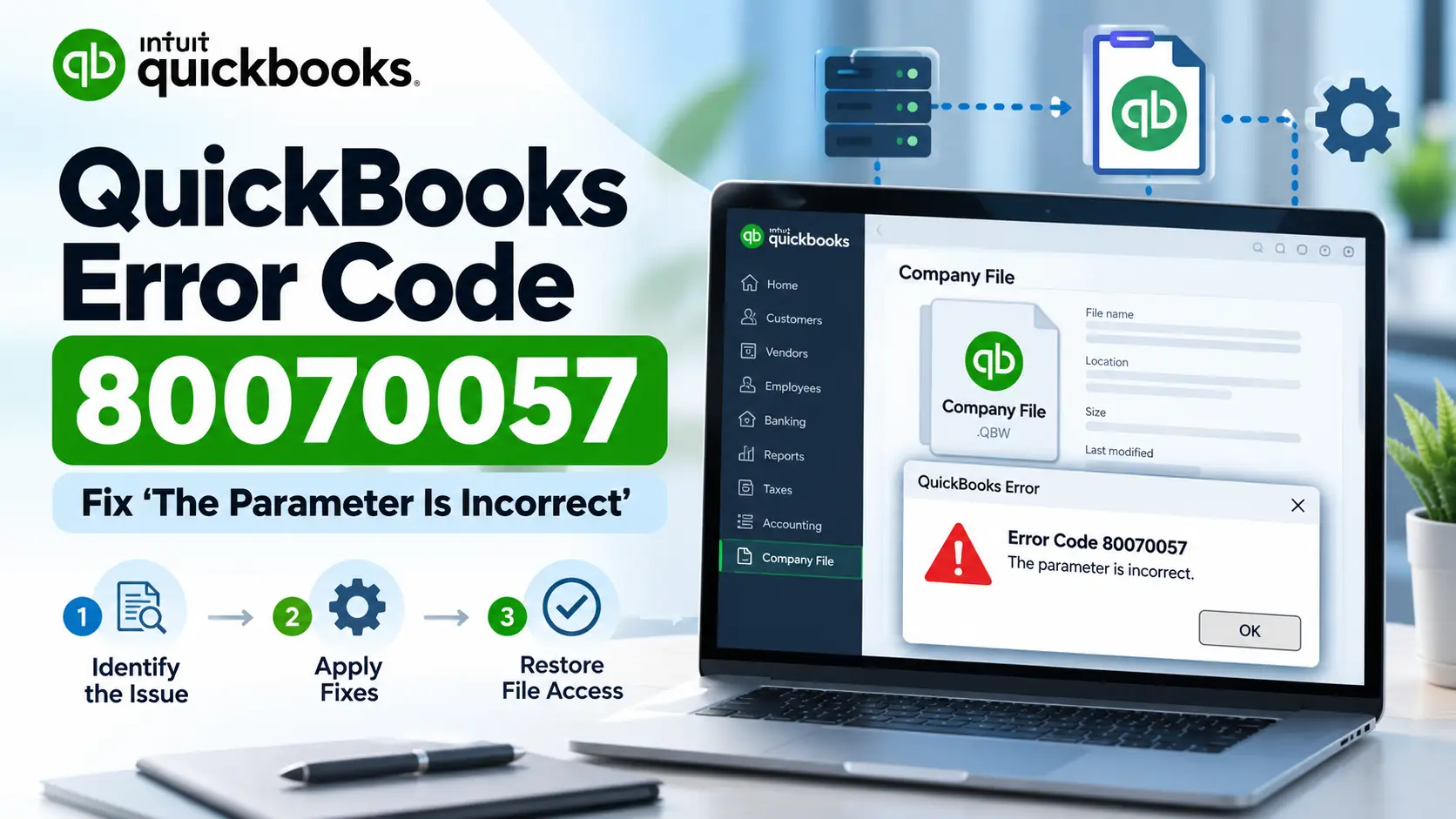
You open QuickBooks Desktop and select your company file, but instead of loading your accounting data, QuickBooks displays QuickBooks Error Code 80070057 with a message that says “The parameter is incorrect.”
This error is different from a payroll or update-only issue. Intuit’s current guidance specifically says Error 80070057 can appear when you try to open a QuickBooks Desktop company file.
The problem does not automatically mean your accounting data is lost or permanently damaged. In many cases, the fix involves how the file is being opened, where the .QBW file is stored, Windows permissions, QuickBooks updates, or network configuration.
The safest approach is to start with the easiest file-opening checks before changing network files or server settings. This guide follows that order so you can troubleshoot without making unnecessary changes.
What Is QuickBooks Error Code 80070057?
QuickBooks Error Code 80070057 is a QuickBooks Desktop company-file error commonly accompanied by the message “The parameter is incorrect.”
According to Intuit, the error can appear when QuickBooks is unable to open the selected company file normally. Its current troubleshooting process starts by opening the file correctly from inside QuickBooks, updating QuickBooks Desktop, checking administrator permissions, and testing the company-file location.
For multi-user environments, additional checks may include the .ND network configuration file and QuickBooks Database Server Manager.
Why Does QuickBooks Say “The Parameter Is Incorrect”?
The message does not tell you exactly which part of the setup is wrong.
Instead, think of it as QuickBooks being unable to successfully complete the request to open the selected company file.
Several areas may contribute:
The company file is being opened the wrong way
Intuit recommends opening the company file from inside QuickBooks Desktop rather than relying on another file-opening method.
QuickBooks Desktop is not current
An outdated release may be missing maintenance fixes required for normal program or company-file behavior.
Windows permissions are limited
QuickBooks may need elevated access to work with the company file.
The .QBW file is stored in an unusual location
Intuit specifically recommends moving the company file to its default QuickBooks company-file location when Error 80070057 continues.
The network configuration file needs to be recreated
QuickBooks uses an .ND file to help access company files in network and multi-user environments. Renaming it allows QuickBooks to create a fresh configuration file.
Database Server Manager needs to rescan the folder
On a multi-user network, Database Server Manager helps QuickBooks detect and share company-file folders correctly.
How Can You Tell Whether It Is a File or Network Problem?
Ask one question:
Does the company file open when stored locally on the same computer?
If yes, but it fails from the shared network location, focus on:
- .ND configuration
- Database Server Manager
- Folder sharing
- Windows permissions
- Network access
If the local file also fails, focus first on:
- Opening the file correctly
- Updating QuickBooks
- Administrator access
- File Doctor
- Company-file integrity
This simple test can prevent unnecessary network troubleshooting.
Before You Start
Take a few basic precautions.
- Close unnecessary QuickBooks windows.
- Know where your .QBW company file is stored.
- Create a backup if QuickBooks still allows it.
- Do not delete the original company file.
- Do not permanently disable Windows security.
- If you are in multi-user mode, note which computer stores the company file.
- Make one change at a time and retest QuickBooks.
Quick Summary Table
| Issue | Details |
| Error | QuickBooks Error Code 80070057 |
| Common Message | The parameter is incorrect |
| Usually Appears | While opening a company file |
| Main File Type | .QBW |
| First Fix | Open file correctly from QuickBooks |
| Next Check | Update QuickBooks Desktop |
| Permission Check | Run QuickBooks as administrator |
| File Location Fix | Move .QBW to default location |
| Repair Tool | QuickBooks File Doctor |
| Multi-User Fix | Rename .ND and rescan server folder |
| Advanced Area | Folder permissions and network access |
Step-by-Step Troubleshooting
How to Fix QuickBooks Error 80070057
Follow these solutions in order. If the company file opens after one step, you do not need to continue.
Step 1: Open the Company File Directly From QuickBooks
This is the simplest official fix.
- Close QuickBooks Desktop.
- Reopen QuickBooks.
- Stay on the No Company Open screen if it appears.
- Select your company file.
- Select Open.
- Check whether the file loads normally.
Intuit recommends this as its first solution for Error 80070057.
Why this may help:
Opening the .QBW through QuickBooks ensures the program handles the company-file request through its normal workflow.
Step 2: Update QuickBooks Desktop
If the file still does not open, update QuickBooks to the latest available release for your supported version.
- Open QuickBooks Desktop.
- Go to Help.
- Select Update QuickBooks Desktop.
- Open Update Now.
- Select Get Updates.
- Allow the download to finish.
- Close QuickBooks.
- Reopen the program.
- Install the update if prompted.
- Test the company file again.
Intuit lists updating QuickBooks as the second official solution for Error 80070057.
Step 3: Run QuickBooks as Administrator
If Windows permissions are limiting access, test QuickBooks with administrator privileges.
- Close QuickBooks Desktop.
- Right-click the QuickBooks icon.
- Select Run as administrator.
- Select Yes when Windows asks for permission.
- Select your company file.
- Choose Open.
If the file works only in administrator mode, Windows permissions deserve closer attention.
Intuit specifically includes administrator access in its Error 80070057 troubleshooting.
Step 4: Move the Company File to the Default Location
If your .QBW file is stored in a custom folder, test it from the standard QuickBooks company-file directory.
Intuit currently gives this default location:
C:\Users\Public\Public Documents\Intuit\QuickBooks\Company Files
Follow these steps:
- Close QuickBooks.
- Open File Explorer.
- Browse to your current company-file location.
- Right-click the .QBW file.
- Select Copy.
- Browse to the default company-file folder.
- Paste the copy there.
- Open QuickBooks.
- Select Find a company file.
- Search local drives for the file.
- Select the copied company file.
- Choose Open.
If you use multi-user mode, Intuit notes that the file should be shared appropriately after moving it.
Step 5: Run Quick Fix My File
Before running the deeper File Doctor scan, use Quick Fix my File.
- Close QuickBooks Desktop.
- Open QuickBooks Tool Hub.
- Select Company File Issues.
- Select Quick Fix my File.
- Wait until it completes.
- Select OK.
- Open QuickBooks.
- Test your company file again.
Intuit’s current company-file repair workflow places Quick Fix my File before File Doctor.
Step 6: Run QuickBooks File Doctor
If Error 80070057 continues, use File Doctor.
- Open QuickBooks Tool Hub.
- Select Company File Issues.
- Select Run QuickBooks File Doctor.
- Wait for File Doctor to open.
- Select your company file.
- If it is missing, choose Browse.
- Locate your .QBW file.
- Select Check your file.
- Choose Continue.
- Enter the QuickBooks administrator password.
- Select Next.
- Wait for the scan to finish.
- Open QuickBooks and test the company file.
Intuit notes that File Doctor can take roughly 10–15 minutes depending on company-file size.
Step 7: Rename the .ND File
If the error continues, especially in a network or multi-user environment, recreate the network configuration file.
- Close QuickBooks.
- Open the folder containing the company file.
- Locate the corresponding .ND file.
For example:
MyCompanyFile.qbw.nd
- Right-click the .ND file.
- Select Rename.
- Add .old to the end.
Example:
MyCompanyFile.qbw.nd.old
- Reopen QuickBooks.
- Test your company file.
Intuit includes renaming the .ND file in its manual Error 80070057 troubleshooting process.
Do not delete the original .QBW company file.
Step 8: Run QuickBooks Database Server Manager
Use this step when the file is shared over a network.
- Open QuickBooks Tool Hub on the server.
- Select Network Issues.
- Open QuickBooks Database Server Manager.
- If your company-file folder is already displayed, select Start Scan.
- If it is not shown, browse to the company-file folder.
- Select Start Scan.
- Allow the scan to complete.
- Select Close.
- Return to the workstation.
- Open QuickBooks and test the file.
Intuit specifically recommends Database Server Manager after renaming the .ND file for multi-user Error 80070057 cases.
Step 9: Check Folder Permissions
If your company file is on a shared folder, QuickBooks needs proper Windows access.
- Open File Explorer on the host computer.
- Right-click the company-file folder.
- Select Properties.
- Open Security.
- Select Advanced.
- Find the appropriate QBDataServiceUserXX.
- Review its permissions.
Intuit says QuickBooks database-service users need appropriate rights to read, write, create, and modify required data in company-file folders.
Avoid granting unnecessary Full Control across the entire system drive.
Step 10: Test a Local Copy
If the shared file still fails, test a local copy.
- Close QuickBooks.
- Copy the .QBW file to a temporary local folder.
- Open QuickBooks.
- Open the local copy.
- Test normal company-file functions.
If it opens locally:
The network location, permissions, Database Server Manager, or firewall may be contributing.
If it still fails locally:
Focus on the file or QuickBooks installation rather than only the network.
Step 11: Review Network and Firewall Conditions
In multi-user environments, company-file communication depends on correct hosting and firewall settings.
Intuit’s File Doctor network guidance identifies hosting mode, database services, folder access, and firewall communication as important parts of QuickBooks network operation.
Check:
- Host computer is running
- Database Server Manager is active
- Company folder is accessible
- Workstations can reach the server
- Firewall is not blocking QuickBooks
- Hosting is configured on the correct computer
Do not permanently switch off your firewall as a workaround.
What If Error 80070057 Still Appears?
If you have completed the official steps and the error remains, record:
- Exact error message
- QuickBooks version
- Whether the file opens locally
- Whether other users can open it
- Company-file location
- Results from File Doctor
- Whether the .ND file was recreated
- Database Server Manager scan result
If File Doctor detects company-file damage that it cannot repair, Intuit recommends moving into its data-damage repair workflow rather than repeatedly changing network settings.
Frequently Asked Questions
What is QuickBooks Error Code 80070057?
QuickBooks Error Code 80070057 is a company-file error commonly displayed with the message “The parameter is incorrect.” Intuit says it can appear when you try to open a company file in QuickBooks Desktop.
How do I fix QuickBooks Error 80070057?
Start by opening the company file directly through QuickBooks, update QuickBooks Desktop, and run the program as administrator. If the problem continues, move the company file to the default location, use File Doctor, rename the .ND file, and rescan the folder with Database Server Manager.
Why does QuickBooks say “The parameter is incorrect”?
That message is specifically associated with Error 80070057 in Intuit’s current documentation. It indicates QuickBooks was unable to complete the request to open the selected company file correctly. The exact underlying cause can vary.
Can QuickBooks File Doctor fix Error 80070057?
It may help. Intuit specifically includes Run QuickBooks File Doctor in its current Error 80070057 troubleshooting process. File Doctor can diagnose common company-file and certain network issues.
Should I delete the .ND file?
Intuit’s Error 80070057 instructions recommend renaming the .ND file by adding .old, rather than deleting your company file. QuickBooks can then recreate the network configuration as needed.
Can moving the company file fix Error 80070057?
It may. Intuit recommends moving the .QBW file to the default QuickBooks company-file location if it is currently stored elsewhere. This helps determine whether the original location is contributing to the problem.
Is Error 80070057 a payroll error?
Not primarily. Intuit’s dedicated Error 80070057 page focuses on opening QuickBooks Desktop company files, so company-file access and network troubleshooting should be prioritized over unrelated payroll repairs.
What if my problem happens during a QuickBooks update instead?
That is a different troubleshooting path. If QuickBooks fails while downloading or installing an update, see the guide for QuickBooks Error 12038 for update-focused troubleshooting.
What if QuickBooks says access denied on a network file?
That points more strongly toward Windows permissions or shared-folder access. See the guide for QuickBooks Unexpected Error 5 for network-share and access-denied troubleshooting.
Can Error 80070057 mean my company data is damaged?
Not automatically. Start with the official file-opening, location, File Doctor, .ND, and network fixes. If File Doctor or Verify Data later identifies data damage, then use QuickBooks’ data-repair workflow rather than assuming corruption from the error code alone.
Conclusion
QuickBooks Error Code 80070057 is most closely associated with the “The parameter is incorrect” message when opening a QuickBooks Desktop company file.
Start with the simplest fixes: open the file from inside QuickBooks, update the program, and test administrator access. Next, move the file to the default company-file location and run QuickBooks File Doctor.
For multi-user environments, rename the .ND file, rescan the folder with Database Server Manager, and verify Windows folder permissions and firewall access.
Avoid deleting company files or making random Windows changes. Working through the fixes from simple file-opening checks to network troubleshooting gives you a safer way to identify the real cause.