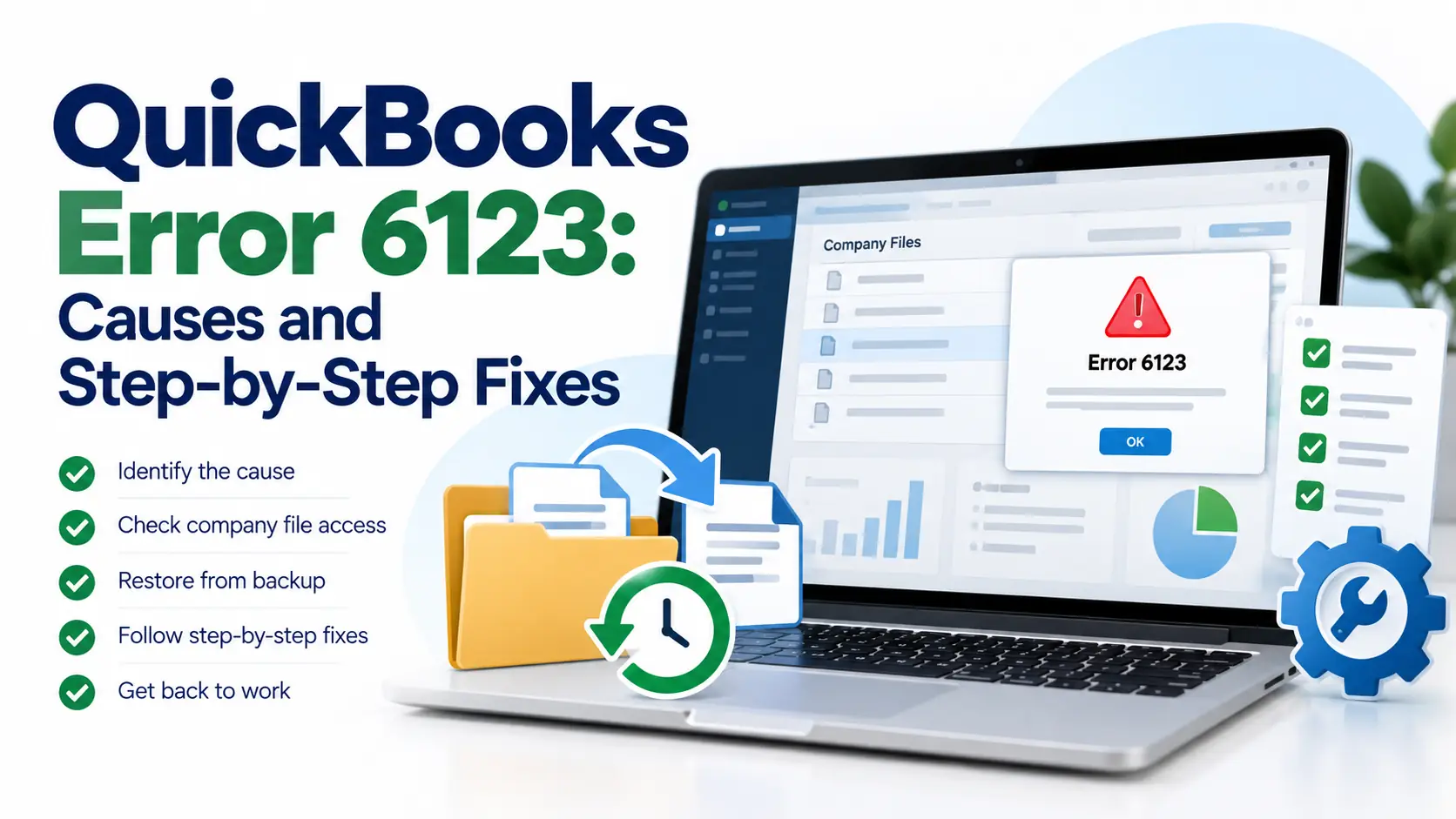
You try to open a QuickBooks company file, upgrade it to a newer version, or restore a backup, but instead of seeing your accounting data, QuickBooks Error 6123 appears.
The error commonly displays as Error -6123, 0.
According to Intuit’s current QuickBooks Desktop guidance, this error can appear when opening, upgrading, or restoring a company file. Intuit also notes that computer hardware can matter, particularly on ARM-based Windows devices using processors such as Snapdragon or Qualcomm.
The correct solution depends on when the error appears.
For example, opening a normal company file requires a different approach from restoring a .QBB backup on a new computer.
This guide keeps those situations separate and walks you through the fixes in a simple order.
What Is QuickBooks Error 6123?
QuickBooks Error 6123 is a QuickBooks Desktop company-file error that may appear when you:
- Open a company file
- Upgrade a company file
- Restore a company file
- Restore a QuickBooks backup
- Move accounting data to another computer
Intuit’s current support documentation specifically identifies Error -6123, 0 in these situations.
In simple words, QuickBooks is having trouble accessing, processing, or restoring the company-file data you selected.
It does not automatically mean your accounting data is permanently damaged.
What Does QuickBooks Error 6123 Mean?
A normal QuickBooks company file usually has the .QBW extension.
A QuickBooks backup usually uses .QBB.
A portable company file uses .QBM.
Error 6123 can appear while QuickBooks is trying to work with one of these files.
The first thing to identify is therefore not just the error number, but what you were doing when it appeared.
Quick Summary Table
| Issue | Details |
| Error | QuickBooks Error 6123 / -6123, 0 |
| Common Time It Appears | Opening, upgrading, or restoring a company file |
| Main File Type | .QBW |
| Backup File Type | .QBB |
| Portable File Type | .QBM |
| First Check | Open the file from QuickBooks |
| Main Repair Tool | QuickBooks Tool Hub |
| Useful Repair Option | QuickFix my Program |
| Company File Tool | QuickBooks File Doctor |
| Hardware Check | Intel/AMD vs ARM processor |
| Restore Tip | Use a local hard drive |
| New Computer Restore | Portable .QBM file may be needed |
How to Fix QuickBooks Error 6123 Step by Step
Follow the steps in order, but pay attention to the situation mentioned in each step.
You may not need every solution.
Step 1: Open the Company File From QuickBooks
Start with this simple check.
Intuit currently recommends opening the company file from inside QuickBooks Desktop rather than directly from Windows File Explorer when dealing with Error -6123, 0.
Follow these steps:
- Close the company file.
- Open QuickBooks Desktop.
- Wait for the No Company Open screen.
- Select Open or restore an existing company.
- Browse to your company file.
- Select the .QBW file.
- Open it from QuickBooks.
- Check whether Error 6123 appears again.
Why this may help
Opening the .QBW file directly from File Explorer can sometimes lead to this error. Starting from QuickBooks gives the program the expected file-opening process.
If the error continues, go to Step 2.
Step 2: Check Your Computer Processor
This is an important newer troubleshooting step.
Intuit states that QuickBooks Error 6123 0 may be related to hardware on ARM-based Windows computers, including devices that use Snapdragon or Qualcomm processors.
QuickBooks Desktop is designed for Intel or AMD processors and may not work correctly on ARM systems.
To check your processor:
- Open Windows Settings.
- Select System.
- Open About.
- Find Processor.
- Look at the processor name.
- Check whether it is Intel, AMD, Snapdragon, Qualcomm, or another ARM processor.
If you have Intel or AMD
Continue to the next troubleshooting step.
If you have an ARM-based computer
Hardware compatibility may be contributing to the problem.
Intuit currently provides a temporary process involving certain QuickBooks background tasks for one-time file access on ARM devices, but notes that it may not work for everyone and may need to be repeated.
For regular business use, hardware compatibility should be reviewed before making repeated company-file changes.
Step 3: Install or Open QuickBooks Tool Hub
QuickBooks Tool Hub contains several repair utilities for QuickBooks Desktop.
Intuit specifically lists Error 6123 among the errors Tool Hub can help troubleshoot.
Follow these steps:
- Close QuickBooks Desktop.
- Download the latest QuickBooks Tool Hub from Intuit.
- Save the installation file somewhere easy to find.
- Open QuickBooksToolHub.exe.
- Follow the installation instructions.
- Accept the terms when requested.
- Complete the installation.
- Open QuickBooks Tool Hub.
Once Tool Hub opens, move to the next step.
Step 4: Run QuickFix My Program
For Error 6123, Intuit’s dedicated troubleshooting instructions recommend QuickFix my Program before File Doctor.
Follow these steps:
- Open QuickBooks Tool Hub.
- Select Program Problems.
- Choose QuickFix my Program.
- Allow the tool to finish.
- Do not close it while the process is running.
- Open QuickBooks Desktop.
- Try your company file again.
Why this may help
QuickFix my Program closes background QuickBooks processes and performs a quick repair of the program.
Intuit says the process normally takes around a minute, although it may take longer when multiple QuickBooks versions are installed.
If Error 6123 remains, continue.
Step 5: Run QuickBooks File Doctor
The next official step is QuickBooks File Doctor.
File Doctor scans the company file for common QuickBooks Desktop data problems.
Follow these steps:
- Open QuickBooks Tool Hub.
- Select Company File Issues.
- Select Run QuickBooks File Doctor.
- Wait for File Doctor to open.
- Select your company file from the dropdown.
- If you cannot see it, select Browse.
- Locate the .QBW company file.
- Choose Check your file.
- Select Continue.
- Enter your QuickBooks administrator password.
- Continue with the scan.
- Wait until the repair process finishes.
- Select your company file.
- Open QuickBooks again.
Intuit specifically recommends File Doctor after QuickFix my Program when Error -6123, 0 continues.
After the scan
If your company file opens normally, create a fresh backup.
If Error 6123 still appears, identify whether you are opening a normal .QBW file or restoring a backup.
Step 6: If You Are Restoring a Backup, Move It to the Local Hard Drive
This step is specifically for QuickBooks backup restore error 6123.
If your .QBB backup is stored on:
- A network drive
- USB drive
- External hard drive
- Online storage folder
- Removable storage
move the file to your computer’s local hard drive first.
Intuit’s dedicated Error 6123 guidance says not to restore the backup directly from network or external storage.
Follow these steps:
- Locate your .QBB backup.
- Copy the file.
- Create a simple local folder, such as:
C:\QBBackup
- Paste the backup into that folder.
- Open QuickBooks Desktop.
- Select File.
- Choose Open or Restore Company.
- Choose the backup restore option.
- Browse to the local .QBB file.
- Continue the restore.
Why this may help
A local hard-drive location removes network, removable-storage, or online-storage access from the restore process.
Step 7: If Restoring on a New Computer, Use a Portable Company File
This situation needs special attention.
If QuickBooks Error 6123 appears while restoring a .QBB backup on a new computer, Intuit recommends creating a portable company file (.QBM) on the original computer and using that portable copy on the new computer.
On the old computer:
- Open QuickBooks Desktop.
- Open your original company file normally.
- Do not open the backup file.
- Create a portable company file.
- Save the .QBM file.
On the new computer:
- Move the .QBM file to the new computer.
- Open QuickBooks Desktop.
- Choose the option to open or restore a company.
- Select the portable company file.
- Browse to the .QBM file.
- Follow the restore instructions.
- Open the restored company file.
Why this is different
A portable company file is designed to create a compact copy of the company data that can be moved and restored.
It can provide a cleaner migration path when a normal backup restore triggers Error 6123.
Step 8: Test the Company File Again
After completing the appropriate repair:
- Close QuickBooks.
- Reopen QuickBooks Desktop.
- Open the company file from inside QuickBooks.
- Sign in normally.
- Review recent transactions.
- Open a few reports.
- Confirm the file behaves normally.
If everything opens correctly, create a new backup before doing additional work.
Step 9: Create a Fresh Backup After the Error Is Fixed
Once the company file opens successfully, create a current backup.
This is especially important if File Doctor repaired the file.
Basic process:
- Open the working company file.
- Go to File.
- Choose the backup option.
- Create a local backup.
- Save it in a known location.
- Confirm that the backup was created.
Keep more than one recent backup whenever possible.
Step 10: If Error 6123 Still Appears, Stop Repeating the Same Repair
If QuickFix my Program and File Doctor have both been completed but the file still produces Error -6123, 0, repeatedly running the same tools is unlikely to add value.
Intuit’s Error 6123 guidance recommends further data-service investigation when File Doctor has repaired the file but the error remains.
At this stage, note:
- Whether the error occurs with one company file or several
- Whether the file opens on another supported computer
- Whether the PC uses an ARM processor
- Whether the problem occurs only while restoring
- Whether the backup is on local storage
- Whether File Doctor completed successfully
This information can make advanced troubleshooting much easier.
Common Reasons QuickBooks Error 6123 May Appear
The exact reason can differ, but the current troubleshooting path points toward a few important areas.
Company file opening method
Opening a file directly through File Explorer instead of QuickBooks can contribute to Error 6123.
QuickBooks program problems
Background QuickBooks processes or program problems may interfere with opening the file, which is why Intuit recommends QuickFix my Program.
Company-file problems
The .QBW company file may need checking with File Doctor.
Unsupported ARM hardware
QuickBooks Desktop may not operate correctly on ARM-based computers such as some Snapdragon or Qualcomm Windows devices.
Backup location
A .QBB file stored on a network, online folder, or removable storage may cause trouble during restoration.
Moving to a new computer
A standard .QBB restore may fail with Error 6123 on a new computer, in which case Intuit recommends using a .QBM portable company file.
How to Prevent QuickBooks Error 6123
You cannot prevent every company-file error, but good file-management habits can reduce problems.
- Open company files from QuickBooks Desktop.
- Keep recent backups.
- Keep backup files in clearly named folders.
- Maintain more than one backup copy.
- Restore backups from a local drive.
- Avoid interrupting a restore process.
- Use supported Windows hardware.
- Keep QuickBooks Desktop properly maintained.
- Use Tool Hub when program problems appear.
- Create a fresh backup after company-file repair.
- Check that migrated company files open correctly before deleting older copies.
Frequently Asked Questions
What is QuickBooks Error 6123?
QuickBooks Error 6123 is a QuickBooks Desktop company-file error commonly displayed as -6123, 0. Intuit says it may appear while opening, upgrading, or restoring a company file. The solution depends on whether you are opening a normal .QBW file or restoring backup data.
How do I fix QuickBooks Error 6123?
Start by opening the company file from QuickBooks rather than File Explorer. Check your processor type, run QuickFix my Program, and then run QuickBooks File Doctor. If the error happens during backup restoration, move the backup to a local drive before restoring it.
Can QuickBooks Tool Hub fix Error 6123?
It may help. Intuit specifically includes Error 6123 among the problems QuickBooks Tool Hub is designed to troubleshoot. For this error, QuickFix my Program and QuickBooks File Doctor are particularly relevant.
Why does Error 6123 appear when restoring a backup?
The location of the backup can matter. Intuit recommends moving a .QBB file from network or external storage to the computer’s local hard drive before restoring it when Error 6123 appears.
What should I do if Error 6123 appears on a new computer?
If the error occurs while restoring a .QBB backup on a new computer, Intuit recommends creating a portable .QBM file from the original company file on the old computer and restoring that portable file on the new PC.
Can an ARM processor cause QuickBooks Error 6123?
It can contribute to the problem. Intuit says Error -6123, 0 may be hardware-related on ARM-based Windows devices such as Snapdragon or Qualcomm systems because QuickBooks Desktop is designed for Intel or AMD processors.
Does Error 6123 mean my QuickBooks data is lost?
Not automatically. The error means QuickBooks is having trouble opening, upgrading, or restoring the company file. Start with QuickFix my Program and File Doctor rather than assuming the accounting data is permanently lost.
What if I am seeing another company-file error?
Different company-file errors can require different troubleshooting. If you are seeing Error 6176 instead, our guide to quickbooks error 6176 explains the relevant troubleshooting steps.
What if my problem is an installation permission error?
That is different from Error 6123. If QuickBooks installation stops because Windows cannot access or create a directory, see our guide to QuickBooks Error 1317 for installation and permission troubleshooting.
Should I reinstall QuickBooks immediately for Error 6123?
Usually not. Intuit’s dedicated Error 6123 workflow starts with opening the file correctly, checking hardware compatibility, QuickFix my Program, File Doctor, and specific backup-restore procedures. Reinstallation is not the main first-line solution in that guidance.