You start installing a QuickBooks update, repairing the program, or reinstalling QuickBooks Desktop. The process seems normal at first, but then QuickBooks Error 1328 interrupts it.
The message may mention a temporary file inside a path similar to:
C:\Config.Msi\PTXXX.tmp
That detail is important.
Intuit currently says Error 1328 can appear when you install, uninstall, update, or repair QuickBooks Desktop. Its U.S. support guidance focuses primarily on repairing or reinstalling QuickBooks Desktop.
This means you usually do not need to begin by changing your company file, deleting random Windows folders, or editing the Registry.
A better approach is to first identify when the error appears, protect your accounting data, repair the QuickBooks installation environment, and reinstall the program only when necessary.
What Is QuickBooks Error 1328?
QuickBooks Error 1328 is an installation-related QuickBooks Desktop error.
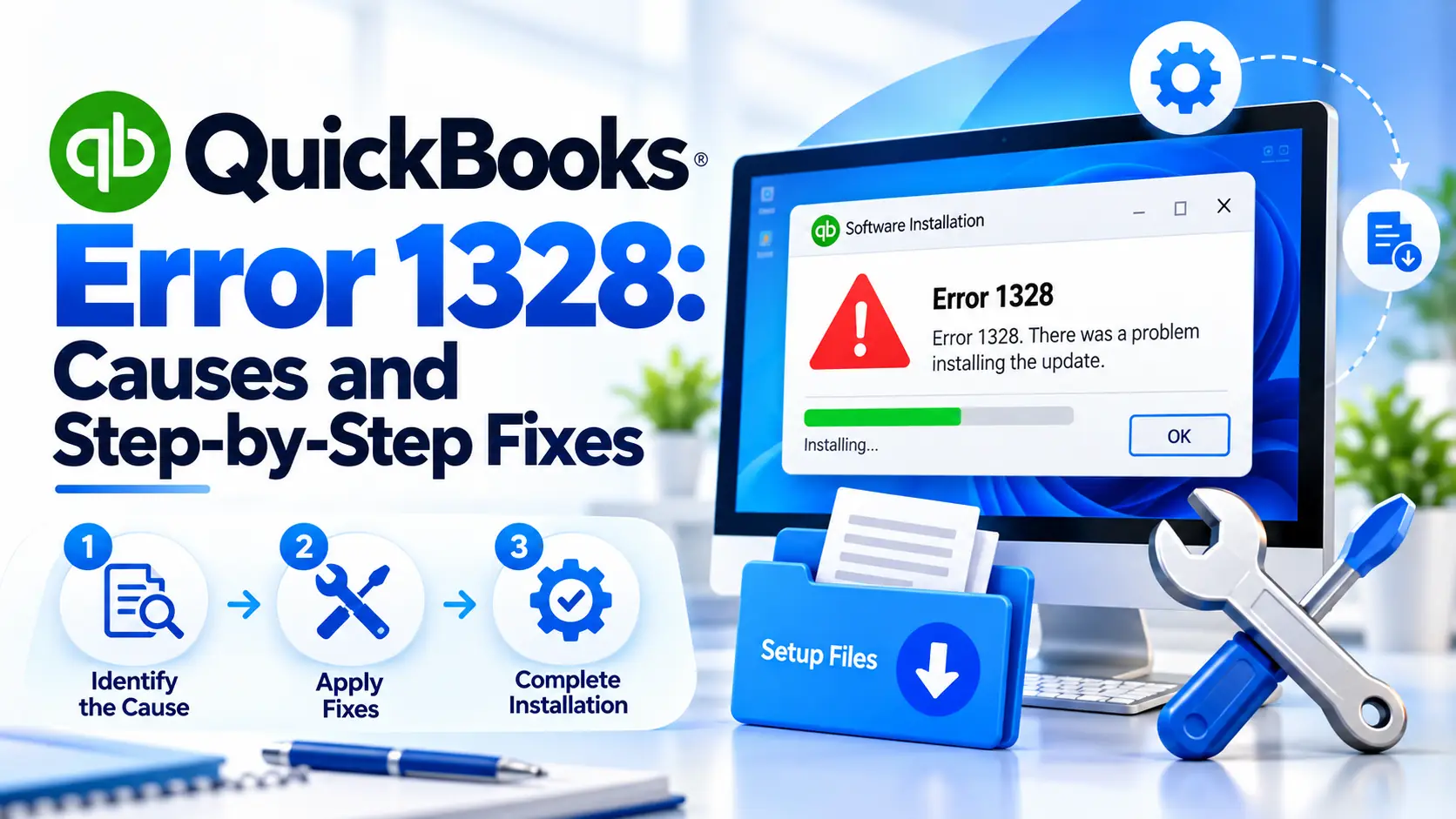
Intuit shows an example message similar to:
Error 1328. Error updating file C:\Config.Msi\PTXXX.tmp
It may appear while:
- Installing QuickBooks Desktop
- Updating QuickBooks
- Repairing an existing installation
- Uninstalling QuickBooks
- Reinstalling the program
The error concerns the QuickBooks program installation process rather than automatically indicating damage to your .QBW company file.
Why Is the Config.Msi Path Important?
Config.Msi is related to the Windows installation and patching process.
When an application is being installed, repaired, or updated, Windows Installer may temporarily work with patch or rollback files.
If QuickBooks displays Error 1328 while referencing a .tmp file in this location, the installation or patch process has not completed normally.
That does not mean you should manually delete every file in C:\Config.Msi.
Instead, repair the program using supported QuickBooks and Windows troubleshooting methods.
Quick Summary
| Item | Details |
| Error | QuickBooks Error 1328 |
| Example Path | C:\Config.Msi\PTXXX.tmp |
| Usually Appears During | Install, uninstall, update, or repair |
| Main Area Affected | QuickBooks Desktop installation |
| Company File Damage? | Not automatically |
| First Safe Action | Close QuickBooks and restart |
| Useful Tool | QuickBooks Tool Hub |
| Diagnostic Tool | Install Diagnostic Tool |
| Official Direct Fix | Repair or reinstall QuickBooks |
| Final Check | Update and open QuickBooks normally |
When Are You Seeing Error 1328?
Before applying fixes, identify your situation.
If it appears during an update
Focus on the existing QuickBooks installation, Tool Hub, program repair, and reinstall if required.
If it appears during a new installation
Focus on the installer, Windows components, administrator access, and Install Diagnostic Tool.
If it appears during repair
The current QuickBooks installation may already contain files that Windows Installer cannot patch correctly.
If it appears during uninstall
The existing installation may need additional Windows or program cleanup before QuickBooks can be installed again.
Knowing the stage helps you avoid unnecessary fixes.
How to Fix QuickBooks Error 1328 Step by Step
Follow these steps in order. Test QuickBooks after each major repair.
Step 1: Close QuickBooks and Restart Windows
Start with a clean Windows session.
Follow these steps:
- Save your accounting work.
- Close all open company files.
- Exit QuickBooks Desktop.
- Close the QuickBooks installer or update window.
- Close unnecessary programs.
- Restart your computer.
- Sign back into Windows.
- Retry the action that triggered Error 1328.
Why this helps
An unfinished installation or update process may leave files or Windows Installer processes temporarily locked.
A restart clears many temporary processes before you begin deeper repairs.
If the same error returns, continue.
Step 2: Confirm Your Company File Is Safely Backed Up
Error 1328 normally concerns the QuickBooks program installation, but you should still protect your accounting data before repairing or reinstalling software.
If QuickBooks still opens:
- Open QuickBooks Desktop.
- Open your company file.
- Go to File.
- Choose the backup option.
- Create a local backup.
- Save it in a safe location.
- Confirm the .QBB backup exists.
Do not uninstall QuickBooks without knowing where your company files and backups are stored.
Step 3: Note Your QuickBooks Version and License Information
Before repairing or reinstalling QuickBooks, record the details you may need later.
Keep:
- QuickBooks product/version
- Release year
- License information
- Company-file location
- Backup location
This saves time if reinstalling becomes necessary.
Step 4: Run Quick Fix My Program
Before doing a full reinstall, use QuickBooks Tool Hub to perform a quick program repair.
Intuit says Quick Fix my Program closes QuickBooks background processes and performs a fast repair.
Follow these steps:
- Close QuickBooks Desktop.
- Open QuickBooks Tool Hub.
- Select Program Problems.
- Choose Quick Fix my Program.
- Wait for the process to finish.
- Open QuickBooks Desktop.
- Retry the update, repair, or installation process.
Why this may help
If a QuickBooks background component is stuck or the program has a minor installation issue, Quick Fix can resolve it without a full reinstall.
Step 5: Run QuickBooks Install Diagnostic Tool
If Error 1328 continues, check the installation environment.
Intuit’s Tool Hub includes an Installation Issues section specifically for problems involving QuickBooks installation and removal.
Follow these steps:
- Close QuickBooks.
- Open QuickBooks Tool Hub.
- Select Installation Issues.
- Select QuickBooks Install Diagnostic Tool.
- Allow the tool to finish.
- Do not close it while it is running.
- Restart your computer afterward.
- Open QuickBooks.
- Retry the process that caused Error 1328.
Intuit notes that the diagnostic process can take up to around 20 minutes in some installation troubleshooting workflows.
Step 6: Install Pending Windows Updates
QuickBooks Desktop depends on Windows installation components.
Intuit includes Windows Update in its troubleshooting for QuickBooks installation errors.
To update Windows:
- Open Settings.
- Select Windows Update.
- Choose Check for updates.
- Install available updates.
- Restart the computer.
- Check Windows Update again.
- Install any remaining updates.
- Retry QuickBooks.
Completing Windows updates before repairing or reinstalling QuickBooks gives the installer a cleaner environment.
Step 7: Repair QuickBooks Desktop
If the existing QuickBooks installation is still present, run a repair.
Intuit specifically lists repairing QuickBooks Desktop for Windows as one of its current Error 1328 solutions.
Before repairing
Restart the computer and close unnecessary applications.
General repair process:
- Open the Windows Start menu.
- Search for Control Panel.
- Open Programs and Features.
- Select Uninstall a Program.
- Find your QuickBooks Desktop version.
- Select Uninstall/Change.
- Choose the available Repair option.
- Follow the on-screen instructions.
- Restart Windows.
- Open QuickBooks again.
Why repair may help
Repair replaces damaged or incorrectly registered QuickBooks installation files while keeping your normal accounting company file separate.
Step 8: Test the Update Again
After repair, do not immediately move to reinstalling.
First test QuickBooks.
- Open QuickBooks Desktop.
- Confirm the program starts normally.
- Open the company file.
- Verify recent data appears correctly.
- Retry the update that previously failed.
- Watch for Error 1328.
If QuickBooks works normally, the repair may have resolved the installation problem.
Step 9: Reinstall QuickBooks Desktop
If repair does not resolve QuickBooks error code 1328, reinstalling QuickBooks is the main direct solution listed by Intuit’s current U.S. Error 1328 guidance.
Before uninstalling:
Make sure you have:
- A current company-file backup
- QuickBooks version information
- License/account information
- Access to a fresh installer
- Your company-file location
Uninstall QuickBooks:
- Open the Windows Start menu.
- Search for Control Panel.
- Open Programs and Features.
- Select Uninstall a Program.
- Choose your version of QuickBooks Desktop.
- Select Uninstall/Change.
- Choose Remove.
- Follow the prompts.
- Restart your computer.
Reinstall QuickBooks:
- Use a fresh official QuickBooks installer.
- Right-click the installation file.
- Run it with appropriate Windows permissions.
- Follow the setup instructions.
- Enter your product information if required.
- Finish the installation.
- Restart Windows if prompted.
- Open QuickBooks.
Avoid installing QuickBooks from unknown third-party download websites.
Step 10: Open Your Existing Company File
Reinstalling QuickBooks Desktop does not mean you should create a new company file.
After reinstalling:
- Open QuickBooks Desktop.
- Choose Open or restore an existing company.
- Browse to your .QBW file.
- Select the correct company file.
- Open it.
- Check recent transactions.
- Open reports to confirm normal access.
Keep your backup untouched until you have confirmed everything works normally.
Step 11: Update QuickBooks After Reinstalling
Once QuickBooks is running again, make sure the program is current.
Use the QuickBooks update options available for your supported Desktop version.
After updating:
- Close QuickBooks.
- Reopen the program.
- Confirm the update installed.
- Open your company file.
- Verify that Error 1328 does not return.
Step 12: If Error 1328 Still Appears, Stop Repeating Reinstalls
If you have already:
- Restarted Windows
- Used Tool Hub
- Run Install Diagnostic Tool
- Updated Windows
- Repaired QuickBooks
- Reinstalled QuickBooks
and the same Config.Msi error still appears, the remaining issue may involve the Windows installation environment itself.
At this point, note:
- Exact Error 1328 message
- Full .tmp path shown
- Whether it occurs during install, update, repair, or uninstall
- QuickBooks year/version
- Windows version
- Any additional installer error codes
A Windows or IT specialist may need to examine the installer environment rather than repeatedly changing QuickBooks.
What Should You Not Do?
When users see a .tmp file in the error, it can be tempting to start deleting files.
Avoid doing that without a verified reason.
Do not:
- Delete the entire Config.Msi folder
- Randomly delete .tmp files
- Manually remove Windows Installer files
- Edit the Registry using unverified instructions
- Download unofficial “Error 1328 repair” programs
- Disable security software permanently
- Delete your .QBW company file
- Reinstall repeatedly without restarting Windows
- Assume Error 1328 means accounting data is corrupted
The error primarily concerns the installation/update process.
How to Prevent QuickBooks Error 1328 in the Future
You cannot prevent every installer problem, but these habits can reduce unnecessary update and repair issues.
Keep Windows updated
Install important Windows updates before major QuickBooks upgrades.
Keep regular company-file backups
Program installation errors and company-file problems are different, but having backups protects your business data during repairs.
Avoid interrupting updates
Do not shut down or restart the computer while QuickBooks or Windows is actively installing an update.
Use official installation files
Old or unofficial installers can introduce additional installation problems.
Keep enough free disk space
Windows and QuickBooks need temporary storage while installing patches and updates.
Restart before major upgrades
A clean Windows session can reduce conflicts from other installer processes.
Keep Tool Hub available
Tool Hub provides Quick Fix my Program and Install Diagnostic Tool for common QuickBooks program and installation problems.
Frequently Asked Questions
What is QuickBooks Error 1328?
QuickBooks Error 1328 is an installation-related QuickBooks Desktop error. Intuit says it can appear while installing, uninstalling, updating, or repairing QuickBooks and may reference a temporary file under C:\Config.Msi.
How do I fix QuickBooks Error 1328?
Start by restarting Windows, backing up your company file, and running Quick Fix my Program and Install Diagnostic Tool. If the error continues, repair QuickBooks Desktop. Intuit’s direct Error 1328 guidance also recommends reinstalling QuickBooks.
Why does QuickBooks Error 1328 show a Config.Msi file?
The error can appear while Windows Installer is updating QuickBooks program files. Intuit’s example Error 1328 message specifically references a temporary file such as C:\Config.Msi\PTXXX.tmp. You should troubleshoot the installation rather than randomly deleting that folder.
Can Error 1328 appear during a QuickBooks update?
Yes. Intuit says Error 1328 may occur while installing, uninstalling, updating, or repairing QuickBooks Desktop.
Will repairing QuickBooks delete my company file?
Repair is intended to fix QuickBooks program installation files rather than remove your normal company accounting file. Even so, keeping a current backup before software repair is a sensible precaution.
Can QuickBooks Tool Hub help with Error 1328?
Tool Hub can help diagnose broader program and installation problems. Use Quick Fix my Program under Program Problems and QuickBooks Install Diagnostic Tool under Installation Issues before moving to deeper Windows troubleshooting.
Should I delete the Config.Msi folder?
Not as a routine solution. Intuit’s current U.S. Error 1328 guidance recommends reinstalling or repairing QuickBooks Desktop rather than manually deleting the Config.Msi folder.
What if I get a company-file error instead of Error 1328?
Company-file errors use a different troubleshooting path. For example, if QuickBooks shows an error while opening or restoring a company file, see our guide on QuickBooks Error 6123.
What if QuickBooks shows an access-denied problem?
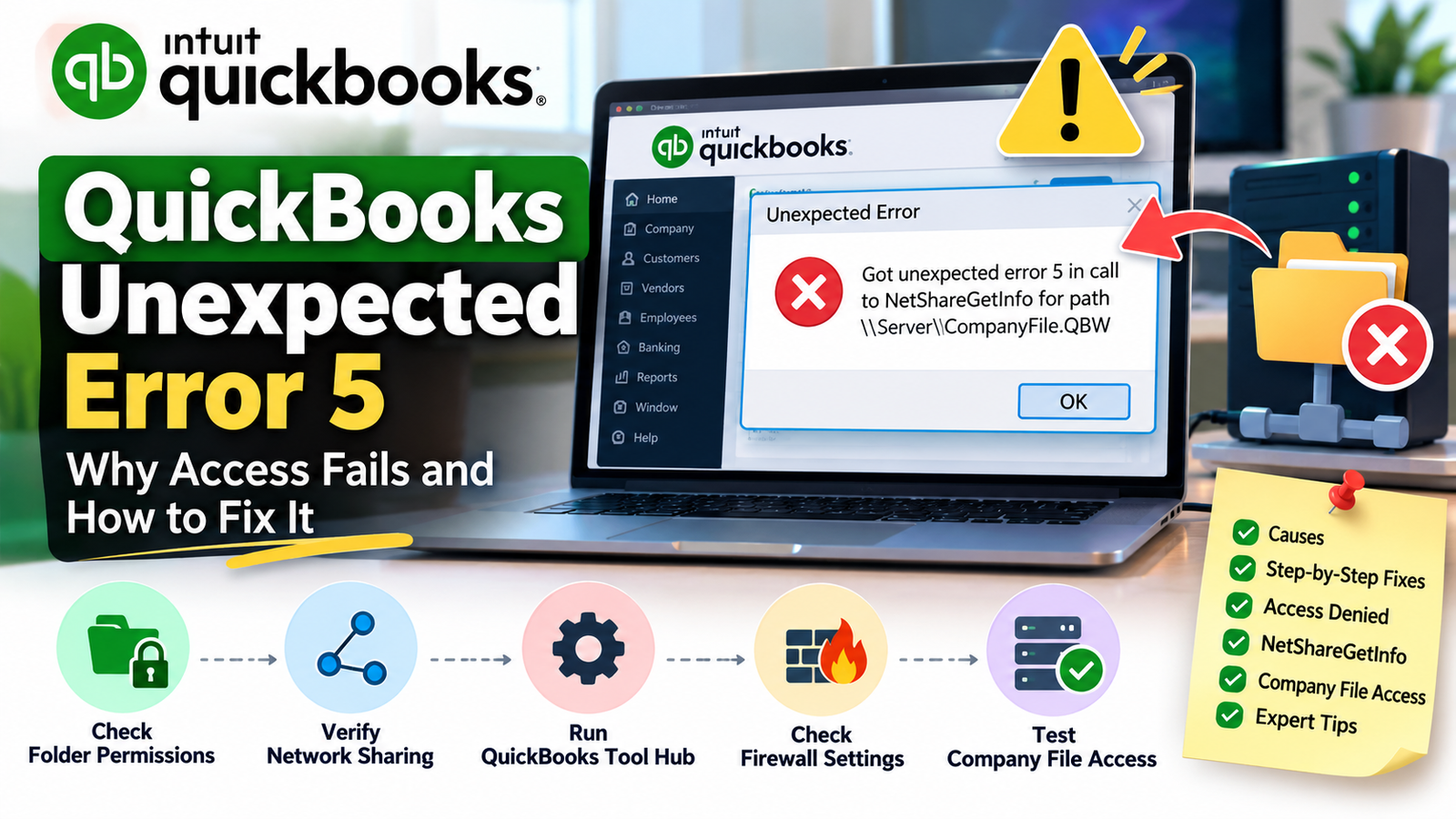
Access and network-sharing errors are different from Error 1328. If QuickBooks is unable to access a shared company-file path, see our guide to QuickBooks Unexpected Error 5.
Should I reinstall QuickBooks immediately?
Not necessarily. You can first restart Windows, run Tool Hub, complete Windows updates, and repair QuickBooks. However, reinstalling QuickBooks is one of Intuit’s current direct solutions specifically for Error 1328.
Conclusion
QuickBooks Error 1328 usually points to a problem with the QuickBooks Desktop installation, update, repair, or uninstall process rather than automatically indicating damaged accounting data.
Start with the low-risk checks: restart Windows, secure a backup, run Quick Fix my Program, and use Install Diagnostic Tool. Next, complete Windows updates and repair QuickBooks Desktop.
If Error 1328 continues, reinstall QuickBooks using a fresh official installer, then reopen your existing company file and update the program.
Avoid deleting Config.Msi or temporary installer files based on random fixes. If Error 1328 continues even after a clean reinstall, the Windows installation environment may require deeper technical review.