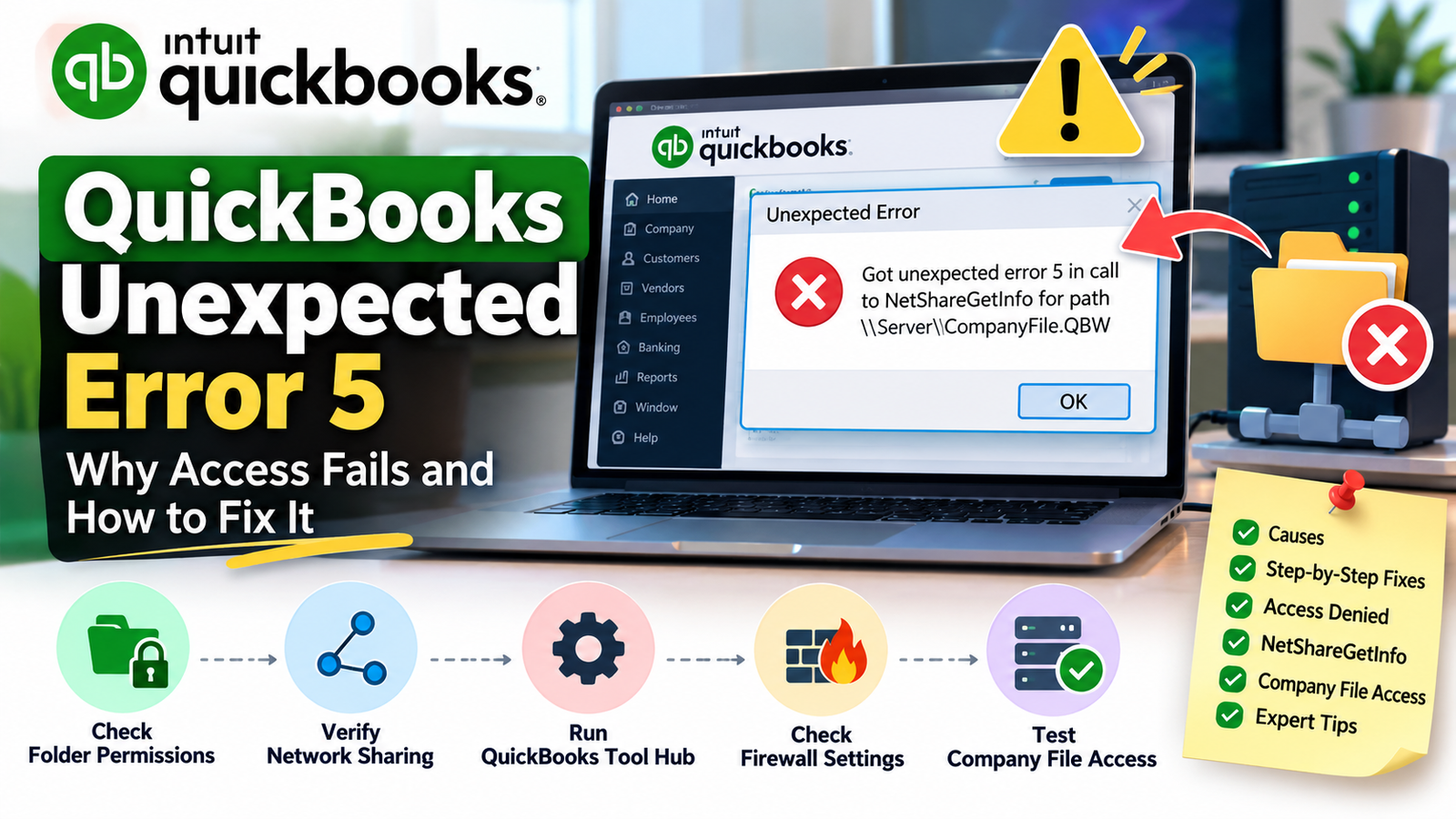
You open QuickBooks Desktop or try to work with a company file stored on another computer, and an unexpected access-related error appears. In some cases, Windows Event Viewer may also record a message similar to “unexpected error 5 in call to NetShareGetInfo.”
QuickBooks Unexpected Error 5 is commonly connected with Windows access to a shared folder or company-file location. Microsoft documents that the Windows NetShareGetInfo function retrieves information about a shared resource, and one possible return condition is ERROR_ACCESS_DENIED when the user does not have access to the requested information.
That does not mean every Error 5 case has exactly the same cause.
The safest approach is to find the path mentioned in the error, determine whether the company file is local or on a network, and then check permissions, QuickBooks services, File Doctor, sharing, and firewall settings in that order.
What Is QuickBooks Unexpected Error 5?
QuickBooks Unexpected Error 5 is an access-related issue often reported when QuickBooks Desktop tries to get information about a Windows shared folder or company-file location.
A commonly reported variation is:
“Got unexpected error 5 in call to NetShareGetInfo for path…”
Microsoft explains that NetShareGetInfo is a Windows networking function used to retrieve information about a shared resource on a server. If access to that requested information is denied, Windows can return an access-denied result.
In practical terms, QuickBooks may know where your company file is located but still have trouble getting the Windows-level access it needs.
Is Error 5 a Company File Error or a Windows Permission Error?
It can involve both areas, but access permissions should be checked first.
Intuit’s current company-file guidance says QuickBooks needs appropriate Windows permissions to look at, open, and modify files in a shared company-file folder. It also notes that the QuickBooks database service must be able to open the company file successfully.
This is why immediately rebuilding your company file or reinstalling QuickBooks is not the best first move.
Start with the file location and access path.
Quick Summary Table
| Issue | Details |
| Error | QuickBooks Unexpected Error 5 |
| Common Message | Unexpected error 5 in call to NetShareGetInfo |
| Main Area | Windows file/share access |
| Often Affects | Network or shared company-file locations |
| First Check | File path shown in the error |
| Permission Check | Company-file folder |
| Main QuickBooks Tool | QuickBooks File Doctor |
| Network Area | Hosting, database service, firewall |
| Simple Test | Try saving a test file in the same folder |
| Advanced Step | Review server/share permissions |
| Reinstall Needed? | Usually not as the first fix |
Why Can QuickBooks Unexpected Error 5 Happen?
Rather than treating every case as identical, look at these areas.
The company-file folder has limited Windows permissions
If the Windows user or QuickBooks Database Server service cannot properly access the folder, QuickBooks may fail when requesting shared-folder information.
The file is stored in a restricted location
Intuit notes that protected or restricted locations can prevent QuickBooks from accessing company files properly.
The shared folder is not configured correctly
A network folder needs suitable Windows sharing and security permissions for multi-user company-file access.
QuickBooks Database Server services are not working correctly
In multi-user setups, QuickBooks relies on database services to help workstations communicate with the company file.
Firewall rules are interfering with communication
Intuit states that QuickBooks network communication can fail when firewall rules block required program or database-server traffic.
The company file or network configuration needs repair
File Doctor can test company-file and certain network issues.
How to Fix QuickBooks Unexpected Error 5 Step by Step
Use the steps below in order. Test QuickBooks after each major change.
Step 1: Read and Note the Path Shown in the Error
Do not close the message immediately.
Look for a path such as:
\\ServerName\SharedFolder\CompanyFile.QBW
Write down:
- Server or computer name
- Shared folder name
- Company file name
- Whether the path starts with \\
- Whether the file is local or on another computer
Why this matters
If the path points to another computer or server, the problem is more likely related to sharing, Windows permissions, network access, or QuickBooks Database Server Manager.
If the file is local, folder permissions or the file location deserve more attention.
Step 2: Check Whether Windows Can Access the Folder
Before troubleshooting QuickBooks, make sure Windows itself can reach the file location.
Follow these steps:
- Close QuickBooks.
- Open File Explorer.
- Browse to the folder containing the .QBW company file.
- Confirm the folder opens.
- Try opening another harmless file from that folder.
- Confirm you can browse the location without a Windows permission message.
If Windows cannot access the folder, QuickBooks is unlikely to access it correctly either.
Step 3: Perform a Simple Write-Permission Test
Intuit recommends a practical test when company-file folder permissions are questionable.
Try this:
- Open Notepad.
- Type Test.
- Select Save As.
- Browse to the same folder where the QuickBooks company file is stored.
- Save the text file.
- Delete the test file afterward.
If Windows will not let you save the test file, the folder likely needs permission changes.
Intuit uses this same type of save test to determine whether a company-file folder has sufficient permissions.
Step 4: Check the Company Folder’s Windows Permissions
If the write test fails, review the affected folder.
Follow these steps:
- Right-click the company-file folder.
- Select Properties.
- Open the Security tab.
- Select Advanced.
- Find the appropriate QuickBooks database-service user, such as QBDataServiceUserXX.
- Review its permissions.
Intuit’s current guidance says the database-service user needs permissions that allow reading, writing, creating files and folders, and other required operations.
Do not randomly give the entire system drive Full Control.
Only adjust the necessary company-file folder or have your Windows/network administrator do it.
Step 5: Check Sharing Permissions for Multi-User Access
If multiple employees use the company file from different computers, folder sharing also matters.
Check:
- Right-click the company-file folder.
- Select Properties.
- Open Sharing.
- Review the share configuration.
- Confirm the correct QuickBooks database-service user has appropriate access.
- Apply changes carefully.
- Retry QuickBooks.
Intuit states that the folder containing the company file must be properly shared for network users and have appropriate Windows access permissions.
Step 6: Run QuickBooks as Administrator for a Quick Test
This is useful as a diagnostic step.
Follow these steps:
- Close QuickBooks Desktop.
- Right-click the QuickBooks icon.
- Select Properties.
- Open Compatibility.
- Select Run this program as administrator.
- Select Apply.
- Select OK.
- Open QuickBooks.
- Test the company file.
Intuit includes running QuickBooks as administrator as a troubleshooting step when users receive insufficient-folder-permission warnings.
If this changes the behavior, Windows permissions are worth investigating further.
Step 7: Run Quick Fix My File
Now check the company file with Tool Hub.
Follow these steps:
- Close QuickBooks.
- Open the latest QuickBooks Tool Hub.
- Select Company File Issues.
- Select Quick Fix my File.
- Wait until it finishes.
- Select OK.
- Reopen QuickBooks.
- Test the file.
Intuit currently recommends Quick Fix my File before the deeper File Doctor scan in company-file troubleshooting.
Step 8: Run QuickBooks File Doctor
If access problems continue, run File Doctor.
Follow these steps:
- Open QuickBooks Tool Hub.
- Select Company File Issues.
- Select Run QuickBooks File Doctor.
- Choose your company file.
- If it is not listed, select Browse.
- Select Check your file.
- Select Continue.
- Enter the QuickBooks admin password.
- Select Next.
- Wait for the scan.
- Open QuickBooks again.
Intuit says File Doctor is designed to diagnose company-file problems and some network issues. The scan can take around 10–15 minutes depending on file size.
Step 9: Check QuickBooks Hosting and Database Server Services
This step is especially important for multi-user environments.
On the computer storing the company file, QuickBooks hosting needs to be configured correctly.
Intuit explains that company-file access over a network depends on:
- Windows file permissions
- Database Server access
- A valid QuickBooks user login
It also notes that the QuickBooks database service must be running for network access.
Check the host computer
- Confirm the server or host is turned on.
- Confirm the company-file folder is available.
- Verify QuickBooks Database Server Manager is installed where required.
- Confirm the relevant QuickBooksDBXX service is running.
- Make sure hosting is configured only on the appropriate computer.
Avoid enabling hosting randomly on every workstation.
Step 10: Review Firewall Settings
If local access works but network access fails, check the firewall.
Intuit says firewall restrictions can block QuickBooks programs and database services from communicating across the network.
Check for:
- QuickBooks being blocked by Windows Firewall
- Database Server Manager being blocked
- Third-party endpoint security restrictions
- Network ports required by your QuickBooks version
- Firewall rules on both the workstation and server
Do not permanently disable the firewall.
It is safer to create the correct QuickBooks exceptions.
Step 11: Test a Local Copy of the Company File
This step helps separate a file problem from a network problem.
Follow these steps:
- Close QuickBooks.
- Copy the .QBW file to a temporary local folder.
- Open QuickBooks Desktop.
- Open the copied file from the local location.
- Test normal access.
What the result means
If the local copy opens:
The network folder, sharing, server, firewall, or permissions are likely more important than the company file itself.
If the local copy also fails:
The company file or QuickBooks installation deserves closer inspection.
Do not keep multiple active copies of your real accounting file after testing.
Step 12: Move the File Out of a Restricted Location
If the company file is stored in a protected or unusual folder, test a normal company-file location.
Intuit currently lists protected or restricted locations as possible causes of insufficient company-folder access. It recommends moving the file to the normal company-file folder when appropriate.
For example, avoid storing the active .QBW directly inside protected program folders.
After moving the file:
- Open QuickBooks.
- Choose Open or restore a company.
- Browse to the new location.
- Open the file.
- Confirm normal access.
What If QuickBooks Unexpected Error 5 Still Appears?
At this point, avoid guessing.
Write down:
- The exact path from the error
- Whether the file opens locally
- Whether other network users can open it
- Whether Notepad can save to the shared folder
- Whether File Doctor found a problem
- Whether the QuickBooks database service is running
- Whether the problem appears on one workstation or all workstations
This information helps identify whether the remaining issue is tied to the individual Windows account, workstation, server, network share, firewall, or company file.
If advanced Windows server permissions need to be changed, involve the person who manages your business network.
Things You Should Avoid
When troubleshooting QuickBooks Error 5 access denied, avoid risky shortcuts.
Do not:
- Permanently turn off Windows Firewall
- Give Full Control to your entire C: drive
- Delete QuickBooks database service accounts
- Remove random Windows permissions
- Delete the .QBW company file
- Edit the Windows Registry without a verified reason
- Rename multiple network files at once
- Reinstall QuickBooks before testing the network location
- Keep working in several copies of the same company file
Change one thing at a time and test again.
How to Prevent QuickBooks Access Problems
Use these habits in a shared QuickBooks environment:
- Keep the company file in a stable shared folder.
- Maintain correct Windows sharing permissions.
- Keep QuickBooks Database Server Manager configured correctly.
- Avoid changing server folder locations without updating workstations.
- Keep QuickBooks Desktop updated.
- Maintain regular company-file backups.
- Keep Windows and security software updated.
- Use wired business networking where practical.
- Review firewall rules after major security-software changes.
- Confirm new employees have the correct QuickBooks and Windows permissions.
Frequently Asked Questions
What is QuickBooks Unexpected Error 5?
is commonly associated with Windows access to a shared QuickBooks company-file location. A frequently reported version references NetShareGetInfo. Microsoft documents that this Windows function retrieves information about a shared network resource and can return an access-denied result when the user lacks permission.
What does NetShareGetInfo mean in QuickBooks?
NetShareGetInfo is a Windows networking function used to obtain information about an SMB shared resource. If QuickBooks is working with a company file on a network share and Windows denies the information request, an access-related failure can occur.
How do I fix QuickBooks Unexpected Error 5?
Start by checking the company-file path and confirming Windows can access and write to the folder. Then verify folder permissions, run Quick Fix my File and File Doctor, check Database Server Manager, and review firewall settings.
Can incorrect folder permissions cause Error 5?
Yes, permissions are an important area to check. Intuit states that QuickBooks network users require appropriate Windows permissions to look at, open, and modify company files in shared folders.
Can QuickBooks File Doctor help with this problem?
It can help identify company-file and network issues. File Doctor does not guarantee that every Windows permission issue will be repaired, but Intuit recommends it as a diagnostic step when QuickBooks cannot properly access a company file.
Why does the file open locally but not over the network?
If the same file works locally but not from its shared location, focus on the network path, folder sharing, Windows permissions, Database Server Manager, and firewall rather than immediately assuming the accounting file is damaged.
What if I see another company-file error instead?
If the error shown is related to opening or restoring a company file rather than Windows sharing access, the troubleshooting can be different. See the related guide for QuickBooks Error 6123.
What if Windows permissions are stopping QuickBooks installation?
Installation-folder permission issues are different from network company-file access. For installation-related directory problems, use the troubleshooting steps in QuickBooks Error 1317.
Should I disable User Account Control or Windows Firewall?
Not as a general fix. Permanently weakening Windows security can create additional risks. It is better to identify the specific QuickBooks program, service, folder, or firewall rule that needs access.
Do I need to reinstall QuickBooks for Unexpected Error 5?
Usually not as the first step. When the error is tied to a shared file path, checking folder permissions, network access, Database Server Manager, Tool Hub, and firewall settings is more directly related to the problem.
Conclusion
QuickBooks Unexpected Error 5 is best approached as an access-path problem before treating it as a damaged-company-file problem.
Start with the path shown in the error. Make sure Windows can open and write to that folder, then review company-folder permissions and sharing. After that, use Quick Fix my File and File Doctor, confirm QuickBooks database services are running, and check firewall settings.
If the company file works locally but fails on the network, focus on the server and shared-folder configuration.
Avoid broad permission changes or disabling security features just to bypass the message. The goal is to restore the specific access QuickBooks needs while keeping the Windows environment properly secured.