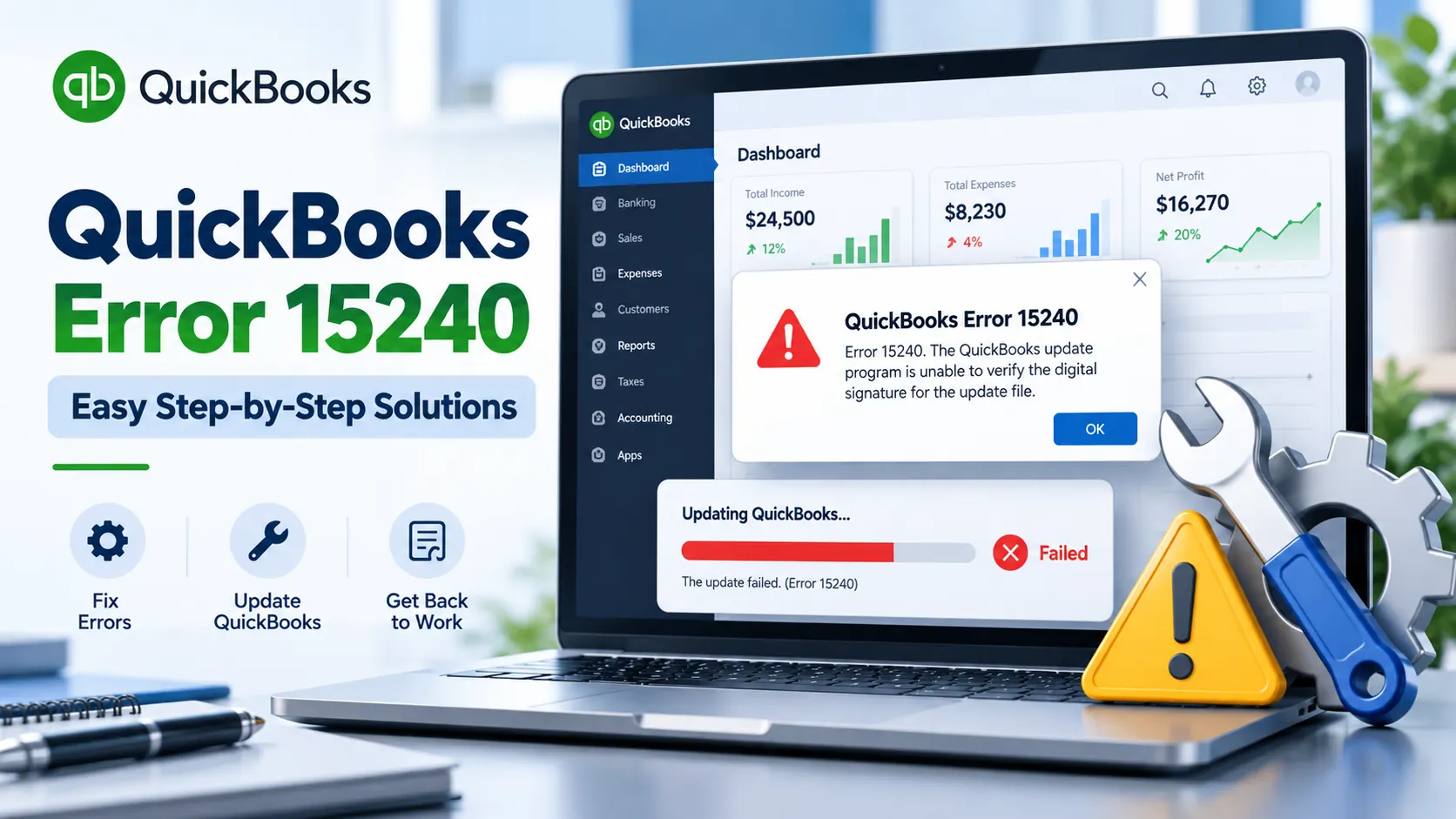
QuickBooks Error 15240 usually appears when QuickBooks Desktop cannot successfully download or apply a program or payroll update. You may see a message stating that the payroll update did not complete successfully, the QuickBooks update failed, a required file could not be accessed, or an internet connection error occurred.
In many cases, QuickBooks update error 15240 is connected with insufficient Windows permissions, incorrect system date and time, firewall restrictions, damaged update components, QuickBooks installation issues, disabled QuickBooks services, or problems validating update files.
The good news is that you normally do not need to jump directly to reinstalling QuickBooks. Start with the simpler checks below and move to the advanced solutions only if the error continues.
How Do You Fix QuickBooks Error 15240?
To fix QuickBooks Error 15240, first close QuickBooks and reopen it using Run as Administrator. Then verify your computer’s date, time, and time zone and retry the update. If the error remains, run Quick Fix my Program from QuickBooks Tool Hub, reset the QuickBooks update files, review Windows permissions and firewall settings, confirm the QuickBooks File Copy Service is available, and check the QuickBooks digital signature certificate.
If those methods do not resolve the issue, repair or reinstall QuickBooks Desktop as a final step.
What Is QuickBooks Error 15240?
QuickBooks Error 15240 belongs to the group of QuickBooks Desktop update-related errors commonly associated with program and payroll updates.
The error may appear while downloading a QuickBooks Desktop update or the latest payroll tax table. Instead of completing the download or installation, QuickBooks stops the process and displays an error.
A common message associated with the problem is:
“Error 15240: The payroll update did not complete successfully.”
Users may also encounter messages referring to an unknown internet connection problem or a file that cannot be opened.
Because payroll updates may contain important tax-table and product information, it is better to resolve the error rather than repeatedly dismissing the update message.
What Causes QuickBooks Error 15240?
There is not always one single cause behind QuickBooks payroll error 15240. The problem can appear at different stages of the update process.
Common causes include:
- QuickBooks is not running with sufficient Windows permissions.
- Your computer’s date, time, or time zone is incorrect.
- Windows permissions prevent QuickBooks from modifying installation or update folders.
- A firewall or security application blocks QuickBooks update components.
- Previous QuickBooks update files are damaged or incomplete.
- A required payroll or update component is missing.
- QuickBooks File Copy Service, also known as FCS, is disabled or unavailable.
- Windows cannot properly validate a QuickBooks digital signature.
- QuickBooks program files are damaged and require repair.
Understanding the cause helps you avoid performing unnecessary advanced troubleshooting.
Symptoms of QuickBooks Desktop Error 15240
You may be dealing with QuickBooks Desktop error 15240 if QuickBooks repeatedly fails while checking for product updates or downloading payroll updates.
The most obvious symptom is an update failure message containing error code 15240. You may also notice that payroll tax-table downloads stop before completion, the same update is offered repeatedly, QuickBooks reports that a file cannot be opened, or the update process fails even though your normal internet connection appears to work.
If the problem only occurs during an update and your company file otherwise opens normally, start with update-related troubleshooting before attempting company-file repair.
How to Fix QuickBooks Error 15240 Step by Step
Use the solutions in the order below. After each method, reopen QuickBooks and retry the update. If the update completes successfully, you do not need to perform the remaining methods.
Solution 1: Run QuickBooks as Administrator
The first and easiest way to fix QuickBooks Error 15240 is to give QuickBooks administrator permissions.
Updates may need permission to modify files stored inside protected Windows folders. Running QuickBooks normally may not provide sufficient access.
Follow these steps:
- Close your company file.
- Exit QuickBooks Desktop completely.
- Locate the QuickBooks Desktop shortcut.
- Right-click the QuickBooks icon.
- Choose Run as Administrator.
- Select Yes if Windows asks for permission.
- Open QuickBooks.
- Try downloading the QuickBooks or payroll update again.
If the update works, insufficient permissions were likely interfering with the process.
If QuickBooks Error 15240 appears again, continue to the next method.
Solution 2: Verify Windows Date, Time, and Time Zone
An incorrect computer clock can interfere with secure update connections and file verification.
Check all three settings—date, time, and time zone.
On Windows:
- Right-click the clock in the Windows taskbar.
- Select Adjust date and time.
- Confirm that the current date is correct.
- Confirm the current time.
- Check that the correct time zone is selected.
- Enable automatic date/time options when appropriate.
- Restart QuickBooks and retry the update.
This is a quick check, so it should be completed before changing advanced settings.
Solution 3: Use QuickBooks Tool Hub and Quick Fix My Program
If administrator permissions and system time are correct, the next step is to repair temporary QuickBooks program issues.
QuickBooks Tool Hub includes Quick Fix my Program, which closes QuickBooks background processes and performs a quick program repair.
First close QuickBooks.
Install or open the current QuickBooks Tool Hub obtained from Intuit. Once Tool Hub opens:
- Select Program Problems.
- Choose Quick Fix my Program.
- Allow the process to finish.
- Reopen QuickBooks Desktop.
- Open your company file.
- Retry the QuickBooks Desktop or payroll update.
This step is especially useful when QuickBooks update error 15240 started suddenly after an interrupted update or program issue.
Solution 4: Reset the QuickBooks Update
If Quick Fix does not work, damaged or incomplete update components may be preventing a fresh download.
Open QuickBooks as administrator and go to:
Help → Update QuickBooks Desktop → Update Now
Select the option to Reset Update, then choose Get Updates.
Once the download completes, close and reopen QuickBooks and install the available update.
A reset forces QuickBooks to obtain fresh update files instead of continuing to use an incomplete previous download.
For persistent 15XXX update errors, Intuit’s current troubleshooting flow also includes clearing damaged update components before downloading them again.
Solution 5: Check QuickBooks Installation Folder Permissions
If Windows prevents QuickBooks from writing to its program folders, the update may fail even when the update itself downloads correctly.
Close QuickBooks before modifying permissions.
Open File Explorer and locate your Intuit or QuickBooks installation folders. Depending on your Windows and QuickBooks installation, these may exist under locations such as:
C:\Program Files\Intuit
or
C:\Program Files (x86)\Intuit
Right-click the appropriate Intuit folder and choose:
Properties → Security → Advanced
Check whether the correct Windows user or Users group has appropriate access.
If ownership or permissions have been changed by a previous installation, migration, security policy, or system modification, an administrator may need to restore access.
Be careful when changing Windows permissions. On a company-managed computer, ask your system administrator before modifying folder ownership or access rights.
After permissions are corrected, reopen QuickBooks as administrator and download the update again.
Solution 6: Review Firewall and Security Software
Firewalls and endpoint-security applications can sometimes prevent QuickBooks update components from communicating correctly.
Do not permanently disable your security software simply to install an update.
Instead, verify whether QuickBooks has been blocked.
Important QuickBooks executables associated with updates can include:
QBW32.exe
and
QBUpdate.exe
Review your firewall or security software’s application permissions and make sure required QuickBooks components are permitted to communicate.
For third-party firewalls, use the software vendor’s instructions rather than applying random firewall rules.
If you are managing QuickBooks in a business network, involve your network administrator before changing firewall policies.
After correcting the rules, restart QuickBooks and test the update.
Solution 7: Check QuickBooks File Copy Service (FCS)
The broader QuickBooks 15XXX error family can also occur when QuickBooks File Copy Service (FCS) is disabled.
To check the service:
- Close QuickBooks.
- Press Windows + R.
- Type services.msc.
- Press Enter.
- Locate Intuit QuickBooks FCS.
- Open its properties.
- Check its current status and startup configuration.
If the service has been disabled unexpectedly, restore the appropriate configuration before testing the update again.
On business-managed systems, do not change Windows services without permission from the IT administrator.
After checking FCS, reopen QuickBooks and retry the payroll or product update.
Solution 8: Verify the QuickBooks Digital Signature Certificate
If QuickBooks downloads an update but Windows cannot verify the Intuit digital signature, the update may still fail.
To check the certificate:
- Close QuickBooks.
- Open the QuickBooks installation directory.
- Locate QBW32.exe.
- Right-click it and choose Properties.
- Open the Digital Signatures tab.
- Select the Intuit signature.
- Choose Details.
- Select View Certificate.
- If required, choose Install Certificate and follow the Windows prompts.
- Restart the computer.
- Open QuickBooks and download the update again.
Digital-signature verification is an important step that many basic QuickBooks Error 15240 guides miss.
Solution 9: Repair QuickBooks Desktop
If the error continues after the previous solutions, QuickBooks itself may contain damaged installation components.
Open QuickBooks Tool Hub and use the appropriate installation or program repair utility provided for your QuickBooks version.
Close QuickBooks before starting the repair.
Once the repair finishes, restart Windows and test the update again.
Solution 10: Reinstall QuickBooks as the Final Option
Reinstallation should normally be one of the final steps rather than the first.
Before reinstalling:
Create a current backup of your QuickBooks company file and make sure you have the information required to reinstall and activate your QuickBooks product.
Then uninstall QuickBooks Desktop through Windows and reinstall the appropriate version from a trusted Intuit source.
After reinstalling QuickBooks, apply the available product updates before reopening normal payroll workflows.
Which Fix Should You Try First?
For the fastest troubleshooting process, use this order:
Run as Administrator → Check date/time → Quick Fix my Program → Reset Update → Check permissions → Check firewall → Check FCS → Verify digital signature → Repair QuickBooks → Reinstall QuickBooks.
This order starts with low-risk, quick checks before moving to Windows configuration and application repair.
It also makes the process easier for users who simply want to resolve the error without changing multiple system settings at once.
How Can You Prevent QuickBooks Error 15240?
You cannot prevent every QuickBooks update error, but good maintenance can reduce unnecessary failures.
Keep QuickBooks on a supported and properly maintained release, allow updates to complete without shutting down Windows midway, maintain accurate system date and time settings, avoid unnecessarily blocking QuickBooks processes in firewall rules, and periodically verify that QuickBooks services and installation folders have not been altered by security tools or IT policies.
For payroll users, do not postpone important product and payroll updates indefinitely.
Frequently Asked Questions About QuickBooks Error 15240
What does QuickBooks Error 15240 mean?
QuickBooks Error 15240 is an update-related error commonly seen when QuickBooks Desktop cannot successfully download, verify, or apply a program or payroll update. The exact cause can involve Windows permissions, firewall restrictions, damaged update components, system settings, FCS, or digital-signature verification.
Why does QuickBooks say “the payroll update did not complete successfully”?
This message means QuickBooks was unable to finish the payroll update process. Check administrator permissions, system date/time, QuickBooks update components, firewall access, FCS, and digital-signature validation before reinstalling the application.
Can incorrect date and time cause QuickBooks Error 15240?
Yes. Incorrect system date, time, or time-zone settings can interfere with secure connections and update-file validation. Verify these settings before performing advanced troubleshooting.
Can a firewall cause QuickBooks Update Error 15240?
Yes. A firewall or security application that blocks QuickBooks update executables or required internet communication may contribute to QuickBooks update error 15240. Review the firewall rules rather than permanently disabling security software.
Does QuickBooks Tool Hub fix Error 15240?
QuickBooks Tool Hub can help resolve program and installation issues associated with 15XXX update errors. Start with Quick Fix my Program, retry the update, and use additional Tool Hub repair options if necessary.
Should I reinstall QuickBooks immediately?
No. Reinstallation is usually better treated as a final troubleshooting step. First try administrator mode, correct date/time settings, Quick Fix, reset updates, folder permissions, firewall settings, FCS, and digital-signature verification.
Is Error 15240 related to QuickBooks Payroll?
Yes. QuickBooks payroll error 15240 commonly appears while users are downloading payroll updates or tax-table updates, although similar update problems may also appear during QuickBooks Desktop product updates.
What should I do if Error 15240 keeps returning?
If QuickBooks Error 15240 returns after completing the standard troubleshooting steps, back up your company file and review the installation with your IT administrator or a qualified QuickBooks professional. Repeated failures may indicate a Windows permission, security-policy, installation, or update-component problem that needs deeper investigation.
Final Thoughts
QuickBooks Error 15240 can interrupt both QuickBooks Desktop and payroll updates, but the error does not automatically mean that your company file is damaged.
Start with the simplest fixes: run QuickBooks as administrator and verify your computer’s date and time. Then move through QuickBooks Tool Hub, reset the update, check Windows permissions and firewall rules, verify FCS, and inspect the Intuit digital signature.
Only move to repair or reinstall QuickBooks after the simpler methods fail.
Following the solutions in a logical order makes fixing QuickBooks Error 15240 easier while avoiding unnecessary changes to your Windows or QuickBooks installation.