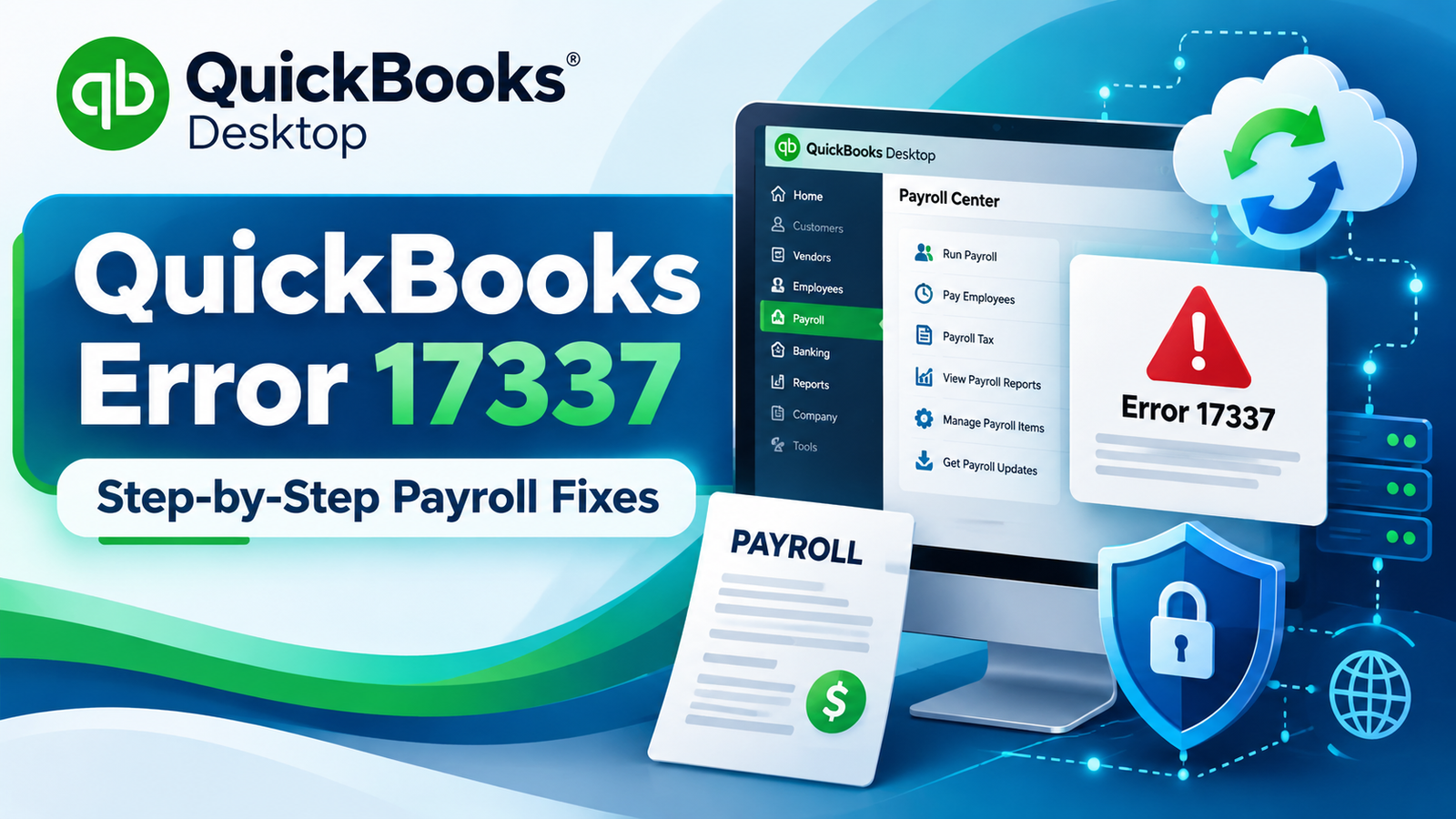
You open QuickBooks Desktop Payroll and try to download the latest payroll update, but the process stops before completion. In this situation, users may encounter QuickBooks Error 17337, commonly discussed as a payroll-update and secure-connection problem.
The error is usually reported when QuickBooks cannot complete communication needed for a payroll update. Possible areas to check include internet connectivity, security settings, Windows date and time, firewall rules, QuickBooks program updates, and the secure connection used to communicate with Intuit services.
An important accuracy point is that Intuit’s current U.S. 15XXX troubleshooting page lists codes such as 15103, 15215, 15222, 15223, 15240, and 15270, but does not currently list 17337 specifically. Intuit does, however, provide current troubleshooting for payroll-update failures, secure TLS connections, firewall restrictions, administrator access, and payroll tax-table downloads.
This guide uses those current procedures rather than relying on outdated SSL settings or unsupported fixes.
What Is QuickBooks Error 17337?
QuickBooks Error 17337 is generally reported when QuickBooks Desktop Payroll has difficulty completing a payroll update or securely connecting to the services required for the download.
In practical terms, the payroll tax-table update may stop or fail because QuickBooks cannot complete the required online communication.
Current Intuit guidance states that QuickBooks Desktop connected services—including Payroll—need to meet TLS 1.2 security requirements. Intuit also identifies firewall settings, damaged Windows components, missing update components, and digital-signature verification as possible causes of comparable payroll update errors.
What Does Error 17337 Mean in Simple Words?
Think of the update process as three stages:
QuickBooks → Secure internet connection → Intuit payroll services
If something interrupts that path, the update may fail.
For example, QuickBooks could be working normally for bookkeeping while payroll updates fail because:
- QuickBooks Desktop needs an update.
- The payroll tax table download is interrupted.
- Windows security settings interfere with the connection.
- Firewall or antivirus software blocks QuickBooks.
- TLS requirements are not being met.
- Windows date or time is incorrect.
- QuickBooks background components need repair.
This is why repeatedly clicking Update without changing anything may produce the same result.
Common Signs of QuickBooks Payroll Error 17337
You may notice:
- Payroll tax tables will not download.
- The update begins but stops before completion.
- QuickBooks repeatedly asks you to download a payroll update.
- Online payroll services have trouble connecting.
- Payroll updates fail while ordinary bookkeeping features still work.
- A secure connection or internet-related message appears.
- QuickBooks becomes slow or unresponsive during an update attempt.
- The tax-table version does not change after the update.
These signs point toward the update and connection process rather than automatically indicating damage to your company file.
Why Does QuickBooks Error 17337 Occur?
Because Intuit does not currently provide a dedicated Error 17337 page, avoid assuming one guaranteed cause. Instead, check the areas that Intuit currently identifies for payroll and 15XXX update problems.
QuickBooks Desktop is not fully updated
Payroll updates work best when the QuickBooks Desktop program itself has the latest maintenance release. Intuit recommends keeping Desktop current for security improvements and product fixes.
Payroll subscription is inactive
Intuit states that an active QuickBooks Desktop Payroll subscription is required to download current tax tables.
Firewall or security software blocks the connection
Intuit lists firewall settings as one possible reason QuickBooks Desktop Payroll updates fail.
TLS 1.2 requirements are not met
TLS is the security protocol QuickBooks uses for secure communication. Intuit says connected services such as Payroll require compatible TLS 1.2 settings.
QuickBooks update components need repair
QuickBooks background processes or downloaded update components may not be working correctly. Quick Fix my Program is designed to close lingering processes and perform a quick program repair.
Windows date or time is wrong
Incorrect Windows date and time can interfere with secure server connections and certificate validation. Intuit includes system date/time checks in related payroll-connection troubleshooting.
Before You Start Troubleshooting
Before changing settings:
- Save your QuickBooks work.
- Create a recent company-file backup.
- Confirm you can browse normal websites.
- Check whether other internet services are working.
- Note when the error appears.
- Confirm whether the failure occurs only during payroll updates.
- Make sure you know your QuickBooks Desktop version.
- Avoid permanently disabling Windows Firewall or antivirus protection.
Do not run company-file repairs unless you also have a separate company-file problem. Error 17337 troubleshooting should start with the payroll update and connection environment.
Quick Summary Table
| Issue | Details |
| Error | QuickBooks Error 17337 |
| Main Area | QuickBooks Desktop Payroll |
| Common Trigger | Downloading a payroll update |
| Usually Affects | Payroll tax-table/online update process |
| First Check | QuickBooks Desktop release |
| Subscription Check | Active Desktop Payroll subscription |
| Security Check | TLS 1.2 and firewall |
| Program Repair | Quick Fix my Program |
| Payroll Fix | Download Entire Update |
| Windows Check | Date, time, and security settings |
| Advanced Option | Reset update components / Tool Hub |
Step-by-Step Troubleshooting
How to Fix QuickBooks Error 17337
Work through these steps in order. After each major change, retry the payroll update.
Step 1: Check Your Internet Connection
Start with the basic connection.
- Close unnecessary applications.
- Open a web browser.
- Visit a few trusted websites.
- Confirm pages load normally.
- If the internet is unstable, restart the router or contact your network administrator.
- Reopen QuickBooks.
- Retry the payroll update.
A stable connection is necessary because QuickBooks Desktop must communicate with online payroll services.
Step 2: Check Windows Date and Time
Secure services depend on correct system time.
- Right-click the Windows clock.
- Select Adjust date and time.
- Confirm the correct date.
- Confirm the correct time.
- Verify the time zone.
- Turn automatic time synchronization on if appropriate.
- Restart QuickBooks.
- Retry the update.
Incorrect date and time can interfere with secure connections and certificates.
Step 3: Update QuickBooks Desktop
Before downloading the payroll tax table, update the QuickBooks program.
- Open QuickBooks Desktop.
- Press F2 or Ctrl + 1.
- Note your current version and release.
- Close the Product Information window.
- Go to Help.
- Select Update QuickBooks Desktop.
- Open Update Now.
- Select Get Updates.
- Let the download finish.
- Close and reopen QuickBooks.
- Install the update when prompted.
Intuit recommends installing the latest maintenance release to receive current product fixes and security updates.
Step 4: Run QuickBooks as Administrator
Administrator access can help when Windows permissions interfere with an update.
- Close your company file.
- Exit QuickBooks Desktop.
- Right-click the QuickBooks Desktop icon.
- Select Run as administrator.
- Select Yes.
- Open the company file.
- Retry the update.
Administrator mode is also the first solution in Intuit’s current 15XXX update-error workflow.
Step 5: Check Your Payroll Subscription
Make sure payroll service is active.
You need an active QuickBooks Desktop Payroll subscription to receive current tax-table updates.
If payroll subscription information appears inactive or outdated, resolve that issue before repeatedly downloading the update.
Step 6: Download the Entire Payroll Update
Now retry the tax-table download directly.
- Open your QuickBooks company file.
- Select Employees.
- Select Get Payroll Updates.
- Review the tax-table version shown.
- Select Download Entire Update.
- Select Update.
- Wait for the completion message.
- Reopen the payroll update window.
- Check whether the tax-table version changed.
This is Intuit’s current process for manually downloading the latest QuickBooks Desktop Payroll tax table.
Step 7: Confirm TLS 1.2 Support
TLS 1.2 is a secure internet communication protocol.
Intuit states that QuickBooks Desktop connected services, including payroll, require suitable TLS 1.2 system support.
Make sure:
- Windows is supported and current.
- Internet/security components are updated.
- TLS 1.2 has not been disabled through company policies.
- Your security software is not blocking secure QuickBooks connections.
Avoid following old guides that instruct you to enable SSL 2.0 or SSL 3.0. Those are outdated security protocols and should not be used as a modern QuickBooks fix.
Step 8: Review Firewall and Antivirus Settings
If QuickBooks payroll update error 17337 continues, check security software.
Intuit lists firewall restrictions among the possible causes of payroll and Desktop update failures.
Check whether your firewall is blocking:
- QuickBooks Desktop
- QuickBooks update components
- QuickBooks File Copy Service
- Required outbound internet connections
Do not permanently disable the firewall.
If this is a business-managed computer, ask your IT administrator to allow the required QuickBooks applications and connections.
Step 9: Run Quick Fix My Program
If connectivity looks normal, repair QuickBooks background processes.
- Close QuickBooks.
- Open the latest QuickBooks Tool Hub.
- Select Program Problems.
- Select Quick Fix my Program.
- Wait for it to complete.
- Open QuickBooks again.
- Open your company file.
- Retry the payroll update.
Intuit explains that Quick Fix my Program shuts down lingering QuickBooks processes and performs a quick program repair.
Step 10: Reset QuickBooks Update Components
If the update remains stuck, refresh previously downloaded update components.
Intuit’s current 15XXX troubleshooting includes resetting QuickBooks update components when simpler fixes do not work.
A safe approach is:
- Close QuickBooks.
- Follow Intuit’s version-specific 15XXX update instructions.
- Reopen QuickBooks.
- Go to Help > Update QuickBooks Desktop.
- Open Update Now.
- Select Reset Update.
- Select Get Updates.
- Restart QuickBooks.
- Retry payroll updates.
Avoid deleting unrelated Intuit folders manually.
Step 11: Run the QuickBooks Install Diagnostic Tool
If the program itself may be damaged:
- Open QuickBooks Tool Hub.
- Select Installation Issues.
- Select QuickBooks Install Diagnostic Tool.
- Let the diagnostic process finish.
- Restart Windows.
- Open QuickBooks.
- Update QuickBooks Desktop.
- Retry the payroll tax-table download.
Tool Hub’s Installation Issues section is designed for QuickBooks installation-related problems.
Step 12: Test From Another Network Only if Appropriate
If your business network uses strict filtering, proxy rules, or endpoint security, have your IT team check whether QuickBooks connections are being blocked.
Do not bypass company security controls without approval.
If QuickBooks works on a properly secured alternate connection but fails only on the business network, network filtering may require review.
What If the Error Still Appears?
If you’ve completed the steps above, note:
- QuickBooks Desktop year and release
- Windows version
- Payroll subscription status
- Tax-table version
- Exact error timing
- Whether QuickBooks updates work
- Whether payroll updates alone fail
- Firewall or endpoint-security software used
- Whether Tool Hub changed the behavior
At this stage, advanced troubleshooting should focus on the update environment rather than repeatedly changing your company-file data.
Frequently Asked Questions
What is QuickBooks Error 17337?
QuickBooks Error 17337 is commonly reported during QuickBooks Desktop Payroll updates when the update process cannot complete normally. Current troubleshooting should focus on Desktop updates, payroll tax-table downloads, secure TLS communication, firewall settings, administrator permissions, and QuickBooks program components.
Why does QuickBooks Error 17337 appear during payroll updates?
The exact cause may vary. Common areas to investigate include internet connectivity, Windows security, firewall restrictions, outdated QuickBooks components, incorrect date/time settings, and secure connection requirements. Intuit identifies these areas for comparable payroll and Desktop update failures.
How do I fix QuickBooks payroll error 17337?
Start by checking internet connectivity and Windows date/time. Then update QuickBooks Desktop, run it as administrator, confirm your Payroll subscription, and download the entire payroll update. If the issue remains, check TLS 1.2, firewall settings, Quick Fix my Program, and update components.
Does QuickBooks still need TLS 1.2?
Yes. Intuit states that QuickBooks Desktop connected services such as Payroll, Payments, online banking, and other online features require compatible TLS 1.2 support.
Should I enable SSL 2.0 or SSL 3.0 to fix Error 17337?
No. Old internet guides sometimes recommend outdated SSL protocols. Current QuickBooks guidance focuses on TLS 1.2 for secure connected services. Using current security standards is safer than enabling obsolete protocols.
How do I manually download the latest payroll tax table?
Open your company file, go to Employees > Get Payroll Updates, select Download Entire Update, and then select Update. QuickBooks displays an informational window when the download finishes.
Do I need an active Payroll subscription?
Yes. Intuit states that QuickBooks Desktop Payroll users need an active subscription to download current payroll tax tables.
What if I see a different QuickBooks update error?
If your error specifically shows QuickBooks Error 12038, see our guide on QuickBooks Error 12038 for troubleshooting focused on QuickBooks Desktop update failures.
What if QuickBooks cannot open my company file?
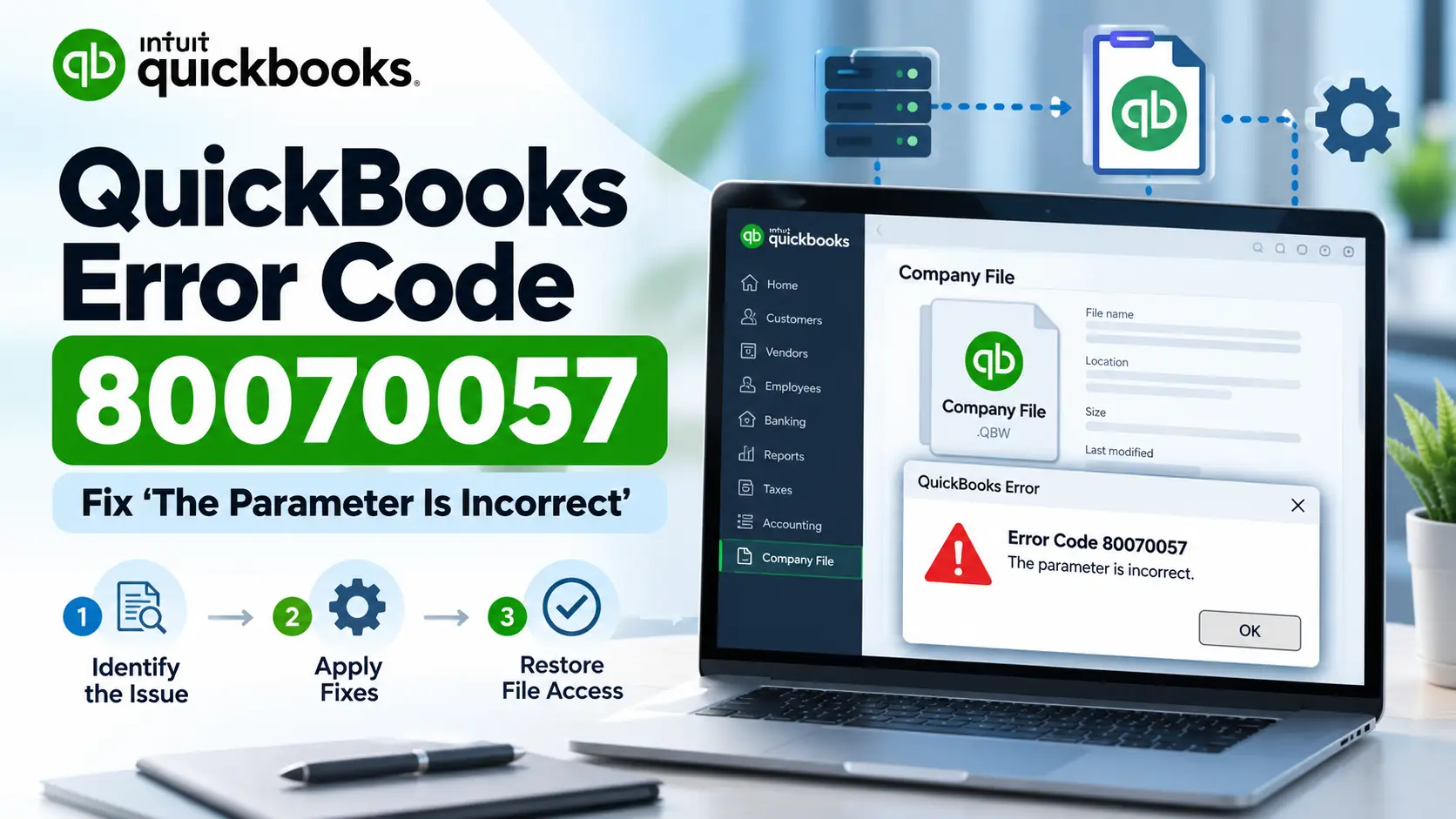
That is a different issue from payroll update Error 17337. If the message shows “The parameter is incorrect,” our QuickBooks Error Code 80070057 guide covers company-file opening and access fixes.
Can QuickBooks Tool Hub help with payroll update problems?
It may help when QuickBooks program or installation components are part of the issue. Quick Fix my Program closes lingering processes, while Installation Issues tools can help diagnose QuickBooks installation problems.
Conclusion
QuickBooks Error 17337 is best approached as a payroll-update and secure-connection problem rather than a company-file repair issue.
Start with the basics: confirm internet access, Windows date and time, your QuickBooks Desktop release, and Payroll subscription. Then download the full payroll tax-table update and verify that your system meets current TLS 1.2 requirements.
If the error remains, review firewall settings, run Quick Fix my Program, reset the update components, and use Tool Hub’s installation diagnostics.
Avoid outdated fixes that enable old SSL protocols. Using current QuickBooks, Windows, payroll tax tables, and supported security settings gives you a safer and more reliable troubleshooting path.