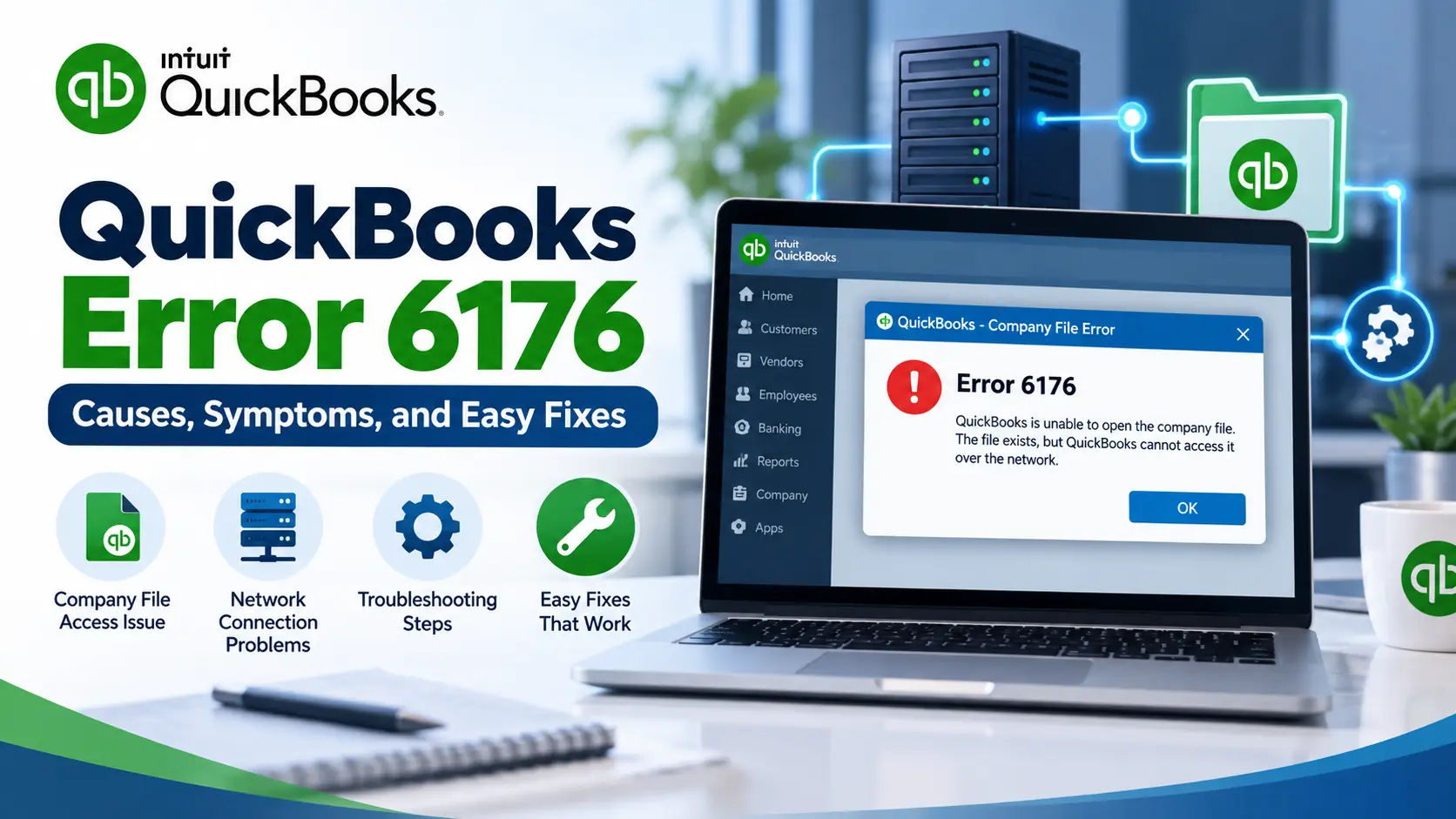
You click your QuickBooks company file expecting to get back to invoices, expenses, payroll, or reports—but QuickBooks stops before the file opens.
If the message includes QuickBooks Error 6176, especially -6176, 0, the problem often involves access to the company file rather than the accounting entries inside it.
Intuit currently lists -6176, 0 among errors that can occur when QuickBooks loses access to a Desktop company file. Its current U.S. guidance points to areas such as folder permissions, Windows firewall configuration, internet settings, administrator access, and file properties.
The useful part is that you do not have to begin with complicated file repairs.
Start by checking whether QuickBooks can reach and open the .QBW file normally. Then move through permissions, updates, firewall settings, and network tools only if needed.
What Is QuickBooks Error 6176?
QuickBooks Error 6176 is a QuickBooks Desktop company-file access error. It commonly appears as Error -6176, 0 when QuickBooks cannot properly reach or open a company file.
Intuit currently groups -6176, 0 with company-file connection problems that may involve Windows permissions, firewall settings, or other access-related configuration.
In simple terms:
QuickBooks knows which file you want, but something may be preventing the program from reaching or opening it correctly.
A Simple Way to Understand Error 6176
Think about your QuickBooks setup as a path:
Your computer → QuickBooks Desktop → Windows permissions/network → Company file
For the company file to open, every part of that path needs to work.
For example, your .QBW file may be perfectly healthy, but QuickBooks can still fail to open it if:
- Windows blocks access to the folder;
- the file is marked read-only;
- QuickBooks does not have sufficient permission;
- a firewall interferes with a network connection;
- the server hosting the file is not communicating correctly;
- the file is being opened from an unsuitable storage location.
This is why immediately rebuilding your accounting data is usually not the best first response to a QuickBooks company file error 6176.
Quick Diagnosis: What Does Your Setup Look Like?
Before changing anything, answer these questions.
| Question | What It Can Tell You |
| Does the error happen every time? | Persistent access/configuration issue may exist |
| Does opening the file again work? | The first connection attempt may have failed temporarily |
| Is the file on your local PC? | Focus on file properties and permissions |
| Is the file on another computer? | Network/server settings become more important |
| Can another user open the file? | Problem may be limited to one workstation |
| Can nobody open the file? | Server, file location, or shared folder needs attention |
| Is the file on OneDrive/USB/NAS? | Storage location may be contributing |
| Did the firewall recently change? | Review QuickBooks firewall permissions |
This quick check helps you avoid applying network fixes to a computer that is not even using a network company file.
Common Signs You May Notice
Users experiencing QuickBooks Error 6176 0 may notice one or more of these situations:
- The company file does not open.
- QuickBooks displays -6176, 0.
- The file opens on the server but not on a workstation.
- Multi-user access stops working.
- One computer can open the file while another cannot.
- The error appears after Windows or firewall settings change.
- QuickBooks can open sample data but not the business company file.
- The file opens locally after being copied from a network location.
The exact symptom matters because it tells you whether to focus on QuickBooks itself, Windows permissions, or the network.
Why Does QuickBooks Error 6176 Happen?
There is no need to guess. Intuit’s current guidance for -6176, 0 specifically points users toward company-file access, folder permissions, firewall configuration, Windows settings, administrator access, and file properties.
The file cannot be reached normally
QuickBooks may know the company-file path but be unable to access that location.
This is more common when files are shared across several computers.
Windows permissions are restricting access
Your Windows account may not have enough permission to use the required QuickBooks or company-file folders.
Firewall or security software is blocking QuickBooks
QuickBooks Desktop uses several executable files and network ports for communication. Intuit notes that Windows Firewall can block specific QuickBooks programs or files and provides Tool Hub and manual firewall configuration steps for those situations.
The company file is marked Read Only
A .QBW file with restrictive properties may not behave normally when QuickBooks attempts to use it.
The company file is stored in an unsuitable location
Intuit recommends storing active company files on the server computer’s local hard drive in multi-user environments. It warns that removable drives, external drives, common online file-hosting services, and NAS devices can cause problems with active QuickBooks files.
The server needs to be rescanned
In a multi-user environment, QuickBooks Database Server Manager helps host the company files. Rescanning the company-file folder can repair certain network and firewall permissions.
Before You Change Anything
Keep troubleshooting simple and controlled.
First, ask other QuickBooks users to save their work and close the company file.
Then make sure you know:
- which computer stores the .QBW file;
- whether that computer is the server;
- where your current QuickBooks backup is stored;
- whether the error affects one PC or everyone.
If you plan to move, repair, or rebuild company data, create a backup first.
How to Fix QuickBooks Error 6176
Use the following order. Test the company file after each fix.
If it opens normally, stop there.
Step 1- Start With the Easiest Test: Open the File Again
This sounds almost too simple, but Intuit actually lists reopening the file as its first solution for -6176, 0.
Intuit notes that some users may see the error on the first attempt and successfully open the file on the second attempt.
Close the message and try opening the same company file again.
If the error immediately returns, continue.
Step 2- Bring QuickBooks Desktop Up to Date
Next, check whether your QuickBooks release is current.
Intuit recommends using the latest maintenance release because updates include product improvements and security fixes. Its current September 2026 instructions say you can press F2 or Ctrl+1 to view your installed version and release.
Update QuickBooks, restart the program, and test the company file again.
This is a better early step than changing advanced Windows settings on an outdated installation.
Step 3- Try QuickBooks With Administrator Permission
Windows permissions can sometimes prevent QuickBooks from reaching required files or folders.
Try this:
- Close QuickBooks Desktop completely.
- Find the QuickBooks Desktop shortcut.
- Right-click it.
- Select Run as administrator.
- Approve the Windows prompt.
- Try opening the company file again.
Running QuickBooks as administrator is one of Intuit’s current recommended steps for -6176, 0.
If this changes the behavior, Windows permissions deserve closer review.
Step 4- Check Whether the Company File Is Read Only
Find the actual .QBW company file in Windows File Explorer.
Then:
- Right-click the company file.
- Select Properties.
- Look under the General tab.
- Find the Read-only option.
- If it is selected, clear it.
- Select Apply and OK.
- Open QuickBooks and test again.
Intuit specifically recommends checking the Read Only property when resolving -6176, 0 and related company-file access errors.
Step 5- Find Out Whether the File Location Is the Problem
This test is especially useful when the company file is currently stored on a network, synchronized folder, removable drive, or other non-local location.
Check where the .QBW file actually lives.
If you’re running an active company file from:
- OneDrive;
- Google Drive;
- Dropbox;
- a USB flash drive;
- an external drive;
- an unsupported NAS device;
consider whether the storage setup itself is contributing to the error.
Intuit’s current multi-user guidance recommends active company files be stored on the server computer’s local hard drive rather than online-file-hosting or removable storage.
A backup copy can still be stored separately. The concern here is the active working company file.
Step 6- If You Use Multiple Computers, Scan the Company Folder
For a QuickBooks multi user error 6176, this is one of the most useful network-specific checks.
Perform it on the computer that stores the company file.
Open QuickBooks Tool Hub, then:
- Select Network Issues.
- Choose QuickBooks Database Server Manager.
- Check whether your company-file folder appears.
- If it appears, select Start Scan.
- If not, browse to the folder first.
- Start the scan.
- Wait for it to finish.
- Select Close.
- Return to your workstations and try opening the company file.
Intuit states that Database Server Manager scans company-file folders and can automatically repair relevant firewall permissions.
Step 7- Use QuickBooks File Doctor for File and Network Checks
If the company file still will not open, use File Doctor.
QuickBooks Tool Hub includes File Doctor under Company File Issues. Intuit describes Tool Hub as its collection of utilities for company-file, network, installation, and program problems.
Open:
Tool Hub → Company File Issues → Run QuickBooks File Doctor
Then:
- Choose your company file.
- Browse for it if necessary.
- Select the available file/network check.
- Enter the QuickBooks admin password when requested.
- Let the scan finish.
- Reopen QuickBooks.
- Test the file.
Do not be surprised if File Doctor reports that its scan was unsuccessful but the original problem is resolved; Intuit notes this can happen.
Review Windows Firewall Only If the Problem Continues
Do not begin by turning your firewall off.
A better approach is to make sure QuickBooks has the permissions it needs.
Intuit’s current firewall guide recommends Tool Hub first and then manual Windows Firewall configuration if File Doctor does not resolve the issue. It provides specific QuickBooks executable files and version-specific ports for users who need manual rules.
For a managed business computer, ask your IT administrator to handle this part.
That is safer than disabling security or creating random firewall rules.
Test a Sample Company File
If you’re still asking how to fix QuickBooks Error 6176 after the network and permission checks, try separating a company-file issue from a QuickBooks installation issue.
From the No Company Open screen, open a QuickBooks sample company.
If the sample file opens but your normal .QBW does not, the problem is more likely connected with your business file, its location, or access to it.
If the sample file also fails, QuickBooks itself may need repair.
Intuit uses this type of sample-file test in its current -6000 company-file troubleshooting guidance.
What If Only One Workstation Gets the Error?
That’s an important clue.
If everyone else can use the company file normally, avoid making unnecessary changes to the server.
Focus on the affected workstation:
- update QuickBooks;
- run it as administrator;
- run File Doctor;
- check Windows permissions;
- check local firewall/security settings;
- confirm it connects to the correct file path.
One affected workstation usually points toward a local configuration problem rather than a company-wide file failure.
What If Nobody Can Open the Company File?
Shift your attention toward:
- the server;
- the shared company-file folder;
- folder permissions;
- Database Server Manager;
- firewall settings;
- the physical location of the .QBW file.
Also confirm that the server computer is powered on and connected to the expected office network.
Avoid renaming, deleting, or moving multiple QuickBooks support files at random.
Things You Should Not Do
Error 6176 is frustrating, but aggressive changes can make troubleshooting harder.
Avoid:
- deleting the .QBW company file;
- disabling the firewall permanently;
- running the live company file from random cloud-sync folders;
- changing several Windows permissions at once;
- rebuilding company data before determining whether data repair is actually needed;
- downloading unknown “QuickBooks repair tools” from unofficial websites.
Use one fix, test, and then continue only if necessary.
Frequently Asked Questions
1. What is QuickBooks Error 6176?
QuickBooks Error 6176 commonly appears as -6176, 0 when QuickBooks Desktop cannot properly open or reach a company file. Intuit associates this error with company-file connectivity and access conditions such as Windows folder permissions, firewall configuration, internet settings, administrator permissions, and file properties.
2. What does QuickBooks Error 6176 0 mean?
It generally indicates that QuickBooks is having trouble accessing the company file in its current Windows or network environment. Start by reopening the file, updating QuickBooks, checking administrator access, and confirming that the .QBW file is not marked Read Only.
3. Can firewall settings cause Error 6176?
Yes. Intuit includes firewall configuration among the areas to check for -6176, 0. QuickBooks also provides File Doctor and Database Server Manager tools that can help diagnose network access and repair some firewall permissions.
4. Can I fix Error 6176 without changing my company data?
In many cases, yes. The early troubleshooting steps involve reopening the file, updating QuickBooks, administrator permissions, Windows file properties, firewall configuration, and network access. These checks do not require editing accounting transactions.
5. Why does the file open on the server but not my workstation?
That usually suggests the workstation is having trouble reaching the file over the network. Check that workstation’s QuickBooks version, firewall settings, File Doctor results, Windows permissions, and connection to the correct shared path.
6. Can QuickBooks File Doctor help with Error 6176?
It may help when the problem involves company-file or network access. QuickBooks Tool Hub provides File Doctor under Company File Issues and includes network-related diagnostic options.
7. Should I store the QuickBooks company file in OneDrive?
For an active multi-user company file, Intuit recommends keeping the file on the server computer’s local hard drive. Its current guidance warns that common online file-hosting services and unsupported external or NAS storage can create problems with QuickBooks multi-user access.
8. Do I need to reinstall QuickBooks for Error 6176?
Not usually as the first step. First try the easier company-file access checks, updates, administrator permissions, File Doctor, Database Server Manager, and firewall review. A sample-file test can also help determine whether the QuickBooks installation itself needs attention.
9. What if I get an update error instead of a company-file error?
Update problems follow a different troubleshooting path. If the error on your screen is related to internet or update connectivity, our guide to QuickBooks Error 12152 covers that issue separately.
10. What if QuickBooks shows Error 6190 instead of 6176?
Error 6190 belongs to another company-file/multi-user problem and should be diagnosed according to its own symptoms. See the guide to QuickBooks Error 6190 for its specific troubleshooting process.