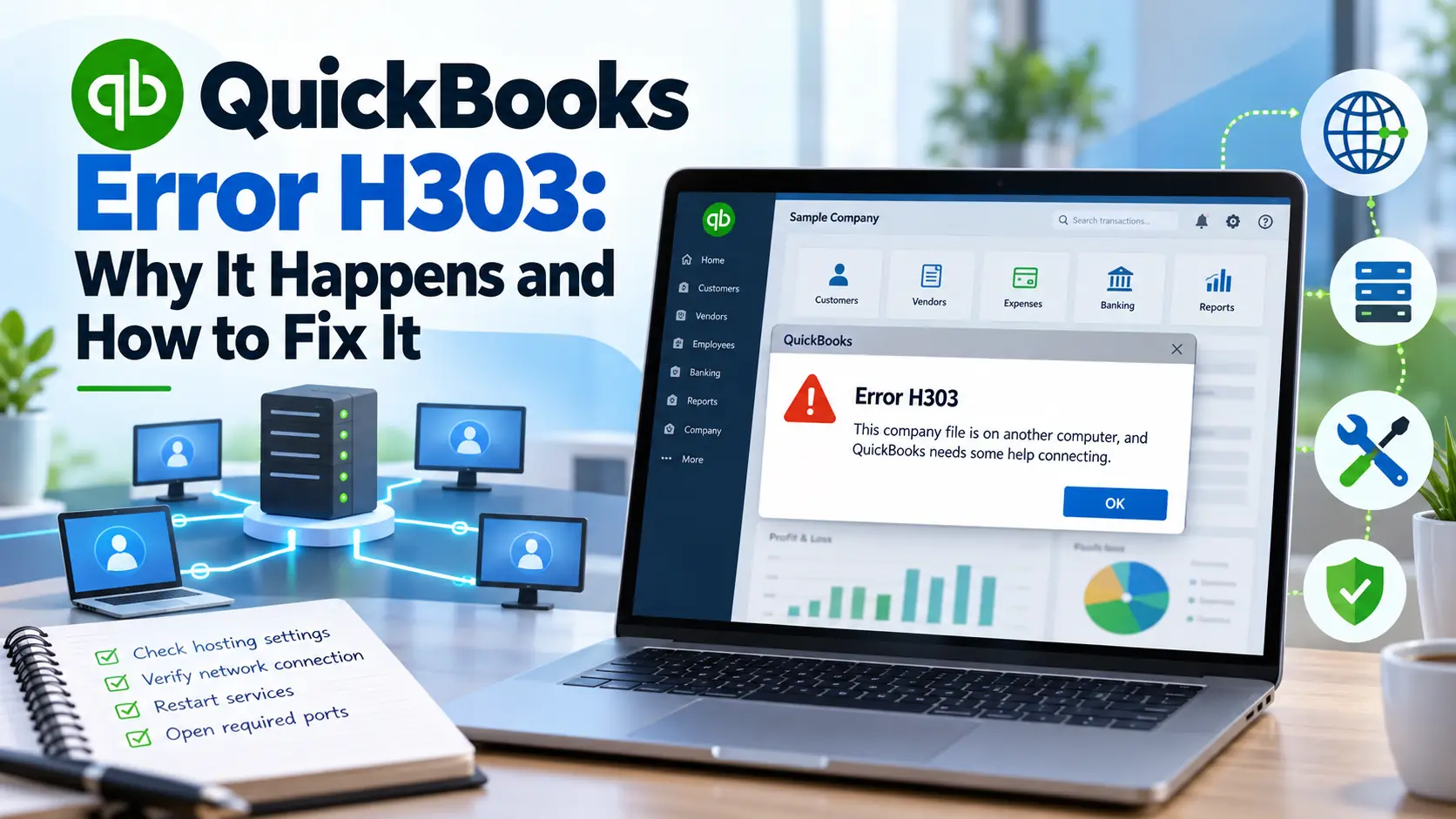
You may see QuickBooks Error H303 when trying to open a company file stored on another computer or when switching QuickBooks Desktop to multi-user mode. Instead of giving several users normal access to the same company file, QuickBooks may stop the connection and display an H-series error.
This issue is usually related to how hosting is configured across the computers on your network. In a standard QuickBooks multi-user setup, the server computer stores and hosts the company file, while workstations connect to it. Intuit states that H101, H303, and H505 can occur when one or more workstations are incorrectly configured to act as the server.
The good news is that you can often identify the problem without making changes to your accounting data. The steps below start with simple hosting checks and move gradually into network, Database Server Manager, firewall, and service checks.
What Is QuickBooks Error H303?
QuickBooks Error H303 is a QuickBooks Desktop multi-user connection error. It usually indicates that one or more workstations are configured to host the company file when they should only be accessing it. The computer that actually stores the company file should normally be the host.
Intuit groups H303 with H101, H202, and H505 because these errors relate to communication between QuickBooks workstations and the server hosting the company file.
What Does the H303 Error Mean?
In simple terms, QuickBooks is having trouble determining which computer should manage multi-user access to your company file.
Think of your office network this way:
- Server computer: Stores and hosts the QuickBooks company file.
- Workstation: Opens and works with that file over the network.
- QuickBooks Database Server Manager: Helps QuickBooks workstations communicate with the company file stored on the server.
When a workstation is accidentally set to host multi-user access, it can create a conflicting network setup.
QuickBooks also relies on a Network Data .ND file to identify information needed to communicate with the database server. According to Intuit, this file contains information such as the server, port, company-file path, and hosting status.
Common Symptoms of the QuickBooks H303 Error
The quickbooks h303 error may appear differently depending on your network configuration. Common signs include:
- QuickBooks displays H303 when opening a network company file.
- A workstation cannot switch successfully to multi-user mode.
- Other users may have trouble accessing the company file from their computers.
- The company file opens locally on the server but not from a workstation.
- Multi-user access stops even though the server remains available.
- The error appears after changes to hosting, Windows settings, firewall rules, or network configuration.
If the company file opens normally in single-user mode but fails when accessed across the network, your hosting and network configuration should be among the first things you check.
Why Does QuickBooks H303 Occur?
Several conditions can contribute to this problem.
1. Hosting is enabled on a workstation
This is one of the most important H303-specific causes. Intuit’s current guidance says the Host Multi-User Access option should be turned off on workstations. Only the server computer that normally hosts the company files should be configured as the host.
2. QuickBooks Database Server Manager is not working correctly
Database Server Manager helps QuickBooks provide multi-user access to company files stored on a server. If the company-file folder has not been scanned correctly or the service is unavailable, workstations may have difficulty connecting.
3. Windows Firewall is interfering with communication
Windows Firewall or third-party security software can block QuickBooks executables or ports required for network communication. Intuit provides specific firewall configuration procedures for QuickBooks Desktop.
4. QuickBooks services are stopped
Services such as QuickBooksDBXX and QBCFMonitorService are involved in multi-user communication. If required services are stopped or fail to start correctly on the server, network access may be interrupted.
5. The workstation cannot communicate with the server
Network discovery, Windows sharing settings, connectivity interruptions, or other local network issues can prevent the workstation from reaching the computer where the company file is stored.
Before You Start Troubleshooting
Before changing network or hosting settings, take a few sensible precautions.
- Confirm which computer is the server.
- Identify which computers are only workstations.
- Ask other users to close QuickBooks temporarily if you are changing server settings.
- Create a recent company-file backup before performing advanced file-related repairs.
- Check that your QuickBooks Desktop installation is current.
Intuit recommends installing the latest maintenance release to receive current product improvements and security updates.
Avoid randomly changing firewall ports, Windows services, or company-file locations if you are unsure how your office network is configured.
Quick Summary Table
| Issue | Details |
| Error | QuickBooks H303 |
| Common Trigger | Incorrect multi-user hosting configuration |
| Usually Affects | QuickBooks Desktop users accessing a company file over a network |
| Common Symptom | Company file cannot be accessed properly in multi-user mode |
| Main Cause to Check First | A workstation is configured to host multi-user access |
| Recommended First Step | Turn off hosting on workstations and confirm the server is the host |
| Other Areas to Check | Database Server Manager, Windows services, firewall, network communication |
| Data Risk | H303 is primarily a connectivity/hosting issue, but backing up before advanced repairs is still recommended |
Step-by-Step Troubleshooting
How to Fix QuickBooks Error H303
Start with Method 1. Test QuickBooks after each method so you do not make unnecessary changes.
Method 1: Turn Off Hosting on Your Workstations
This should be your first H303-specific check.
On every workstation displaying H303:
- Open QuickBooks Desktop.
- Do not open the company file yet.
- Select File.
- Select Utilities.
- Look at the available hosting option.
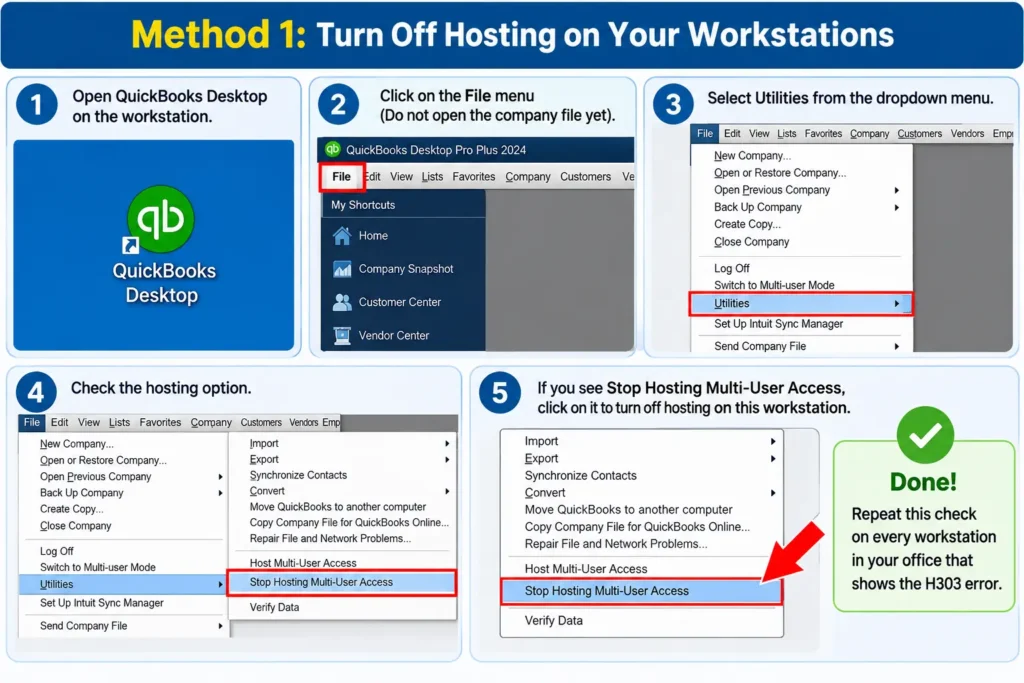
If you see Host Multi-User Access, leave it alone. This means the workstation is not currently acting as the host.
If you see Stop Hosting Multi-User Access, select it.
Repeat the check on every workstation.
Intuit specifically recommends this procedure for H101, H303, and H505 errors because workstations should not host the company file.
Why this may help:
It removes conflicting hosting configurations and leaves the actual server responsible for multi-user access.
Method 2: Confirm Hosting on the Server
Now go to the computer that normally stores your QuickBooks company file.
- Open QuickBooks Desktop.
- Select File > Utilities.
- Check the option displayed.
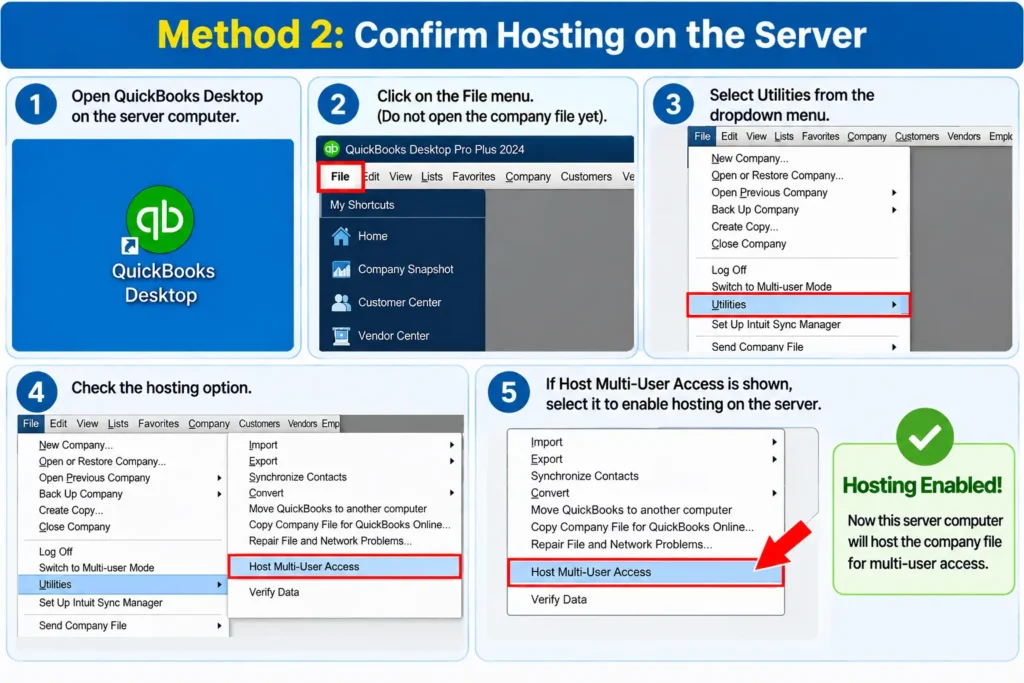
If Host Multi-User Access appears, select it.
If Stop Hosting Multi-User Access appears, the server is already configured to host, so do not select it.
After checking the server, reopen QuickBooks on a workstation and test multi-user access.
Method 3: Update QuickBooks Desktop
Keeping QuickBooks current may help eliminate software-related issues and ensures you are working with the latest maintenance release.
To check your installed release:
- Open QuickBooks Desktop.
- Press F2 or Ctrl + 1.
- Review the product version and release information.
- Install available QuickBooks Desktop updates when appropriate.
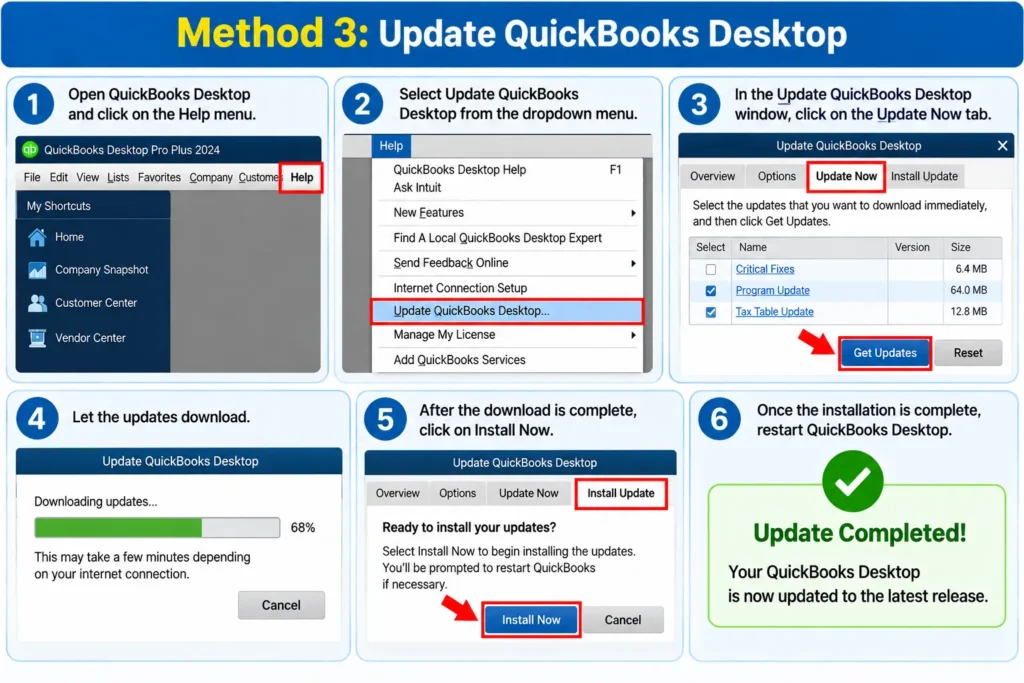
Intuit recommends using current maintenance releases for security updates and product improvements.
Updating alone may not correct an incorrect hosting setup, so continue troubleshooting if H303 remains.
Method 4: Run QuickBooks Database Server Manager
Perform this step on your server—the computer that stores the company file.
- Close QuickBooks where appropriate.
- Open QuickBooks Tool Hub.
- Select Network Issues.
- Select QuickBooks Database Server Manager.
- Locate the folder containing your company file.
- If the folder appears, select Start Scan.
- If it does not appear, browse to the company-file location and then start the scan.
- When the scan finishes, select Close.
- Return to a workstation and test multi-user mode.
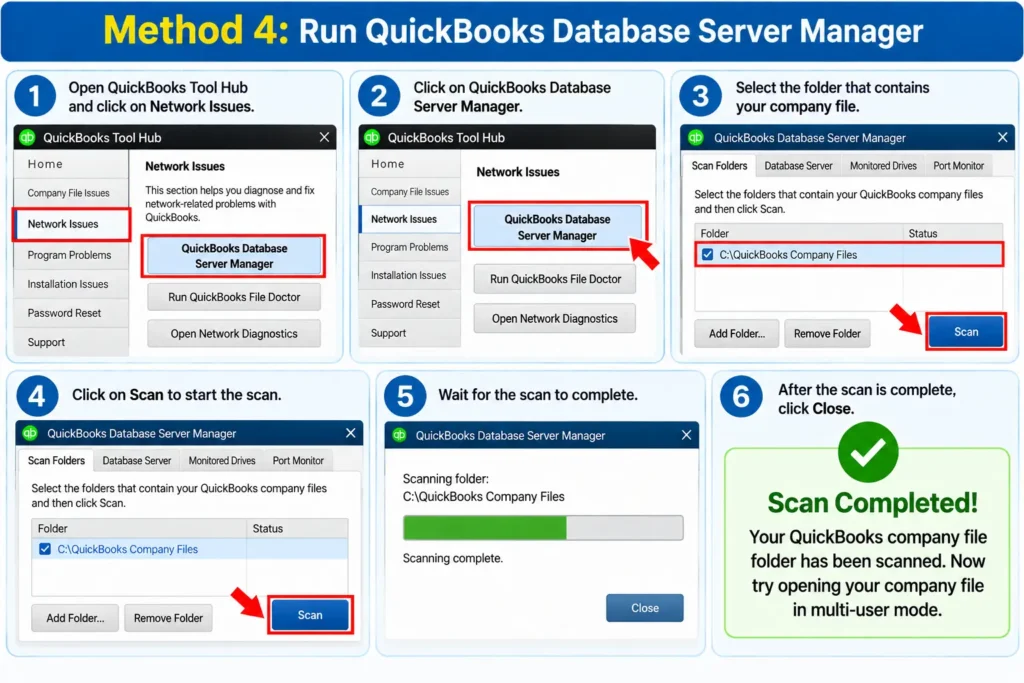
Intuit notes that Database Server Manager scans the company-file folder and can repair firewall permissions associated with QuickBooks network access.
Method 5: Run QuickBooks File Doctor
If the problem continues, check the file and network connection using File Doctor.
- Open QuickBooks Tool Hub.
- Select Company File Issues.
- Choose Run QuickBooks File Doctor.
- Select your company file.
- If you cannot see it, browse to its location.
- Choose the network-related check offered by the tool.
- Enter your QuickBooks admin password when requested.
- Allow the scan to complete.
- Reopen QuickBooks and test the company file.
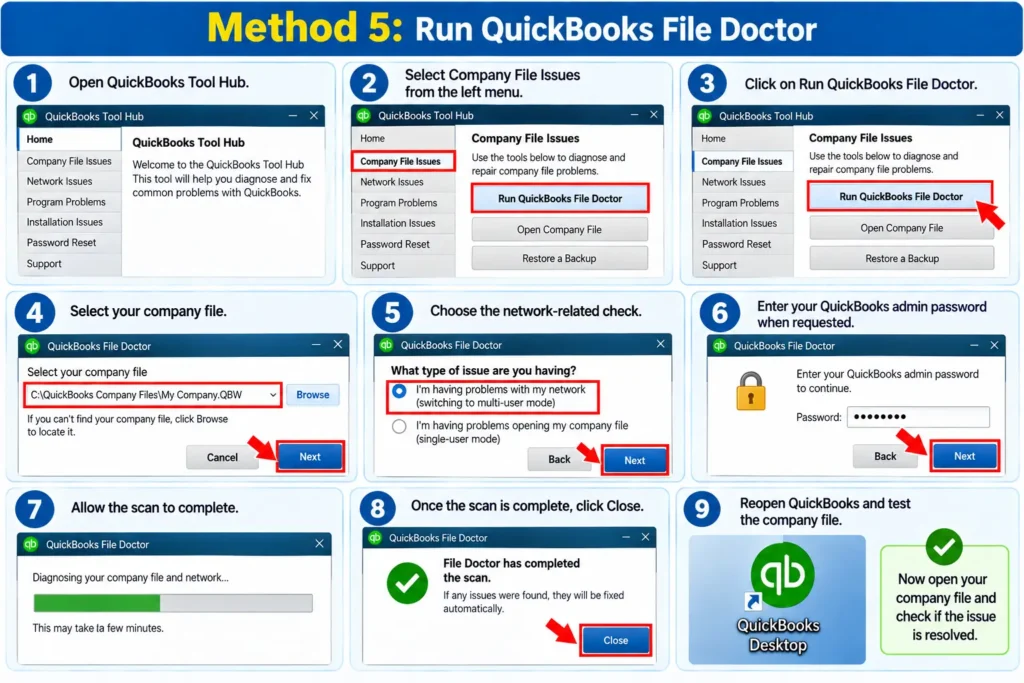
File Doctor is intended to help diagnose company-file and network communication problems.
Method 6: Check QuickBooks Services on the Server
If multi-user communication is still failing, verify that the required Windows services are running.
On the server:
- Press Windows + R.
- Enter services.msc.
- Press Enter.
- Locate QuickBooksDBXX.
- Open its properties.
- Confirm the Startup Type is Automatic.
- Make sure the service is running.
- Repeat the check for QBCFMonitorService.
The “XX” in QuickBooksDBXX varies according to the QuickBooks Desktop version.
Intuit also recommends configuring service recovery options when troubleshooting H-series multi-user errors.
Method 7: Review Firewall and Security Settings
If Windows Firewall is blocking QuickBooks, the workstation may not be able to communicate correctly with the server.
Start with QuickBooks Tool Hub and Database Server Manager before manually modifying firewall settings.
If manual configuration is necessary:
- Check QuickBooks firewall permissions.
- Allow required QuickBooks executable files.
- Verify the ports associated with your QuickBooks Desktop version.
- Remember that QuickBooks Desktop 2019 and later use dynamic ports in addition to port 8019.
The dynamic port can be checked in QuickBooks Database Server Manager under Port Monitor.
If your business uses a managed firewall, third-party antivirus suite, or professionally configured Windows Server environment, consider having your IT administrator review these settings rather than changing them at random.
Method 8: Test the Connection Between the Workstation and Server
If the hosting settings are correct but the error remains, determine whether the workstation can actually communicate with the server.
Check:
- Both computers are connected to the expected business network.
- Network Discovery is enabled where appropriate.
- The server is powered on and accessible.
- Windows file-sharing permissions have not recently changed.
- The workstation can reach the server across the local network.
A failed network connection can produce symptoms that look similar to a QuickBooks configuration problem.
Prevention Tips
You cannot prevent every network issue, but a few good practices can reduce future H-series errors.
- Keep hosting enabled only on the computer designated as the QuickBooks server.
- Do not enable Host Multi-User Access on ordinary workstations.
- Keep QuickBooks Desktop updated.
- Keep QuickBooks Database Server Manager properly installed and configured.
- Create regular company-file backups.
- Avoid changing company-file folders without updating the server configuration.
- Review firewall settings after major security-software or Windows changes.
- Keep the server computer available whenever users need multi-user access.
- Have an IT administrator document your server name, file location, network setup, and QuickBooks configuration.
For more accounting software guidance and related resources, you can also explore QuickBooks help resources.
Frequently Asked Questions {FAQs}
1. Why am I getting QuickBooks Error H303?
The most common H303-specific issue is incorrect hosting configuration. A workstation may be set to host multi-user access even though only the server computer should be hosting the company file. Checking File > Utilities on each workstation is a good first step.
2. How do I clear H303 in QuickBooks?
Start by turning off hosting on every workstation and confirming that hosting is enabled on the actual server. If the problem continues, run QuickBooks Database Server Manager, check QuickBooks services, review firewall permissions, and test network connectivity.
3. Is H303 a company-file corruption error?
Not necessarily. H303 primarily relates to multi-user hosting and network communication. You should not automatically assume your company data is damaged simply because this error appears.
4. Can H303 stop other employees from using QuickBooks?
Yes. If the multi-user connection is not functioning correctly, employees on affected workstations may be unable to open or work normally with the shared company file until the hosting or network problem is corrected.
5. What is the difference between a QuickBooks server and workstation?
The server is the computer that stores and normally hosts the shared company file. A workstation is another computer that connects to that company file over the network. In a properly configured environment, ordinary workstations should not host multi-user access.
6. Does updating QuickBooks fix H303?
An update can resolve software-related issues and keeps QuickBooks current, but it may not fix an incorrect hosting configuration by itself. If a workstation is acting as a host, you still need to correct that setting.
7. Can QuickBooks File Doctor fix H303?
File Doctor may help identify network or company-file access issues associated with multi-user problems. However, you should still verify your hosting settings because H303 is commonly connected to an incorrect host/workstation configuration.
8. Is my accounting data safe while fixing H303?
Basic hosting checks do not normally modify your accounting transactions. Still, maintaining a current backup is good practice before performing advanced company-file repairs, relocating files, or making significant server changes.
9. What should I do if the H303 error keeps coming back?
If H303 repeatedly returns after correcting hosting settings, check Database Server Manager, QuickBooksDBXX, QBCFMonitorService, Windows Firewall, network discovery, server availability, and Windows permissions. Businesses with managed networks may benefit from having their IT administrator inspect the server configuration.
10. What if I am seeing a different QuickBooks company-file error?
Different errors can have different causes, so avoid applying H303 fixes automatically. For example, if you are seeing error 6069 instead, review our guide to QuickBooks Error 6069 for troubleshooting specific to that issue.