
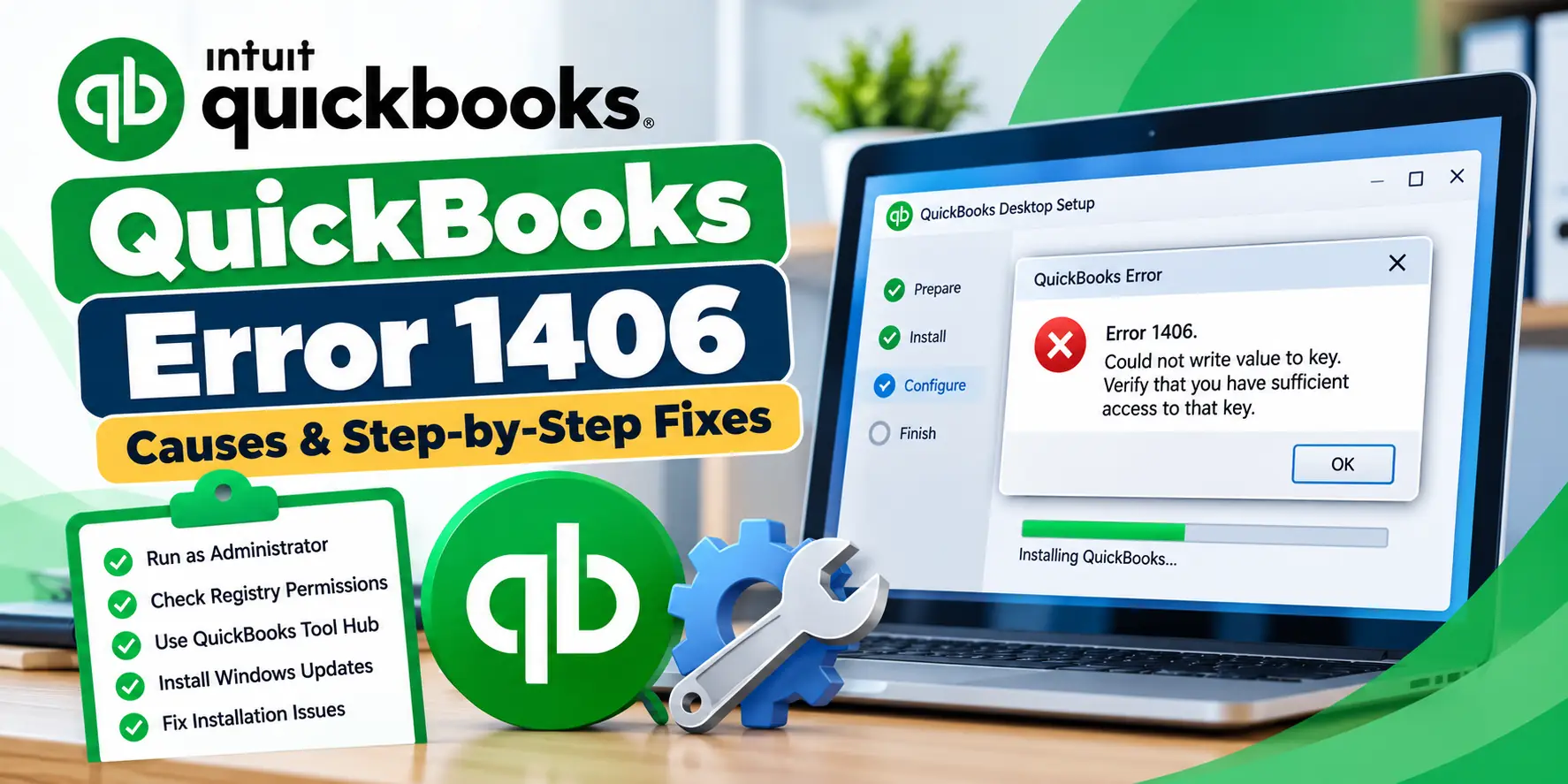
You start installing or updating QuickBooks Desktop, but the process stops with QuickBooks Error 1406. The message may say that Windows could not write a value to a registry key or that you do not have sufficient access to the required key.
This usually means the installer is trying to create or change a Windows Registry entry but cannot complete the task. Error 1406 is not unique to QuickBooks; Microsoft examples show the same Windows Installer error when an application cannot write to a protected registry key because of permission restrictions.
For QuickBooks users, the safest troubleshooting path is to start with administrator access, QuickBooks Tool Hub, the Install Diagnostic Tool, and Windows updates. Manual registry changes should come later because an incorrect registry edit can affect Windows or other installed applications.
This guide explains the causes, symptoms, and fixes in a simple order so you can test each step before moving to something more advanced.
What Is QuickBooks Error 1406?
QuickBooks Error 1406 is an installation or update-related Windows Installer error that appears when the setup program cannot write a required value to the Windows Registry.
A typical message is similar to:
“Error 1406. Could not write value to key. Verify that you have sufficient access to that key.”
A current QuickBooks-specific technical reference also describes Error 1406 as an installer failure caused when Windows cannot write a registry value, commonly because of permissions, a locked key, or security software interference.
The important point is that the problem usually involves the Windows installation environment rather than the QuickBooks company file itself.
Quick Summary Table
| Issue | Details |
| Error | QuickBooks Error 1406 |
| Main Area | Installation or update |
| Common Message | Could not write value to key |
| Main Cause | Registry permission or installer access issue |
| First Step | Run installer as administrator |
| Main QuickBooks Tool | QuickBooks Tool Hub |
| Diagnostic Tool | QuickBooks Install Diagnostic Tool |
| Windows Check | Windows Update |
| Advanced Step | Registry permission review |
| Company File Damage? | Usually not the first issue to suspect |
What Does QuickBooks Error 1406 Mean?
In simple language, QuickBooks setup is asking Windows for permission to create or modify a registry entry, but Windows is refusing or blocking that change.
The installation process looks roughly like this:
QuickBooks Installer → Windows Installer → Registry → Program Files → Installation Complete
If Windows blocks the registry-writing stage, the setup may stop with Error 1406.
This can happen even if you are logged in as an administrator because some registry keys may have different ownership or inherited security settings. Microsoft Q&A discussions show Error 1406 can still occur under an administrator account when the target registry key has restricted permissions.
Common Symptoms of QuickBooks Installation Error 1406
You may notice:
- QuickBooks installation stops before completion.
- A “Could not write value to key” message appears.
- QuickBooks update fails repeatedly.
- QuickBooks setup rolls back after the error.
- The same installer works on another computer.
- The error shows a Windows Registry path.
- QuickBooks installation works only under another Windows account.
- Security software displays a warning during setup.
- QuickBooks was previously installed and the new installation fails.
- Reinstalling without changing permissions produces the same error.
If QuickBooks is already installed and opens normally, but the company file will not open, Error 1406 may not be the main issue.
Why Does QuickBooks Error 1406 Occur?
1. Windows Registry permissions are restricted
This is the main technical reason associated with Error 1406.
Windows Installer tries to write to a registry key, but the current account or installer process does not have the required permission. Microsoft examples confirm that Error 1406 commonly involves blocked access to registry keys.
2. QuickBooks installer is not running with administrator rights
If the installer is launched without elevation, Windows may block access to protected system areas.
A QuickBooks-specific Error 1406 reference recommends running the installer explicitly as administrator before using more advanced fixes.
3. A previous QuickBooks installation left problematic registry entries
An older installation may leave registry keys with outdated ownership or permissions.
This can happen after:
- An interrupted uninstall
- A failed upgrade
- A Windows user profile change
- Migration from one QuickBooks version to another
4. Security software blocks installer changes
Antivirus or endpoint-protection software may block registry changes during installation.
This does not mean security software should be permanently disabled. The better approach is to review whether the installer is being blocked and use approved exclusions if your IT policy allows it.
5. QuickBooks installation components need repair
Intuit recommends QuickBooks Tool Hub and the Install Diagnostic Tool for common installation errors. The Install Diagnostic Tool checks problems involving Microsoft components used by QuickBooks.
6. Windows needs updates
Intuit’s installation-error guidance recommends installing Windows updates because Windows updates can prevent or resolve installation problems.
Before You Start Troubleshooting
Before changing Windows or QuickBooks settings:
- Close QuickBooks Desktop.
- Restart your computer.
- Keep your QuickBooks license information available.
- Back up your company file if QuickBooks is already installed.
- Download QuickBooks only from Intuit.
- Note the exact registry path shown in the Error 1406 message.
- Make sure you know whether your Windows account has administrator access.
- Avoid deleting registry keys.
- Do not permanently disable antivirus or firewall protection.
- Test QuickBooks installation after each major step.
Quick Summary Table
| Check | What to Do |
| Administrator access | Run installer as administrator |
| QuickBooks program issue | Run Quick Fix my Program |
| Installation issue | Run Install Diagnostic Tool |
| Windows components | Install Windows updates |
| Security interference | Review antivirus/endpoint software |
| Registry issue | Check exact key permissions |
| Old installation | Repair or reinstall QuickBooks |
| Managed PC | Ask IT administrator to review policies |
Step-by-Step Troubleshooting
How to Fix QuickBooks Error 1406
Use the solutions below from easiest to more advanced.
Method 1: Restart Windows and Retry the Installer
Start with a clean Windows session.
- Close the QuickBooks installer.
- Close unnecessary applications.
- Restart Windows.
- Sign back into your normal account.
- Right-click the QuickBooks installer.
- Select Run as administrator.
- Approve the Windows prompt.
- Retry the installation.
Why this may help
A restart clears temporary installer processes and file locks that may interfere with setup.
Running the installer with elevated rights also gives it better access to protected Windows areas.
Method 2: Confirm You Are Using an Administrator Account
If QuickBooks error code 1406 returns:
- Open Windows Settings.
- Go to Accounts.
- Review your account type.
- Confirm it has administrator rights.
- If needed, sign in with an administrator account.
- Run the installer again as administrator.
On a business-managed computer, do not change account privileges yourself if your organization restricts them.
Ask your IT administrator to perform the installation.
Method 3: Run Quick Fix My Program
If QuickBooks was previously installed or background processes are interfering, use Tool Hub.
- Close QuickBooks.
- Open QuickBooks Tool Hub.
- Select Program Problems.
- Select Quick Fix my Program.
- Let the tool finish.
- Restart QuickBooks or retry the installation.
Intuit says Quick Fix closes open QuickBooks background processes and performs a quick repair of the program.
Method 4: Run QuickBooks Install Diagnostic Tool
This is one of the most useful steps for QuickBooks installation error 1406.
- Open QuickBooks Tool Hub.
- Select Installation Issues.
- Select QuickBooks Install Diagnostic Tool.
- Let the tool finish.
- Restart the computer.
- Retry QuickBooks installation or update.
Intuit says the Install Diagnostic Tool helps repair common installation issues involving Microsoft components used by QuickBooks.
Method 5: Install Windows Updates
If the installer still fails:
- Open Windows Settings.
- Select Windows Update.
- Select Check for updates.
- Install available updates.
- Restart the computer.
- Return to Windows Update.
- Check again.
- Retry QuickBooks installation.
Intuit recommends Windows updates as part of its current QuickBooks installation-error troubleshooting.
Method 6: Review Security Software
If Error 1406 continues, check whether antivirus or endpoint security is blocking the installer.
Look for:
- Quarantine notifications
- Registry protection warnings
- Application-control restrictions
- Blocked QuickBooks installer files
- Company IT policies preventing registry changes
If you use a business computer, your IT team should review this.
Do not permanently turn off antivirus protection.
A temporary test may be appropriate only if your security policy allows it, and protection should be re-enabled immediately afterward.
Method 7: Note the Exact Registry Key in the Error
If the error still appears, read the message carefully.
It may show a path similar to:
HKEY_LOCAL_MACHINE\Software\…
or
HKEY_CLASSES_ROOT\…
Do not edit the key immediately.
Instead:
- Take a screenshot.
- Copy the exact key path.
- Note the value name.
- Check whether the same path appears every time.
- Confirm whether the computer is managed by an organization.
The exact key helps determine whether the issue is QuickBooks-specific or part of a broader Windows permission problem.
Method 8: Review Registry Permissions Carefully
This is an advanced step.
Microsoft examples of Error 1406 show that permission restrictions on the target registry key can prevent the installer from writing the required value.
If you are comfortable working with Registry Editor:
- Create a Windows restore point if appropriate.
- Back up the relevant registry key.
- Open Registry Editor as administrator.
- Navigate to the exact key shown in the error.
- Right-click the key.
- Select Permissions.
- Review the permissions for Administrators and SYSTEM.
- Do not delete the key.
- Do not change unrelated registry entries.
- Retry the installer only after the permissions issue is understood.
For a business computer, this step is better handled by IT.
Method 9: Try a Different Windows Administrator Profile
If the same registry error continues, the Windows profile itself may be contributing.
A current QuickBooks Error 1406 technical reference recommends testing a newly created administrator profile when the normal admin account continues to fail.
- Create or use another administrator account.
- Restart Windows.
- Sign in to that account.
- Download a fresh QuickBooks installer.
- Run it as administrator.
- Test the installation.
If it works under the new profile, the original Windows user profile or its permissions may be part of the issue.
Method 10: Use a Fresh QuickBooks Installer
An old or incomplete installer may make troubleshooting harder.
- Delete only the old downloaded installer file.
- Go to Intuit’s official download source.
- Select the correct QuickBooks version.
- Download a fresh installer.
- Save it to the local computer.
- Do not run it from a network drive.
- Right-click it.
- Select Run as administrator.
Intuit recommends using current installation files when troubleshooting QuickBooks installation problems.
Method 11: Repair QuickBooks Desktop
If QuickBooks was already installed before Error 1406 appeared:
- Back up the company file.
- Open QuickBooks Tool Hub.
- Run Quick Fix my Program.
- Run Install Diagnostic Tool.
- If required, use Windows repair options for QuickBooks.
- Restart Windows.
- Retry the update or installation.
Intuit’s current repair workflow recommends Quick Fix first, followed by the Install Diagnostic Tool for deeper installation problems.
Method 12: Reinstall QuickBooks Only If Needed
If the previous steps fail, reinstalling QuickBooks may help clear damaged installation components.
Before uninstalling:
- Back up company files.
- Record the QuickBooks year and edition.
- Keep license information ready.
- Make sure you have the correct installer.
Then reinstall from Intuit’s official source.
Do not delete .QBW company files while removing the program.
Why Does Error 1406 Keep Coming Back?
If the same error returns after reinstalling QuickBooks, the underlying problem may not be QuickBooks itself.
The most likely areas to investigate are:
- Windows registry permissions
- Organization-managed policies
- Windows user profile
- Endpoint-security restrictions
- Windows Installer components
- Leftover permissions from an older installation
At this stage, repeatedly reinstalling QuickBooks without fixing the permission issue will usually not change the result.
Is Manual Registry Editing Necessary?
Not usually.
Registry editing should be treated as an advanced troubleshooting step rather than the first fix.
Try these first:
- Run as administrator.
- Tool Hub.
- Quick Fix.
- Install Diagnostic Tool.
- Windows Update.
- Security software review.
- New admin profile.
Only move to registry permissions when the Error 1406 message consistently identifies the same key and the earlier steps have failed.
Frequently Asked Questions
What is QuickBooks Error 1406?
QuickBooks Error 1406 is an installation-related error that usually means Windows Installer could not write a required value to a registry key. This is commonly linked with permissions, locked registry entries, or installer access restrictions.
How do I fix QuickBooks Error 1406?
Start by running the QuickBooks installer as administrator. Then use QuickBooks Tool Hub, Quick Fix my Program, and the Install Diagnostic Tool. Install Windows updates and review security software before making manual registry changes.
What does “Could not write value to key” mean?
It means the installer attempted to create or modify a Windows Registry value but Windows denied the operation. Microsoft Error 1406 examples show this wording when the user or installer lacks sufficient access to the target registry key.
Is Error 1406 a registry error?
Yes, it is commonly associated with registry write access. However, the root cause may be Windows permissions, security software, user-profile restrictions, or a locked key rather than registry corruption itself.
Can QuickBooks Tool Hub fix Error 1406?
It may help with the installation environment. Tool Hub includes Quick Fix my Program and the QuickBooks Install Diagnostic Tool, which Intuit recommends for common program and installation issues.
Should I manually edit the Windows Registry?
Only as an advanced step. Registry changes can affect Windows and installed programs if done incorrectly. Use Tool Hub, Windows Update, administrator access, and security checks first. If the error consistently identifies one registry key, an IT administrator can review its permissions.
What if QuickBooks shows a company-file error instead?
That is a different troubleshooting path. If the issue involves a company file failing to open, see QuickBooks Error 6000 for company-file and network troubleshooting.
What if Windows says the installation is blocked by policy?
That is more closely related to system-policy restrictions than Error 1406. See QuickBooks Error 1625 for installation-policy troubleshooting.
Can antivirus software cause Error 1406?
It may contribute if it blocks registry changes during setup. A QuickBooks-specific Error 1406 reference lists endpoint or