
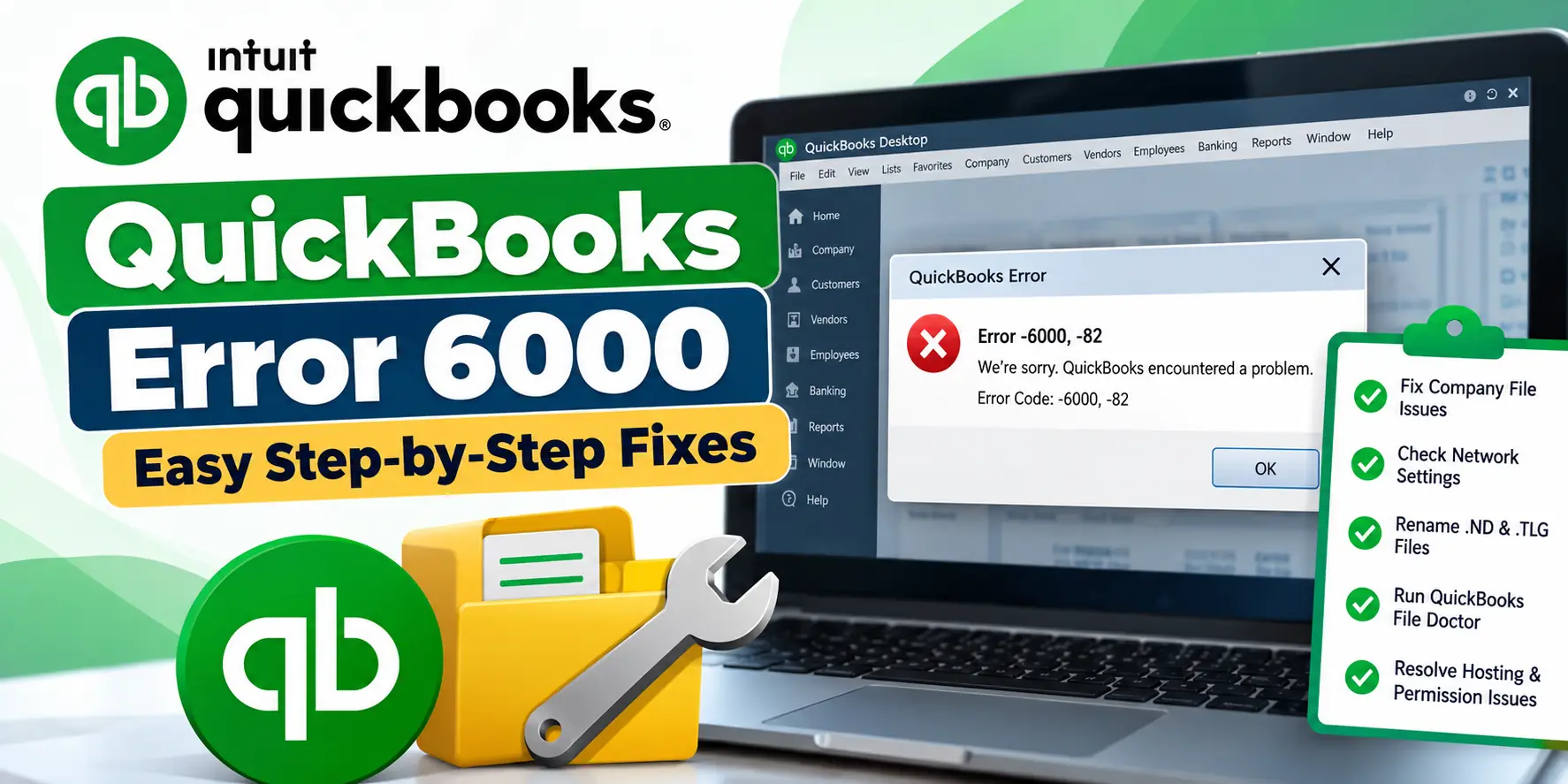
You double-click your QuickBooks company file expecting to start work, but instead QuickBooks displays QuickBooks Error 6000 or a message containing -6000 followed by additional numbers. The company file may refuse to open even though it worked normally earlier.
The important thing to understand is that Error 6000 is not always one single error. Intuit documents it as a family of -6000, XXXX errors that can appear when opening a QuickBooks Desktop company file. Different combinations can point to damaged .ND or .TLG files, incorrect hosting, folder permissions, network configuration, firewall restrictions, installation problems, or damage to the company file itself.
The easiest way to troubleshoot it is to first determine whether the company file is stored locally on your computer or on another computer/server, then work through the fixes that apply to that setup.
What Is QuickBooks Error 6000?
QuickBooks Error 6000 refers to a group of QuickBooks Desktop errors that normally appear when the program cannot open or properly access a company file.
The error usually contains extra numbers, such as -6000, -77, -6000, -82, or another -6000-series combination. Intuit says these errors can occur on both local and network setups, so the full error code is useful when identifying the likely cause.
In simple terms, QuickBooks knows where your company file should be, but something is preventing it from reading or connecting to that file correctly.
Do This First: Is Your Company File Local or on a Network?
Before changing files or network settings, answer one question:
Where is your .QBW company file stored?
If it is stored on the same computer where you use QuickBooks, you have a local setup.
If the company file is stored on a server or another computer and multiple users access it, you have a network or multi-user setup.
This matters because the troubleshooting path is different.
For example, incorrect hosting settings matter mainly in a network environment, while a locally stored file may need file-location, installation, or company-file checks instead.
Quick Summary Table
| Issue | Details |
| Error Family | QuickBooks Error 6000 |
| Usually Appears | When opening a company file |
| File Type | .QBW |
| Common Related Files | .ND and .TLG |
| Local Setup Cause | File or QuickBooks installation issue |
| Network Setup Cause | Hosting, network, permissions, firewall |
| Best Diagnostic Tool | QuickBooks File Doctor |
| Network Tool | QuickBooks Database Server Manager |
| First Question | Is the file local or on a server? |
| Important Note | Check the full -6000, XXXX code |
What Does QuickBooks Error 6000 Mean?
The error means QuickBooks Desktop cannot establish normal access to the company file.
A simplified company-file process looks like this:
QuickBooks Desktop → file location → configuration files → Windows permissions/network → company file opens
If one part of that path fails, QuickBooks may return a 6000-series error.
This does not automatically mean your accounting data is permanently damaged.
For example, Intuit says the .ND and .TLG files are configuration-related files used when QuickBooks accesses a company file in a network or multi-user environment. If those files become damaged, QuickBooks may produce a -6000 error. Renaming them allows QuickBooks to recreate them without deleting company data.
Common QuickBooks 6000 Series Variants
The exact numbers after -6000 can provide useful clues.
| Error Variant | Possible Area to Check |
| -6000, -77 | File location, network, permissions |
| -6000, -107 | Damaged .TLG file |
| -6000, -1076 | QuickBooks installation |
| -6000, -82 | Network setup |
| -6000, -832 | Hosting or .ND file |
| -6000, -305 | Network or company-file issue |
| -6129, -101 | Folder permissions or Database Server Manager |
| -6190 series | Multi-user/file mismatch |
| -6144 series | Network descriptor or database setup |
| -6176, 0 | Firewall/network communication |
These causes are based on Intuit’s current -6000 error documentation.
Because different variants point to different areas, always record the complete error before troubleshooting.
Common Symptoms
A 6000-series problem may show up as:
- QuickBooks company file will not open.
- The file opens on the server but not on a workstation.
- The file opens locally but fails over the network.
- Multi-user access suddenly stops working.
- QuickBooks asks you to locate the company file again.
- An error beginning with -6000 appears.
- One company file fails while a sample company file works.
- QuickBooks works normally until you try to open the .QBW file.
The last two symptoms are especially useful because they help separate a company-file problem from a QuickBooks program problem.
Why Does QuickBooks Error 6000 Occur?
Damaged .ND or .TLG files
QuickBooks uses .ND and .TLG support files around the company file.
If these files are damaged or contain outdated information, QuickBooks may fail to access the .QBW file correctly. Intuit specifically recommends renaming them for -6000 errors.
Incorrect hosting setup
In a multi-user environment, the server should normally host the company files while workstations should not.
Intuit recommends checking Product Information on workstations and confirming hosting is turned off there.
Network configuration problems
A workstation may not be able to communicate with the server that stores the company file.
This can involve network paths, folder sharing, Database Server Manager, or firewall settings.
File is stored in a problematic location
For Error -6000, -77, Intuit recommends copying a company file stored on an external drive to a local drive as one quick test.
QuickBooks installation is damaged
If even a sample company file does not open, Intuit says the QuickBooks installation may be damaged rather than the actual company file.
Company file itself has a problem
Some -6000 variants may involve company-file damage. This is why QuickBooks File Doctor is useful during diagnosis.
Before You Start Troubleshooting
Before making changes:
- Write down the complete error code.
- Close QuickBooks on other computers if practical.
- Create a current company-file backup if the file can still be opened elsewhere.
- Find the exact .QBW file location.
- Confirm whether the file is local or network-based.
- Make sure QuickBooks Desktop is updated.
- Avoid deleting .ND, .TLG, or .QBW files.
- Do not move the only copy of your company file without a backup.
How to Fix QuickBooks Error 6000 Step by Step
Step 1: Restart QuickBooks as Administrator
For some 6000-series problems, Intuit recommends starting QuickBooks with elevated permissions.
- Close QuickBooks Desktop.
- Right-click the QuickBooks icon.
- Select Run as administrator.
- Select Yes if Windows asks for permission.
- Try opening the company file again.
If it opens, permissions may have contributed to the issue.
If not, continue.
Step 2: Check Whether a Sample Company File Opens
This is one of the best diagnostic tests.
- Open QuickBooks Desktop.
- Stay at the No Company Open window.
- Select Open a Sample File.
- Choose any available sample company.
- See whether it opens successfully.
If the sample file opens, QuickBooks itself is probably working and you should focus on your company file or network setup.
If the sample file also produces an error, Intuit says the QuickBooks installation may need repair.
Step 3: Rename the .ND and .TLG Files
This is one of Intuit’s main fixes for -6000 errors.
The support files usually have the same name as your company file.
For example:
MyCompany.qbw
MyCompany.qbw.nd
MyCompany.qbw.tlg
To rename them:
- Open the folder containing your company file.
- Find the matching .ND file.
- Right-click it and choose Rename.
- Add .OLD at the end.
- Repeat the process for the .TLG file.
- Open QuickBooks.
- Try opening the company file again.
Example:
MyCompany.qbw.nd.OLD
Intuit says renaming these files does not remove your QuickBooks data because the support files can be recreated.
Step 4: Run QuickBooks File Doctor
If the file still will not open, use File Doctor.
Intuit currently recommends File Doctor for company-file and network problems.
- Close QuickBooks.
- Install or open the latest QuickBooks Tool Hub.
- Select Company File Issues.
- Select Run QuickBooks File Doctor.
- Choose your company file.
- Browse to it if it does not appear automatically.
- Select Check your file and network.
- Select Continue.
- Enter the QuickBooks admin password.
- Select Next.
- Let the scan finish.
- Try opening your file again.
Intuit notes that File Doctor may sometimes report that the scan was unsuccessful even when the issue has been corrected, so test the file after the scan.
Step 5: If the File Is on an External Drive, Test It Locally
This is particularly relevant to Error -6000, -77.
- Close QuickBooks.
- Locate the .QBW file on the external drive.
- Copy—not move—the file.
- Create a temporary folder on the local computer.
- Paste the copied company file there.
- Open QuickBooks.
- Open the local copy.
If the local file works, the external-drive location or access method may be contributing to the error.
Step 6: Check Hosting on Every Workstation
Use this step if your company file is stored on a network.
Intuit recommends only one computer or server host the company files.
On each workstation:
- Open QuickBooks.
- Press F2.
- Find Local Server Information.
- Check the hosting status.
- Hosting should be off on normal workstations.
Do not randomly change hosting on the server without understanding your multi-user configuration.
Step 7: Run QuickBooks Database Server Manager
If the .QBW file is hosted on a server, rescan the company-file folder.
- Open QuickBooks Tool Hub on the server.
- Select Network Issues.
- Open QuickBooks Database Server Manager.
- Select the company-file folder.
- Choose Start Scan.
- Let the scan complete.
- Return to the workstation.
- Open QuickBooks again.
- Try opening the company file.
Intuit says Database Server Manager hosts the QuickBooks company files and recommends rescanning after renaming .ND and .TLG files.
Step 8: Try the UNC Path Instead of a Mapped Drive
For -6000, -77, Intuit also recommends testing a UNC network path instead of relying on a mapped drive.
A mapped drive may appear as something like:
Q:\CompanyFiles
A UNC path identifies the actual network location, such as:
\\ServerName\CompanyFiles
If the mapped drive connection is broken but the UNC path works, the problem is likely related to network mapping rather than the QuickBooks company data.
Step 9: Review Folder Permissions
If QuickBooks cannot access the folder containing your .QBW file, the file may appear unavailable even though it exists.
Check that the appropriate Windows users and QuickBooks services have the required access to the company-file folder.
This is particularly relevant to 6000-series variants associated with network setup and Database Server Manager.
On a business network, have the administrator review permissions rather than giving unrestricted access to everyone.
Step 10: Check Firewall and Security Software
Some -6000 variants involve communication between workstations and the server.
For example, Intuit associates -6176, 0 with firewall communication and -6120, 0 with hosting or a blocked firewall port.
If the file opens directly on the server but not from another computer:
- Check whether Windows Firewall has recently changed.
- Review third-party security software.
- Confirm QuickBooks and Database Server Manager are allowed.
- Test network access again.
Do not permanently disable your firewall just to open QuickBooks.
Step 11: Create a New Local Folder
If the company-file folder itself is damaged or has incorrect permissions, a new folder can help identify the issue.
Intuit recommends this approach for Error -6000, -77.
- Create a new folder on your local C: drive.
- Copy the .QBW file.
- Paste it into the new folder.
- Set appropriate Windows permissions.
- Open QuickBooks.
- Browse to the new location.
- Test the file.
If it works, the original folder or path may be the real issue.
Step 12: Repair QuickBooks If Sample Files Also Fail
If your own company file and QuickBooks sample files both fail to open, focus on the QuickBooks installation.
Intuit specifically says that when a sample company file produces the same error, it can indicate damaged QuickBooks installation files.
At this stage:
- Update QuickBooks Desktop.
- Use QuickBooks Tool Hub.
- Run program or installation repair tools.
- Repair QuickBooks through Windows if appropriate.
- Reinstall QuickBooks only after simpler fixes fail.
Avoid changing company-file data when the program installation itself appears to be the problem.
Step 13: Consider Company-File Recovery Only After Diagnosis
If QuickBooks and sample files work, the network is working, and File Doctor still identifies a problem with only your company file, the .QBW file itself may need deeper attention.
Do not immediately delete or overwrite it.
Keep copies of:
- Your current .QBW
- Recent .QBB backups
- Relevant .TLG files
Intuit’s broader -6000 guidance includes Auto Data Recovery as an option when company-file damage is involved.
How Can I Tell Whether the Problem Is the File or QuickBooks?
Use this simple test:
Sample file works + your company file fails: investigate the company file, file location, or network.
Sample file also fails: investigate QuickBooks installation.
Company file opens on the server but not a workstation: investigate network, hosting, Database Server Manager, permissions, or firewall.
Company file works after moving a copy locally: investigate the original path or storage location.
This approach can save time because you diagnose the failing part before applying repairs.
Frequently Asked Questions
What is QuickBooks Error 6000?
QuickBooks Error 6000 is a family of QuickBooks Desktop company-file errors that normally appears when QuickBooks cannot open or properly access a .QBW file. The complete code often contains additional numbers that provide more information about the likely cause.
How do I fix QuickBooks Error 6000?
First determine whether the file is local or network-based. Then test a sample company file, rename .ND and .TLG files, run QuickBooks File Doctor, and check hosting and Database Server Manager if the company file is stored on a server.
Will renaming .ND and .TLG files delete my accounting data?
No. Intuit says .ND and .TLG are support/configuration files and that QuickBooks can recreate them after they are renamed. Renaming them is a standard troubleshooting step for -6000 errors.
Can QuickBooks File Doctor fix Error 6000?
It may help when the problem involves company-file access or the network. Intuit recommends File Doctor for QuickBooks company-file and network issues. The tool can check both your file and network environment.
Why does my company file open on the server but not another computer?
This usually points toward network access rather than the .QBW file itself. Check workstation hosting, Database Server Manager, folder permissions, firewall settings, and the network path used to reach the company file.
Is Error 6000 always caused by a damaged company file?
No. Intuit lists many other causes, including damaged .TLG or .ND files, incorrect hosting, wrong network setup, firewall restrictions, folder permissions, and damaged QuickBooks installation files.
What if the company file has a folder permission problem?
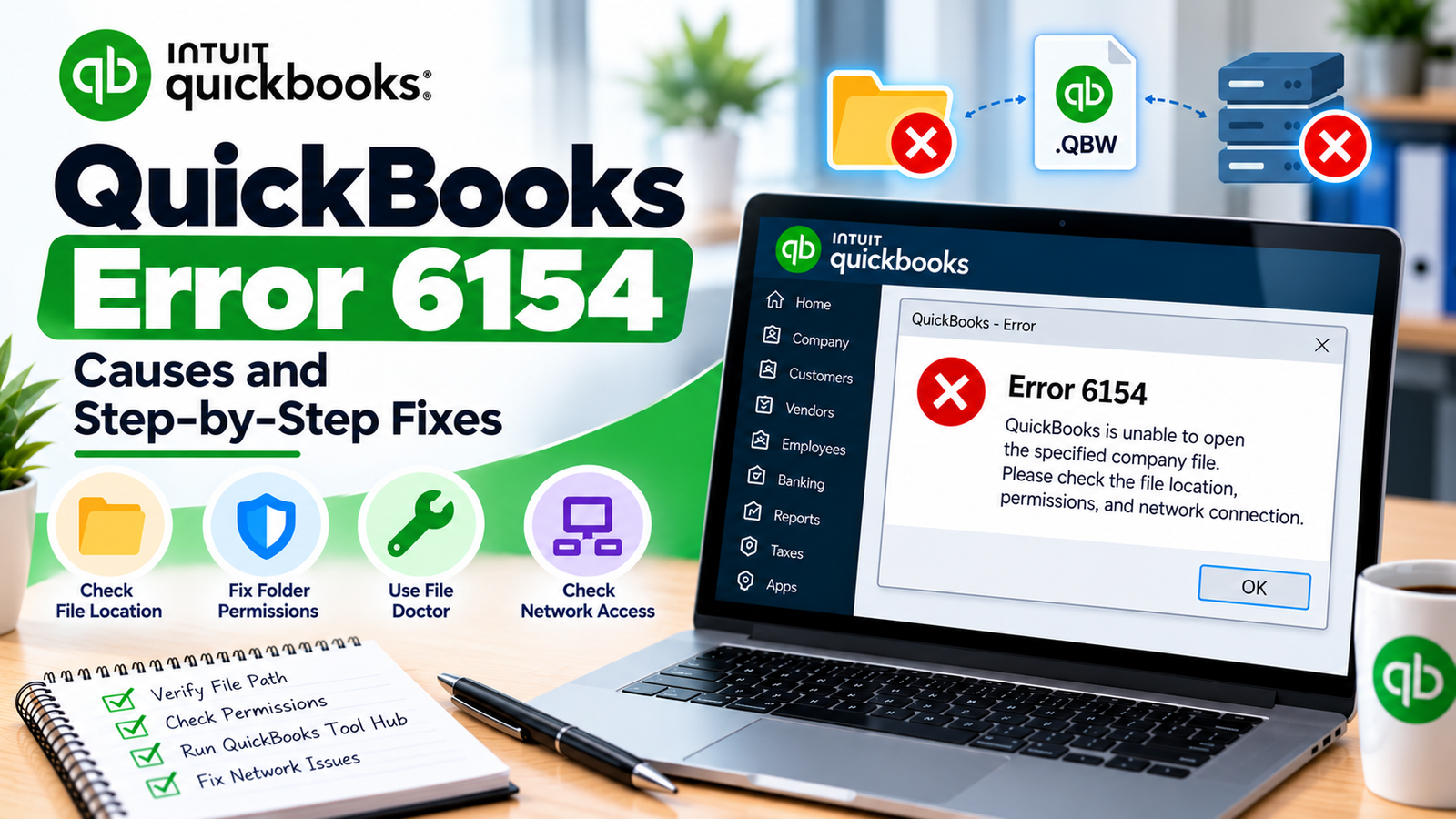
A folder-access problem can produce company-file errors. If your issue is specifically related to file location or Windows permissions, the guide on QuickBooks Error 6154 covers that troubleshooting path.
What if Windows is blocking QuickBooks installation instead?
That is a different issue from the 6000 company-file family. If Windows reports an installation policy restriction, see QuickBooks Error 1625 for installation-policy troubleshooting.
What does QuickBooks Error -6000, -77 mean?
It appears when QuickBooks cannot properly access a company file. Intuit recommends steps such as running QuickBooks as administrator, testing a locally stored copy, File Doctor, renaming .ND/.TLG files, checking network paths, firewall settings, and folder access.
Should I reinstall QuickBooks to fix Error 6000?
Not immediately. First test a sample company file. If the sample file opens, the QuickBooks installation is probably not your main problem. If sample files also fail, then repairing the QuickBooks installation becomes more relevant.
Conclusion
QuickBooks Error 6000 is easier to troubleshoot when you treat it as a family of company-file errors instead of one single problem. Start by recording the complete code and determining whether the .QBW file is stored locally or on a network.
Next, test a sample file, rename the .ND and .TLG support files, and run QuickBooks File Doctor. For network setups, check workstation hosting, Database Server Manager, folder permissions, the network path, and firewall configuration.