
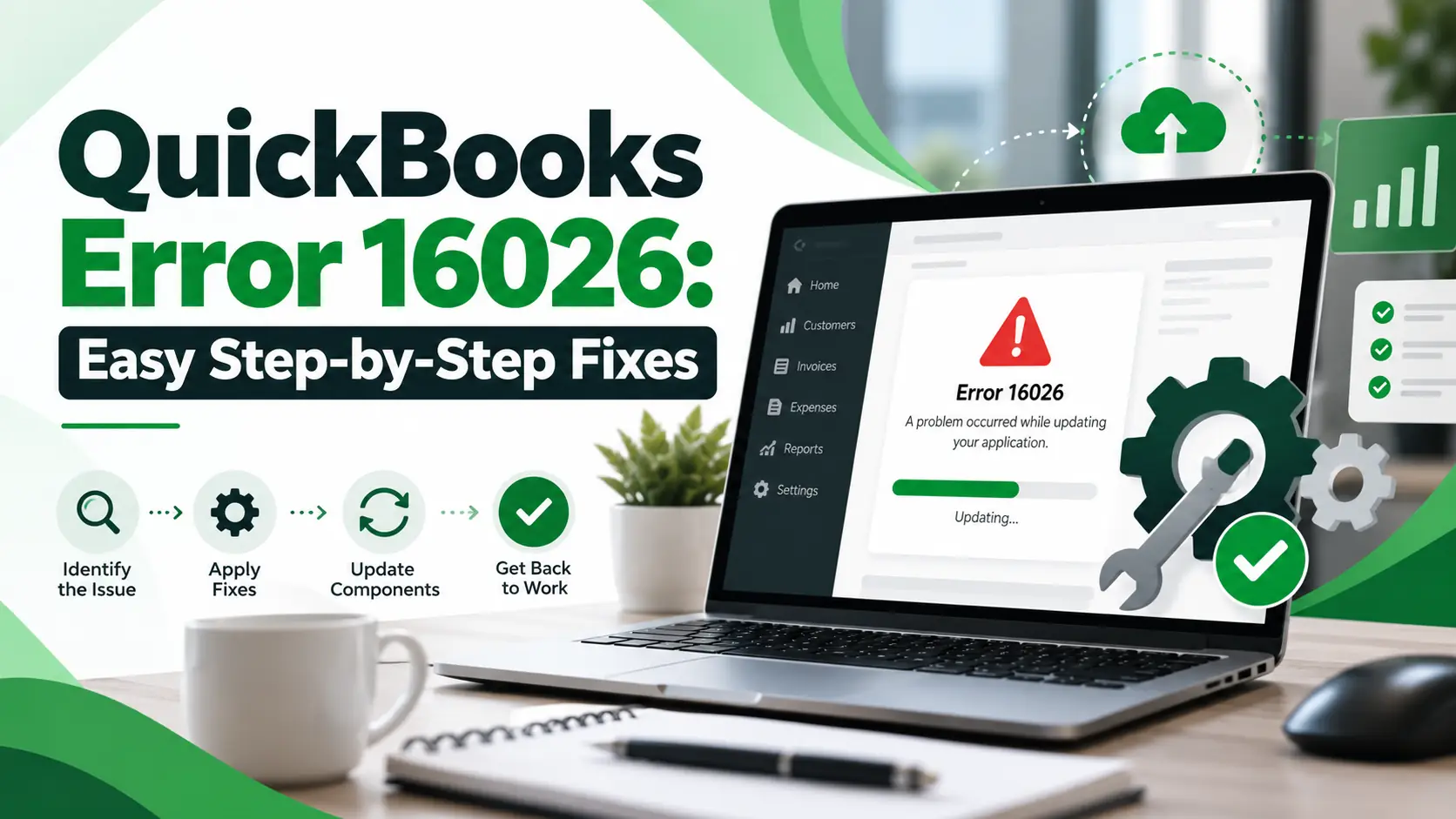
You open QuickBooks Desktop and try to install an update, upgrade the program, or access an online feature, but the process stops with QuickBooks Error 16026. Instead of completing normally, QuickBooks may fail to download the required files or communicate properly during the update process.
Older QuickBooks Community guidance specifically reports Error 16026 while upgrading QuickBooks and associates it with internet connectivity problems, an incomplete or damaged QuickBooks installation, and compatibility issues between QuickBooks and Windows.
Some older instructions also refer to Internet Explorer and cipher strength. Those recommendations come from legacy QuickBooks environments. For a current Windows setup in 2026, it is more useful to begin with the current QuickBooks Desktop update process, administrator permissions, Tool Hub, Windows updates, and installation repair.
This guide takes you through those checks from easiest to more advanced.
What Is QuickBooks Error 16026?
QuickBooks Error 16026 is generally reported when QuickBooks Desktop cannot complete an update, upgrade, or related online communication process.
QuickBooks Community guidance has associated the error with lost internet access, damaged or incomplete QuickBooks installation files, and compatibility problems.
The error does not automatically mean your company file is damaged. In most cases, you should investigate the QuickBooks program, update files, Windows environment, and internet connection first.
What Does Error 16026 Mean in Simple Words?
Think of a QuickBooks update like this:
QuickBooks Desktop → internet connection → update files → Windows → installation
If one part of this process does not work correctly, QuickBooks may not be able to complete the update.
For example, the problem may happen because:
- The internet connection drops during the update.
- QuickBooks background processes are stuck.
- The downloaded update files are incomplete.
- QuickBooks program files need repair.
- Windows has pending updates.
- The installed QuickBooks version has compatibility issues.
- An antivirus or firewall is interfering with the process.
The goal is to identify which stage is failing instead of immediately reinstalling everything.
Common Symptoms of QuickBooks Update Error 16026
You may notice:
- QuickBooks updates will not download.
- An update begins but does not finish.
- QuickBooks displays Error 16026 during an upgrade.
- QuickBooks repeatedly asks for the same update.
- Online features stop working correctly.
- QuickBooks becomes slow during an update.
- The program update completes partially and then fails.
- QuickBooks works for normal bookkeeping but cannot update.
- The update installs successfully on another computer but not on the affected PC.
These signs generally point toward the program or update environment rather than payroll transactions or company-file permissions.
Why Does QuickBooks Error 16026 Occur?
Internet connection becomes unstable
QuickBooks needs reliable internet access when downloading program updates or communicating with online services.
Older Intuit Community guidance specifically lists internet connectivity as one area related to Error 16026.
QuickBooks installation is incomplete or damaged
If important QuickBooks files were not installed correctly, updates may fail later.
Intuit’s current repair guidance recommends Quick Fix my Program and the QuickBooks Install Diagnostic Tool when QuickBooks has problems during use, installation, or updating.
QuickBooks Desktop is outdated
The installed release may itself need an update before other features work correctly.
Intuit recommends keeping QuickBooks Desktop on the latest available maintenance release for current security updates and product improvements.
Windows components need attention
QuickBooks relies on Microsoft components and Windows services. Problems with those components can affect installation and update operations.
Security software interferes with the update
Antivirus, firewall, or business endpoint-security rules may block update files or QuickBooks processes.
Compatibility problems exist
Older QuickBooks versions may not work correctly with a newer Windows environment. Older Community guidance also lists Windows compatibility as a possible Error 16026 factor.
Before You Start Troubleshooting
Use this quick checklist:
- Save your work.
- Close your company file.
- Create a recent company-file backup.
- Confirm your internet connection works.
- Note your QuickBooks year and release.
- Restart Windows.
- Make sure you are signed into an administrator account where appropriate.
- Avoid deleting QuickBooks folders manually.
- Do not permanently disable antivirus or firewall protection.
- Keep your QuickBooks license or account information available if a reinstall becomes necessary.
9. Quick Summary Table
| Issue | Details |
| Error | QuickBooks Error 16026 |
| Main Area | QuickBooks Desktop update/upgrade |
| Common Trigger | Downloading or installing an update |
| First Check | Internet connection |
| Next Step | Update QuickBooks Desktop |
| Permission Check | Run as administrator |
| Main Repair Tool | QuickBooks Tool Hub |
| Program Repair | Quick Fix my Program |
| Installation Check | Install Diagnostic Tool |
| Windows Check | Install Windows updates |
| Advanced Fix | Repair or reinstall QuickBooks |
Step-by-Step Troubleshooting
How to Fix QuickBooks Error 16026
Follow these solutions in order. Test QuickBooks after each major step.
Step 1: Restart QuickBooks and Windows
Start with the easiest fix.
- Save your QuickBooks work.
- Close the company file.
- Exit QuickBooks Desktop.
- Close unnecessary applications.
- Restart Windows.
- Wait for the computer to load completely.
- Open QuickBooks again.
- Retry the update.
Why this may help: A restart clears temporary processes that may be holding QuickBooks update files or preventing program components from restarting correctly.
Step 2: Check Your Internet Connection
Because Error 16026 has been associated with online connectivity, test the connection before changing QuickBooks.
- Open your web browser.
- Visit several trusted websites.
- Confirm secure https websites load normally.
- Download a small test file if appropriate.
- If the connection is unstable, reconnect to your network.
- Restart your router only if that is appropriate for your setup.
- Open QuickBooks again.
- Retry the update.
If your overall internet connection is failing, resolve that first.
Step 3: Run QuickBooks as Administrator
Windows permissions may affect the update process.
- Close QuickBooks.
- Right-click the QuickBooks Desktop icon.
- Select Run as administrator.
- Select Yes.
- Open your company file if necessary.
- Retry the update.
If the update works only in administrator mode, Windows permissions may be part of the problem.
Step 4: Check Your Current QuickBooks Release
Before downloading another update, confirm what version you already have.
- Open QuickBooks Desktop.
- Press F2 or Ctrl + 1.
- Open the Product Information window.
- Note your QuickBooks year.
- Note the current release number.
- Close the window.
Intuit currently recommends using the latest maintenance release for your QuickBooks Desktop version.
Step 5: Update QuickBooks Desktop
Now download a fresh update.
- Open QuickBooks Desktop.
- Select Help.
- Select Update QuickBooks Desktop.
- Open Update Now.
- Select Get Updates.
- Wait for the download to finish.
- Close QuickBooks.
- Reopen it.
- Install the update when prompted.
Intuit’s current update guidance uses this process for QuickBooks Desktop maintenance releases.
Step 6: Reset the QuickBooks Update
If the normal update keeps failing, refresh the downloaded update files.
- Open QuickBooks.
- Go to Help > Update QuickBooks Desktop.
- Open the Update Now tab.
- Select Reset Update.
- Confirm the reset.
- Select Get Updates.
- Wait for the new files to download.
- Restart QuickBooks.
- Install the update.
This may help when the previous update download was incomplete.
Step 7: Run Quick Fix My Program
If QuickBooks error code 16026 still appears, use QuickBooks Tool Hub.
- Close QuickBooks.
- Open the latest QuickBooks Tool Hub.
- Select Program Problems.
- Select Quick Fix my Program.
- Let the tool finish.
- Reopen QuickBooks.
- Retry the update.
Intuit says Quick Fix my Program closes QuickBooks background processes and performs a quick program repair.
Step 8: Run QuickBooks Install Diagnostic Tool
If Quick Fix does not solve the problem, move to installation diagnostics.
- Open QuickBooks Tool Hub.
- Select Installation Issues.
- Select QuickBooks Install Diagnostic Tool.
- Allow the tool to complete.
- Restart Windows.
- Open QuickBooks.
- Retry the update.
Intuit says the Install Diagnostic Tool can diagnose and repair common QuickBooks installation issues and Microsoft components used by QuickBooks.
Step 9: Install Windows Updates
Windows itself may need maintenance.
- Open Windows Settings.
- Select Windows Update.
- Choose Check for updates.
- Install available updates.
- Restart Windows.
- Check Windows Update again.
- Install any remaining updates.
- Retry QuickBooks.
Keeping Windows current can help resolve problems involving components QuickBooks depends on.
Step 10: Check Antivirus and Firewall Restrictions
If QuickBooks can open but updates consistently fail, security software may be interfering.
Check whether:
- QuickBooks update files are being blocked.
- Your antivirus has quarantined QuickBooks components.
- Business endpoint security is restricting QuickBooks.
- Firewall rules prevent QuickBooks from accessing required online services.
Do not permanently disable security protection.
If this is a company-managed computer, ask your IT administrator to review the QuickBooks rules.
Step 11: Try a Manual QuickBooks Update
If the built-in update still fails, download the correct update manually.
- Close QuickBooks.
- Use Intuit’s official QuickBooks Downloads & Updates process.
- Select the correct product.
- Select the correct QuickBooks year.
- Download the latest maintenance release.
- Save the file locally.
- Run the downloaded update.
- Restart Windows.
- Open QuickBooks.
- Check the release number again.
Intuit supports manual updating when an in-product update does not complete normally.
Step 12: Repair QuickBooks Desktop
If updates continue to fail, repair the installed QuickBooks program.
Intuit’s current guidance specifically recommends Tool Hub and program repair for problems that occur while using, installing, or updating QuickBooks.
- Close QuickBooks.
- Open Windows installed-app or program settings.
- Locate QuickBooks Desktop.
- Choose the available maintenance or repair option.
- Complete the repair.
- Restart Windows.
- Open QuickBooks.
- Retry the update.
Your .QBW company file is separate from the program installation, but keeping a backup before major repairs is still a sensible precaution.
Step 13: Reinstall QuickBooks as a Later Option
Use reinstalling only after simpler fixes fail.
Before uninstalling:
- Back up your company file.
- Record the QuickBooks year and edition.
- Keep license/account details available.
- Know the location of the .QBW file.
Then:
- Uninstall QuickBooks through Windows.
- Restart your computer.
- Download the correct official installer.
- Install QuickBooks.
- Open the existing company file.
- Update QuickBooks to the latest release.
- Test the feature that previously showed Error 16026.
Why Am I Getting QuickBooks Error 16026 During an Upgrade?
The error has historically been reported when users upgrade QuickBooks and the process cannot complete normally. Internet connectivity, damaged installation files, and Windows compatibility have all been identified as possible areas to investigate.
Start with connectivity and a current QuickBooks update before reinstalling the program.
Can Error 16026 Affect Payroll Updates?
It can appear while a user is trying to complete an update before payroll, and older QuickBooks Community discussions include users encountering 16026 while trying to update before running payroll.
However, Error 16026 is better treated as a QuickBooks program/update problem first.
If QuickBooks Desktop updates successfully but the payroll tax-table update still fails, troubleshoot the payroll update separately.
What If QuickBooks Error 16026 Still Appears?
If you have completed the steps above, record:
- QuickBooks year and release
- Windows version
- Exact time the error appears
- Whether manual updates work
- Whether normal internet browsing works
- Whether Tool Hub found a problem
- Install Diagnostic Tool result
- Antivirus/firewall product
- Whether the error appears during update, upgrade, or another online feature
If multiple QuickBooks functions are failing—not only updates—the installation may need deeper repair or reinstall.
Frequently Asked Questions
What is QuickBooks Error 16026?
QuickBooks Error 16026 is generally associated with a QuickBooks Desktop update or upgrade that cannot complete normally. Older Intuit Community guidance connects it with internet problems, damaged or incomplete QuickBooks installation files, and Windows compatibility issues.
How do I fix QuickBooks Error 16026?
Start by restarting Windows and checking the internet connection. Then run QuickBooks as administrator, install the latest Desktop update, reset the update if necessary, and run Quick Fix my Program. If the problem remains, use Install Diagnostic Tool, Windows Update, program repair, or reinstall QuickBooks.
Is QuickBooks Error 16026 an internet problem?
It can be. Internet connectivity is one of the areas specifically mentioned in older QuickBooks Community guidance for Error 16026. However, incomplete installation files or Windows compatibility may also contribute, so do not assume the internet is always the only cause.
Can QuickBooks Tool Hub help with Error 16026?
Yes, Tool Hub is useful when QuickBooks program or installation components may be involved. Quick Fix my Program repairs common program problems, while QuickBooks Install Diagnostic Tool addresses installation and Microsoft component issues.
Should I reset the QuickBooks update?
If the update repeatedly fails, resetting it can force QuickBooks to download fresh update files rather than continuing with an incomplete download. After resetting, select Get Updates again and restart QuickBooks when the download finishes.
Should I reinstall QuickBooks immediately?
No. Start with internet checks, administrator access, QuickBooks updates, Tool Hub, Install Diagnostic Tool, and Windows updates. Reinstallation is better used after those simpler steps do not resolve the QuickBooks update error 16026.
What if my company file will not open instead?
That is a different troubleshooting issue. If your main problem involves company-file access, folder location, or Windows permissions, see QuickBooks Error 6154 for the relevant steps.
What if Windows is blocking the QuickBooks installation?
A system-policy restriction follows a different troubleshooting path. See QuickBooks Error 1625 if Windows says the installation is forbidden by system policy.
Does updating Windows help QuickBooks update errors?
It may. QuickBooks depends on Windows and Microsoft components, and Intuit recommends installation diagnostics and current system components when QuickBooks has installation or update problems.
Can Error 16026 damage my company data?
Error 16026 itself is primarily reported around the update or upgrade environment. It does not automatically mean the .QBW company file is damaged. Keep a current backup, but focus first on the program, internet connection, Windows, and update process.
Conclusion
QuickBooks Error 16026 is best approached as an update or upgrade problem rather than a company-file error.
Start with the easiest checks: restart Windows, confirm your internet connection, and run QuickBooks as administrator. Next, update QuickBooks Desktop, reset the update if needed, and use Quick Fix my Program.
If the error continues, run the Install Diagnostic Tool, complete Windows updates, check security software, and try a manual QuickBooks update. Repair or reinstall QuickBooks only after the simpler fixes fail.