
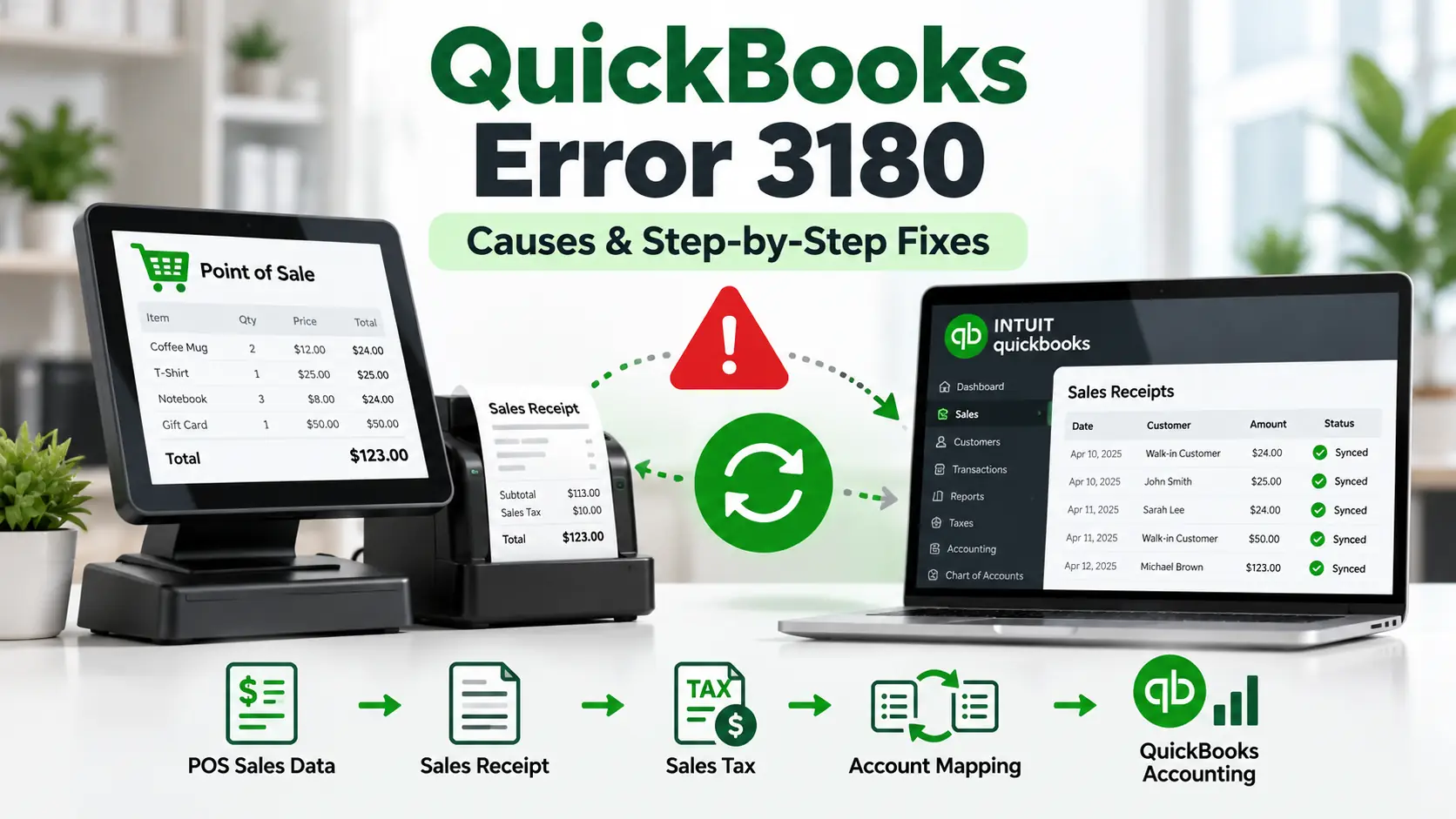
You run a Financial Exchange between QuickBooks Desktop Point of Sale and QuickBooks Desktop, but one or more transactions fail to post. Instead, QuickBooks Error 3180 appears with a message about a sales tax vendor, invalid posting account, payment item, sales receipt, or another transaction mapping problem.
Unlike many QuickBooks errors, 3180 does not always point to one single issue. The wording shown beside the status code matters because different messages can require different corrections.
There is also an important current limitation. Intuit discontinued QuickBooks Desktop Point of Sale 19.0 and its connected services on October 3, 2023. Existing users can still run the desktop POS software, but Intuit no longer provides critical security patches or feature updates, and connected services such as Financial Exchange were discontinued.
So before changing accounts or items, first identify exactly which 3180 message you see and whether your current POS-to-Desktop connection is still supported by your setup.
What Is QuickBooks Error 3180?
QuickBooks Error 3180 is a 3000-series status error commonly associated with legacy QuickBooks Point of Sale data being transferred or posted to QuickBooks Desktop.
Reported variations include “The posting account is invalid,” “Sales tax detail line must have a vendor,” payment-item lookup errors, and problems saving a Sales Receipt. A QuickBooks Community example also shows status 3180 when a sales-tax item does not have a required tax vendor.
The correct fix depends on the message that appears with the code.
Read the Error Message Before You Change Anything
This is the most useful first step.
If your message says:
| Error wording | Area to inspect first |
| Sales tax detail line must have a vendor | Sales tax item and tax agency/vendor |
| The posting account is invalid | POS account mapping and Desktop item accounts |
| 140108 Payment Item Lookup Error | POS payment item |
| Error saving a Sales Receipt | Payment item or Paid Out transaction |
| A/P or A/R detail line must have a vendor | Paid Out/account selection |
| Financial Exchange does not run at all | Current POS support/integration status |
Current third-party 3180 troubleshooting documentation consistently separates the error by message because the fixes are different.
What Does QuickBooks Error 3180 Mean?
In simple terms, Point of Sale is trying to send accounting information to QuickBooks Desktop, but QuickBooks Desktop cannot accept one of the records as it is currently configured.
For example:
POS sale → account/item mapping → QuickBooks Desktop → transaction saved
If a sales-tax item is missing its tax vendor, the posting can fail.
If a POS item points to the wrong type of QuickBooks account, the posting can fail.
If a payment item is damaged or mismatched, QuickBooks may reject the Sales Receipt.
So 3180 is better understood as a transaction or mapping rejection during a legacy POS/Desktop exchange, rather than as general company-file corruption.
Important 2026 Note for QuickBooks POS Users
QuickBooks Desktop Point of Sale 19.0 is a discontinued product.
Intuit states that after October 3, 2023:
- QuickBooks POS Payments ended.
- Mobile Sync ended.
- Intuit Store Exchange ended.
- Webgility integration ended.
- Live POS support ended.
- Critical security and feature updates stopped.
Intuit Community guidance also says Financial Exchange was among the discontinued connected services.
This distinction matters.
If your POS software still opens and you are troubleshooting an old local workflow or third-party connection, the legacy fixes below may help correct mapping or transaction problems.
But if you are trying to restore an Intuit connected service that was discontinued, changing accounts will not reactivate that service.
Common Symptoms of QuickBooks POS Error 3180
Depending on the affected transaction, you may notice:
- Financial Exchange stops on one specific record.
- Sales Receipts fail to post to QuickBooks Desktop.
- QuickBooks reports an invalid posting account.
- A sales-tax line requires a vendor.
- A payment-item lookup error appears.
- POS completes part of an exchange but rejects specific transactions.
- A Paid Out transaction triggers a General Journal error.
- The same transaction fails every time you retry the exchange.
If one specific receipt or item repeatedly fails, investigate that transaction before changing the entire company-file setup.
Why Does QuickBooks Error 3180 Occur?
Sales tax item has no valid tax vendor
One reported 3180 message says “Sales tax detail line must have a vendor.”
This means the tax-related transaction being posted expects a vendor or tax agency association that QuickBooks cannot find. A QuickBooks Community example documents this exact status 3180 scenario.
Wrong account is mapped in Point of Sale
A frequently reported variation is “The posting account is invalid.”
This can occur when the account selected in POS Financial preferences is not an appropriate QuickBooks Desktop account type for that item or transaction.
Sales Tax Payable is used incorrectly
Sales Tax Payable is intended for sales-tax liabilities. Current third-party 3180 guidance warns that using this account for unrelated POS mappings or Paid Out transactions can trigger rejected postings.
Payment item is damaged or mismatched
A reported variation combines status 3180 with 140108 Payment Item Lookup Error. In that case, the POS-created payment item may need to be recreated and merged in QuickBooks Desktop.
A/R or A/P is used incorrectly for a Paid Out
Another 3180 variation can appear when a Paid Out transaction uses Accounts Receivable or Accounts Payable without the vendor information QuickBooks requires.
Legacy integration is no longer supported
If the error occurs because an old POS setup cannot exchange data with a newer QuickBooks Desktop environment, remember that Intuit no longer supports POS Financial Exchange as an active connected service.
9. Quick Summary Table
| Issue | Details |
| Error | QuickBooks Error 3180 |
| Main Product | Legacy QuickBooks Desktop Point of Sale |
| Common Trigger | Financial Exchange / transaction posting |
| Common Messages | Invalid posting account, tax vendor missing, payment-item lookup |
| Main Areas to Check | Tax item, vendor, account mapping, payment item |
| First Step | Match the exact error wording |
| Company File Damage? | Not automatically |
| Current POS Status | Discontinued since October 3, 2023 |
| Financial Exchange | Discontinued connected service |
| Best Approach | Fix the specific rejected record or mapping |
Step-by-Step Troubleshooting
How to Fix QuickBooks Error 3180
Do not perform every fix below automatically. Use the error wording to choose the relevant section.
Step 1: Record the Full Error Message
Before editing anything:
- Take a screenshot of the 3180 message.
- Write down any item, employee, account, or receipt name shown.
- Note whether the message mentions sales tax.
- Check for 140108.
- Note whether it occurred while saving a Sales Receipt or running Financial Exchange.
- Back up your QuickBooks Desktop company file.
- Back up your POS data if your legacy installation still supports that process.
The status message tells you which path to follow next.
Step 2: If It Says “Sales Tax Detail Line Must Have a Vendor”
Start with the sales-tax setup.
A documented QuickBooks Community 3180 example shows this message when QuickBooks requires a tax vendor for the sales-tax item.
In QuickBooks Desktop:
- Open the relevant sales-tax item.
- Review the tax agency/vendor assigned to it.
- Confirm the vendor exists.
- Confirm the correct tax-related vendor or agency is selected.
- Save the item.
- Review other sales-tax items used by the failed transaction.
- Retry the transaction through your supported workflow.
Do not randomly assign an ordinary vendor just to remove the error. The vendor should represent the correct sales-tax authority for the item.
Step 3: Review POS Account Mapping
Use this section when the message says:
“The posting account is invalid.”
Legacy 3180 documentation commonly points to incorrect POS-to-Desktop account mapping for this variation.
In legacy QuickBooks POS 19.0, the commonly documented path is:
- Open POS.
- Go to File.
- Select Preferences.
- Choose Company.
- Find the Financial section.
- Open Accounts.
- Review the Basic and Advanced mappings.
- Check each mapped account carefully.
- Save the corrected configuration.
Because POS is discontinued, menu availability can vary by installation and your integration method.
Step 4: Review the QuickBooks Desktop Item List
Next, confirm that POS-related items point to suitable accounts in QuickBooks Desktop.
- Open QuickBooks Desktop.
- Go to Lists.
- Open Item List.
- Locate the item named in the error.
- Open the item for editing.
- Review the assigned income, asset, expense, or other account.
- Confirm the account type makes sense for the item.
- Save any valid correction.
Then retry the transaction only through a workflow that still functions in your environment.
Step 5: Check Sales Tax Payable Mapping
If the error involves sales tax or a rejected Sales Receipt, make sure the Sales Tax Payable account is not being reused incorrectly.
Current 3180-specific third-party guidance says Sales Tax Payable should be reserved for the sales-tax mapping rather than being used as a general account for unrelated POS items or payouts.
Review:
- POS financial mappings.
- The sales-tax row.
- Other mapped transaction types.
- Paid Out transactions.
- Any manually created items pointing to Sales Tax Payable.
If another transaction type incorrectly uses Sales Tax Payable, replace it with the appropriate account.
Step 6: If the Error Shows “140108 Payment Item Lookup Error”
This variation points more directly to a payment item.
Legacy troubleshooting commonly uses a rename-and-recreate approach.
In QuickBooks Desktop:
- Open Lists > Item List.
- Enable Include Inactive if needed.
- Find the POS payment item named in the error.
- Edit the item.
- Add OLD to the beginning of its name.
- Save the change.
If your functioning POS integration recreates a fresh payment item during the next supported transfer, compare the new and old items carefully before merging duplicates.
Because POS Financial Exchange is discontinued, do not assume this recreation process will work on every 2026 setup.
Step 7: Review a Failed Sales Receipt
If the error says there was a problem saving a Sales Receipt:
- Identify the failed receipt.
- Review the payment method.
- Check any Paid Out transaction connected with it.
- Review the account assigned to the payment or payout.
- Confirm Sales Tax Payable is not being used for a non-tax payout.
- Confirm A/R or A/P is not being used incorrectly.
- Recreate only the incorrect transaction if necessary.
Do not delete a completed sale simply to remove Error 3180. Preserve transaction history and backups.
Step 8: If a Paid Out Uses A/R or A/P
Some legacy 3180 variations involve A/R or A/P detail lines requiring a vendor.
A commonly documented legacy fix is to reverse the Paid Out and recreate it using an appropriate non-A/R/non-A/P account when that is the correct accounting treatment.
Before changing the transaction, confirm the accounting treatment with your bookkeeper or accountant.
Then:
- Locate the relevant Paid Out.
- Review the account used.
- Reverse the incorrect transaction if appropriate.
- Recreate it using the proper account.
- Confirm the resulting accounting entry.
- Retry the posting process.
Step 9: Check Whether the Problem Is One Item or the Whole Exchange
This simple test can save time.
If only one item or receipt fails while other records post normally, focus on that record’s:
- Vendor
- Item
- Account mapping
- Payment method
- Sales-tax setup
If every transfer fails, investigate the integration itself.
Since Intuit discontinued POS connected services, a system-wide Financial Exchange failure in 2026 may be a product-support limitation rather than a single damaged transaction.
Step 10: Do Not Reinstall POS as Your First Fix
Older guides may suggest immediately reinstalling QuickBooks POS.
That is risky advice in 2026 because POS 19.0 is discontinued and no longer receives updates or live support.
Before uninstalling legacy POS software:
- Confirm you have installation media.
- Confirm you have license information.
- Back up your POS data.
- Document your current mappings.
- Confirm your hardware compatibility.
- Confirm how your data will be moved afterward.
Do not uninstall a working legacy retail system unless you have a recovery plan.
What If QuickBooks Error 3180 Still Appears?
If the error remains, separate the issue into one of two categories.
Transaction-specific problem:
The same item, sales tax record, payment item, or receipt fails every time. Continue investigating that exact mapping or transaction.
Integration-wide problem:
Every Financial Exchange fails or POS can no longer connect to the current QuickBooks Desktop environment.
For the second situation, remember that Intuit discontinued QuickBooks POS connected services, including Financial Exchange support. Intuit Community responses after discontinuation recommend considering third-party solutions when legacy POS can no longer send financial data.
At that point, repeatedly modifying accounts may not solve the real limitation.
Frequently Asked Questions
What is QuickBooks Error 3180?
QuickBooks Error 3180 is commonly associated with legacy QuickBooks Point of Sale transaction posting or Financial Exchange. The exact issue depends on the message shown with the status code, such as an invalid posting account, missing sales-tax vendor, Sales Receipt problem, or payment-item lookup error.
How do I fix QuickBooks Error 3180?
First match the full error message. If it says a sales-tax vendor is missing, review the sales-tax item and tax agency. If it says the posting account is invalid, review POS financial mappings and QuickBooks Desktop item accounts. Payment-item errors require a different item-level fix.
What does “Sales tax detail line must have a vendor” mean?
It means the tax-related transaction requires a vendor or tax-agency association that QuickBooks cannot find. Review the sales-tax item used in the transaction and confirm that it is connected to the correct tax authority/vendor.
Why does QuickBooks say the posting account is invalid?
This commonly indicates that the account mapped from POS is not an appropriate QuickBooks Desktop account type for the item or transaction being posted. Review both the POS financial-account mapping and the Desktop Item List.
What is the 140108 Payment Item Lookup Error?
It is one reported variation of status 3180 involving a POS payment item. Legacy troubleshooting commonly involves renaming the affected payment item, allowing a fresh item to be created where the integration still supports that process, and then carefully merging duplicates.
Does QuickBooks Point of Sale still work in 2026?
QuickBooks Desktop Point of Sale 19.0 can still run locally for existing users, but Intuit discontinued the product and its connected services on October 3, 2023. It no longer receives critical security patches, feature updates, or live support.
Does QuickBooks POS Financial Exchange still work?
Intuit Community guidance states that Financial Exchange was discontinued along with QuickBooks Desktop POS connected services. If your current setup cannot exchange financial data, you may need a supported third-party integration or migration approach rather than a normal Error 3180 repair.
What if my company file will not open instead?
That is a different troubleshooting issue. If the problem involves file location or permissions rather than POS posting, see the guide on QuickBooks Error 6154.
What if I am having a payroll connection problem?
Payroll connection and update issues are separate from POS Error 3180. For that type of problem, see How to Fix QuickBooks Error 17337 Step by Step.
Should I reinstall QuickBooks POS to fix Error 3180?
Not as the first step. Error 3180 is often tied to a specific tax item, posting account, payment item, or transaction. Also, QuickBooks POS is discontinued, so uninstalling it without confirmed installation media, licensing information, backups, and a recovery plan can create additional problems.
Conclusion
QuickBooks Error 3180 is usually best solved by matching the exact status message to the transaction or mapping that QuickBooks is rejecting.
A missing sales-tax vendor requires a different fix from an invalid posting account or damaged payment item. Start with the message, review the affected tax item, account mapping, Sales Receipt, or payment item, and make only the correction that applies.
Also keep the product’s current status in mind: QuickBooks Desktop Point of Sale and its connected services were discontinued in 2023. If every Financial Exchange fails rather than one specific transaction, the issue may involve an unsupported legacy integration rather than a normal mapping error.