
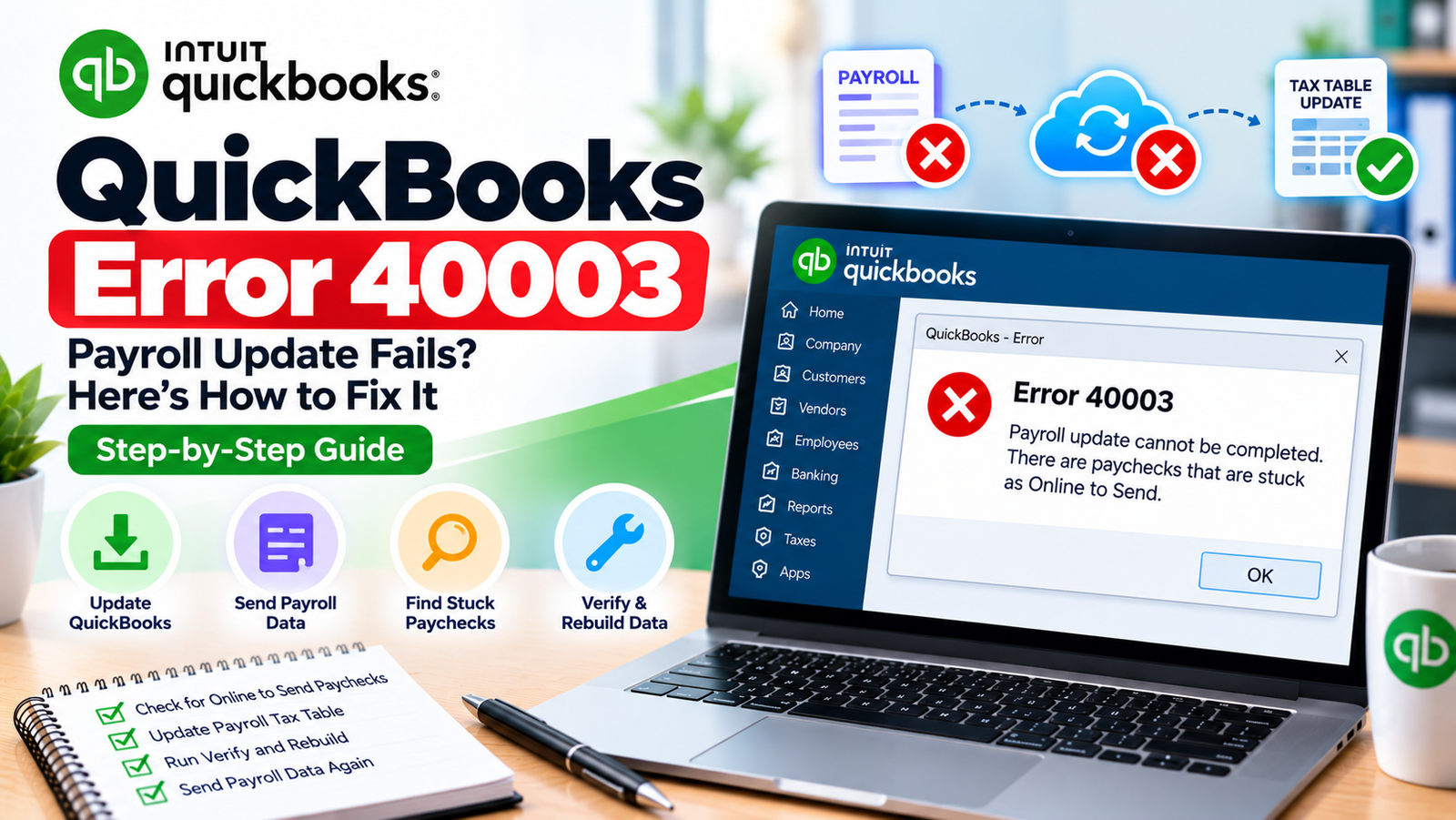
You open QuickBooks Desktop Payroll and try to update payroll information or download the latest tax table, but the process does not complete. Instead, QuickBooks Error 40003 appears and prevents the payroll update from moving forward.
A QuickBooks Team response published in May 2026 says Error 40003 is often connected with paychecks that remain stuck in Online to Send status. The recommended troubleshooting path is to update QuickBooks Desktop, send your current payroll data to Intuit, locate unsent paychecks, run Verify and Rebuild, and then retry the payroll update.
This makes Error 40003 different from a normal installation or company-file access error. The main focus should be your payroll transmission status and company-file payroll data.
The steps below start with the safest checks and move toward stuck-paycheck repair only when needed.
What Is QuickBooks Error 40003?
QuickBooks Error 40003 is a payroll-related QuickBooks Desktop issue commonly reported when payroll account information or payroll updates cannot be completed.
Current QuickBooks Team guidance associates the error with paychecks that have not been successfully transmitted and remain marked Online to Send. The recommended process includes sending payroll data, locating stuck paychecks, using Verify/Rebuild, and retrying the payroll update.
In simple terms, QuickBooks may be waiting for one or more payroll transactions to finish their online processing before the payroll update can complete normally.
Quick Summary Table
| Issue | Details |
| Error | QuickBooks Error 40003 |
| Main Area | QuickBooks Desktop Payroll |
| Common Trigger | Updating payroll information or tax tables |
| Common Symptom | Payroll update does not complete |
| Important Status | Online to Send |
| First Step | Update QuickBooks Desktop |
| Next Step | Send Payroll/Usage Data |
| Main Check | Find stuck paychecks |
| Data Repair | Verify and Rebuild |
| Payroll Update | Download Entire Update |
| Advanced Step | Toggle individual stuck paychecks |
What Does QuickBooks Error 40003 Mean?
The error generally means the payroll update process cannot continue normally because payroll information still needs attention.
A paycheck marked Online to Send is especially important.
That status means QuickBooks still treats the paycheck as waiting to be transmitted to Intuit’s payroll service.
QuickBooks’ dedicated PS038 documentation uses the same stuck-paycheck workflow: send payroll data, search for Online to Send transactions, rebuild the file, and toggle stuck checks when necessary.
So when Error 40003 appears, it is useful to think about the process like this:
Payroll transaction → Send Payroll Data → Intuit payroll service → Payroll update
If a transaction remains stuck before transmission is completed, the next payroll action may fail.
Common Symptoms of QuickBooks Payroll Error 40003
You may notice:
- Payroll account information will not update.
- QuickBooks payroll tax-table download fails.
- Paychecks remain marked Online to Send.
- QuickBooks repeatedly asks you to send payroll data.
- Payroll updates fail even though QuickBooks Desktop itself opens normally.
- Send Payroll Data shows pending transactions.
- One or more older paychecks continue to appear as unsent.
- Verify Data reports an issue with the company file.
- Payroll update works only after stuck transactions are repaired.
These symptoms do not mean all payroll data is damaged.
In many cases, the problem is limited to one or more transactions that QuickBooks still considers pending.
Why Does QuickBooks Error 40003 Occur?
Paychecks are stuck as Online to Send
This is the strongest current 40003-specific clue. QuickBooks Team guidance says the error is often caused by stuck paychecks and recommends finding these transactions before rebuilding the file.
Payroll data has not been successfully sent
If QuickBooks has payroll or usage data waiting to be transmitted, an update may not proceed normally.
Company-file payroll data needs repair
The stuck status can be related to a data issue. Intuit recommends Verify/Rebuild for potential QuickBooks Desktop data problems.
QuickBooks Desktop is not current
QuickBooks Team recommends updating QuickBooks Desktop to the latest available release before working through stuck-paycheck troubleshooting.
The payroll tax table needs a full update
Intuit currently recommends using Download Entire Update when manually getting the latest QuickBooks Desktop Payroll tax table.
Payroll transmission settings may be interrupted
Incorrect system date/time, internet problems, or security software can interfere with sending payroll data in some payroll-connection situations. Intuit lists these areas in its payroll connection troubleshooting.
Before You Start Troubleshooting
Prepare QuickBooks before changing payroll transactions.
- Create a current QuickBooks company-file backup.
- Update QuickBooks Desktop.
- Make sure you have your payroll service PIN if required.
- Confirm your internet connection is working.
- Note the exact error message.
- Avoid deleting payroll checks.
- Do not change paycheck tax amounts randomly.
- Use single-user mode if your payroll transmission workflow requires it.
- Keep a record of the oldest paycheck showing Online to Send.
A backup is especially important before running Rebuild Data or editing a stuck paycheck.
9. Step-by-Step Troubleshooting
How to Fix QuickBooks Error 40003
Follow these steps in order.
Step 1: Update QuickBooks Desktop
QuickBooks Team recommends making sure QuickBooks Desktop is updated before troubleshooting Error 40003.
- Open QuickBooks Desktop.
- Select Help.
- Choose Update QuickBooks Desktop.
- Open the Update Now tab.
- Select Get Updates.
- Wait for the update to finish.
- Close QuickBooks.
- Reopen it.
- Install the update when prompted.
Why this may help
Current program files reduce the chance that an older QuickBooks release is interfering with payroll processing.
Step 2: Send Your Payroll or Usage Data
Next, try to send all pending payroll information.
- Open your company file.
- Go to Employees.
- Select My Payroll Service.
- Choose Send Usage Data if available.
If you do not see that option:
- Go to Employees.
- Select Send Payroll Data.
- In Send/Receive Payroll Data, select Send All.
- Enter your payroll service PIN if prompted.
- Wait for the transmission result.
QuickBooks’ current PS038 instructions use this same transmission process before identifying stuck paychecks.
If the transmission is successful, retry the payroll update.
If the error remains, continue.
Step 3: Find Paychecks Stuck as Online to Send
This is the most important troubleshooting step for QuickBooks error code 40003.
- Go to Edit.
- Select Find.
- Open the Advanced tab.
- In Choose Filter, select Detail Level.
- Select Summary Only.
- Return to the Filter list.
- Select Online Status.
- Choose Online to Send.
- Select Find.
- Review the results.
QuickBooks recommends noting the oldest unsent paycheck and the number of matches shown in the Find window.
Do not delete these paychecks.
Step 4: Create a Backup Before Data Repair
Before using Rebuild:
- Open File.
- Select the backup option.
- Create a new local backup.
- Save it with a clear date-based filename.
- Confirm the backup completes.
This gives you a restore point before company-file data repair.
Step 5: Run Verify Data
Use Verify to check whether QuickBooks detects a data problem.
- Select File.
- Choose Utilities.
- Select Verify Data.
- Wait for the scan.
If QuickBooks reports no problem, continue testing payroll.
If it reports a data-integrity problem, proceed with Rebuild.
Intuit recommends Verify and Rebuild as the first tools for resolving potential QuickBooks Desktop data issues.
Step 6: Run Rebuild Data
- Go to File.
- Select Utilities.
- Choose Rebuild Data.
- Create or confirm your backup when prompted.
- Allow the rebuild to finish.
- Do not force-close QuickBooks.
- Select OK when the rebuild completes.
Intuit notes that QuickBooks may temporarily look unresponsive during a rebuild; if the mouse still moves, let the process continue.
Step 7: Verify the Company File Again
After rebuilding:
- Go to File > Utilities.
- Select Verify Data.
- Let QuickBooks scan again.
- Review the result.
If Verify reports no problem, retry the payroll update.
Step 8: Download the Latest Payroll Tax Table
Now test the payroll update.
- Open your QuickBooks company file.
- Select Employees.
- Choose Get Payroll Updates.
- Review the current tax-table version.
- Select Download Entire Update.
- Select Update.
- Wait for the completion message.
Intuit states that an active QuickBooks Desktop Payroll subscription is required to download current tax tables.
Step 9: Check Whether the Paychecks Are Still Stuck
Repeat the search:
Edit → Find → Advanced → Online Status → Online to Send
If no paychecks appear, retry your payroll account update.
If checks still appear, they may need to be manually toggled.
Step 10: Toggle Each Stuck Paycheck
Use this carefully and only for paychecks identified as stuck.
QuickBooks’ current PS038 instructions describe toggling a stuck paycheck by temporarily adding the same earnings item already listed on the paycheck and then removing it again.
For each stuck paycheck:
- Open the paycheck.
- Select Paycheck Detail.
- Find the last earnings item.
- Add the same earnings item again.
- If Net Pay Locked appears, select No.
- Confirm tax amounts and net pay have not changed.
- Select OK.
- Save and close the paycheck.
- Open the same paycheck again.
- Open Paycheck Detail.
- Delete the duplicate earnings item you just added.
- Reconfirm the taxes and net pay.
- Save the paycheck.
Be careful: the purpose is to refresh the transaction status, not change employee pay.
Step 11: Send Payroll Data Again
After toggling the stuck paycheck:
- Go to Employees.
- Choose Send Payroll Data.
- Select Send All.
- Enter the payroll service PIN if requested.
- Wait for the transmission to complete.
Then search again for Online to Send paychecks.
Step 12: Retry the Payroll Update
Finally:
- Go to Employees.
- Select Get Payroll Updates.
- Select Download Entire Update.
- Select Update.
- Wait for the download to complete.
- Recheck the tax-table version.
If Error 40003 no longer appears, review your payroll information before processing the next payroll.
What If QuickBooks Error 40003 Still Appears?
If the error remains after sending data, rebuilding, and toggling stuck checks, note:
- Number of Online to Send paychecks
- Oldest stuck paycheck date
- QuickBooks Desktop year and release
- Current payroll tax-table version
- Result of Verify Data
- Result of Send Payroll Data
- Whether transmission reaches Intuit
- Exact Error 40003 message
At that stage, avoid repeatedly editing paychecks.
A persistent transmission failure may need deeper investigation into the company file, payroll service, or connection environment.
Frequently Asked Questions
What is QuickBooks Error 40003?
QuickBooks Error 40003 is a payroll-related issue commonly associated with payroll updates or account information that cannot be completed. QuickBooks Team guidance from May 2026 says the error is often connected to stuck paychecks and recommends locating Online to Send transactions, rebuilding the company data, and retrying the update.
How do I fix QuickBooks Error 40003?
Update QuickBooks Desktop, send payroll data, search for paychecks marked Online to Send, create a backup, run Verify/Rebuild, and download the payroll update again. If stuck paychecks remain, carefully toggle each affected transaction and resend payroll data.
Why are my QuickBooks paychecks stuck as Online to Send?
The status means QuickBooks still treats the transaction as waiting to be transmitted to Intuit. Intuit’s PS038 troubleshooting uses this status to identify unsent paychecks that can interfere with payroll updates.
Can Verify and Rebuild help with Error 40003?
Yes, it may help when stuck payroll transactions are connected with company-file data issues. QuickBooks Team specifically recommends Verify/Rebuild in its Error 40003 guidance, and Intuit maintains Verify/Rebuild as its standard process for potential Desktop data issues.
Should I delete a stuck paycheck?
No. Do not delete payroll transactions just because they show Online to Send. First send payroll data, identify the affected paycheck, run Verify/Rebuild, and use the approved toggle process if the paycheck remains stuck.
How do I download the full QuickBooks payroll update?
Go to Employees > Get Payroll Updates, select Download Entire Update, then select Update. Intuit states that you need an active QuickBooks Desktop Payroll subscription to receive current tax-table updates.
Can internet problems cause payroll update failures?
Yes. Intuit lists network timeouts, general internet problems, firewall settings, incorrect system time, and certificate issues among causes of payroll service and connection failures.
What if I have a QuickBooks sync or server problem instead?
If the issue involves online synchronization or server communication rather than stuck payroll checks, see How to Fix QuickBooks Error 5502 Step by Step for connection-focused troubleshooting.
What if I get Error 17337 during a payroll update?
Error 17337 follows a different secure-connection and payroll-update troubleshooting path. See How to Fix QuickBooks Error 17337 Step by Step for that issue.
Is my payroll data safe while fixing Error 40003?
The troubleshooting process is designed to preserve existing payroll data, but creating a current company-file backup before Verify/Rebuild or editing stuck transactions is a good precaution. When toggling a paycheck, confirm that tax amounts and net pay do not change.
Conclusion
QuickBooks Error 40003 is best approached as a payroll transmission and stuck-paycheck problem rather than a general QuickBooks installation error.
Start by updating QuickBooks Desktop and sending your payroll data. Then locate any paychecks marked Online to Send, back up the company file, and run Verify and Rebuild. Afterward, download the full payroll tax-table update.
If paychecks remain stuck, use the toggle process carefully and confirm that tax amounts and net pay stay unchanged.