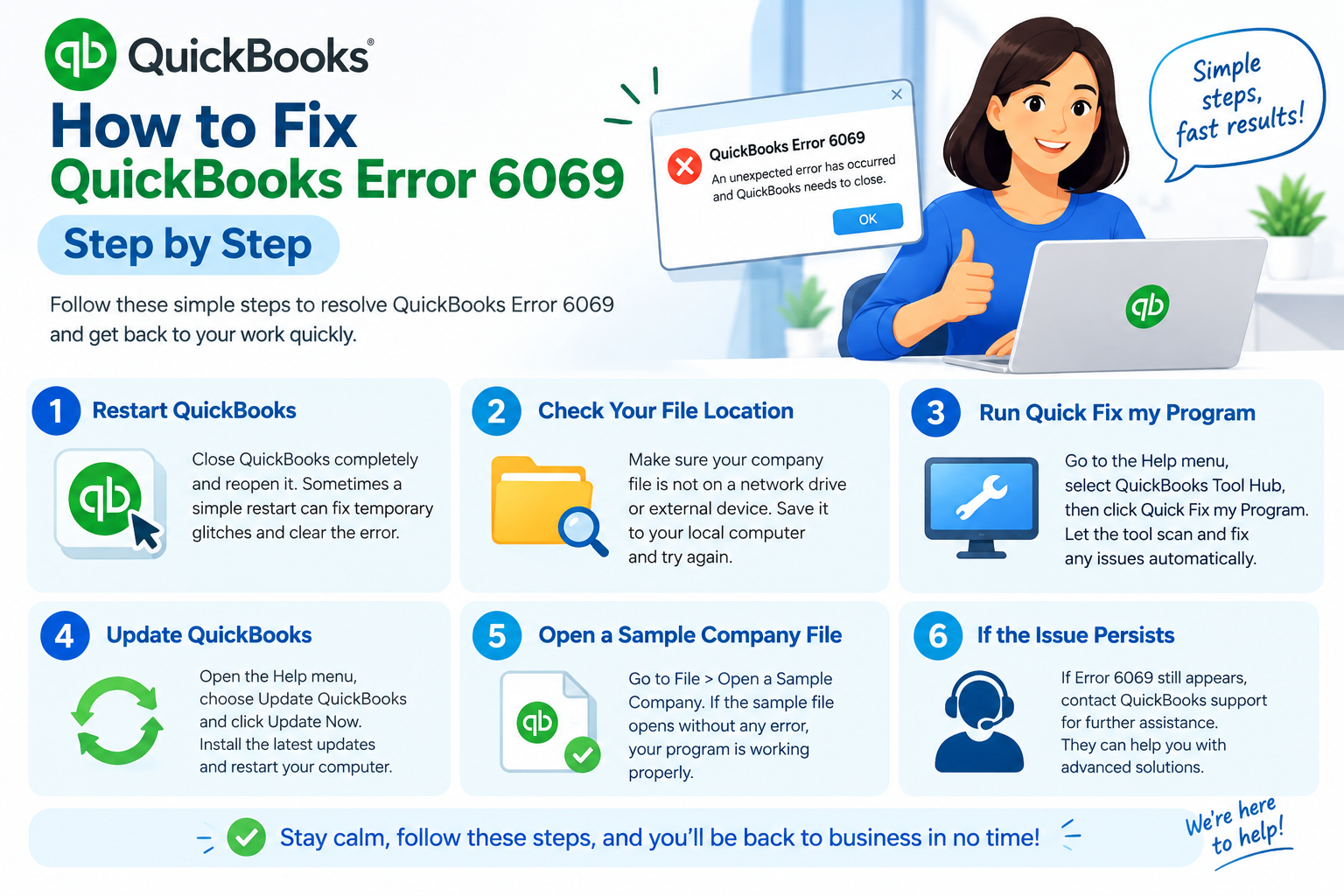
Seeing QuickBooks Error 6069 can be frustrating, especially when QuickBooks Desktop closes unexpectedly or you cannot work normally with your company file. In reported QuickBooks Desktop cases, error -6069 has appeared in Windows Event Viewer as a DBConnPool::HandleConnectionError, often alongside startup or company-file connection problems.
The error does not always point to one single cause. The problem may involve the company file, its location, QuickBooks program components, or the way QuickBooks is connecting to the data file.
That means the best approach is to troubleshoot in stages rather than immediately reinstalling the software or changing important accounting data.
Below, you’ll learn how to identify where the issue is coming from and how to fix QuickBooks Error 6069 using practical steps based on current QuickBooks Desktop troubleshooting guidance.
What Is QuickBooks Error 6069?
QuickBooks Error 6069 is an error associated with QuickBooks Desktop failing to establish or maintain a proper connection with its company-file database. In some reported cases, Windows logs show DBConnPool::HandleConnectionError errorCode:-6069, while users experience QuickBooks crashing during or shortly after company-file startup.
The exact reason can vary, so diagnosing whether the problem is with QuickBooks itself, the company file, or the file location is an important first step.
QuickBooks Error 6069 at a Glance
| Issue | Details |
| Error | QuickBooks Error 6069 |
| Usually Affects | QuickBooks Desktop |
| Common Situation | Opening or working with a company file |
| Possible Symptom | QuickBooks unexpectedly closes or fails to open the file properly |
| Areas to Check | QuickBooks program, company file, file location, network access |
| Recommended First Step | Update QuickBooks and create a backup |
| Useful Tools | QuickBooks Tool Hub, Quick Fix my Program, File Doctor, Verify/Rebuild |
What Does QuickBooks Error 6069 Mean?
QuickBooks Desktop stores your accounting information inside a company file, normally using the .QBW file extension.
When QuickBooks opens that file, several program and database components work together. Error 6069 can appear when that connection process does not complete normally.
In QuickBooks community reports, the error has appeared specifically as:
DBConnPool::HandleConnectionError errorCode:-6069
Those reports also describe QuickBooks unexpectedly closing during startup or shortly after opening a company file.
This is why treating the quickbooks company file error 6069 as a simple installation problem may not always solve it. You first need to determine whether the issue follows your company file or happens even when QuickBooks opens a test file.
Common Symptoms of QuickBooks Error 6069
The exact behavior can differ from one computer to another, but users may notice:
- QuickBooks Desktop closes unexpectedly after launch.
- The company file does not open normally.
- QuickBooks opens and then crashes shortly afterward.
- The issue appears only with one company file.
- Windows Event Viewer records error code -6069.
- QuickBooks becomes unstable while switching between company files.
- Similar problems return even after restarting the computer.
An error in Windows Event Viewer does not automatically tell you which component is damaged. It is better to use it as a diagnostic clue and then test the program and company file separately.
Why Does QuickBooks Error 6069 Occur?
There is no single cause that can be confirmed for every 6069 case. However, several areas are worth checking.
Company file or folder problems
If your regular company file does not open but a sample QuickBooks company opens correctly, the issue is more likely related to the company file or the folder where it is stored.
Intuit uses this sample-file test in its company-file troubleshooting guidance to separate file problems from program problems.
QuickBooks program components
If even a sample company file fails to open, there may be a problem with the QuickBooks installation or program components.
QuickBooks Tool Hub includes tools specifically designed to repair common program and company-file problems.
Company file data damage
Damage inside the company file can cause unexpected behavior. Intuit provides the Verify Data and Rebuild Data utilities to detect and repair common data-integrity problems.
Problem with the file location
Sometimes the company file itself is usable, but QuickBooks has difficulty accessing it from its current folder.
Intuit recommends copying a company file to the Windows desktop as a diagnostic test for certain company-file errors. If the file opens there, the original folder or path may be part of the problem.
Outdated QuickBooks Desktop release
Keeping QuickBooks Desktop updated ensures that your installed version has the latest available maintenance fixes, security updates, and product improvements for that release.
Before You Start Troubleshooting
Before making changes to your QuickBooks environment, take a few precautions.
Create a current backup of your company file whenever possible. Avoid deleting or renaming accounting files unless a specific troubleshooting step requires it.
Also note where your company file is currently stored. You can press F2 or Ctrl + 1 inside QuickBooks to open the Product Information window and review information about the installed product and company file.
Once you have a backup, start with the least invasive fixes.
How to Fix QuickBooks Error 6069
Method 1: Update QuickBooks Desktop
Start by installing the latest maintenance release available for your version of QuickBooks Desktop.
- Open QuickBooks Desktop.
- Go to Help.
- Select Update QuickBooks Desktop.
- Open the Update Now tab.
- Select Get Updates.
- Let QuickBooks finish downloading the update.
- Restart QuickBooks.
- Select Install Now if you are prompted.
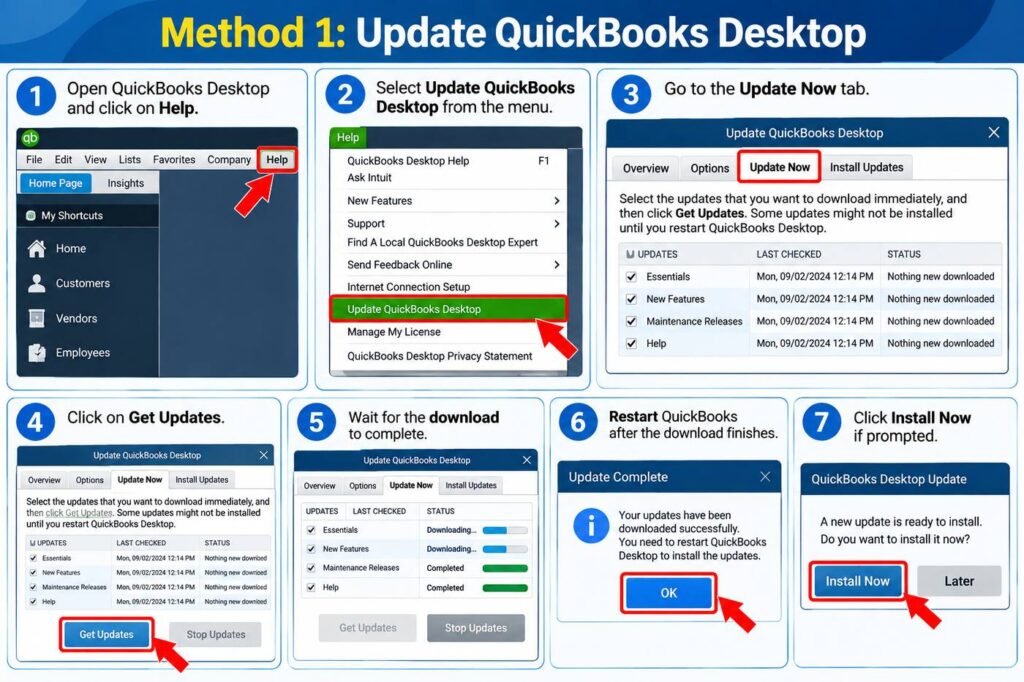
These are the current in-product update steps provided by Intuit.
Why this may help: An update can correct program-level issues and ensures you are not troubleshooting an already-fixed problem using an older maintenance release.
After updating, reopen your company file and check whether the quickbooks 6069 error returns.
Method 2: Open a Sample Company File
This is one of the most useful diagnostic steps because it tells you whether you should focus on QuickBooks or your company file.
- Close QuickBooks.
- Hold the Ctrl key while opening QuickBooks.
- Keep holding Ctrl until the No Company Open window appears.
- Select Open a Sample File.
- Choose any available sample company.
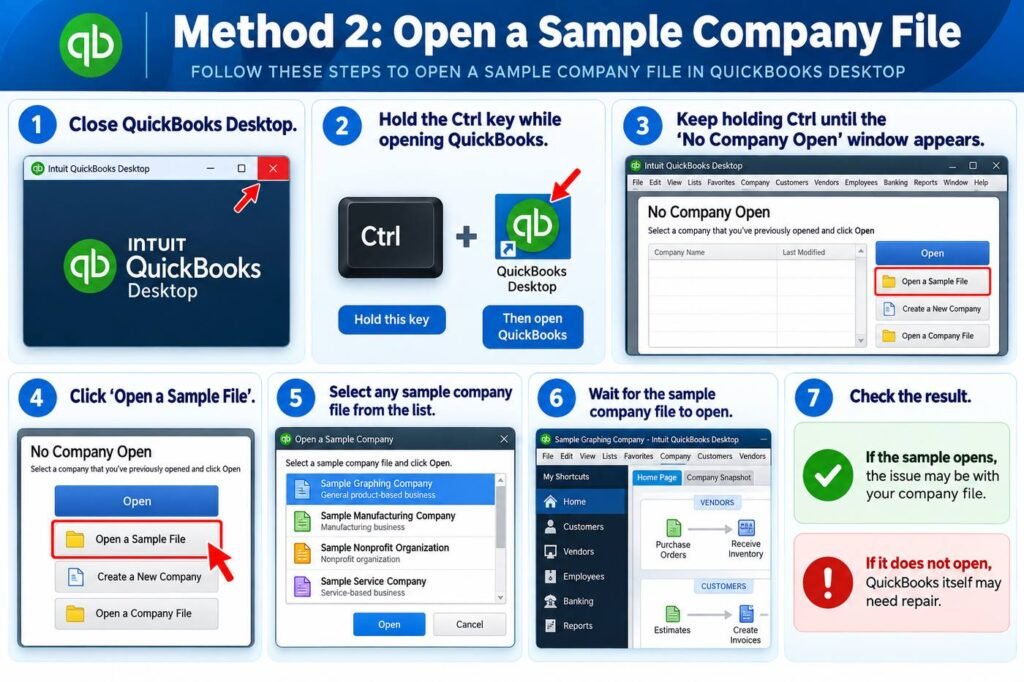
Intuit uses the sample-file test to identify whether an opening problem is associated with the company file or with QuickBooks itself.
If the sample file opens: Your regular company file or its location deserves further investigation.
If the sample also fails: Focus on QuickBooks program repair before changing your accounting file.
Method 3: Copy the Company File to the Desktop
If the sample file opens successfully, test your regular company file from another local location.
- Close QuickBooks Desktop.
- Find your .QBW company file in Windows File Explorer.
- Right-click the file and select Copy.
- Create a new folder on your Windows desktop.
- Paste the company file into that folder.
- Open QuickBooks.
- Use Open or Restore an Existing Company to browse to the copied file.
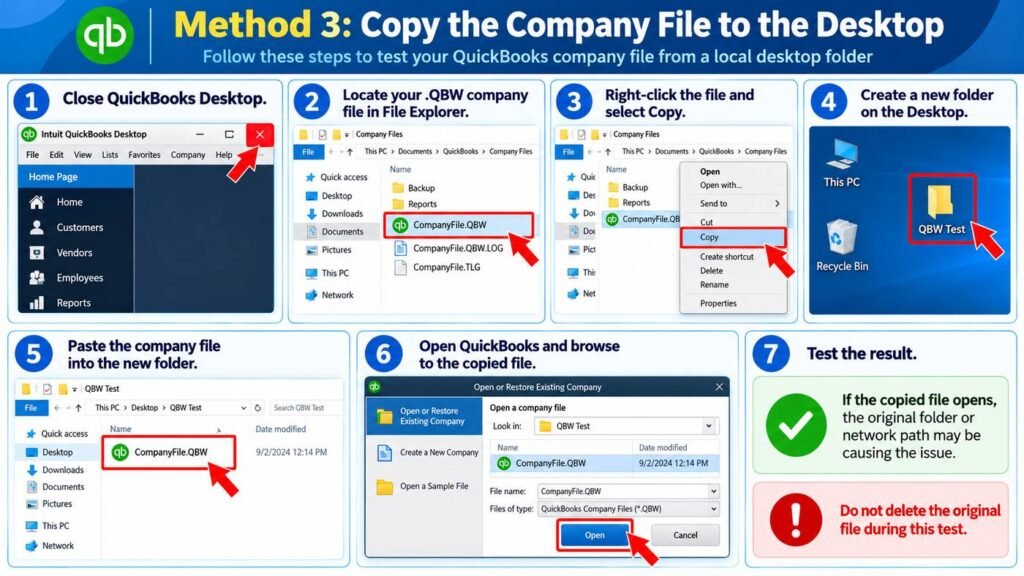
Do not delete the original file during this test.
If the copied file opens normally, the original folder, folder permissions, network location, or file path may be contributing to the issue. Intuit recommends this desktop-copy test when diagnosing company-file opening errors.
Method 4: Run Quick Fix my Program
If QuickBooks itself appears unstable, use QuickBooks Tool Hub.
Download the current QuickBooks Tool Hub directly from Intuit, install it, and close QuickBooks before running repair tools.
Then:
- Open QuickBooks Tool Hub.
- Select Program Problems.
- Choose Quick Fix my Program.
- Allow the process to finish.
- Reopen QuickBooks Desktop.
- Try your company file again.
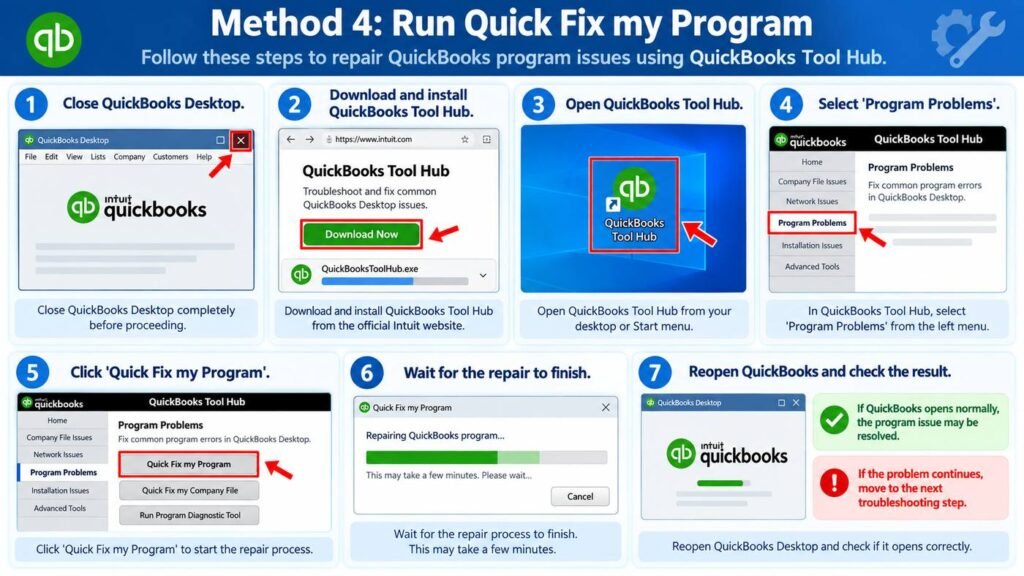
Intuit recommends Quick Fix my Program when QuickBooks freezes or stops working because it shuts down background QuickBooks processes and performs a quick program repair.
Method 5: Run QuickBooks File Doctor
If the issue appears to be connected to the company file, QuickBooks File Doctor is another useful diagnostic tool.
- Open QuickBooks Tool Hub.
- Select Company File Issues.
- Run Quick Fix my File first.
- Try opening the file again.
- If the problem remains, return to Company File Issues.
- Select Run QuickBooks File Doctor.
- Select your company file.
- Choose Check your file.
- Enter the QuickBooks administrator password when requested.
- Allow the scan to finish.
Intuit states that File Doctor is designed to help with company-file and network-related issues, although its published list of specifically named errors does not currently include 6069. Therefore, use it here as a company-file diagnostic tool rather than assuming it is a guaranteed 6069-specific repair.
Method 6: Verify and Rebuild the Company File
If QuickBooks can open the file but behaves unexpectedly, run Verify Data.
First close any open QuickBooks windows, then go to:
File > Utilities > Verify Data
If QuickBooks reports that it found no problems, your company-file data passes that test.
If QuickBooks reports that the data has lost integrity:
- Go to File > Utilities > Rebuild Data.
- Accept the request to create a company-file backup.
- Save the backup somewhere safe.
- Allow QuickBooks to rebuild the data.
- Wait until QuickBooks confirms that the rebuild has completed.
- Run Verify Data again.
According to Intuit, Verify identifies common company-file issues while Rebuild repairs data-integrity problems. Intuit also requires a backup before the rebuild process begins.
Method 7: Check Whether the Problem Is Network-Related
This step is especially relevant if the company file is stored on another computer or server.
First determine whether the file opens when copied to a local folder.
If a locally stored copy works but the network copy does not, investigate:
- The server or host computer.
- Folder permissions.
- Multi-user configuration.
- Firewall communication.
- Network connectivity.
Intuit’s current guidance for company-file communication problems recommends File Doctor as an early diagnostic step and updating QuickBooks if the issue continues.
Avoid randomly disabling your firewall or security software. Make only specific QuickBooks-related configuration changes when you have identified a network communication problem.
How Do I Know Whether Error 6069 Is a Company File or Program Problem?
The quickest test is to open a sample company file.
If the sample opens normally while your regular file does not, focus on your company file and its storage location.
If QuickBooks also crashes with the sample file, the program installation or Windows environment is more likely to require attention. Intuit uses the same diagnostic logic when troubleshooting company-file opening problems.
Can I Fix QuickBooks Error 6069 Without Losing Data?
In many cases, troubleshooting can be performed without deleting accounting data.
The most important precaution is to maintain a current backup before running a rebuild or making changes to your company file.
Do not overwrite your only working copy of the .QBW file while testing different locations.
What If QuickBooks Error 6069 Still Appears?
If QuickBooks Error 6069 continues after updating the software, testing a sample file, checking another file location, running Tool Hub, and verifying the company data, avoid repeatedly changing your accounting file without knowing the cause.
At this point, identify which of these situations applies:
QuickBooks crashes even with sample files: Focus on repairing the QuickBooks installation or Windows environment.
Only one company file fails: The company file may need deeper data repair or recovery.
A local copy works but the server copy does not: Focus on network, hosting, and folder-access configuration.
Verify continues finding damage after Rebuild: Preserve your backup and investigate the specific errors recorded in the QuickBooks log.
For more guides covering company-file and Desktop issues, you can also review the QuickBooks troubleshooting resources available on our website.
How to Prevent Similar QuickBooks Company File Problems
Regular maintenance cannot prevent every software error, but a few habits can reduce unnecessary risk:
- Keep your supported QuickBooks Desktop release updated.
- Maintain regular company-file backups.
- Avoid shutting down Windows while QuickBooks is saving data.
- Keep the company file in a stable local or properly configured network location.
- Investigate recurring QuickBooks crashes rather than repeatedly forcing the program closed.
- Run Verify Data periodically if you notice unusual company-file behavior.
- Keep your Windows environment and storage drive healthy.
Frequently Asked Questions
What is QuickBooks Error 6069?
QuickBooks Error 6069 can appear when QuickBooks Desktop encounters a database connection problem while starting or accessing a company file. Reported Windows Event Viewer logs show the error as DBConnPool::HandleConnectionError errorCode:-6069.
Why does QuickBooks Error 6069 keep appearing?
The error may continue if the underlying problem involves the company file, its folder or network location, damaged program components, or a data-integrity issue. Testing a sample file can help narrow down which area needs attention.
How do I fix QuickBooks Error 6069?
Start by updating QuickBooks Desktop and testing a sample company file. Then test your real company file from a local folder. If necessary, use Quick Fix my Program, QuickBooks File Doctor, and Verify/Rebuild Data.
Is QuickBooks Error 6069 a company file error?
It is frequently associated with company-file access or database connection behavior, but the same code can appear during QuickBooks program crashes. For that reason, you should test both the QuickBooks program and the company file rather than assuming the file itself is damaged.
Will QuickBooks File Doctor fix error 6069?
File Doctor may help if a company-file or network problem is contributing to the error. However, Intuit’s current File Doctor page does not specifically list 6069 among the named error codes it targets, so it should be treated as a diagnostic step rather than a guaranteed fix.
Can Verify and Rebuild fix QuickBooks Error 6069?
Verify and Rebuild can help when company-file data damage is involved. Verify checks the file for integrity issues, while Rebuild attempts to repair detected data damage. If Verify finds no problems, another area may be causing the error.
Why does QuickBooks close when I open my company file?
A crash during company-file startup can result from a company-file issue or a problem within QuickBooks itself. Open a sample company file first. If the sample works, investigate your regular company file and its location.
Should I reinstall QuickBooks immediately?
Usually not. Start with less disruptive troubleshooting such as updating QuickBooks, opening a sample file, running Quick Fix my Program, and testing the company file from another location. Reinstallation becomes more relevant when program-level problems remain after these checks.
What should I do if I have a different QuickBooks error?
Different error codes may require different troubleshooting. For example, a payroll-related issue has a different cause and repair process. If you encounter it, see our guide to QuickBooks Error PS038 for the appropriate payroll troubleshooting steps.
Conclusion
QuickBooks Error 6069 should be approached as a diagnostic problem rather than assuming one universal fix will work for every user. Start by updating QuickBooks Desktop, then use a sample company file to determine whether the issue is connected to the software or your accounting file.
If your company file appears to be the problem, test it from a local folder, use QuickBooks File Doctor, and run Verify and Rebuild when appropriate. If even sample files cause QuickBooks to crash, focus on repairing the QuickBooks program instead.
Most importantly, keep a current company-file backup before attempting data repairs. A systematic approach helps you isolate the actual cause without making unnecessary changes to important business records.