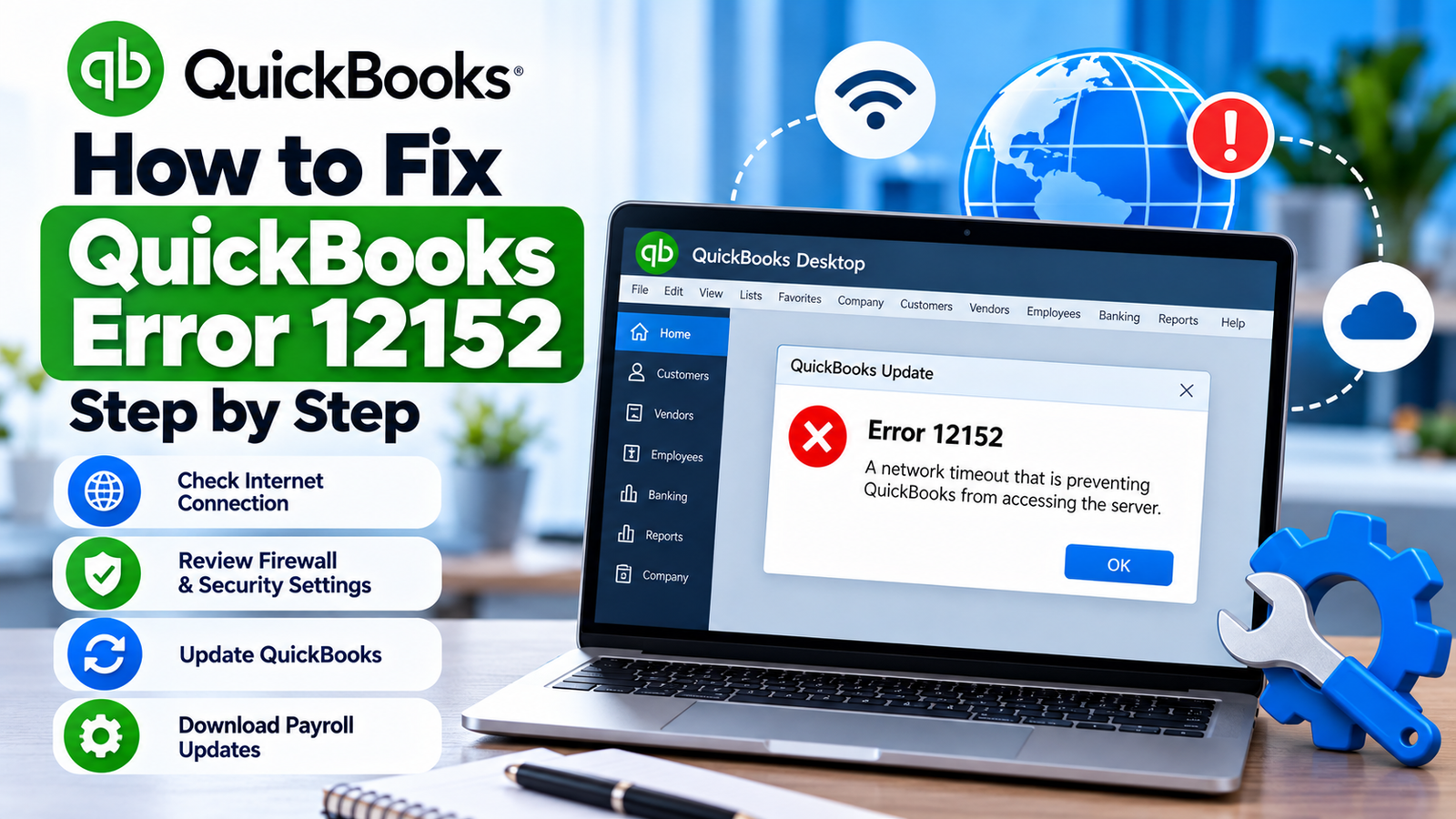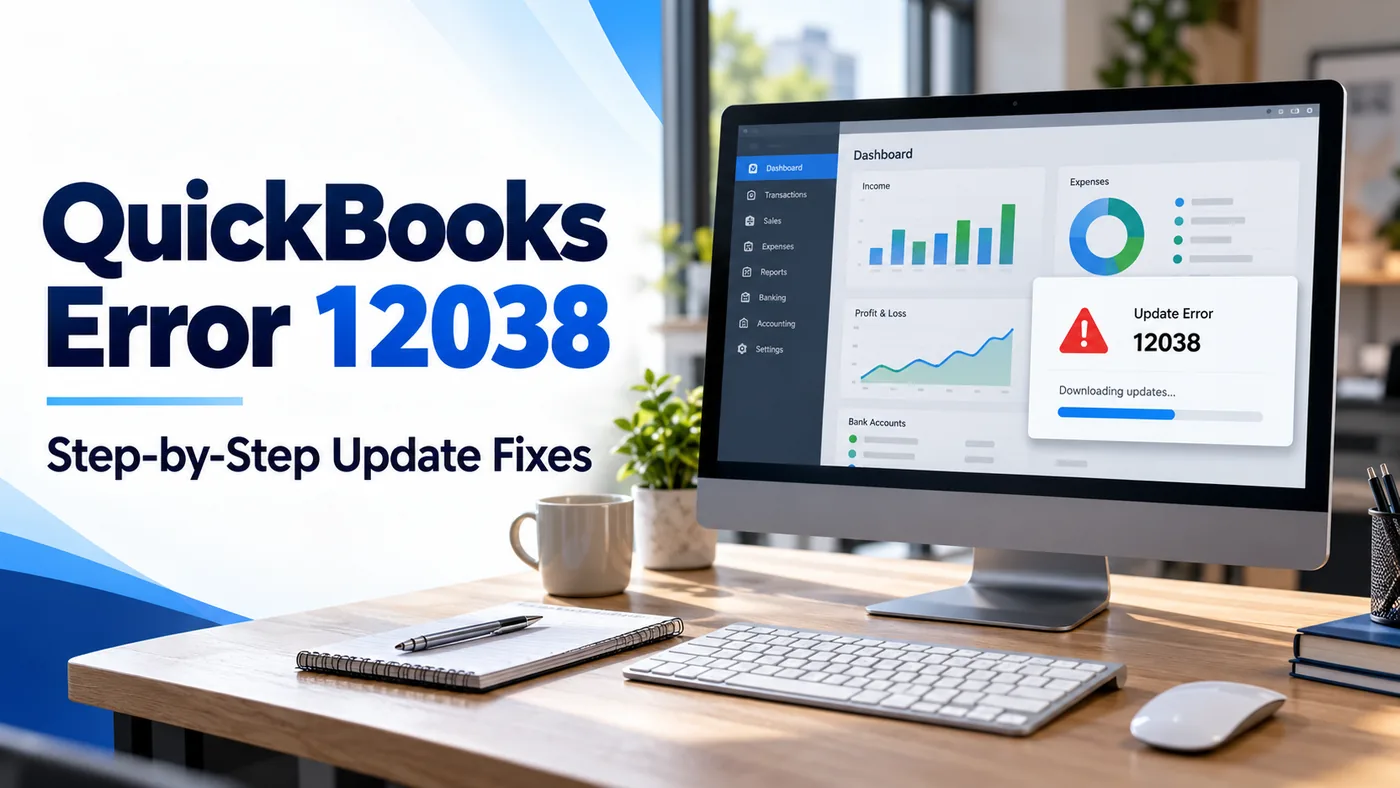
You open QuickBooks to install an update, but the download stops with QuickBooks Error 12038. You try again, and the same message appears. Before changing settings or reinstalling the software, identify where the update is failing.
Intuit lists 12038 among QuickBooks Desktop update errors. Its troubleshooting guidance points users toward the computer’s date and time, internet connection settings, security restrictions, and possible conflicts between installations. The code does not identify one confirmed cause on its own. quickbooks.intuit.com
This guide helps you work through those checks in a useful order. You will learn what to change, when to retry, and what each result tells you. The instructions apply to QuickBooks Desktop for Windows; some menu labels may differ between versions.
Quick Answer: What Should You Do First?
To troubleshoot error 12038, check your Windows date and time, confirm that secure websites open, review QuickBooks Internet Connection Setup, and retry the update. If it still fails, investigate security restrictions or download the matching maintenance update directly from Intuit. Confirm the installed release afterward.
Start with the easy checks below. Retry after each adjustment, and stop when the update completes successfully.
Avoid starting with a company-file rebuild. An update failure alone does not establish that your accounting records are damaged.
What Is QuickBooks Error 12038?
Error 12038 is an update-related error covered by Intuit’s QuickBooks Desktop troubleshooting guidance. It can prevent an update attempt from completing, but the number alone does not explain why it happened.
The important distinction is between downloading an update and installing an update:
- If the download never starts, investigate connection access.
- If it starts but stops, record the failure point and any message.
- If the download finishes but installation fails, record the installation error separately.
- If QuickBooks opens afterward, check whether the installed release actually changed.
These observations are troubleshooting clues, not definitive diagnoses.
Find Your Situation Before Choosing a Fix
Use this table to decide where to begin.
| What you notice | What to check first | What to record |
|---|---|---|
| Windows shows the wrong date or time | System clock settings | Whether the clock stays correct |
| Secure websites also fail | Internet access on that computer | Browser error or connection message |
| Websites work, but QuickBooks cannot update | QuickBooks connection settings | Exact stage where updating stops |
| Only one office computer is affected | Local settings and security logs | Differences from a working workstation |
| Several computers are affected | Shared network controls with IT | When the problem began |
| Download completes, but installation fails | Installer message and product selection | The new error, if different |
| Update appears finished | Installed version and release | Before-and-after release numbers |
Practical example: If your coworker can update the same product on another workstation, tell IT. That comparison can help focus the investigation on your computer instead of the entire office network.
Before Troubleshooting: Take Five Minutes to Prepare
A little preparation makes the steps easier and prevents you from losing track of what changed.
Save the Complete Error Message
Take a screenshot showing the error code and any accompanying text.
Also write down:
- What you clicked immediately before it appeared.
- Whether the download had started.
- Whether you were updating Desktop or payroll.
- Whether this is the first failure or a recurring problem.
“The update stopped after I selected Get Updates” gives a technician a clearer starting point than “QuickBooks has an error.”
Record Your Product Details
Open QuickBooks and press F2 or Ctrl + 1 to view Product Information. Record your product, year, and release number. Intuit recommends this window for checking the installed version and release. community.intuit.com
You will use these details if you need a manual update.
Create a Current Backup
Go to File → Back Up Company → Create Local Backup and follow the prompts. Choose a location you can find again and confirm that the backup completes. quickbooks.intuit.com
This is sensible preparation before maintenance. It does not mean the error has damaged your company file.
If QuickBooks is hosted or managed by your employer, coordinate the work with the administrator.
How to Fix QuickBooks Error 12038 Step by Step
Step 1: Correct the Windows Date, Time, and Time Zone
- Close QuickBooks.
- Right-click the clock on the Windows taskbar.
- Select Adjust date/time.
- Check the date, time, and time zone.
- Correct inaccurate settings.
- Reopen QuickBooks and retry the update.
Intuit identifies an incorrect system clock as a possible interference with updating.
Check the result: Did the update complete, or did it stop at the same point?
If the clock repeatedly becomes inaccurate, report that separate problem to IT. Do not treat manually correcting it every morning as a permanent solution.
Step 2: Check Secure Internet Access on the Affected Computer
- Open your browser.
- Visit a familiar website that uses HTTPS.
- Try another secure website if the first does not load.
- Note any connection or certificate message.
You do not need to sign in or enter financial information.
Intuit recommends testing secure website access when investigating related QuickBooks update connection errors. A browser test helps identify wider connectivity problems, although successful browsing does not prove that QuickBooks has all the access it needs.
Check the result:
- Several websites fail: Resolve the internet problem before repeating the QuickBooks update.
- Websites load normally: Continue to the application-specific checks.
On a hosted system, perform this check within the environment where QuickBooks runs, or ask the hosting administrator to do it.
Step 3: Review QuickBooks Internet Connection Setup
If your version includes these options:
- Open Help → Internet Connection Setup.
- Select the option to use your computer’s internet connection settings.
- Select Next.
- Open Advanced Connection Settings.
- Under Advanced, choose Restore Advanced Settings.
- Confirm the change and select Done.
- Retry the update.
This sequence appears in Intuit’s general troubleshooting guidance covering error 12038.
Check the result: If updating now works, record that the connection-settings adjustment helped.
If these options are missing, do not search for an unrelated setting to replace them. Note your version and continue with the next appropriate check.
Have IT review this step first if your business uses custom connection settings.
Step 4: Run a Fresh Desktop Update Attempt
After correcting the initial settings:
- Select Help → Update QuickBooks Desktop.
- Open the Update Now tab.
- Select Get Updates.
- Wait for the download to finish.
- Restart QuickBooks.
- Accept the installation prompt if it appears.
Intuit documents this process for initiating an immediate Desktop update.
Keep the computer available while the process runs. Avoid starting the update moments before shutting down or disconnecting from a hosted session.
Check the result: Record whether downloading and installation both finish.
If a different error appears, save it. A changed message is useful evidence and may need a different troubleshooting path.
Step 5: Ask IT to Inspect Security Restrictions
A working browser does not rule out application-specific blocking.
Ask your administrator to:
- Review firewall and security events around the failure time.
- Identify the installed QuickBooks program paths.
- Check existing application exceptions.
- Review relevant connection rules.
- Retry after a documented correction.
Intuit provides firewall guidance for QuickBooks programs and version-specific configurations. Use the instructions applicable to your installation instead of copying a generic port list.
Check the result: Was a blocked event found? Did correcting it change the update behavior?
A useful request to IT is:
“QuickBooks updating fails on this workstation at the time shown in the screenshot. Secure websites open normally. Please check whether security software blocked QuickBooks during that attempt.”
That gives IT something specific to investigate.
Step 6: Review Secure Connection Compatibility if Needed
If connection problems remain, ask IT whether the computer meets Intuit’s secure connection requirements.
TLS is the technology that protects internet connections. Intuit’s guidance for related update connection errors includes a TLS 1.2 utility. That makes it a possible diagnostic route, rather than proof that TLS caused this particular error. quickbooks.intuit.com
Have the administrator review the official guidance and decide whether the utility applies.
Check the result: Document any issue identified and retry afterward.
Avoid changing unfamiliar security options based on a checklist intended for another Windows or QuickBooks version.
Step 7: Download the Matching Update Directly from Intuit
If updating inside QuickBooks remains unsuccessful, try the official manual route:
- Close QuickBooks.
- Open Intuit’s Downloads & Updates page.
- Choose the United States.
- Select your QuickBooks product and year.
- Search for the matching update.
- Download the latest maintenance update offered.
- Run the downloaded file.
- Restart the computer after installation.
Intuit documents manual downloading as an alternative when the in-product update fails.
Check the result: Does the installer complete?
Check your selection carefully. Updating an existing product and upgrading to another year are different tasks.
Step 8: Verify That the Update Installed
Open QuickBooks and press F2 or Ctrl + 1 again.
Compare the release with:
- The number recorded before troubleshooting.
- The applicable official release information.
A completed download is only part of the process. Confirming the installed release gives you stronger evidence that maintenance finished.
Then repeat the activity that originally produced the error.
Your final checkpoint: QuickBooks opens, the applicable release is installed, and the original update task no longer produces the same failure.
What If You Were Updating Payroll?
Tell your support provider that the error occurred during a payroll update rather than assuming the two update processes are interchangeable.
For a USA payroll administrator, the immediate priorities are to establish:
- Which update failed.
- Whether any payroll submission was attempted.
- The status of that submission, if applicable.
- Whether a processing deadline is approaching.
Do not resend payroll data solely because an update failed. Check the status of the actual submission separately.
Also avoid importing instructions about stuck paychecks from an unrelated error guide. Each error needs its own evidence.
What Should You Do if Nothing Works?
An effective QuickBooks Error 12038 fix should follow the results of your checks. If the same failure remains, prepare a concise troubleshooting record.
| Information | Example of a useful note |
|---|---|
| Failure stage | Download stops before installation |
| Affected devices | One workstation; another updates successfully |
| Browser test | Two secure websites load normally |
| Clock check | Date, time, and time zone are correct |
| Security review | IT checked events at the failure time |
| Manual update | Installer completed or displayed a separate error |
| Product details | Edition, year, and installed release |
Ask IT to check for multiple installations of the same QuickBooks year, which Intuit identifies as another potential update conflict.
When contacting E-Solution for independent assistance, share this record. It helps the next investigation begin with what is already known.
Common Mistakes That Make Troubleshooting Less Useful
Changing Several Settings Together
If you change the clock, connection settings, and firewall rules at once, you may not know which adjustment helped.
Change one item, retry, and record the outcome.
Treating Every Error as the Same Problem
A new installation error should be recorded separately. Do not keep applying the original instructions without considering what changed.
Repairing Accounting Data Without Evidence
A failed update does not automatically justify rebuilding or restoring the company file. Investigate data problems separately when there is an actual file-related symptom.
Stopping After the Download
Check the installed release. Otherwise, you may believe the update succeeded even though installation never finished.
How to Make Future Updates Easier
Use a short maintenance routine:
- Schedule updates outside busy accounting periods.
- Keep current backups.
- Record successful release changes.
- Investigate recurring clock problems.
- Document approved security adjustments.
- Coordinate maintenance on shared systems.
- Allow time to check completion.
These habits make failures easier to diagnose and reduce rushed troubleshooting.
Frequently Asked Questions
What is the quickest way to investigate QuickBooks Error 12038?
Start with the system clock and secure website access, then review QuickBooks connection settings. These checks give you useful information before advanced changes. Retry after each adjustment. If the failure remains, use security logs and the official manual update route to continue the investigation.
Why can I browse websites but not update QuickBooks?
A browser and QuickBooks may be affected differently by security rules. Successful browsing confirms some internet access, but not every connection the application requires. Ask IT to review events at the exact failure time rather than assuming the network is fully cleared.
What should I do when QuickBooks update failed after downloading?
Record the installation message and confirm that the downloaded update matches your product and year. Downloading and installing are separate stages. If installation finishes, check the release afterward. If it fails with a different code, troubleshoot that message separately.
Should I reinstall QuickBooks immediately?
Complete the basic checks and investigate the manual update first. Reinstallation should have a clear reason, especially on a shared or hosted system. If it is recommended after diagnosis, arrange backups and confirm that the required installation and account information are available.
Will a backup fix the update error?
No. A backup protects a copy of your company data; it does not correct connection settings or install an update. It is preparation for maintenance, not a troubleshooting solution by itself. Confirm that it completes and keep its location recorded.
What if only one employee’s computer has the problem?
Tell IT that another workstation works and provide the affected computer’s details. This comparison can help focus checks on local settings, installed software, and security events. It is a useful clue, although it does not identify the cause automatically.
How can I tell that the problem is resolved?
Confirm the installed release and repeat the original update task. Record which adjustment helped. If the update appears successful but the release remains unchanged, investigate further rather than assuming the disappearing error means installation completed.
Should I follow instructions for Error 15203 or Error 6123?
Follow the guide matching the code displayed. If another code appears, our articles on QuickBooks Error 15203 and QuickBooks Error 6123 provide separate starting points. Record the new message and the action that triggered it.