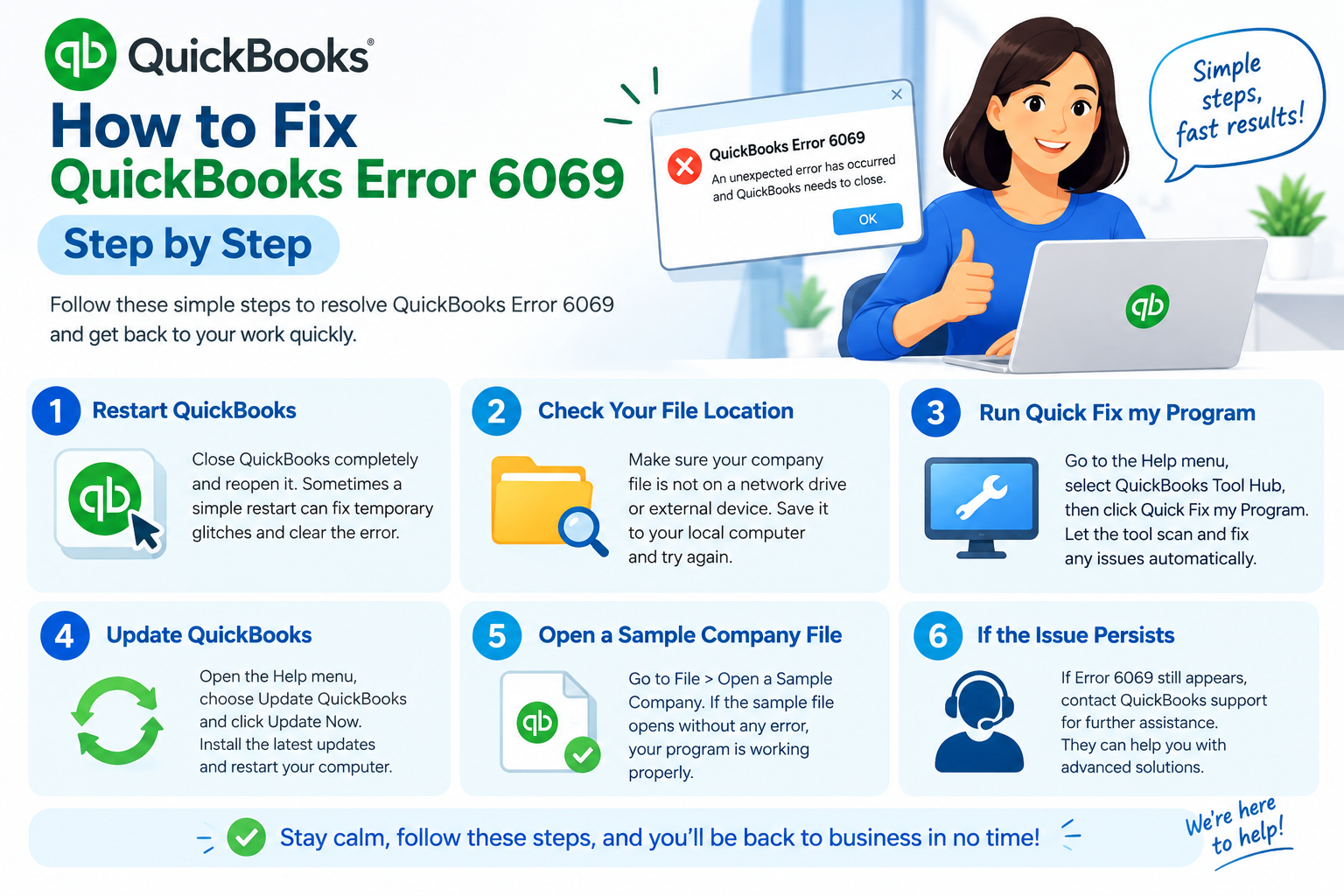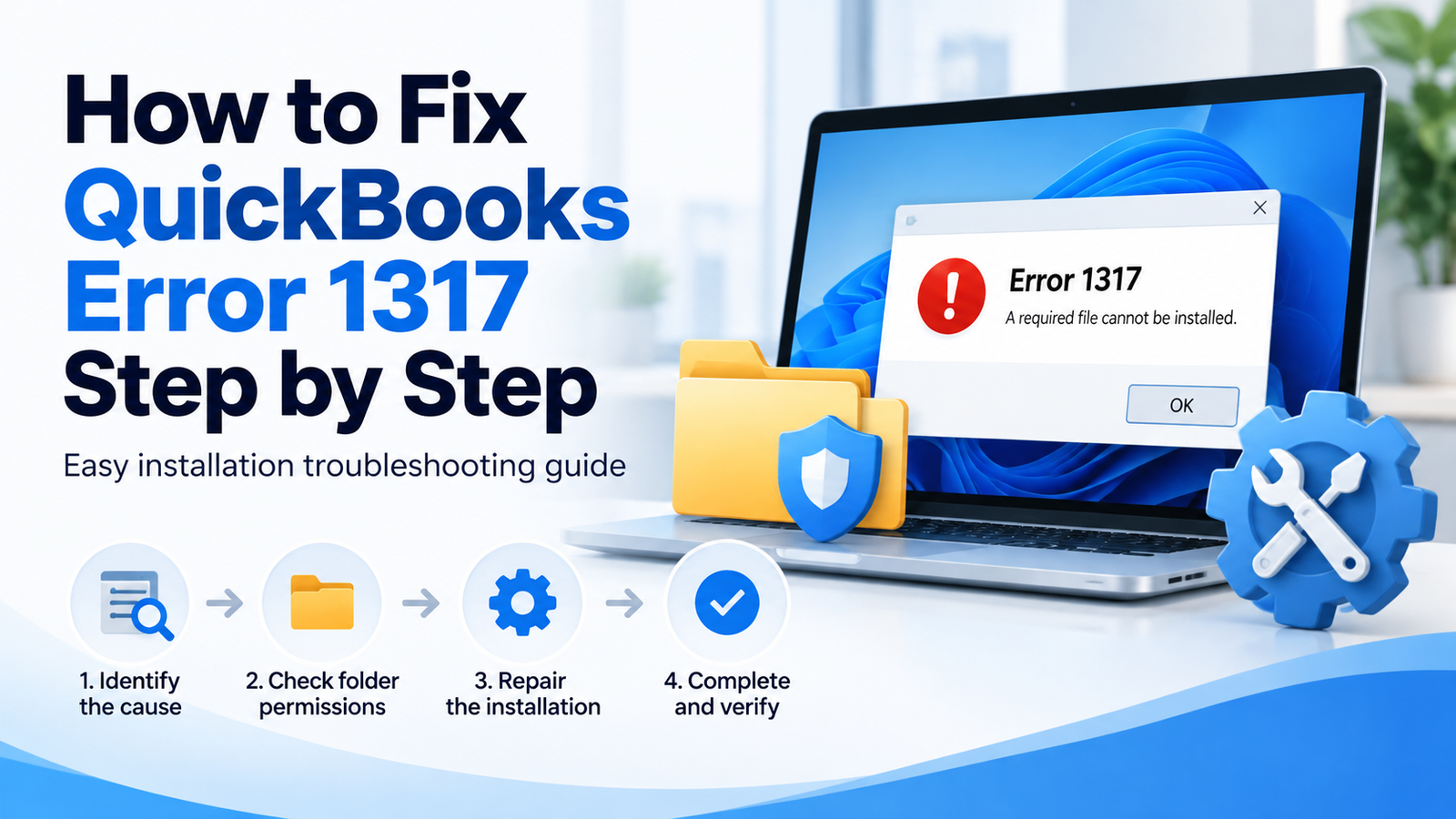
You may see QuickBooks Error 1317 while installing, updating, repairing, or reinstalling QuickBooks Desktop on a Windows computer. In many cases, the installation stops because Windows cannot create or access a folder needed by the setup process.
The message may also show the path of the folder that QuickBooks is trying to use. That detail is useful because it can point toward a Windows permission or installation problem.
The good news is that you usually do not need to make changes to your QuickBooks company file first. Start by checking the Windows account, administrator access, folder permissions, QuickBooks Tool Hub, and Windows installation components.
Below, you will find the fixes in a simple order so you can test one solution at a time.
What Is QuickBooks Error 1317?
QuickBooks Error 1317 is generally an installation-related error that appears when Windows cannot create, open, or write to a directory required by QuickBooks Desktop.
The issue may appear while:
- Installing QuickBooks Desktop
- Installing a QuickBooks update
- Repairing QuickBooks
- Reinstalling QuickBooks
- Creating program folders during setup
In simple terms, QuickBooks setup needs access to a Windows folder, but that access is being interrupted or restricted.
What Does QuickBooks Error 1317 Mean?
When QuickBooks installation starts, Windows creates and updates several program folders.
If Windows does not allow the installer to use one of those folders, the installation may stop.
This can happen because:
- The Windows account has limited permissions
- QuickBooks setup is not running as administrator
- A folder has restricted security permissions
- Windows Security is blocking the installer
- Installation components need repair
- Windows updates are pending
- The installer file is incomplete or damaged
The exact cause can vary, so the safest approach is to start with basic checks and move toward advanced steps only if needed.
Quick Summary Table
| Issue | Details |
| Error | QuickBooks Error 1317 |
| Error Type | Installation or directory access issue |
| Common Time It Appears | Installing, updating, repairing, or reinstalling QuickBooks |
| Main Area to Check | Windows permissions |
| First Step | Restart Windows |
| Next Step | Run installer as administrator |
| Useful Tool | QuickBooks Tool Hub |
| Diagnostic Option | QuickBooks Install Diagnostic Tool |
| Advanced Check | Folder Security permissions |
| Final Option | Repair or reinstall QuickBooks |
How to Fix QuickBooks Error 1317 Step by Step
Use the following solutions in order. After completing each step, retry the QuickBooks installation. If the error is gone, you do not need to continue.
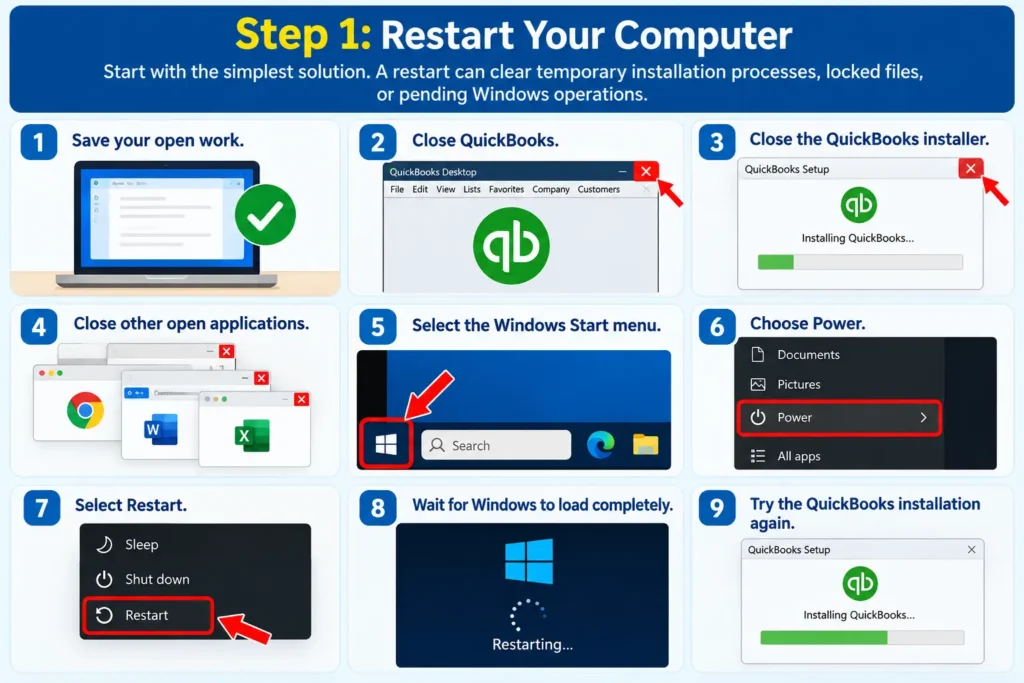
Step 1: Restart Your Computer
Start with the simplest solution.
A restart can clear temporary installation processes, locked files, or pending Windows operations.
Follow these steps:
- Save your open work.
- Close QuickBooks.
- Close the QuickBooks installer.
- Close other open applications.
- Select the Windows Start menu.
- Choose Power.
- Select Restart.
- Wait for Windows to load completely.
- Try the QuickBooks installation again.
Why this may help
A previous installation process may still be running in the background. Restarting Windows gives the installer a fresh environment.
If QuickBooks error code 1317 returns, move to the next step.
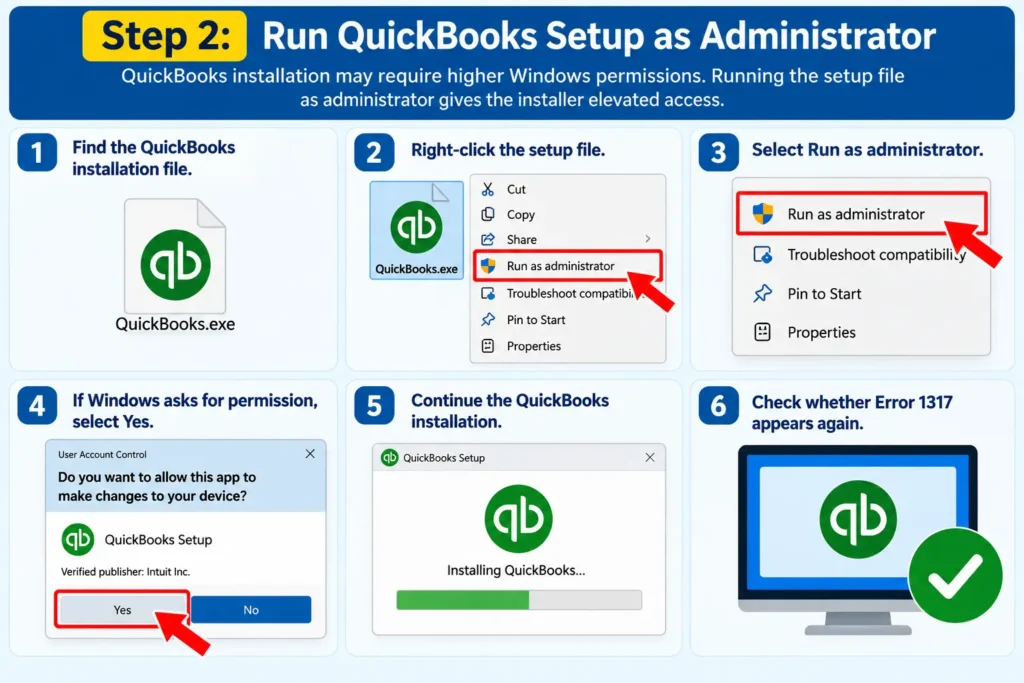
Step 2: Run QuickBooks Setup as Administrator
QuickBooks installation may require higher Windows permissions.
Running the setup file as administrator gives the installer elevated access.
Follow these steps:
- Find the QuickBooks installation file.
- Right-click the setup file.
- Select Run as administrator.
- If Windows asks for permission, select Yes.
- Continue the QuickBooks installation.
- Check whether Error 1317 appears again.
Why this may help
Protected Windows folders often require administrator privileges before an installer can create or modify files.
If installation completes normally after this step, the problem was likely related to permissions.
Step 3: Check Your Windows Account Type
If running the installer as administrator does not work, make sure your Windows account itself has administrator access.
To check:
- Open Windows Settings.
- Select Accounts.
- Open Your info or Account info.
- Look for the account type.
- Confirm that it shows Administrator.
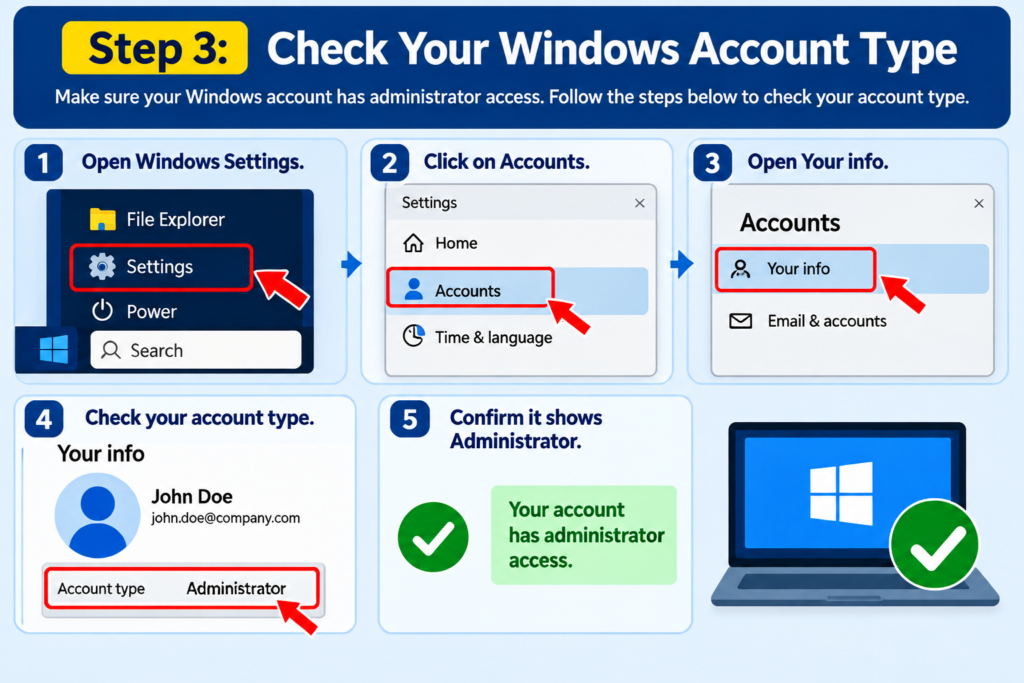
If the account is listed as a standard user, use an administrator account and try the installation again.
Important
If you are using an office or company-managed computer, do not change the account type without permission from your IT administrator.
Step 4: Note the Folder Shown in the Error Message
If the error shows a folder path, write it down.
For example:
C:\ProgramData\Intuit\…
or
C:\Program Files\Intuit\…
This folder may be the location Windows is blocking.
What to do
- Copy or write down the folder path.
- Open File Explorer.
- Browse to the folder.
- Check whether the folder exists.
- Right-click the folder.
- Select Properties.
- Open the Security tab.
Do not change permissions yet unless you understand what you are changing.
The goal at this stage is simply to identify the folder connected to the error.
Step 5: Review Folder Permissions
If the folder exists but QuickBooks cannot access it, Windows permissions may be involved.
Check the permissions:
- Right-click the affected folder.
- Select Properties.
- Choose Security.
- Find your Windows user account.
- Review the available permissions.
- Check whether Windows allows the account to read, write, and modify the folder.
If permissions appear restricted, use an administrator account or ask your IT administrator to review them.
Avoid this mistake
Do not give the entire C: drive or every Windows user Full Control just to fix one installation problem.
Changing broad Windows permissions can create security issues.
Step 6: Open QuickBooks Tool Hub
QuickBooks Tool Hub includes tools for common installation and program problems.
Steps:
- Close QuickBooks Desktop.
- Download QuickBooks Tool Hub from the official QuickBooks source.
- Open the downloaded file.
- Follow the installation instructions.
- Launch QuickBooks Tool Hub.
- Select Installation Issues.
From here, you can run the diagnostic tool designed for QuickBooks installation problems.
Step 7: Run QuickBooks Install Diagnostic Tool
This is one of the most useful steps for QuickBooks installation error 1317.
Follow these steps:
- Open QuickBooks Tool Hub.
- Select Installation Issues.
- Choose QuickBooks Install Diagnostic Tool.
- Allow the scan to run.
- Do not close the tool while it is checking the system.
- Restart your computer after it finishes.
- Try installing QuickBooks again.
Why this may help
The tool checks common Windows and QuickBooks installation components.
If the error is being caused by a setup-related Windows component, the diagnostic tool may help identify or repair the issue.
Step 8: Install Pending Windows Updates
QuickBooks Desktop depends on Windows components.
If Windows is outdated, the installer may not work properly.
To update Windows:
- Open Settings.
- Select Windows Update.
- Choose Check for updates.
- Download available updates.
- Install them.
- Restart your computer.
- Try QuickBooks installation again.
Important
If Windows asks for more than one restart, complete all pending updates before testing QuickBooks.
Step 9: Check Windows Security
Windows security features can sometimes block applications from creating files in protected folders.
Check whether QuickBooks setup is being blocked.
What to review
- Open Windows Security.
- Select Virus & threat protection.
- Review recent security notifications.
- Check whether QuickBooks setup was blocked.
- Review ransomware protection or Controlled Folder Access settings if needed.
Do not permanently disable Windows Security.
If a protection feature is blocking the official QuickBooks installer, allow the installer only when you are confident the file came from an official source.
Step 10: Check Third-Party Antivirus Software
If you use another antivirus or endpoint security program, it may also interfere with installation.
Look for:
- Blocked application notifications
- Quarantined installer files
- Protected folder warnings
- Application control alerts
Instead of turning protection off permanently, add the official QuickBooks setup file to the approved or trusted list if your security software allows it.
On a company computer, ask your IT team before making security changes.
Step 11: Download a Fresh QuickBooks Installer
If the installation file is incomplete or damaged, using the same installer repeatedly may cause the same failure.
Try this:
- Delete or move the old setup file.
- Download a fresh installer from the official QuickBooks website.
- Save it to your computer.
- Right-click the new installer.
- Select Run as administrator.
- Start the installation again.
Avoid downloading QuickBooks from unknown third-party websites.
Step 12: Check Available Disk Space
QuickBooks needs enough free space to install program files and temporary installation files.
To check:
- Open File Explorer.
- Select This PC.
- Look at the free space available on the C: drive.
- Remove unnecessary files if space is very low.
- Empty temporary files if appropriate.
- Restart Windows.
- Try installation again.
Low storage does not automatically mean it is the cause of Error 1317, but it can interfere with software installation.
Step 13: Repair QuickBooks if It Is Already Installed
If QuickBooks Error 1317 appears during an update and QuickBooks is already installed, try repairing the existing installation.
General process:
- Close QuickBooks.
- Open Windows Settings or Control Panel.
- Go to installed apps or programs.
- Find QuickBooks Desktop.
- Select the available repair or maintenance option.
- Complete the repair.
- Restart your computer.
- Open QuickBooks again.
- Retry the update.
Why this may help
A repair can replace damaged program files without affecting normal company-file data.
Step 14: Test With Another Windows Administrator Account
Sometimes the problem is connected only to one Windows profile.
If another administrator account is available:
- Sign out of your current Windows account.
- Sign in with another administrator account.
- Run the official QuickBooks installer.
- Check whether the installation works.
If QuickBooks installs successfully under another administrator account, the original Windows profile may have permission-related problems.
Step 15: Reinstall QuickBooks
Use reinstalling as one of the final steps.
Before uninstalling, make sure you know:
- Your QuickBooks version
- Your license or account information
- Where your company file is stored
- Where your backup is stored
Then:
- Create or confirm a recent company-file backup.
- Close QuickBooks.
- Uninstall QuickBooks from Windows.
- Restart your computer.
- Download a fresh official installer.
- Right-click the installer.
- Select Run as administrator.
- Complete the installation.
- Open QuickBooks.
- Test the program.
What Should You Avoid While Fixing Error 1317?
Avoid making risky changes just to get the installer working.
Do not:
- Delete Windows system folders
- Delete your .QBW company file
- Give everyone full control over the C: drive
- Permanently disable antivirus protection
- Download unofficial repair software
- Edit the Windows Registry unless you understand the changes
- Change several permissions at once
- Use unknown QuickBooks installation packages
A better approach is:
Make one change → restart if needed → test QuickBooks → move to the next step only if the error remains.
How to Prevent QuickBooks Error 1317
You may reduce future installation issues by following these practices:
- Keep Windows updated.
- Use an administrator account when installing QuickBooks.
- Download QuickBooks only from official sources.
- Keep security software updated.
- Maintain enough free space on the Windows drive.
- Avoid manually deleting QuickBooks program folders.
- Restart Windows before a major QuickBooks installation.
- Keep a backup of important QuickBooks company files.
- Use QuickBooks Tool Hub when installation issues appear.
- Ask an IT administrator before making major permission changes.
Frequently Asked Questions
What is QuickBooks Error 1317?
QuickBooks Error 1317 is generally an installation or directory-access error. It can appear when Windows cannot create or access a folder that QuickBooks Desktop needs while installing, updating, repairing, or reinstalling the program.
Why am I getting QuickBooks Error 1317?
The error may appear because QuickBooks setup does not have enough Windows permissions, a folder has restricted access, security software is blocking the installer, Windows components need updates, or the installation file has a problem.
How do I fix QuickBooks Error 1317?
Start by restarting Windows and running the QuickBooks installer as administrator. Then check your Windows account permissions, run QuickBooks Install Diagnostic Tool, install Windows updates, review folder permissions, and use a fresh installer if necessary.
Can QuickBooks Tool Hub fix Error 1317?
QuickBooks Tool Hub may help if the problem is connected to the QuickBooks installation environment. Open Tool Hub, choose Installation Issues, and run QuickBooks Install Diagnostic Tool before moving to advanced fixes.
Does Error 1317 mean my company file is damaged?
Not necessarily. Error 1317 usually points more toward an installation or Windows directory-access problem. Do not delete or rebuild your company file just because this error appears during installation.
Should I give full permission to the QuickBooks folder?
Only change folder permissions when necessary and when you understand the Windows security settings involved. Avoid giving broad Full Control permissions to the entire system drive.
Can antivirus software cause QuickBooks installation problems?
Security software can sometimes block an installer from writing to protected folders. Check security notifications and allow the official QuickBooks installer if appropriate instead of permanently turning antivirus protection off.
What if QuickBooks is installed but I cannot open the company file?
That is a different issue from Error 1317. If you are dealing with company-file access problems, our guide to quickbooks error 6176 explains troubleshooting steps for that type of problem.
What if QuickBooks installs but fails during an online update?
If your issue is related to downloading QuickBooks updates or online connectivity, see our guide to QuickBooks Error 12152 for update-related troubleshooting.
Should I reinstall QuickBooks immediately?
No. Try easier steps first, including administrator access, Windows permissions, Tool Hub, Install Diagnostic Tool, Windows Update, and a fresh installer. Reinstallation is better used after simpler troubleshooting does not solve the problem.
Conclusion
QuickBooks Error 1317 is generally easier to troubleshoot when you focus on Windows installation permissions instead of immediately changing your accounting data.
Start by restarting the computer and running the QuickBooks installer as administrator. Then check your Windows account, review the folder mentioned in the error, run QuickBooks Tool Hub and Install Diagnostic Tool, and complete pending Windows updates.
If the issue continues, review Windows Security, download a fresh installer, repair the existing QuickBooks installation, or test another administrator account.
Use reinstalling as a later step, and keep your company-file backup safe before making major program changes.